Fix a Test Case Where the Actual Value Does Not Match the Expected Value
When an outcome does not match its expected value, you can hover over the expected value cell and the actual value is shown in an Excel comment.
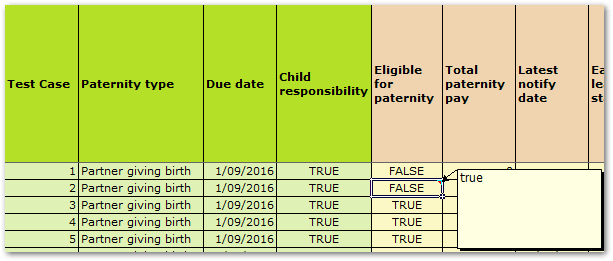
When the actual value does not match the expected value, you should check:
- that the input data is correct and update the input attribute values if required
- that the expected results are correct and update the expected results for the attributes if required
- the decision for the relevant attributes (see below)
You can use the Debugger to understand the decision when an actual value does not match the expected value in a test case. To do this:
- In the testing document, select the cell for the attribute whose value you want to check.
- Click the Debug button. This will open the test case in the Debugger to the Decision view which shows all the relevant paths that contributed to the actual value of the attribute in that test case.
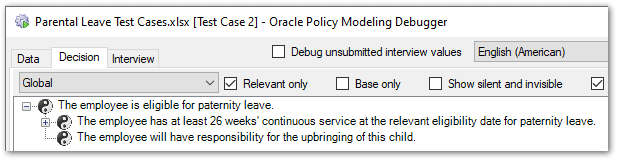
- Review the reasons for the decision.
If changes are required to the attribute value in the test case, you can right-click an attribute in the Debugger (in the Data or Decision view) and select View in Testing Document. This will open the testing document to the test case with the attribute value highlighted, and you can then change the value as required.
If changes are required to the rule logic, you can right-click an attribute in the Debugger (in the Data or Decision view) and select Attribute Usage to view the rule that proves the attribute. For more information, see Fix a Logic Error.