Specify Expected Outcomes In a Testing Document
The expected results is the data set which is matched against the actual results when the input data is loaded into the policy model. Failing to match an outcome means the corresponding test case fails. Expected outcomes can be created in a test case by adding Expected columns to worksheets in the testing document and then providing values for those attributes or inferred relationships. To do this:
- In the testing document on the appropriate worksheet, click the Add Columns button.
- In the Add Column dialog, select the attributes and inferred relationships that you want to include as expected outcomes. You can use the Search field to filter the list of attributes and relationships. You can also sort the attributes and relationships by type by clicking on the Column Type column heading.
- In the Add output columns for drop-down list, select Expected values only (I will supply values to be checked).
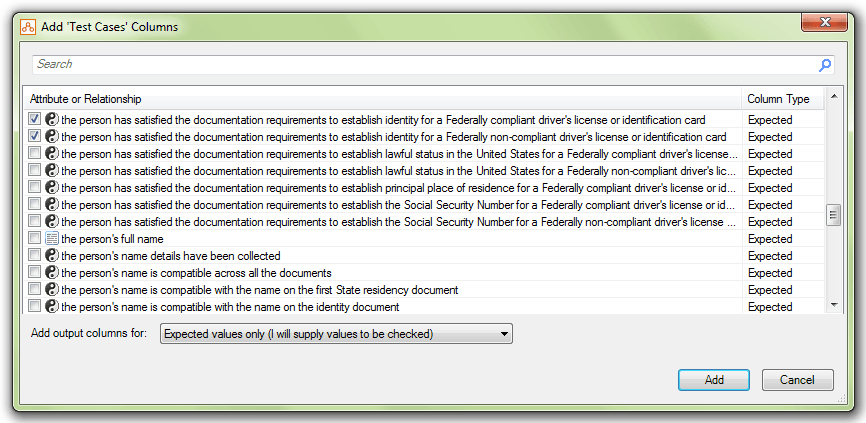
- Click Add. Columns for each of the expected outcomes are added to the worksheet at the end of all the columns. You can rearrange the order of the columns using the cut and paste functionality in Excel.

- Enter values for the expected outcomes. For more information, see Add Values for Attributes and Relationships.

Note: Alternatively, expected outcomes in a test case can be created by generating the actual results from the inputs to create the expected results. For more information, see Create Expected Outcomes From Input Data.