Edit a Value List
Before editing a value list, it is recommended you familiarize yourself with where it is used in the policy model. Note that a value list provided by a connection will be automatically updated with the latest list of values whenever the metadata is refreshed.
To edit a value list in Policy Modeling:
- On the Project tab, click the Value Lists subtab.
- Locate the value list you wish to edit.
- Click the Edit button. The Edit value list dialog box opens.
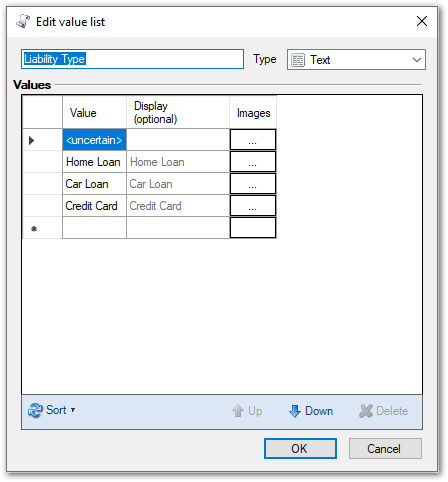
- Edit the value list as required. You can:
- Change the data type of the value list. To do this, select a new type in the Type drop-down list. Note that if you change the type for a value list used with a control that has item visibility expressions, all those expressions will be deleted. You cannot change the type for a value list that is sourced from a connection.
- Change the value and display value. To do this, select the cell you wish to edit, and make your desired changes. Note: If the value list is sourced from a connection, you will only be able to edit the values in the Display (optional) column. The values in the Value column will be read-only.
- Add or remove images for values in the list. To do this, click the ... cell for the value and then use the Browse and Clear buttons as required.
- Re-order the values in your value list. To do this, select the row you wish to move, and click the Up or Down button until it is in the desired position. Note that you can also change where the uncertain option appears on the list, although it will always appear as the first entry if the value list is filtered.
- Delete a row from the value list. To do this, select it and click the Delete button. Note: Take care to ensure you select the correct row for deletion. Policy Modeling will delete the row as soon as you click the Delete button without displaying a warning dialog box first. Note that you cannot delete a value in a value list that is sourced from a connection.
- Click OK.