Example: Use the Rule Assistant to Create a Rule Using the ALL Connector
The Rule Assistant in Word can be used to easily create a rule using the 'all' connector. In this example we are going to create a rule of the format A if (B and C) or D. In this rule the 'all' operator is used to group the conditions separated by 'and'. To do this:
- In a Policy Modeling project, on the Rules tab, double-click a Word rules document. The Rules document opens in Word.
- On the Oracle Policy Modeling ribbon, click the Rule Assistant button.

- In the box provided, type a rule conclusion. For example, "the person is exempt". (This is the A in our rule.)
- Double-click the Create Boolean rule option.
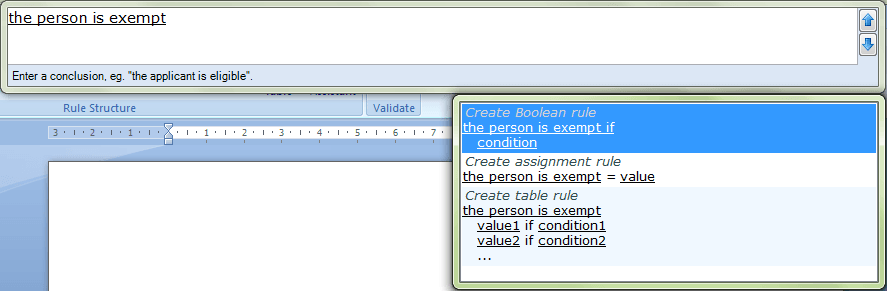
You will notice that the conclusion has been added to the Word document and a condition line has been added.
- In the box provided in the Rule Assistant, type the rule condition representing B in our rule. For example, "the person is sick".
- Double-click the Accept condition and add another option where the conditions are connected by 'or'.

You will notice that the condition has been added to the Word document and that an 'or' has been added after it. An additional condition line has also been added.
- In the box provided in the Rule Assistant, type the rule condition representing D in our rule. For example, "the person is unemployed".

Press Enter.
- Click the Rule Assistant button. Use the up arrow in the box provided to move to the condition representing B (for example, "the person is sick") in our rule. This will open the box of options for the various rule types.

- Double-click the Accept condition and add another option where the conditions are connected by 'and'. You will notice that an 'and' has been added after the condition and an additional condition line has been added. Furthermore, the conditions are now preceded by an 'all' grouping operator. Also, the 'or' in the rule has been moved to a separate line.

- In the box provided in the Rule Assistant, type the rule condition representing C in our rule. For example, "the person is poor".
As this is the final condition in our rule, press Enter (instead of selecting an option from the rule list). The rule, in the format A if (B and C) or D and using 'all' to replace the brackets, is now complete.