
 Use Rules to Configure Asset Incidents, Warnings, and Alerts
 Before You Begin
This tutorial shows you how to use rules to monitor and maintain your assets. Rules set conditions on asset sensor or metric values. When a rule condition is met, the associated alert, warning, or incident is triggered. You can also use rules to trigger asset actions.
Background
Acme Corporation specializes in injection molding, assembly, and manufacturing services. They focus on custom molding of things like performance parts. Acme Corporation is project driven - their jobs run from a couple of days to a couple of weeks, from a hundred to a few thousand parts. Their customers range from large contractors to lone inventors.
Acme Corporation does not want to be a shoot-and-ship job shop. They are constantly moving towards automation. For the last one year, the company is using Robots. Robots cost only $3 to $5/hr, much less than the operator.
Acme needs to ensure optimum environmental conditions, such as temperature and humidity, for the proper functioning of their robots and plant. Too much humidity and the robots can rust. High temperature may lead to equipment burnout. On the other hand, too low a temperature can mean high air-conditioning power bills.
Acme also needs to ensure optimal performance of its robots and plant at all times with minimal downtimes. It needs automatic monitoring of any equipment problems and robot errors. Acme should ideally be able to predict, and proactively address potential problems in advance. The plant Operations Managers should not need to monitor dashboards 24x7. Automatic notifications should be triggered for potential issues and problems.
Oracle can help Acme Corporation using the Oracle Internet of Things Asset Monitoring Cloud Service. Oracle IoT Asset Monitoring Cloud Service creates a digital twin version of Acme Corporation's IOT-enabled organizational assets, and lets them monitor the location, condition, and utilization of their assets.
As an Acme Administrator, your responsibility is to set up the digital twin versions of Acme Corp's organization and assets. And as an Operations Manager, you will use Oracle IoT Asset Monitoring Cloud Service to monitor the location and health of Acme's IoT-enabled assets. To make sure you receive timely notification of issues, you'll create rules that generate alert and incident notifications when optimal environmental conditions are exceeded. To make sure the issues are addressed promptly, you'll create mobile notifications (SMS) for field technicians.
You will define anomalies to detect deviations from normal asset behavior, and to flag potential device issues in time.
What Do You Need?
Access to an instance of Oracle IoT Asset Monitoring Cloud Service
 Create a Rule to Automatically Create Incidents for High Temperature
Let us create a rule that automatically generates a maintenance incident if the temperature readings associated with a robot exceed 20 degrees Celsius.
- Click Menu
 and then click Design Center.
 - Select Asset Types from the Design Center sub-menu.
- Select the TemperatureDetector asset type from the Asset Types list.

- Click Rules.
- On the Rules page, click Create New Rule
 .
. - Under Name, enter
High Temperature Rule. - Under Apply To, leave the default option set to All Assets of Type: TemperatureDetector.
This applies the rule to all Temperature Detector assets.
- Leave the Scope set to Organization.
You can also choose to apply the rule to a specific group, such as the Robots Division.
- In the Condition section, define the threshold condition:
- Select the sensor/Temperature attribute from the first drop-down list.
- Select the threshold condition Greater Than from the second drop-down list.
- Enter the value
20in the third drop-down list.
The complete condition appears as:
sensor/Temperature Greater Than 20. - Make sure that Incident is selected under Generate.
- Under Incident Summary, enter/select the following:
- Summary:
High Temperature - Type: Maintenance
- Priority: Medium
Your page would now look like the following:
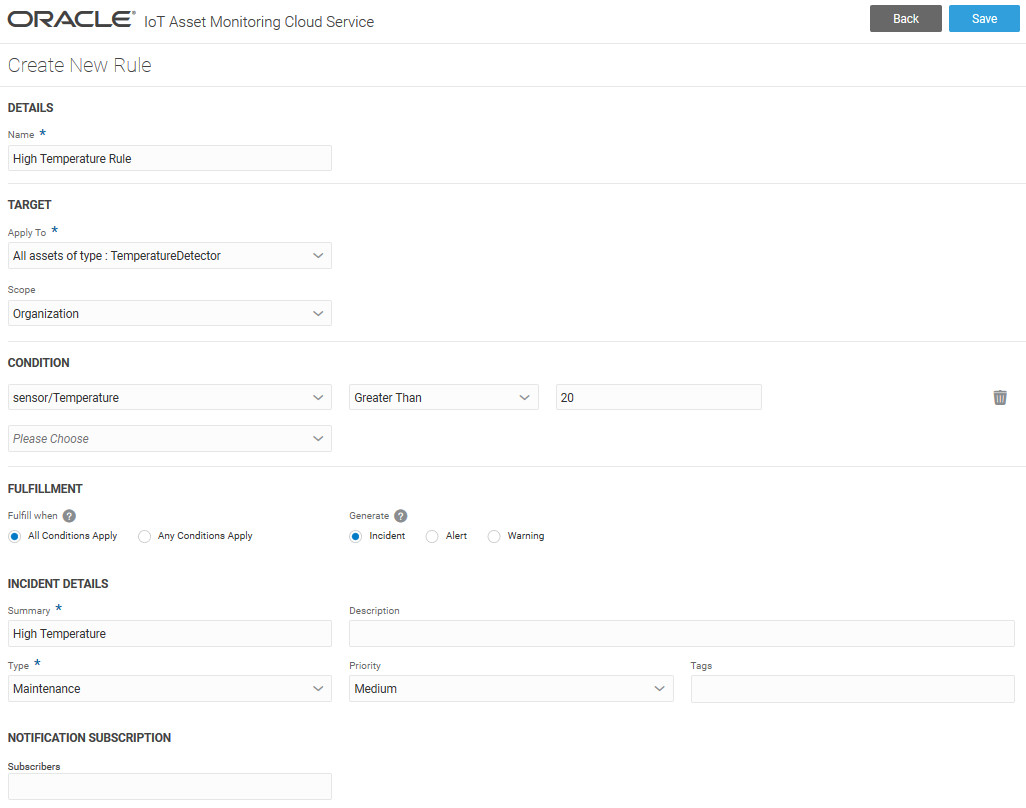
In a subsequent exercise, we will learn how to add notification subscribers, so that operation managers can get automatic SMS notifications of incidents.
- Summary:
- Click Save to save your rule.
- Click Back to go back to the asset type rules list.
 Create a Rule to Automatically Create Incidents for Critical Robot Arm Errors
Let us create a rule that generates an outage incident if the robot arm reports an error code between 6 and 10.
- Click Menu and then click Design Center.
- Select Asset Types from the Design Center sub-menu.
- Select the Robot asset type from the Asset Types list.
- Click Rules.
- On the Rules page, click Create New Rule .
- Under Name, enter
Robot Arm Error. - Under Apply To, leave the default option set to All Assets of Type: Robot.
This applies the rule to all Robots.
- Leave the Scope set to Organization.
You can also choose to apply the rule to a specific group, such as the Robots Division.
- In the Condition section, define the first threshold condition:
- Select the sensor/error_status attribute from the first drop-down list.
- Select the threshold condition Greater Than from the second drop-down list.
- Enter the value
5in the third drop-down list.
The complete condition appears as:
sensor/error_status Greater Than 5.Press the Enter key to add another condition.
- Add a second condition:
The complete condition should appear as:
sensor/error_status Less Than or Equal 10. - Under Fulfillment, make sure All Conditions Apply is selected.
If the robot arm generates an error code between 6 and 10, the rule conditions are satisfied.
- Make sure that Incident is selected under Generate.
- Under Incident Summary, enter/select the following:
- Summary:
Robot Arm Error - Type: Outage
- Priority: High
Your page would now look like the following:
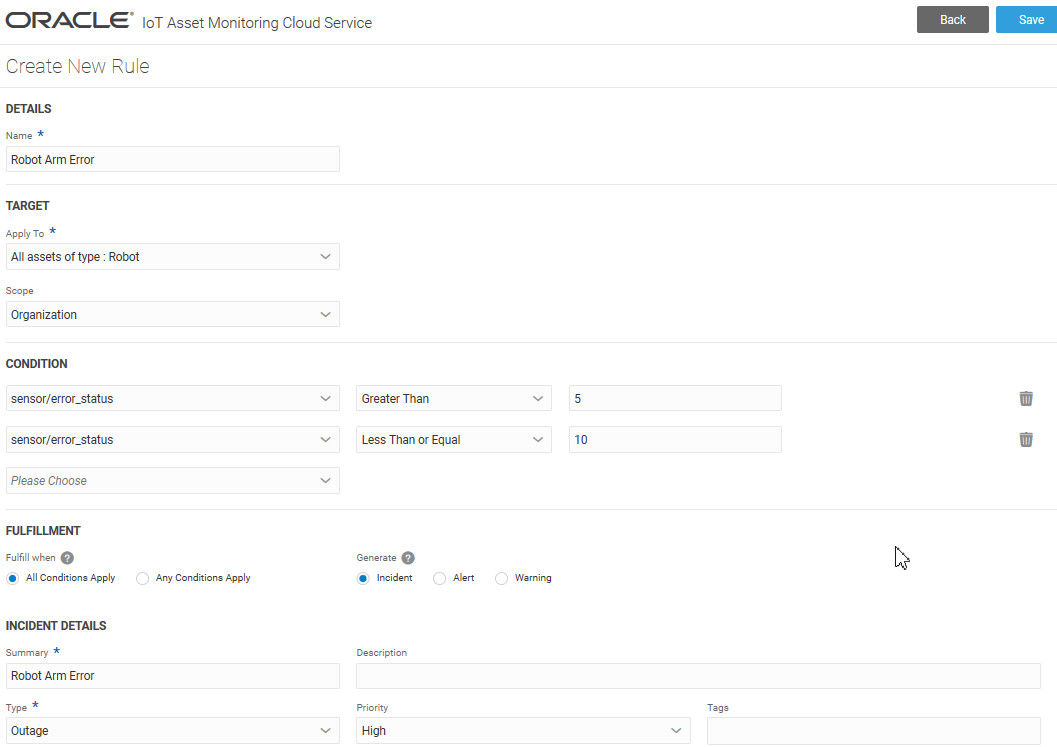
In a subsequent exercise, we will learn how to add notification subscribers, so that operation managers can get automatic SMS notifications of incidents.
- Summary:
- Click Save to save your rule.
- Click Back to go back to the asset type rules list.
 Inspect Incidents in the Operations Center
Each of the robot simulation you have created has an 80% probability of generating an error every 5 minutes. If you have multiple robots, you should see an incident within minutes.
The temperature simulations also have an 80% probability of generating spikes every 5 minutes. If you have multiple robots, you should see an incident within minutes.
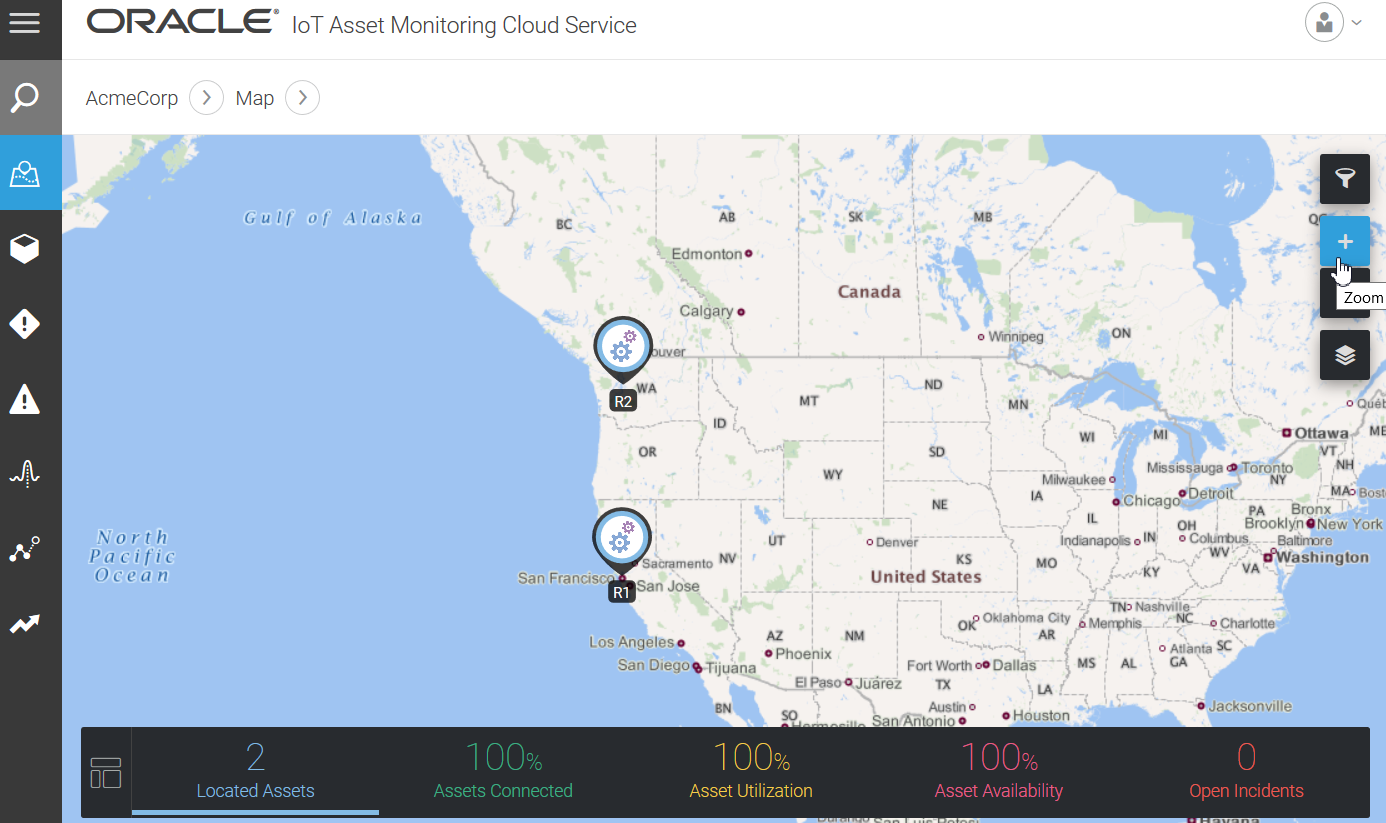
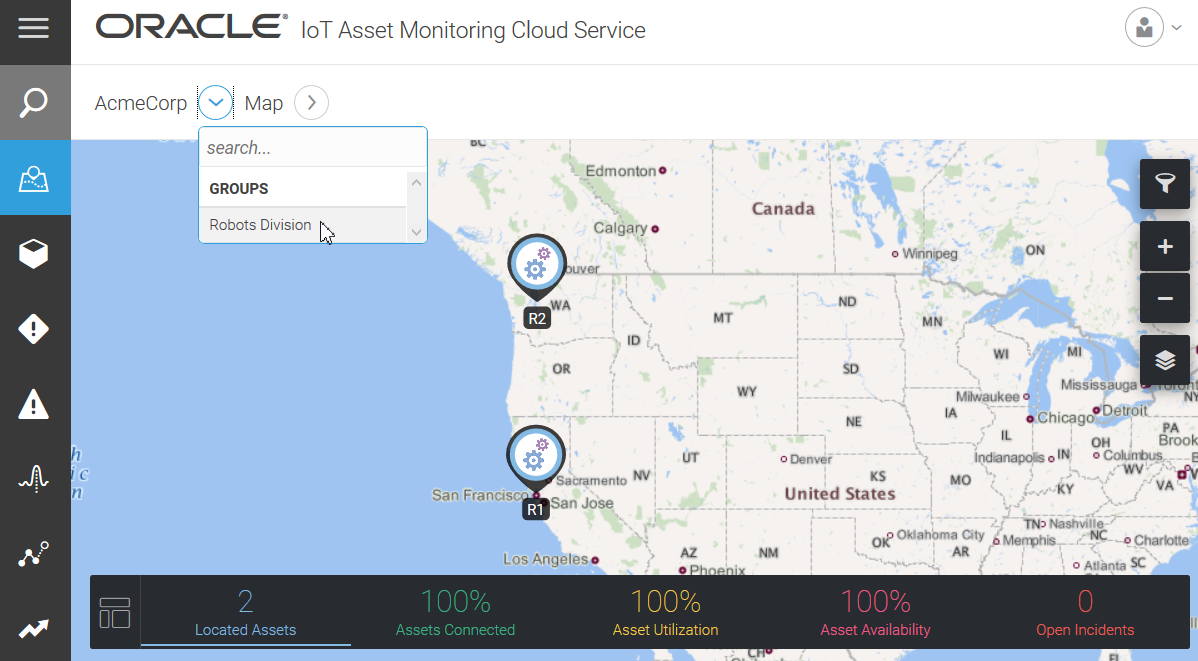
- In the Operations Center, click the navigation icon next to your organization name in the breadcrumbs.
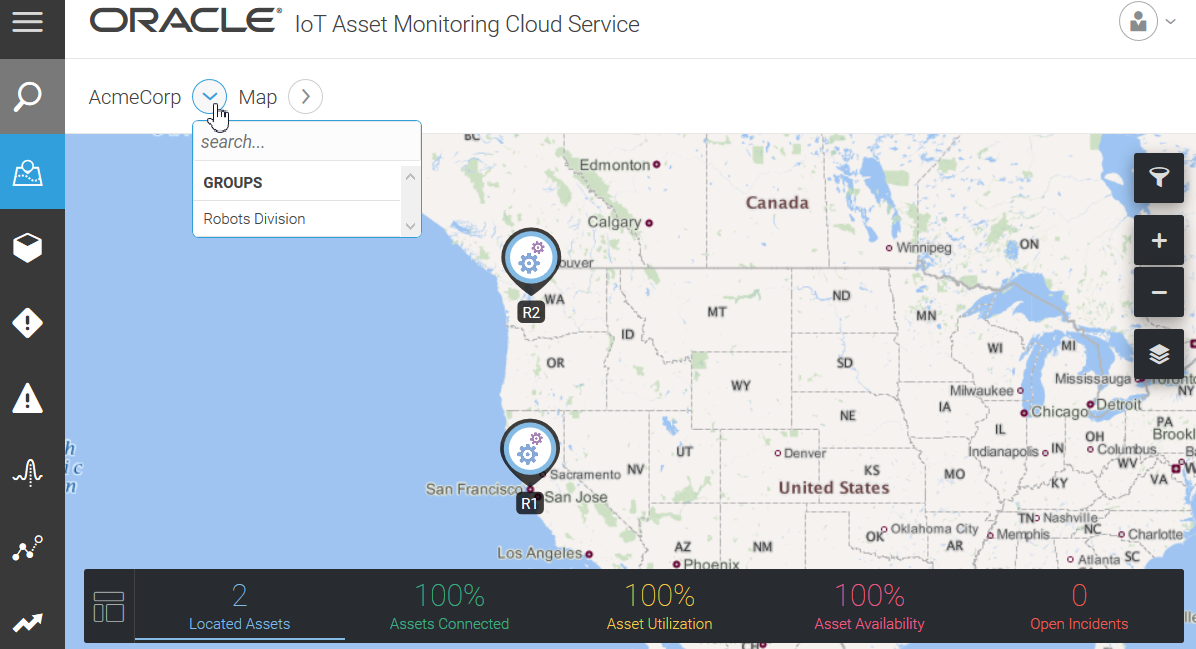
Description of the illustration [filename] If you are in one of the Design Configuration screens, then use the following steps to go back to the Operations Center:
- Click Menu, and then click Previous next to Design Center.
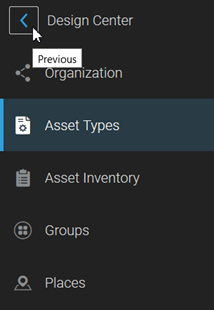
Description of the illustration [filename] - Click Operations Center.
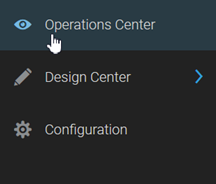
Description of the illustration [filename] - Click the navigation icon next to your organization name in the breadcrumbs.
Adjust the zoom settings as desired. You can also use the mouse scroll wheel for this.
Description of the illustration [filename] - Click Menu, and then click Previous next to Design Center.
- Select the Robots Division group.
Description of the illustration [filename] - Click Incidents
 in the Menu Bar to the left of the map.
The incidents for the Robots Division appear.
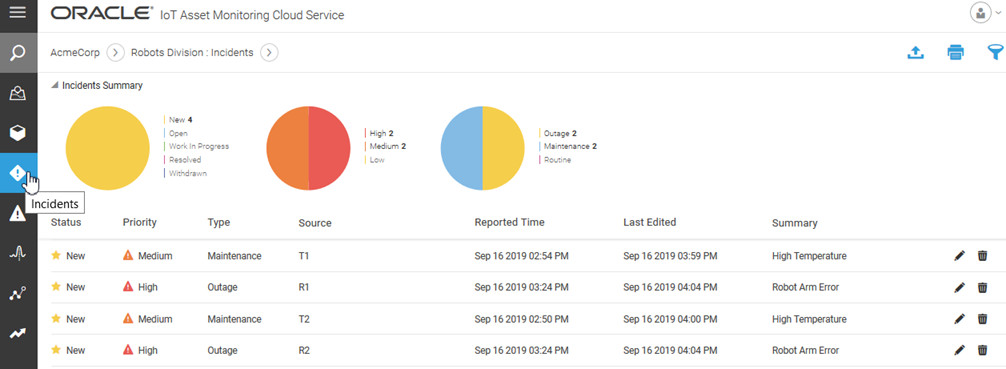
The Incidents page includes incidents for all robot assets and temperature detector sub-assets. You can use the breadcrumbs to filter the results for a particular asset.
- Click Map
 on the menu bar to go back to the map view.
 Want to Learn More?