Shared Filters
As an Insight analyzer, you can create shared filters that can be reused in your custom analyses. Shared filters are also known as named filters.
For example, you can save a filter to the shared company folder to exclude certain email address domains. Other analyzers could then use this filter in their own analyses.
About named filters vs inline filters
Named and inline filters offer you the ability to limit the data returned when an analysis is run.
- Named filters are created by analyzers and stored in the catalog for reuse.
- Inline filters are created in a given analysis and cannot be reused. For information on inline filters, please see here.
Filters are defined by the report creator and always applied.
To created a shared filter:
- In Insight, click New>
 Filter.
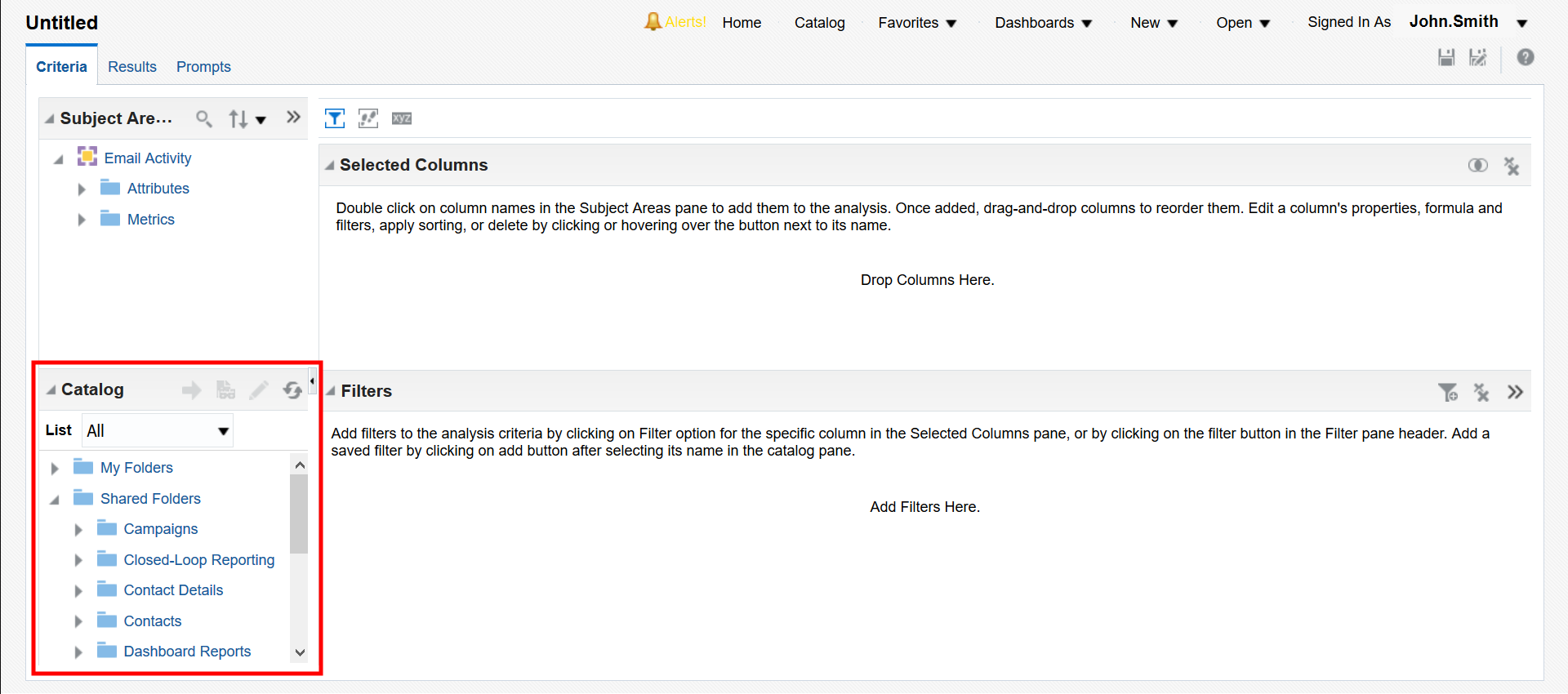
 - Select your subject area. For the purpose of this tutorial, we will choose Email Activity.
- From the Subject Area window, select which attributes you would like for your filter. We will select Email Group. Double click to open the New Filter dialog box.
- Select an operator and value. Our sample operator is is equal to / is in and Newsletter, respectively.
- Click
 Save.
Save. - Choose a company shared folder if you want this filter to be accessible to all in your organization. The default path will be specific to the subject area of the filter, so choose an alternate folder if you wish to use the filter in other subject areas.
- If you choose a folder outside of that subject area, OAS will ask you to confirm your folder selection. The recommended folder will be exclusive to the subject area of your filter.
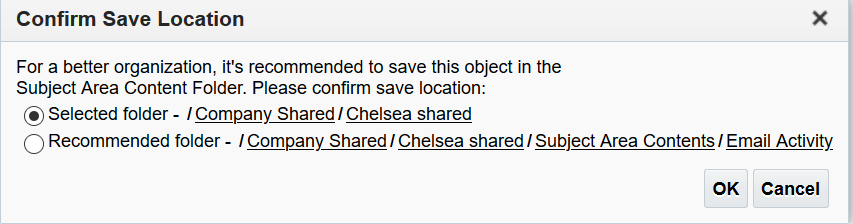
- Click OK.
You can now select your shared filter from the catalog window when creating an analysis.