Reset the Data Warehouse
Reset your data warehouse to discard all the existing data for all sources and restore it to its default factory settings.
You might need to restore your data warehouse to the standard, supportable configuration baseline, for example, if there's performance degradation that persists after troubleshooting or if there's legacy data and artifacts that are causing system issues or if the data becomes corrupt.
Note:
Reset your data warehouse only in extreme cases because all data would be lost and no analytics would be possible until data from all the sources is fully loaded again. This can take a long time.Prior to resetting the data warehouse, you must have at least one activated functional area. After resetting the data warehouse, the last refresh date shows the last increment details. You must reactivate all the data pipelines for the functional areas to load data. See Activate a Data Pipeline for a Functional Area
.Note:
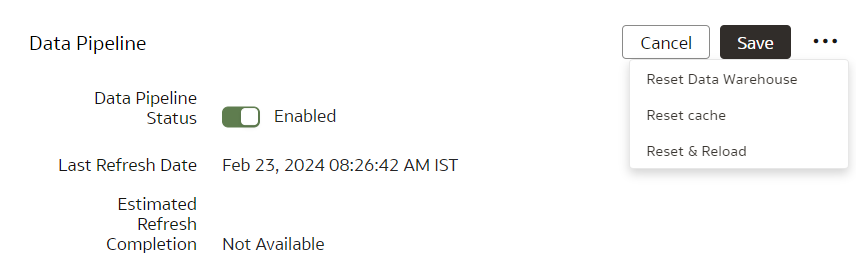
Your data isn't available until Oracle NetSuite Analytics Warehouse completes all the activations after resetting the data warehouse.- On the Pipeline Settings page, click Actions and then click Reset Data Warehouse.
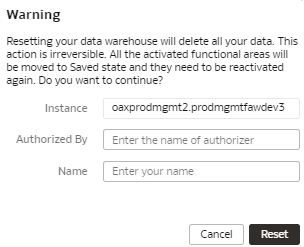
- Review the warning message, provide the details, and then click Reset.