Getting Started with Global Search
The global search feature lets you search and quickly go to any of the create actions, lists, tools and administration settings pages in SuiteProjects Pro, or search for a record of a supported type.
You can access the global search from any page by clicking the red search icon in the upper-right corner or pressing  on your keyboard.

To leave the global search page, click the cross icon in the upper-right corner or press Esc on your keyboard.
The global search page has the following components:
Suggestions and Shortcuts
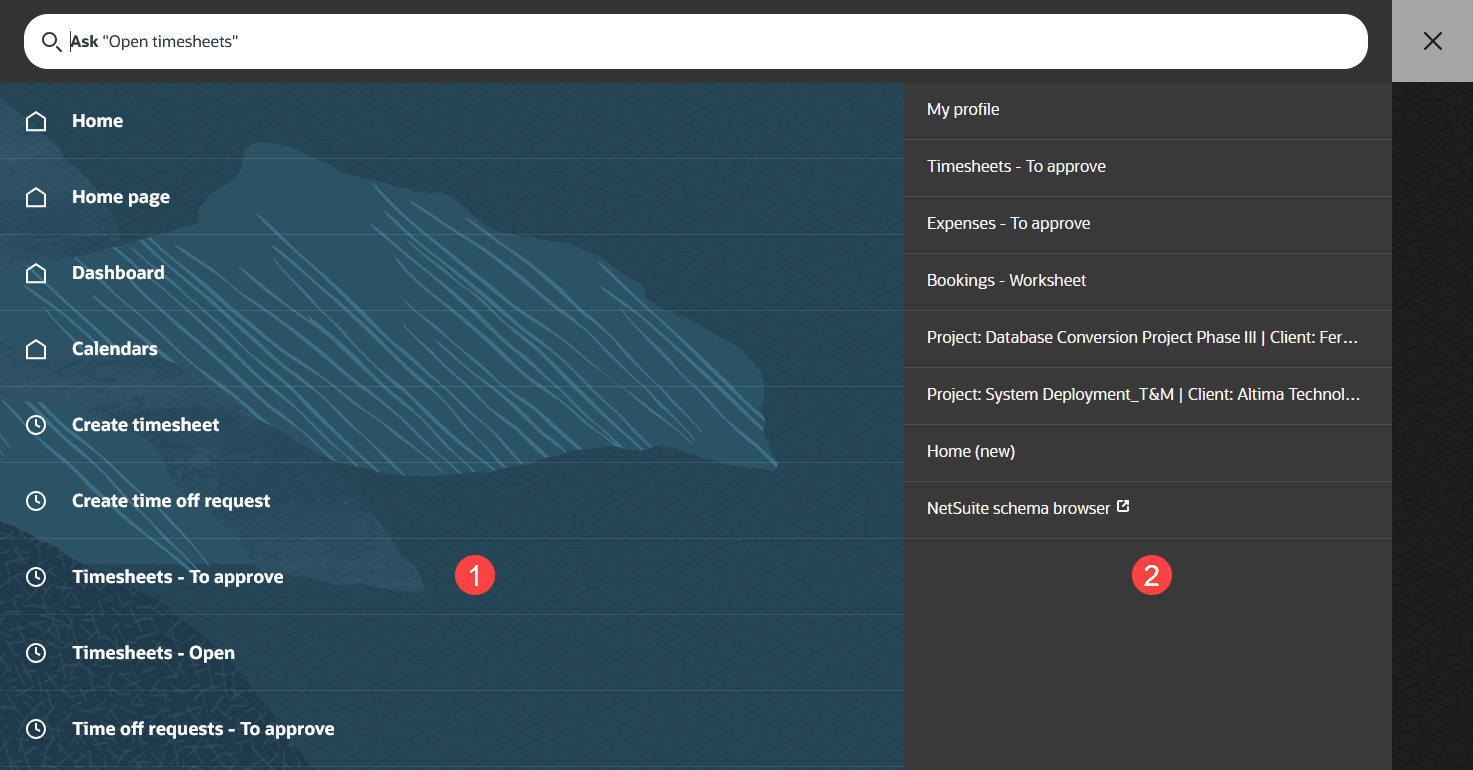
The global search page initially shows navigation suggestions and your navigation shortcuts side-by-side.
-
The left panel shows a default list of navigation suggestions based on typical SuiteProjects Pro usage.
-
The right panel shows your navigation shortcuts. The shortcut list is the same as in the shortcuts menu. For more information about shortcuts, see Shortcuts.
The suggestions and shortcuts are replaced with search results when you start entering a term in the search bar.
Search
You can find what you're looking for using your own language and terms so you don't have to memorize a hierarchical menu structure.
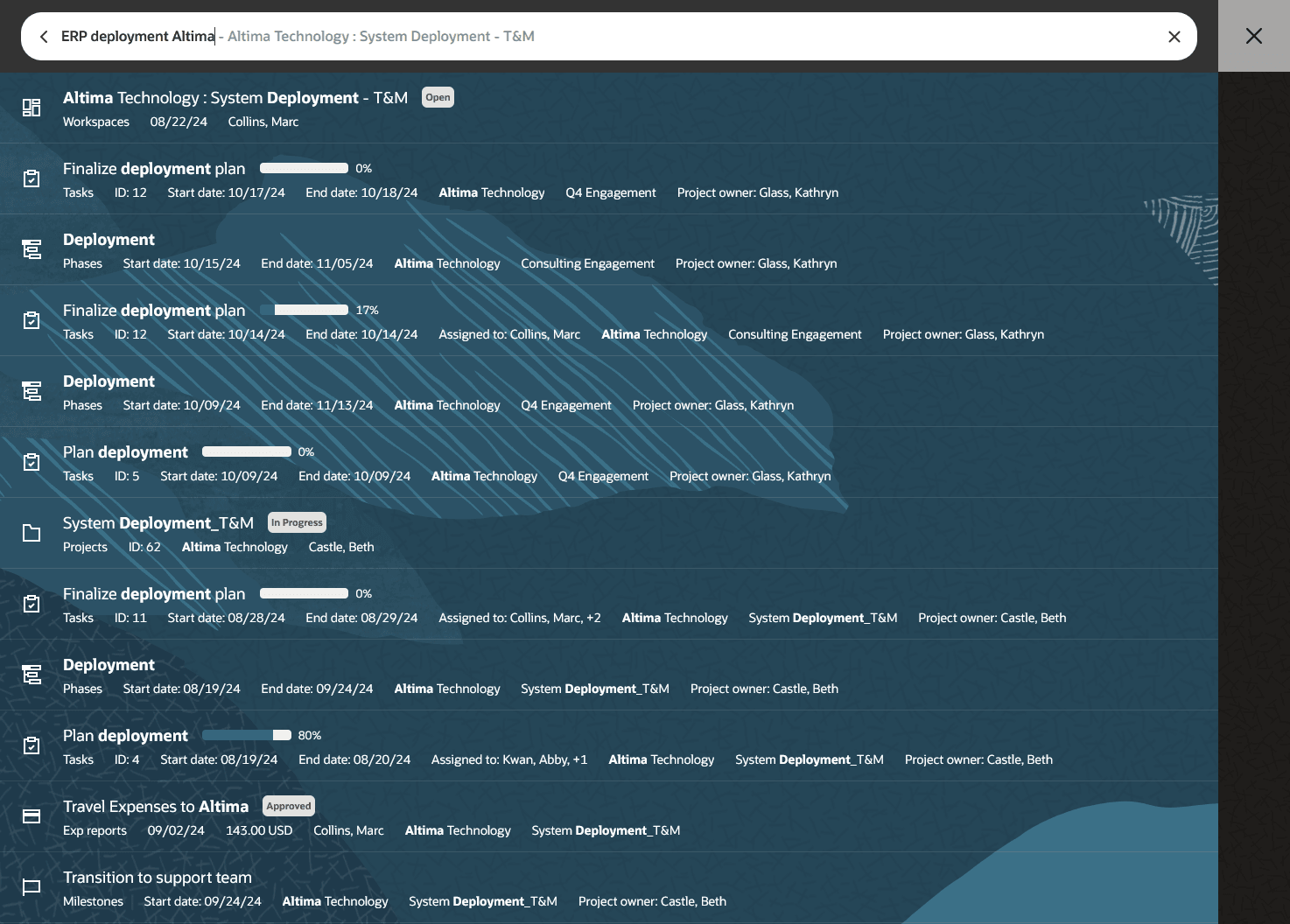
Enter a term or phrase in the search bar. Matching results show as you type. Parts of the search result entry that match or nearly match the search phrase are emphasized in bold font weight.
Click the search result entry to go to the corresponding page.
Search results include the following information:
-
Object name (where available - another describing object property is used otherwise), settings page title, or create action title.
-
Object type or application (module) icon.
-
Depending on the search result:
-
Object type, if the search result entry is an object available through any application (module) other than the Administration application.
-
Application (module) name, if the search results shows one of the following:
-
A navigation menu item for an application or global settings page. For an application settings page, this is the name of the application the settings applies to. For a global settings page, the search result entry shows "Global | <section>" where <section> is the name of the global settings section.
-
An object available through the Administration application. For an object type specific to an application, this is the name of the application the settings applies to. Otherwise, the search result entry shows "Global | <section>" where <section> is the name of the global settings section.
-
A create action of an object available through the Administration application.
The search result entry shows the name of the application, the settings page or object type applies to, or "Global | <section>" where <section> is the name of the global settings section the settings page or object type appears under.
-
-
-
Stage or status badge, where relevant.
-
Additional information about the object.
Click the name of a searchable object in the additional information to go to the page for that object. For example, click the customer name or the project owner name in the search result entry for a project to go to the demographic form for the customer or the employee.


You can search for:
-
A navigation menu item (main navigation, create menu and user menu) - For example "timesheets", "create timesheet" or "personal settings".
Tip:You can use shorthand using one- or two-letter words to search navigation items, such as
g sfor "global search",o efor "open expense reports",ot sefor "other settings",c n e afor "Create notification - envelope approved". -
A record of a supported record type. The following table lists the supported record types, and for each record type, the information included in the search results. The Information shown column lists the information shown in search result entries show in the same two lines and in the same order as it appears:
-
The first line of a search result entry shows the main piece of information identifying the record, followed in some cases by a badge showing status or stage (in bold text in the table below) or a bar showing the progress of the task (% complete).
-
The second line of a search result entry shows the type of record in plain text, followed by additional information as listed in the table below.
You can use all information shown in your search except the information listed in italic text.
Tip:When searching by date, use the exact full date in ISO date format
YYYY-MM-DDin the range from2000-01-01to2050-01-01for best results. You can also use partial date format such as the year and monthYYYY-MM, or the year onlyYYYY.For more detailed guidelines about using date search, see Using Date Search in Global Search.
Note:Global search coverage includes navigation items (main navigation and create menu), customers, projects and employees (resources) as standard.
Coverage for other types of records is optional. Account administrators control coverage for these additional record types in your company's account.
Record type
Information shown
Standard/Optional
Notes
Booking
-
Resource name (
<Last name>, <First name>), Approval status -
Record type, Hours booked, Job code, Booking type, Start date, End date, Customer, Project, Task
Optional
Bookings with a start date older than 5 years are not available in search results.
Contact
-
Nickname
-
Record type, Customer, Job title, Email, Phone
Optional
-
Customer
-
Customer name
-
Record type, Email, Customer owner, Active
Standard
-
Employee (Resource)
-
Employee name (
<Last name>, <First name>) -
Record type, Employee ID (User ID), Email, City
Standard
-
Invoice
-
Invoice number, Status
-
Record type,Invoice date, Customer, Project, Project owner
Optional
-
Issue
-
Issue Synopsis, Issue stage
-
Record type, Issue #, Severity, Assigned to, Date, Entered by, Customer, Project
Optional
-
Expense report
-
Expense report name, Approval status
-
Record type,Tracking number, Date, Total, Owner, Customer, Project
Optional
Expense reports with a date older than 10 years are not available in search results.
You can search for tracking numbers that contain three or more characters only. The search returns only the expense report matching exactly the tracking number you enter in the search phrase.
Guest user
-
User ID
-
Record type, Customer, Guest role
Optional
Guest user records are a special type of employee (user) records created to let customers sign in to your company's SuiteProjects Pro account and view information that is associated with them and the projects that your company delivers to them.
Milestone
-
Milestone name
-
Record type, Start date, Customer, Project, Project owner
Optional
-
Phase
-
Phase name
-
Record type, Start date, End date, Customer, Project, Project owner
Optional
-
Project
-
Project name, Project stage
-
Record type, Internal ID, Customer, Project owner, number of original messages in the project discussion
Standard
Click the project discussion icon
 in the search result entry for a project to go to the project discussion for that project. The number next to the icon shows the number of original messages in the project discussion.
Project Discussion
-
Message excerpt
-
Record type, Project, Customer, Author, Date
Optional
The message excerpt includes the first occurrence of the search phrase. Point to the message excerpt to view the full content (not formatted) of the project discussion message in a tooltip box.
Click the search result entry to view the project discussion containing the message in the context of the project the project discussion relates to.
Note:The project discussion panel shows the project discussion (All messages tab) in the same way as when you go to the project record and click the project discussion utility button. See Project Discussion and Project Discussion Messages.
Going to the project discussion from the search result entry doesn't jump to the specific message in the project discussion. It doesn't jump to the thread, if the message is a reply in a thread. It doesn't highlight the message.
Receipt
-
Expense type
-
Record type, Expense report name, Date, Price, Owner, Customer, Project
Optional
Expense receipts with a date older than 10 years are not available in search results.
Task
-
Task name, % Complete
-
Record type, ID number, Start date, End date, Assignees, Customer, Project, Project owner
Optional
Assignees can include individual assignees and assignment groups. In case of multiple assignees or assignment groups, the search result entry shows either the name of the individual assignee (employee) or assignment group with the smaller internal ID or the name of the individual assignee or assignment group matching your search phrase, followed by the number of other assignees. Point to the assignee information to view the list of up to 20 individual assignees and assignment groups in ascending order of internal ID. When searching by individual assignee or assignment group name, the search results include a task if one of these first 20 individual assignees or assignment groups matches the search phrase.
Timesheet
-
Timesheet name, Approval status
-
Record type, Start date, End date, Total hours, Employee
Optional
-
Time-off request
-
Time-off request #, Approval status
-
Record type, Start date, End date, Total hours, Employee, Customer, Project
Optional
-
Workspace
-
Workspace name, Open workspace
-
Record type, Date, Owner
Optional
-
Workspace document
-
Document name
-
Record type, Workspace, Parent folder, Document category
Optional
-
Tip:When searching a project by internal ID, the search results may also include other objects matching the integer number. You can include additional information to refine your search if needed.
Note:Information in search entry results show an
[inactive]flag next to a customer name, employee name (including for the customer owner and project owner), or project name if the customer, employee or project is not active and you have access to inactive objects.Two search result entries are returned for each named employee (resource) if you have access to the information in both the Administration (Employee record, demographic tab) and Resources (Resource record, profile tab) application (one for each navigation path).
-
The search functionality uses:
-
Rotated search hints - The search bar shows hints one after the other until you start entering a term or phrase. You can use these hints as examples to construct your search phrase such as "Create timesheet", for example.
-
Rapid type-ahead - As you start entering a term or phrase, the search bar shows a suggested search phrase. Click the suggested search phrase to use it for your search.
-
Synonym match - Searching for "new envelope", "add expense report" or "create expense report" returns similar results, for example, because "new", "add" and "create" are synonyms, and "envelope" and "expense report" are also synonyms. This enables you to find what you're looking for even if you don't know what it's called in SuiteProjects Pro.
-
Typo-tolerant match - A small error in the search phrase still returns near phrase matches in the search returns.
-
Integrated business objects - The type-ahead uses the information from supported record type, and search results are shown as you type
The search results show only the areas and information that you have access to.
Example of results obtained when searching for a project and customer.