Reviewing the Integration Run History and Status
You can view the history of integration runs with all the details using the NetSuite Connector Status page in SuiteProjects Pro.
To view the NetSuite Connector Status page, go to Administration > NetSuite Connector > Status.
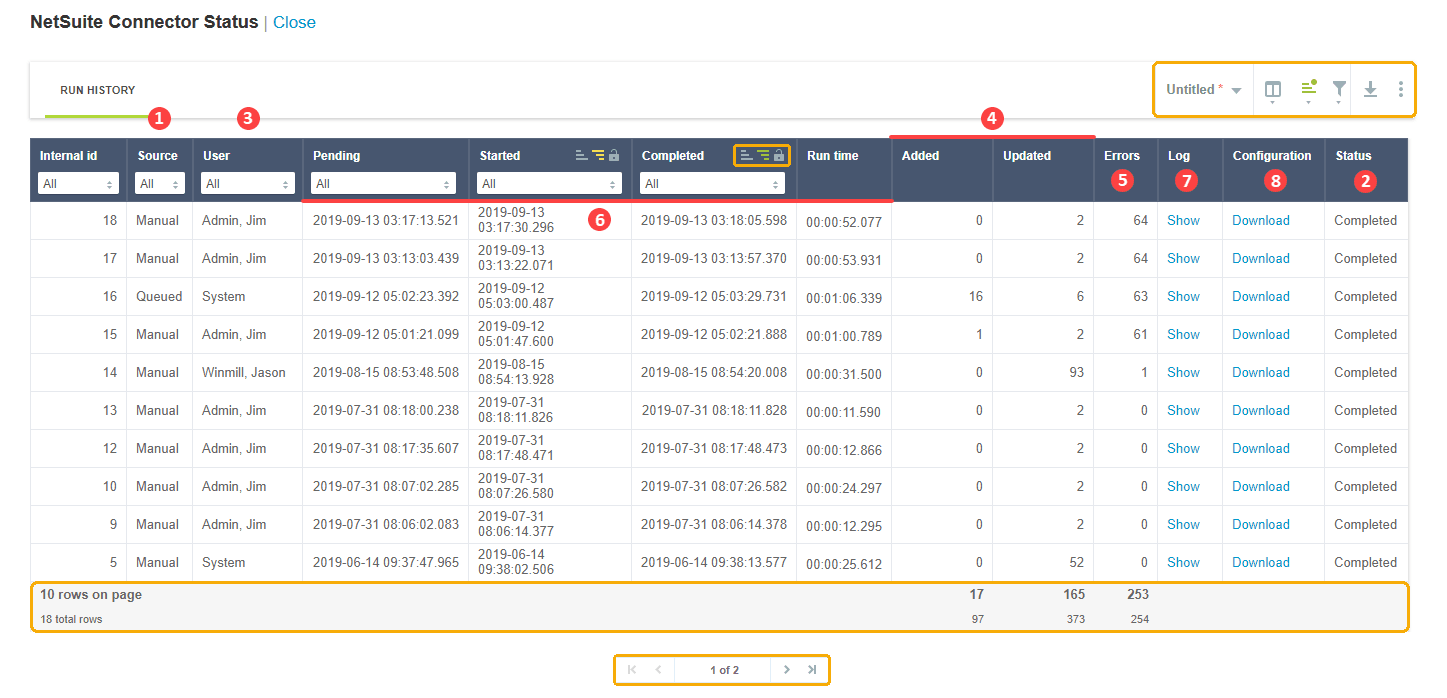
The Status page opens in a new browser tab or window and shows a list of integration runs. It uses the redesigned user experience list layout and features, including advanced filters and column filters for the following columns: Internal ID, Source, Workflow group, User, Pending, Started, Completed.
The list includes the following information:
|
1 |
Source - How the integration run was started (Automated/Custom field sync/Manual/Queued/Real-time import/Scripting). You can use a column filter to refine the listed integration runs by source. NetSuite custom field synchronizations are also included in the list as a different type of integration run. |
|
- |
Workflow group - The selected workflow group for scheduled integration runs. You can use a column filter to refine the listed integration runs by workflow group. |
|
2 |
Status - The status of the integration run (Pending/Running/Completed) |
|
3 |
User - The name of the user who started the integration run or "System" if the integration run was started automatically. You can use a column filter to refine the listed integration runs by User. |
|
4 |
Added and Updated - The number of records that were added and updated in the integration run. For NetSuite custom field synchronizations, the Added and Updated columns always show 0. |
|
5 |
Errors - The number of errors that occurred in the integration run. For NetSuite custom field synchronizations, this column shows the number of mapped NetSuite custom fields that do not exist in the NetSuite account. |
|
6 |
Pending, Started, Completed, and Run time - Time stamps indicating when the integration run was queued, when it started and when it completed, as well as the duration of the integration run. You can use column filters to refine the listed integration runs by pending, started and completed date. |
|
7 |
Log - Link to the log for that particular integration run. Click Show to display the log. |
|
8 |
Download - Link to download the configuration details used by that particular integration run. Click Download to save the configuration for that integration run as a JSON file on your computer. |

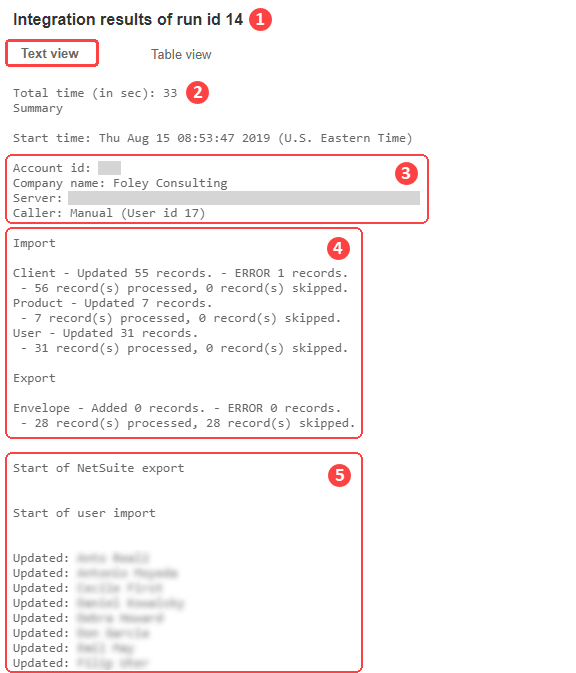
The integration run log is displayed in a popup window and includes two tabs:
-
Click the Text View tab to display summary information about the integration run, which includes:
-
The unique integration run identifier
-
The time taken to complete
-
The integration run (Not included for custom fields synchronization)
-
Account / connection details (Not included for custom fields synchronization)
-
Summary of records integrated (Not included for custom fields synchronization)
-
Integration messages
For a NetSuite custom field synchronization run, the log lists only NetSuite custom fields used in mapping definitions. An error identifies a mapped NetSuite custom field that does not exist in the NetSuite account.
The log does not include the NetSuite custom record types selected for existing custom workflows.
-
-
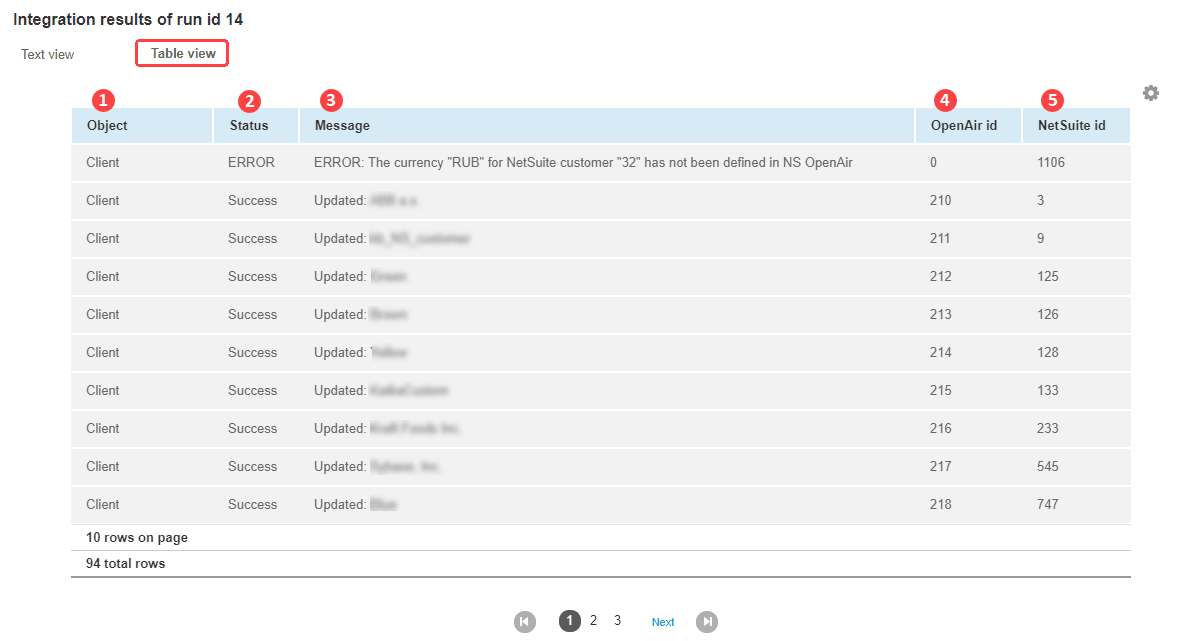
Click the Table View tab to display a list with key details of records integrated in the run, which includes:
-
Object - The type of record integrated
-
Status - The outcome of the integration or the current status if the integration has not completed.
-
Message - Information message
-
SuiteProjects Pro id - SuiteProjects Pro unique identifier for the integrated record
-
NetSuite id - NetSuite unique identifier for the integrated record
Note:The table view is not available for custom fields synchronization logs.
-
The usual list features are supported for both the status page and the logs for individual runs. For example, you can use the download feature to save the list data as a CSV, HTML or PDF file.