Column Filters
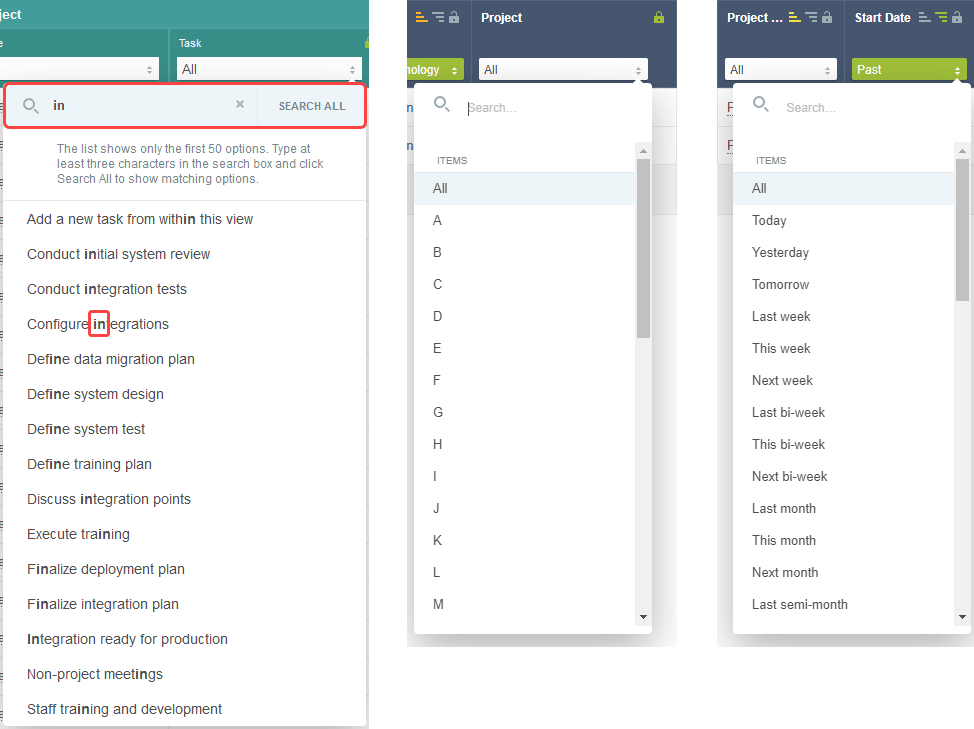
Column filters are dropdown boxes located in the column headers bar. Click the dropdown box to display a searchable list of value options. Select the desired options to set the column filter.
Depending on the column, the value options will be listed in one of the following formats:
-
Distinct values: All (default), List of distinct values. Non-unique values only appear one time.
-
Alphabetical: All (default), First alphabetical and numerical character [A-Z, 0-9].
-
Date: All (default), List of redefined date ranges.
The feature includes the following characteristics. Column filters are:
-
Searchable - Type any number of characters in the dropdown search box to display only the options containing your search string. The list of available value options is filtered as you type. Matching strings are highlighted in bold in the filtered options list.
Note:Distinct value column filter dropdowns show up to 50 options initially.
To show distinct value options that are not included in the initial list, type at least three characters in the search box. The list of distinct value options is filtered as you type with matching terms highlighted in bold. Filtering as you type only filters through the 50 distinct values loaded initially. To search for all matching values, click Search All.
The dropdown will show a list of up to 1000 distinct values containing your search term. If there are more than 1000 matching values in the database, only the first 1000 values are returned as search results and a message appears above the search results. Refine your search as necessary until there are less than 1000 matching values, then type additional characters to filter the search results.
If there are less than 50 distinct values in the column filter dropdown, no search is required. All possible options may already be listed if other filters are already used to refine the list data. For example, if you are using column filters on the project or resource columns, to refine the list data, there may be less than 50 distinct value options for the tasks column filter, in which case the dropdown shows all options, and a search is not required.
-
Easily identifiable - When a column filter is applied, the column filter dropdown box is highlighted with a green color background and shows the selected filter option. Multiple column filters - You can apply multiple column filters to the list.
-
Remembered - Any column filters applied to a list continue to apply the next time you go to the same list.
-
Easily cleared - To clear all column filters applied to the list, click the List options icon
 and click Clear column filters from the List options dropdown panel.
You can save any combination of column filters as part of a custom list layout. See Personalized List Layouts.
Opening a List from QuickViews and Other Pages - Preset Column Filters
You can go to specific lists by clicking links available in a QuickView window, in other pages such as the Booking chart or the Assignments chart, or in some of the portlets, such as the My Status portlet, on the homepage. When you click a link in a QuickView or Booking chart which refers to a list, the list opens with predefined column filters already applied. The column filters are set to list context-specific data in them list.
For example:
-
QuickViews give you access to additional information, actions and quick navigation options for certain items in any lists - See QuickViews. The QuickView for a Project will include quick navigation links to Time entries, Receipts, Charges and Invoices lists. Clicking one of these links opens a list showing only the Time entries, Receipts, Charges and Invoices for that specific Project. The column filters for the Project and Customer columns will be preset when the list displays.
-
The Booking chart lets you see booking data in a visual chart and gives you an overview of bookings for one or more employees. Clicking on a bar in the chart opens the Bookings list showing only the bookings for the selected Resource, or all bookings, for a specific period of time. The column filters for the Resource, Start date and End date columns will be preset when the List displays.

Review the following guidelines:
-
Filtered columns will be automatically added to the list if not present in the active or remembered list layout.
-
Date Column filters are preset to custom date ranges matching a period of time in the Booking chart. These custom date ranges are temporary and will not be available in the dropdown options after you have cleared or changed the value for that column filter.
-
Opening a List using a quick navigation link in a QuickView or in the Booking chart overrides the remembered list layout. The Column filters will continue to apply the next time you go to that List unless you clear or change the values set for those column filters.
-
Column filters are not currently preset when opening to a list by clicking a quick navigation link in the Assignment chart.