About Cubes in Planning
Use the Cubes tab on the Application page to view or add cubes for standard applications.
After a cube is added, it behaves like any other application cube. If the cube maps to an aggregate storage database, then aggregate storage limitations apply.
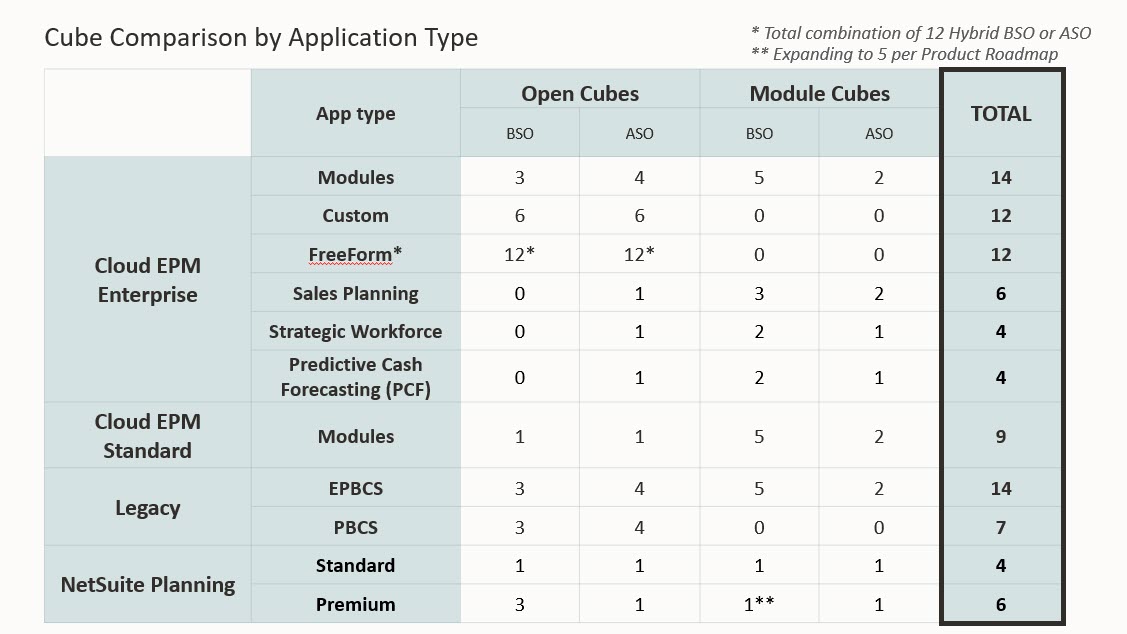
For Planning, you can add up to seven total cubes—three block storage cubes and three corresponding aggregate storage cubes plus one consolidating aggregate storage cube, each with a unique aggregate storage application name.
See the chart below for a comparison of cubes by application type.
To view and manage cubes:
-
From the Home page, click Application, and then click Overview.
-
On the Application page, click the Cubes tab.
-
Do one of the following:
-
To view the details of a cube, click the name of the cube that you want to view.
-
To add a cube, click Create, then complete the cube details, and then click Done.
-
Tip:
See Managing Cubes in Planning to access a video that discusses how to manage cubes in your application.