Selecting Drivers as Input
Select the drivers to use for Advanced Predictions to predict the selected measure.
The input drivers are factors that are used to train the ML model to generate the prediction.
The measure you selected as the output to predict is automatically used as an input driver to drive the prediction. For example, if you want to predict volume, historical volume is automatically taken into account in the prediction.
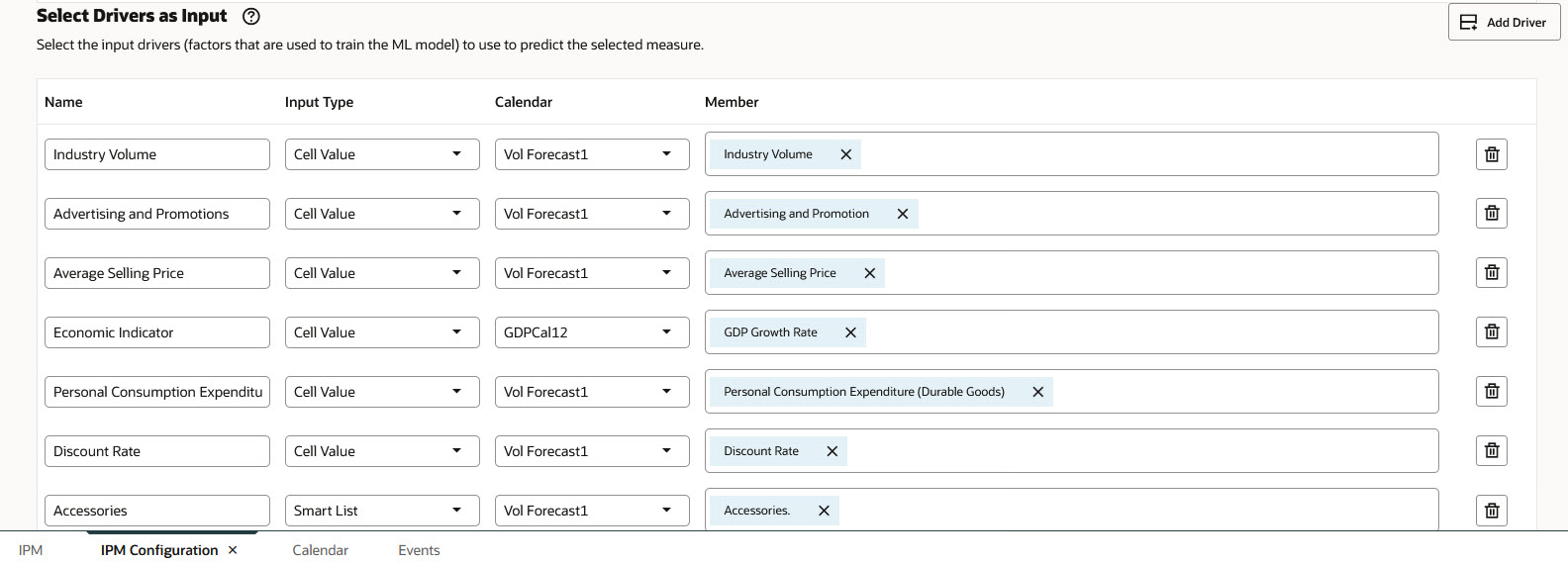
Define as many input drivers as you need:
- On the Historical Data page, in the Select Drivers as Input section, enter a name for the driver.
- Select the Input Type for the measure:
- Smart List—When the input driver is a categorical, string-type value, for example, an attribute for the Product dimension.
- Cell Value—When the input driver is a numeric variable, or continuous variable.
- Click the dimension name, and then use the Member Selector to select the member you
want to drive the prediction.
You can select a driver from a specific member intersection, even when the Output to Predict is selected for multiple members. For example, the Output to Predict can be selected as @LEV0DESCENDANTS("Total Product"), however, one of the input drivers might not have data by product. A macroeconomic driver such as GDP, inflation rate, or interest rate might be stored only at "No Product" because it applies across all products rather than to each individual product.
In this case, you can select the driver at a specific intersection, such as "No Product", while still predicting results for multiple product-level targets.
This allows you to use drivers that exist at a different POV or intersection from the prediction target. This is especially useful for broad business or macroeconomic drivers, such as GDP, inflation, or interest rates, where the driver data is not available at the same detailed level as the target being predicted.
- To add another driver, click Add Driver, and then enter the
driver
details.
Note:
The prediction definition must have at least two input drivers. If you edit an existing job that has only one driver, you must select an additional driver in order to proceed and save the updated job definition.In this example, you see some of the possible input drivers that can drive a prediction for Volume, such as Industry Volume, Average Selling Price, and Discount Rate.
- Click Next.
Note:
No changes are needed on the Future Data page for Select Drivers as Input.