6Managing Cases
Reviewing and Claiming Cases
A case is created when an inspection results in a code violation or citation. Agency staff can create a case directly, without an incident being reported. Code enforcement technicians use the worklist to view a list of unassigned cases and claim them as necessary.
Code enforcement technicians have two options for reviewing and claiming cases:
Viewing a case summary on the Code Technician Worklist page and then clicking the Claim button.
The code technician claiming an incident is by default the assigned technician for the case. This option is used for claiming a new case created directly — without a reported incident.
Using the Case Overview page to directly update the Technician Assigned field.
Although this option is always available, it’s most useful for reassigning the case to another technician.
Reviewing and Claiming Cases Using the Code Technician Worklist
From the agency springboard, click the Code Technician Worklist tile.
Select the Unassigned Cases tab. This page lists all the unclaimed cases in the system.
Review the following summary information about the case:
Page Element
Description
Case
This column displays:
The case ID that is assigned based on the agency’s autonumbering rules.
The issue type and subtype, separated by a hyphen.
Creation Date
Displays the date on which the case was created.
Location
Displays the location of the issue.
Issue Description
Displays the description of the case
Case Status
Displays the status of the case, for example, Compliance, Violation, Citation, and so on.
Comply by
Displays the last date to ensure compliance.
If necessary, review the complete details for the case.
Click the View More Details icon to access the Case page.
On the Case page, review the information on the Overview, Details, Inspections, Notices, and other tabs. See Navigating to Case Details.
Click the Back icon in the banner at the top of the page to return to the worklist, and re-navigate to the Unassigned Cases tab.
Click the Claim button to claim the case.
Claiming a case makes you the assigned technician. As the assigned code technician, you are now responsible for processing the case.
Reviewing and Claiming Cases on the Case Detail Page
Select the Cases tile on the Agency Springboard, then click View More Details for a specific case.
In the Overview section of the Case page, search and select a code technician from the Technician Assigned field.
Processing Cases
Agency staff view information and statuses for all the code enforcement cases they are assigned. You can perform actions such as creating a case and accessing detailed case information from the Cases page.
As agency staff such as a code technician, you can use the Cases page to view a complete list of cases. Go to the list of cases to perform these tasks:
Manage case activity.
Create a case.
Update case status.
Access details about case history.
Using the Cases Page
Select the Code Technician Worklist tile on the Agency Springboard and click the Cases tab.
Alternatively, you can select the Cases tile on the Agency Springboard to view all the cases in the system.
You can perform these actions to display cases that meet specific criteria:
Page Element
Description
Download
Click the download button to export the list to a .csv file.
Search
Search by alphanumeric characters on the fields for cases in the list. The cases that meet the search criteria are displayed on the page.
When you search on dates, use this format: MM/DD/YYYY.
Filter By
Apply filters to display cases that contain the selected parameter values in the list. Click the filter button to open the filter options, where you can define, modify, and save your own filters.
You can use the predefined filters Case, Creation Date, Issue Description. Case Status, and Comply By.
Case filter is not available in the worklist.
Sort By
Select an option to sort the cases in the list by these fields:
Case
Creation Date
Location
Issue Description
Case Status
Comply By
Managing Case Activity
Select the Code Technician Worklist tile on the Agency Springboard and select the Cases tab.
Alternatively, you can select the Cases tile on the Agency Springboard to view all the cases in the system.
On the Cases page, you can locate the basic information about the case using the following information:
Page Element
Description
Create Case
Click to create a new case.
This option is not available in the Code Technician Worklist — Cases page. You must navigate to the Cases page using the Cases tile.
Case
View the case ID, issue type, and issue subtype.
Creation Date
View the date on which the case was created.
Location
View the location of the issue.
Issue Description
Review the description of the case.
Case Status
View the status of the case, for example, Closed, Compliance, Violation, Void, Mandatory Abatement and Legal.
For details about the options, see Viewing the Case Detail Overview.
Comply by
View the last date to ensure compliance.
Actions
Click to perform actions such as updating status.
Creating a Case
Agency staff such as a code technician can directly create a code enforcement case when they identify a code violation. Such a case is listed as an unassigned case, among other cases that originated from reported incidents.
To create a case:
Select the Cases tile on the Agency Springboard.
The Cases page lists all cases created out of reported code violations. Click the Create Case button.
On the Select an Issue Type page, select the type and subtype of the issue you want to report for the code violation.
On the Provide the Location of the Issue page, enter the location details or use the map to locate the address for which you are reporting the violation. Click Next.
On the Tell Us What’s Going On page, enter the description of the issue you are reporting. You can also attach a photo, video, or an audio file as reference. Click Next.
On the Just a Few More Questions page, enter additional information such as indicating whether the issue poses a health hazard or public safety risk. Click Next.
The fields on this page are configured by the agency administrator who creates the intake form for the issue subtype. For more information about the issue intake form, see Using the Intake Form Designer for Code Enforcement.
On the Code Violations page, click Add. Select one or more code violations from a list of current or other violations and click Done. Click Next.
Review the information you entered on the Review page and click the Submit button.
You will see the case transaction is now listed in the Cases page. This unassigned case transaction will now be listed in the Unassigned Cases tab in the Code Technician Worklist. A code technician should claim the case from the worklist and proceed for further processing.
See the next session for the case related pages and their descriptions.
Viewing the Case Detail Overview
You view a summary of the case on the Overview page, where you get a snapshot of the information regarding a case with links to more detail.
When you access the details for a case, you see a summary of the case activity. This information is updated to show the latest activity.
As agency staff, you can use the Overview page to set the status of the case, assign inspectors and technicians to the case, update the issue description, and change the priority of the case.
Using the Overview Page
Select the Code Technician Worklist tile on the Agency Springboard and select the Cases tab.
Alternatively, you can select the Cases tile on the Agency Springboard
On the Cases page, click View More Details for the case row you want to access.
On the Overview page, review details or enter the following information in the Overview section:
Page Element
Description
Case Status
Review the case status:
Violation
Closed
Compliance
Void
Mandatory Abatement
Legal
To change the status of the case, click the Edit link to open the Update Status page, select a new status value, and enter a reason for the change. Click Done.
If the new status is Violation or Citation, you select the new compliance date. The system allows you to generate a new notice and any applicable citation fee, and a corresponding inspection is scheduled. Selecting the Legal status cancels the scheduled inspections and no new inspection, appeal, or hearing can be scheduled.
Inspector Assigned
Assign an inspector to the case by using the look-up prompt.
Technician Assigned
Assign a technician to the case by using the look-up prompt.
The Assign Technician page lists only the technicians that are associated with the issue type and subtype of this case. Select the Show All Technicians check box to list all the technicians.
Note: This check box is available to agency staff with appropriate permissions, only when the Autoassignment option is turned on.Technicians can claim cases from the code technician worklist. To access the code technician worklist, select Code Technician Worklist on the Agency Springboard and click the Unassigned Cases tab. See Using the Code Technician Worklist.
Issue Description
Review the description of the issue. To update the description, click the Edit link to open the Update Issue Description page and change the description text. Click Done.
High Priority
Indicates the priority of the case. To update the priority, click the Edit link to open the Update Case Priority page, select the switch, and use the calendar to select a new compliance date. Click Done.
Compliance Date
Review the date by which the case must ensure compliance, which is calculated based on the time rules set up by the agency. If there is no compliance date recorded, the page shows the Add button. You can click to open the Compliance Date page and enter the compliance date. Click Done.
To update the compliance date, click the Edit link to open the Update Compliance Date page, select a new date from the calendar, and enter a reason for the change. Click Done.
Appeal By
Indicates the last date by which a user is allowed to submit an appeal for the case.
An Edit link is available for a supervisor to change the appeal due date. Click the Edit link to open the Update Appeal by Date page, use the calendar to select a new date, and enter a reason for the update. Click Done.
Note: The Edit link is displayed only after the compliance date is set.Reported Date
Review the date on which the incident was reported.
<number> days to comply
Review the number of days left to ensure compliance.
In the Responsible Parties section, the Access Number field displays a unique identifier, which is generated at the time of case creation. The responsible party must provide the access number at the time of to requesting access to their case. See Resolving Issues.
In the Inspections section shows the next inspection due date.
Review important information about the selected case in separate sections on the Overview page. Click the View Details link to navigate to the page. Only those sections that contain data records to show are displayed in the overview page.
Working with Case Timeline
With case timeline, you can view all the Code Enforcement activities associated with a particular case in a chronological order. You can drill down for additional information for each event or filter the timeline to show by event types.
The Case Timeline shows a list of code enforcement case events in a chronological order with the newest on top. The event types include:
Incident reported
Inspection
Case created
Case updated
Appeal
Hearing
Fee paid
Notice
Viewing a Case Timeline
The Timeline page shows the list of all the time-based events for the case. You can view the case timeline and perform actions on the Timeline page.
Select the Code Technician Worklist tile on the Agency Springboard and select the Cases tab.
Alternatively, you can select the Cases tile on the Agency Springboard to view all the cases in the system.
On the Cases page, click View More Details for the case row you want to access.
Click Timeline in the left panel to open the list of case events.
| Page Element |
Description |
|---|---|
| Filter button |
Filter the cases based on event types, such as, All, Appeal, Case created, Hearing, Case updated, Inspection, Notice, Fee paid and Incident reported. |
| Print button |
Print a copy of the current timeline. |
| Download button |
Download the case events to an Excel spreadsheet. |
| Show List View button |
Display the case events in a list view. The details displayed include the date and time, the event type, case status, name of the agent who created or updated the event, and the reason or description of the event. Click the chevron at the end of each row to go to the Case Overview page. |
| Show Timeline View button |
Display the case events in a horizontal timeline view. The date range is set to start from 30 days before the initial event and to end 30 days after the last event. |
Working with Case Property Information
Property information shows the location details of the property that is associated with the case. The information includes the parcel ID, address of the property, and the name of the property owner. You can change the property using a search, or update the existing property details using the edit option.
Viewing Parcel Information
You view the parcel associated with this case on the Property Information page. You can also view the parcel location on a map.
Select the Code Technician Worklist tile on the Agency Springboard and select the Cases tab.
Alternatively, you can select the Cases tile on the Agency Springboard to view all the cases in the system.
On the Cases page, click View More Details for the case you are working with.
Select the Property Information tab in the left panel to open the detail view of the property.
Changing Property
You can change the property associated with the case on the Property Information page.
Select the Code Technician Worklist tile on the Agency Springboard and select the Cases tab.
On the Cases page, click View More Details for the case you are working with.
In the case details, select the Property Information tab in the left panel to open the detail view of the property.
On the Property Information page, click the Search button.
On the Search Property page, search a new parcel and click Select.
Updating Property Address
You can update the parcel address associated with the case on the Property Information page.
Select the Code Technician Worklist tile on the Agency Springboard and select the Cases tab.
On the Cases page, click View More Details for the case you are working with.
In the case details, select the Property Information tab in the left panel to open the detail view of the property.
On the Property Information page, click the Edit button.
On the Update Property Information page, you can enter new values for the address, city, and state. Click Done.
Viewing Cases Associated with a Parcel
Agency staff can view summary of cases that are associated with a parcel on the Transactions page, Cases tab.
For more information, see Viewing Transactions Associated with a Parcel.
Using Workflow
Workflow provides a defined structure for the business licenses, permits, planning applications, and code enforcement life cycles. For example, humans perform manual steps such as approving a permit application, while the workflow engine performs automated steps such as updating permit and inspection statuses.
Managing workflow tasks consists of updating the assignment, status, and priority for a task that a human performs. You can also add comments to a task and edit workflow comments.
You don't use workflow functionality to perform the actual task. If workflow includes a task to review plans, you need to review the plans manually and record your plan review decision in the plan review pages and update the status of the workflow task to indicate the result, such as setting the status to Complete. As an inspector, when you approve the final inspection, the workflow engine automatically changes the inspection task in the workflow to complete.
Workflow and Non-Workflow Tasks
Workflow tasks are defined in workflow process definitions within Oracle Integration Cloud (OIC). Agency staff manages these tasks using the Workflow page in the details of a business license, permit, planning application, and code enforcement – incident or case page.
Oracle provides an additional page that agency staff can use to review both workflow and non-workflow tasks. For information about this functionality, see Managing Tasks.
Managing Workflow Tasks
Use the Workflow page to see past and current workflow tasks and to manage task assignments, status, priority, and comments.
For Code Enforcement – Incident and Case, the Workflow pages give a two-panel view which can further be toggled between a stage view and a milestone view.
For other applications like Business Licenses, Permits and Planning Applications, the Workflow page gives a two-panel view and a list view.
The list view is display-only and visible to both agency staff and registered public users. The two-panel view is for agency staff only.
Using the Stage View or Milestone View in Workflow for Code Enforcement
The Code Enforcement – Incident and Case Workflow pages display in a two-panel view, with a Task panel and Task Details panel. The two-panel view can further be toggled between a stage view and milestone view. In the stage view, the agency staff gets a quick indication of the number of stages in the workflow as buttons at the top of the page. You can click a stage to view details in the task panels below.
In the milestone view, the agency staff can see a time line of tasks and dates on which they were completed for the selected incident or case at the top of the page. Details are displayed in the task panels below. By default, the Code Enforcement – Incident and Case Workflow pages display a stage view.
To access Incident or Case Workflow page in the two-panel, stage view:
Select the Incidents or Cases tile on the Agency Springboard.
Click the row for the incident you want to view. Or click the View Details button for the case you want to view.
Use the navigation links in the left frame to select Workflow.
By default, the Workflow page for Code Enforcement displays stage view, showing the two-panel view below.
This example illustrates the Code Enforcement – Case Workflow page in a two-panel, stage view.
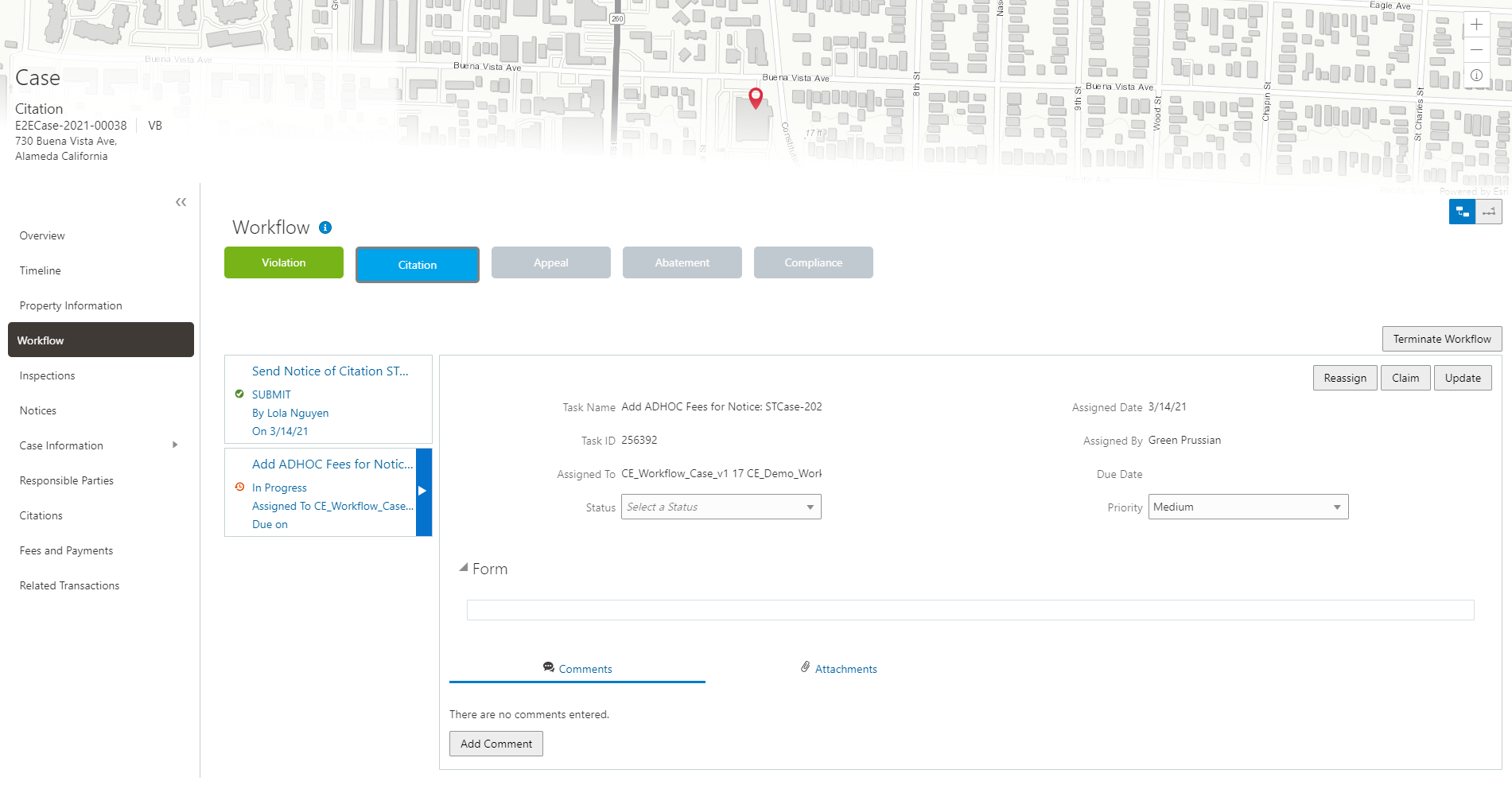
Page Element
Description
Stage View and Milestone View icons
Use these buttons to toggle between the stage and milestone views.
Stages
Click the stage buttons at the top of the Workflow page to open the tasks associated with it in the task panels below.
The names of these stages and their labels are displayed as configured in the Oracle Integration Cloud (OIC) that are defined by the agency. The stages are represented in different colors to show their status:
-
Blue: Active
-
Green: Completed
-
Gray: Not active or Terminated
You can click the buttons in the active and completed stages to view their details in the Task Details panel.
Examples of stages that appear in an incident's workflow include Reported, Inspection, Violation, Legal, and Closed.
Terminate Workflow
Click this button to stop or terminate a workflow.
Once a workflow has started, the Terminate Workflow button allows an agency staff to stop the workflow at any stage without completing the remaining tasks. This action terminates or cancels all the tasks in the workflow, even if it was open for an agency staff.
Note: You cannot activate a terminated workflow.Form
Use the form to review any information entered by the code enforcement officer or to enter your own information.
Code Enforcement – Incident and Case Workflow pages have an option to include a form or a checklist in the Task Details panel. The agency can customize the form for their specific requirement.
-
To access the Incident or Case Workflow page in the two-panel, milestone view:
Select the Incidents or Cases tile on the Agency Springboard.
Click the row for the incident or case you want to view.
Use the navigation links in the left frame to select Workflow.
The Workflow page appears on the right side of the page.
By default, the stage view is displayed. Click the Milestone View icon to toggle the view.
This example illustrates the Code Enforcement – Case details workflow page in a two-panel, milestone view.
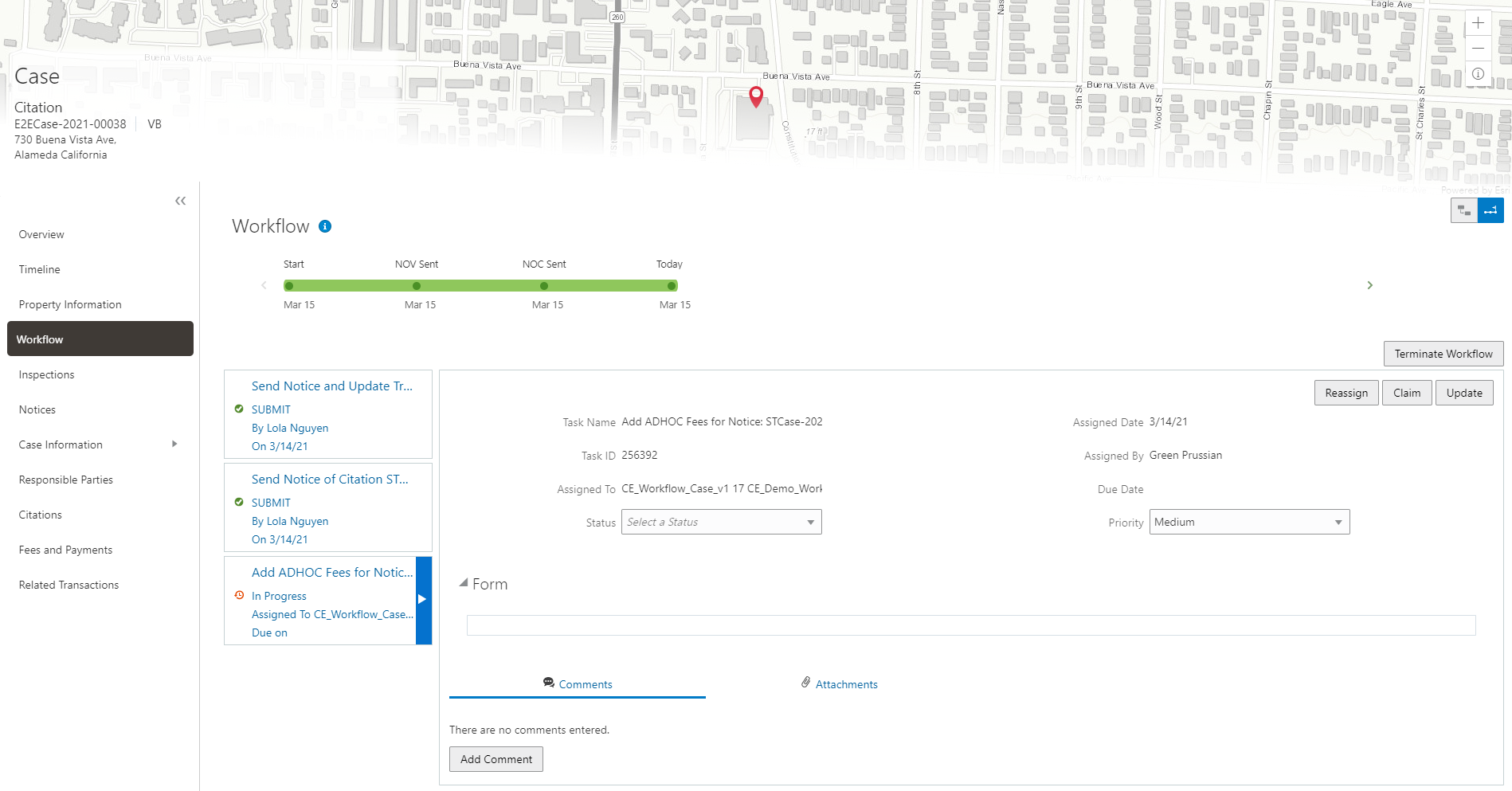
| Page Element |
Description |
|---|---|
| Stage View and Milestone View icons |
Use these buttons to toggle between the stage and milestone views. |
| Milestones |
Displays the milestone tasks and the date on which they were completed for the selected incident. Examples of milestone tasks that appear in an incident's workflow include Start, Incident Reported, and Inspection Schedule. |
| Terminate Workflow |
Click this button to stop or terminate a workflow. Once a workflow had started, the Terminate Workflow button allows an agency staff to stop the workflow at any stage without completing the remaining tasks. This action terminates or cancels all the tasks in the workflow, even if it was open for an agency staff.
Note: You cannot make a terminated workflow active again.
|
| Form |
Use the form to check or enter information as specified by the agency. Code Enforcement – Incident and Case Workflow pages have an option to include a form or a checklist in the Task Details panel. This form is customizable by the agency to cater to their specific requirement |
Using the Two-Panel View in Workflow for an Application
To manage workflow tasks in a two-panel view:
Select the Business Licenses, Permits, Planning Applications, Incidents, or Cases tile on the Agency Springboard.
Click the row for the business license, permit, planning application, incident or case you want to view.
Use the navigation links on the left side of the screen to select Workflow.
Note: By default, the Workflow page displays the list view for Permits, Planning and Zoning, and Business Licenses.Click the Show Two-Panel View button to display the two-panel view.
This example illustrates the Permits Workflow page in a two-panel view.
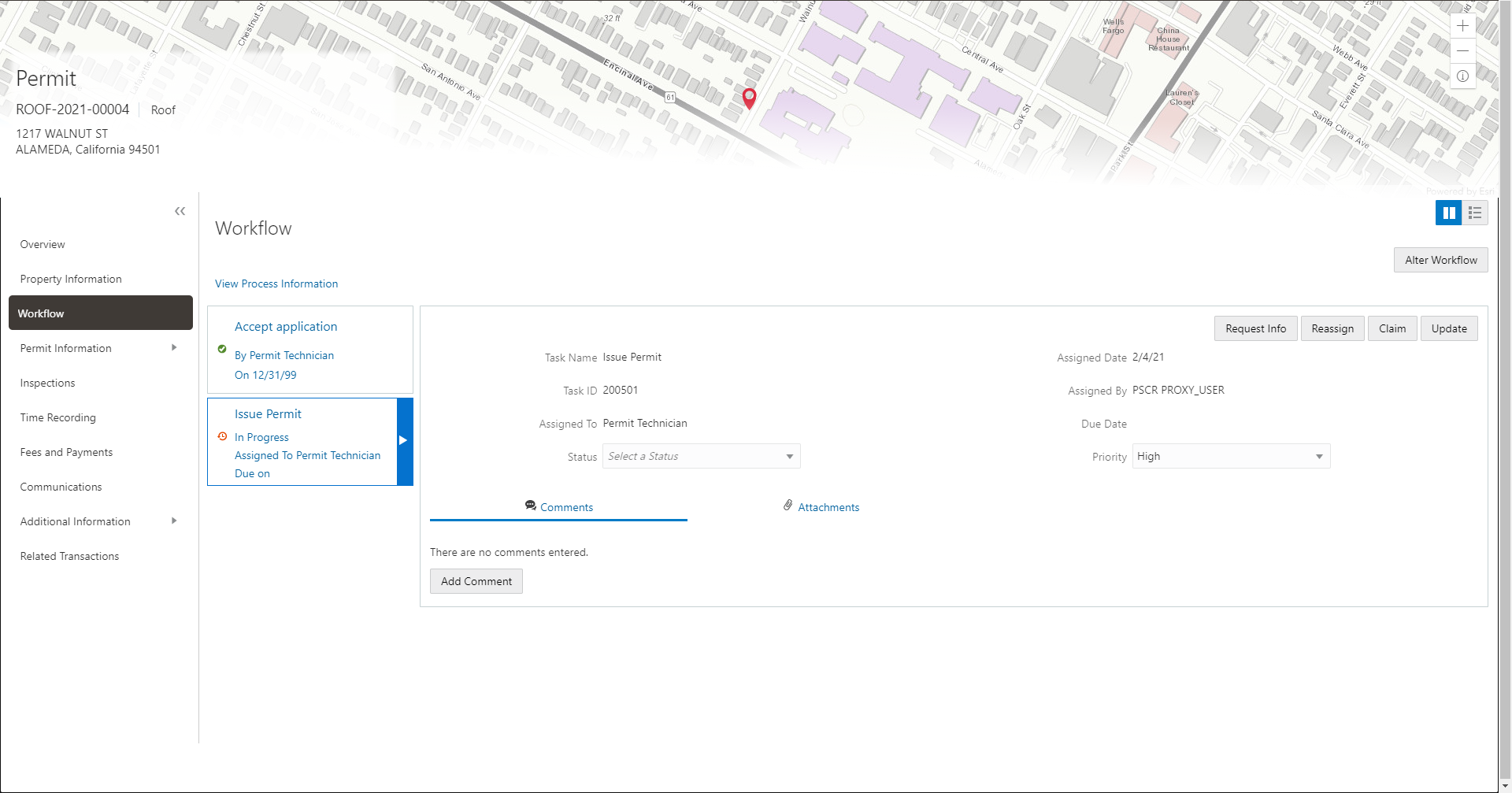
Panel
Description
Task summary cards on the left.
The left panel lists completed and in progress tasks. Each task appears on a card that lists the following information:
Task name
Task status
Although completed tasks can have a variety of statuses based on the outcome of the task, the status of an in progress task is always In Progress. If the workflow process definition uses parallel gateways, you might see multiple in-progress tasks.
Assignee
Tasks can be assigned to an individual, or they can be assigned to a group whose members can claim the task.
Either the due date (for in progress tasks), or the last-updated date, which is the completion date for past tasks.
Task details on the right.
The right panel displays more details for the task that is selected in the left panel.
If the task is in progress, use the right panel to change the task assignment, update the status and priority, or add task comments.
Completed tasks are not updatable, but you can add comments to them.
Note: You can update or assign a task only if it is in progress. You can add comments to tasks that are complete, but you cannot make other changes. You cannot make any changes to a task that is not started.Select a workflow task from the left frame to see details in the right frame.
Review read-only task information.
These fields can’t be updated regardless of the task status:
Page Element
Description
Task Name
The task name as defined in the OIC workflow engine. For example, the Application Acceptance task is for reviewing and accepting a permit or planning application that has been submitted.
Task ID
The identifier for this specific instance of a task. For example, multiple permits or planning applications have an Application Acceptance task, but the Task ID for accepting the application is unique for each permit or planning application.
Assigned To
The name of the individual who is assigned to the task, or, if the task isn’t assigned to an individual, displays the name of the group or role that is responsible for the task.
Assigned Date
The date that the task assignment was last updated.
Assigned By
The name of the person who last updated the task assignment. When an assignee claims a task, the Assigned To and Assigned By names are the same.
Due Date
The date by which the task must be completed. The workflow process definition in OIC sets the due date. Generally the due date is defined as a specific amount of time after the task is started.
If the task is in progress, you can reassign it using these buttons:
Page Element
Description
Reassign
Click to choose an assignee for the task.
See Managing Tasks.
Claim
Click to assign the task to yourself.
This button is visible only for tasks that are assigned to a group rather than to an individual.
Release
Click to remove yourself as the task assignee. The task is reassigned to its default group so that group members can see and claim the task.
This button is visible only for tasks that are assigned to you.
To update the status or priority of an in progress task, use these fields:
Page Element
Description
Status
Select a status that represents the final outcome of the task.
The task statuses depend on the workflow setup. For example, the available statuses for a task that requires a simple approval might be Approve and Reject. The workflow status of each task is defined by the agency using OIC.
Other tasks might require different statuses. The sample workflow that Oracle provides includes these statuses for the task where you review an application: Accepted – Plan Review Not Required, Accepted – Plan Review Required,Planner Assigned,Specialist Assigned, More Info Needed, and Reject.
Note: Task statuses are not the same as application status. However, the workflow engine can update the application status based on the outcome of a task.Priority
Set the priority to High, Medium, or Low. The priority is informational only.
Click Update to save your changes.
When you save your changes, the system does the following:
Sends an update to the workflow engine in OIC, triggering any subsequent tasks in the workflow.
For example, in a delivered sample workflow, approving a permit application triggers an update to the permit status, which triggers an email to the applicant. The workflow then reaches a decision point that checks whether a plan review is required. The next human step in the process is either completing a plan review or, if no review is required, issuing the permit.
Refreshes the Workflow page, which becomes read-only if the task is complete. Processing time can vary.
Using a Form in Code Enforcement – Incident and Case Workflow Pages
Code Enforcement – Incident and Case Workflow pages have an option to include a form or a checklist in the Task Details panel. The agency can customize the form for their specific requirement.
An example of an incident task having a form can have the following checkpoints for the agency staff:
Check if Repeat Offender
Send Courtesy Notice
An example of an abatement task having a form can have the following checkpoints for the agency staff:
Schedule Inspection Post Abatement
Add Fee
Send Notice
Adding Comments to a Workflow Task
Comments are a useful mechanism for adding information to a workflow task. You can control whether the comment is visible to public users who view their application workflow. The default setting is for comments to be visible, so you must manually hide comments that you do not want the public user to see.
For more information about comments, see Working with Comments.
To add a comment to a task:
Access the workflow task.
Click Add Comment.
To write a new comment from scratch, enter and format your comment in the rich text field on the page.
To create a new comment based on one or more existing comments:
Click Select Comments.
On the Select Comments page, click Favorite, Standard, or Recent to see the corresponding list of comments.
Favorite, standard, and recent comments are described in the topic Working with Comments.
Locate and select the comments you want to copy, using the search and filter options as needed.
Click Insert to copy the text of the selected comments into the field for the new comment.
If necessary, modify the copied text.
If you want to hide the comment from public users, click the Hide from Public icon to toggle the visibility setting.
When the icon displays an open lock, the comment is visible to the public. This is the default setting for new comments.
When the icon displays a closed padlock, the comment is hidden from the public.
Click Save to save the comment and return to the Workflow page.
Modifying a Comment in a Workflow Task
To modify a comment:
Access the workflow task.
Click an existing comment to view it on the Comment page.
Modify the text of the comment as needed.
if you use the Select Comment option to add text from an exiting comment, the new text is added after any existing text.
To modify the comment visibility, click the Hide From Public icon.
Clicking the icon toggles the setting. When the icon displays an open lock, the comment is visible to the public. When the icon displays a closed padlock, the comment is hidden from the public.
Click Save to save changes and return to the Workflow page.
Deleting a Comment from a Workflow Task
To delete a comment:
Access the workflow task.
Click an existing comment to view it on the Comment page.
Click the Delete icon.
The comment is deleted, the window closes, and you return to the Workflow page.
Managing Attachments for a Workflow Task
You can upload files to attach them to specific workflow tasks. File that you associate with a workflow task are visible only on the detail page for that task. That is, workflow attachments are not visible on the general Attachments page for an application.
To manage attachments for a workflow task:
Access the workflow task.
Click the Attachments link to display attachments information.
The Attachments link and Comments link toggle the display between task comments and task attachments. In Attachments view, a grid displays the File Name, a Description, and the File Size for each attachments.
To add a new attachment:
Click Add.
Select a file using your browser’s file selection window.
On the Add Attachments page, verify the File Name and optionally enter a Description.
Click Upload.
When the upload is complete, the new attachment appears in the workflow task details.
To view or modify attachment information:
Click the Actions icon for the existing attachment.
Select View Details.
On the Attachment page, review the File Name, File Size, and the Last Updated By and Uploaded By user names.
Optionally update the Description.
Click Save or Cancel to return to the Attachments page.
To download a file, click the Actions icon and select Download.
To delete a file, click the Actions icon and select Delete.
You are prompted to confirm the deletion.
To close the Attachments window, click Cancel.
Requesting Additional Information
If additional information is required or questions need to be answered prior to advancing a transaction along in the workflow, you can click the Request Info button. This disables the Status and the Priority fields to keep the transaction in the current state while the requested information is reviewed. After clicking the Request Info button, the name of the button toggles to Accept Info, which you click after you have reviewed the additional information submitted to enable the Status and the Priority fields again.
After clicking Request Info, the status of the current workflow task reads Information requested until you click the Accept Info button. The status appears on the Workflow tab in the transaction details, the Worklist, and the Task Management page.
Viewing the Overall Workflow (List View) for an Application
Use the list view on the Workflow page to view all of the workflow tasks that a human must perform for a specific permit or planning application. This list does not include system tasks such as updating the application status and sending automated notifications.
The list includes completed, in progress, and not started steps. Showing all of these steps together provides a big-picture view of the process. However, some steps that are not yet started might not be applicable depending on the workflow path.
To use the list view:
Select the Permits or Planning Applications tile on the Agency Springboard.
Click the row for the permit or planning application you want to view.
Use the navigation links in the left frame to select Workflow.
Click the Show List View icon.
Review the task list.
The task list displays:
The Task Name and Status.
The Last Updated Date.
The Days Taken, which represents the number of days elapsed while the task is in progress.
The value is the number of days so far for an in progress task, or the total days from start to finish for a completed task. This field is blank for tasks that have not started.
Comments, which displays the two most recent comments.
For each comment, this column displays the creation date and time, the creator, and the comment text. Lengthy comment text is truncated.
To review task history, click a specific task to open the Task Details page.
This page lists the dates that the task was updated along with the task status on that date, the number of days taken as of that date, and all comments that were added on that date.
Close the Task Details page to return to the workflow list view.
Altering Workflow
If needed, supervisors or administrators can change the workflow for a transaction type manually. This enables you to change the workflow step in case of system outage, user error, and so on.
To alter workflow:
Select the Permits or Planning Applications tile on the Agency Springboard.
Click the row for the permit or planning application you want to view.
Use the navigation links in the left frame to select Workflow.
Click the Alter Workflow button.
On the Alter Workflow make these changes:
New Workflow Activity Name: Select the desired workflow step.
Update Transaction Status: Select the proper status for the workflow step. You can't alter a workflow step back to a pending status.
Comments: It is recommended to note who made the change and describe the circumstances requiring the manual intervention.
Note: Click View Workflow, if you need to review the steps and swimlanes in the underlying workflow process diagram as defined in OIC. This displays an image of the entire workflow process diagram you can view.Click Save.
Note: If the alter request is not successful, supervisors have the option to redo the alter request and try again.
A workflow process definition may contain one or more parallel tasks. Parallel tasks:
Do not depend on each other to be completed.
Can be completed simultaneously.
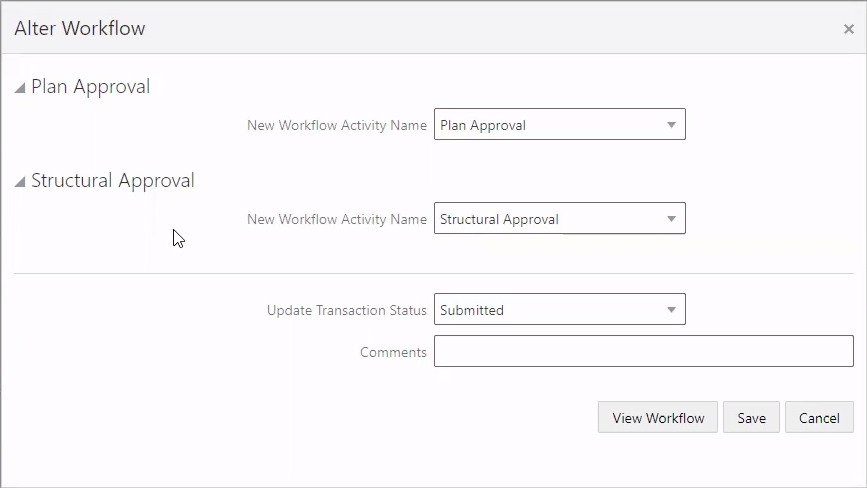
In the case of parallel tasks, the Alter Workflow tab displays each applicable parallel task for you to alter the workflow status accordingly for each.
For example, if a workflow process for a given transaction, requires a Plan Approval and a Structural Approval to occur in parallel, then the Alter Workflow tab displays those two tasks together.
This example illustrates a workflow process definition with parallel tasks.
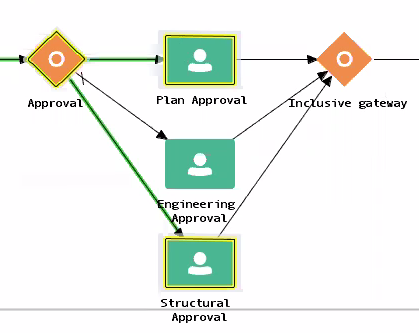
This example illustrates the Alter Workflow tab displaying parallel tasks.
Working with Code Enforcement Inspections
The case information includes a consolidated list of inspections that are carried out and those that are scheduled for a case. As a code technician you manage inspection activity for a case — including reviewing inspection count, status, assignments, schedule dates, results and more — on the Inspections page.
As agency staff, you use the Inspection list page to view a complete list of case inspections that were carried out and scheduled for future. Access the inspections list in the case details to perform these tasks:
Review inspection activity recorded by the inspector.
Perform actions such as scheduling, rescheduling, and canceling an inspection.
Viewing Inspection Information
Select the Code Technician Worklist tile on the Agency Springboard and select the Cases tab.
Alternatively, you can select the Cases tile on the Agency Springboard to view all the cases in the system.
On the Cases page, select the case you are working with by clicking the View More Details button.
Click Inspections in the left navigation panel of the case details.
On the Inspections page, you can view inspection information in these fields:
Page Element
Description
Schedule Inspection
Click to open the Schedule page and use the calendar to select from the dates that the assigned inspector is available for an inspection.
Note: This option is available only if there are no pending inspections scheduled. The status of all the inspection schedules must be either Completed or Canceled.Inspection
View the number of inspections carried out till date for the case.
The format of the inspection count is set up by the agency administrator on the Inspection Count page. See Setting Up Inspection Counts.
Inspection Status
View the status of the inspection:
Completed
Scheduled
Canceled
Assigned To
Identifies the inspector assigned to the case.
Scheduled Date
View the date on which the inspection is scheduled.
Inspection Completion Date
View the date on which the inspection was completed.
Inspection Outcome
View the result of the inspection.
In compliance
Violation
Referral
Remains in Violation
Issue Citation
Remains in Citation
Extension
Mandatory Abatement
Closed
For more information about submitting inspection results, see Overview of Mobile Oracle Municipal Code Officer.
Reschedule
Click to open the Schedule page and use the calendar to select the next available date for the assigned inspector to schedule the inspection.
Note: This option is available only for inspections that are not completed.Canceled
Click to cancel the inspection schedule.
Note: This option is available only for inspections that are not completed.
Viewing Inspection Detail
Select the Code Technician Worklist tile on the Agency Springboard and select the Cases tab.
Alternatively, you can select the Cases tile on the Agency Springboard to view all the cases in the system.
On the Cases page, select the case you are working with by clicking the View More Details button.
Click Inspections in the left navigation panel of the case details.
On the Inspections page, click View More Details for the inspection record you want to view.
On the Inspection Detail page, you view the details of the inspection along with any comments and attachments included by the inspector at the time of inspection.
To enter a comment, click the Add Comment button to open the Add Comment page. You can add an existing comment or enter a new one. Click Save.
To add an attachment, click the Add button and select the attachment. Enter a description and click Upload.
Close the Inspection Detail page.
Scheduling Inspection
Select the Code Technician Worklist tile on the Agency Springboard and select the Cases tab.
Alternatively, you can select the Cases tile on the Agency Springboard to view all the cases in the system.
On the Cases page, select the case you are working with by clicking the View More Details button.
Click Inspections in the left navigation panel of the case details.
On the Inspections page, click Schedule Inspection.
This option is available only if there are no inspections already scheduled for the case.
On the Schedule page, use the Next Schedule Date field to select a date from the calendar, which shows only those dates that the assigned inspector is available.
Click Save.
The new schedule is listed in the Inspections page and the Schedule Inspection button is no longer displayed. The assigned inspector receives a notification on his mobile application about the new inspection schedule.
Rescheduling and Canceling Inspection
You can reschedule or cancel an inspection schedule that is not completed.
Select the Code Technician Worklist tile on the Agency Springboard and click the Cases tab.
Alternatively, you can select the Cases tile on the Agency Springboard to view all the cases in the system.
On the Cases page, select the case you are working with by clicking the View More Details button.
Click Inspections in the left navigation panel of the case details.
To reschedule, click the Reschedule button on the inspection row.
To cancel the schedule, click the Cancel button on the inspection row.
After you cancel an inspection schedule, you schedule a new inspection using the Schedule Inspection option.
Working with Notices
Once a case is created, a corresponding notice object is automatically created and access is made available in the Code Technician Worklist and in the case details. As agency staff, you generate a notice from the notice object, update the various details, review, edit, and print it for dispatch. Agency staff can also manually create ad hoc notices for a case.
You can access the notice record using any of the following navigations:
Notice of Violation and Notice of Citation tab:
and Notice of Citation. The Generate or Continue option is available in the row. Click View More Details if you want to view the complete details.
Case Overview page:
. Select the case you are working with. On the Overview page, scroll down to the Notices section. The Generate or Continue option is available in the row. Click View Details if you want to view the complete details.
Notices Page:
. Select the case you are working with. Select Notices in the left navigation panel.
Viewing Notices
You view a list of notice records for the case citation and violation in the case detail pages.
The Notices page shows the list of all notices for the case. You can view the information and perform actions as described here:
| Page Element |
Description |
|---|---|
| Notice ID |
View the identifier of the notice. |
| Notice |
View the generated name of the notice, based on the nature of violation. |
| Notice Type |
View the type of notice:
|
| Case Status |
View the status of the case:
|
| Status |
View the status of the notice:
|
| Sent Date |
View the date on which the notice was dispatched. |
| Tracking Number |
View the tracking number associated with the shipment of the notice. |
| Attachment |
Icon to indicate that an attachment is present in the notice. |
| Received Date |
View the date on which the notice was received by the responsible party. |
| Actions |
Select from available options, which are based on the status of the notice:
|
 |
Click to open the Edit Notice Details page to enter additional details about the notice, such as tracking details. This option is available only for the notice records that are in Generated, Sent, or Received status. |
Creating an Ad Hoc Notice
To manually create an ad hoc notice for a case:
Navigate to the notice record using one of the methods listed in the previous section.
Click the Add button.
On the Add Ad Hoc Notice page, select an ad hoc notice subtype from the list. You can use the Search option to search for and select the ad hoc notice subtype applicable for the case. Selecting the ad hoc notice subtype returns you to the Notices page.
In the Notices page, you can see the new ad hoc notice listed.
Generating a Notice
You can generate a notice from the Code Technician Worklist or from case details.
Navigate to the notice record using one of the methods listed in the previous section.
Click the Generate button.
Note: This option is available only for the notice records in Pending status. If the status is in In Progress, you will see the Continue option. Use this option in case the notice was generated earlier and saved for later.On the Generate Notice page, the top section shows notice information such as the name, issue type and subtype.
The middle section has the following page elements:
Page Element
Description
Do you want to edit the notice?
Turn on this switch, to download and edit a generated notice.
Download and Edit
Click this button to download the generated notice in the rich text format (RTF) or in a portable document format (PDF).
Upload Edited Document
Click this button to re-upload an edited notice either as RTF or PDF.
Review and Print
Click this button to open the generated notice in a new window. You can review the details, print the document, and send it to the responsible party.
Note: The sections below for editing notice details and entering tracking details are displayed only when it is relevant to the notice.Use the Edit Notice Details section for information on:
Verify Details: Enter the compliance date and a description about the violation or citation.
Responsible Party and Mailing Address: Click the Add button to search and select a responsible party associated with the violation or citation. You can click the responsible party row to open the Update Responsible Party page and make changes to the contact details.
Code Violations: Review the list of code violations added by the agency staff. You can delete one or more code violations. To add them, you should access the Code Violations page.
Use the Enter Tracking Details section to enter the details of the notice shipment such as the carrier name, tracking number, and any comments.
Click Save Changes. You can close the window and return to the notice at a later time. You can use the Continue button to access this page later.
-
Click Complete on the Generate Notice page. The status of the notice record changes to Generated and the record is removed from the worklist. You can access the record on the Notices page, which lists all the notices records for the case.
Editing Notice Details
For notices that are in the Generated or Sent status, you can review and update the details.
Select Cases on the agency Springboard.
On the Cases page, click View More Details for the case you are working with.
Select Notices in the left navigation panel. Select the notice row which you want to update.
On the Edit Notice Details page, the top section shows the notice ID, status, notice name and notice type.
The Tracking Details section allows you to enter the details for sent date, carrier name, mailing cost, tracking number, and the received date.
The Attachments section allows you to add, view detail, download and delete attachments. Example of an attachment can be a copy of the report that was sent to the responsible party.
Working with Code Violations
Agency staff view, add, and manage code violations associated with a case on the Code Violations page. You add one or more code violations to a case based on the specific code used on a violation.
In addition to the code violations included by the system based on the incident issue type, inspectors add code violations during their inspection using their mobile device.
Agency staff such as a code technician manage the code violations using the Code Violations page in case details. For more information on mobile inspections, see Overview of Mobile Oracle Municipal Code Officer.
Viewing Code Violations
View a list of code violations that were added by the inspector and the technician, along with their corrective actions to resolve the violation.
Select the Code Technician Worklist tile on the Agency Springboard and select the Cases tab.
Alternatively, you can select the Cases tile on the Agency Springboard to view all the cases in the system.
On the Cases page, click View More Details for the case row you want to access.
Click Case Information and then select Code Violations in the left panel to open the list of code violations.
Expand each code violation record to view the description and the related corrective actions.
As agency staff you can use the Edit icon to modify the summary and descriptions for violations. You can also modify the description for corrective actions. The Description field enables you to use Rich Text formatting options for the text you enter. Use the Delete icon to delete a violation and its corrective action.
Adding Code Violations
You add code violations to a case using the Select Codes page.
Select the Code Technician Worklist tile on the Agency Springboard and select the Cases tab.
On the Cases page, click View More Details for the case you are working with.
Click Case Information and select Code Violations in the left panel to open the list of code violations.
Click the Add button to open the Select Codes page, search, and select violations.The Selections tab shows the code violations you have selected:
Page Element
Description
Current violation and Other violations
Current violation: View a list of code violations associated with the issue subtype that was selected at the time of recording the issue or violation.
Other violations: View a list of all the code violations in the system.
Search look-up
Search by entering the name of a specific code violation using the look-up.
Select one or more code violations using the check boxes and click Done to include them in the case.
Click Done to add the selected violation to the case and return to the Code Violations page.
Working with Comments
This topic discusses how to use comments. Agency staff can view, modify, and add comments on the Comments page for a transaction, contractor license, case, or incident.
Adding Comments
You view, modify, and add new comments on the Comments page. Three categories of comments are available for use:
Favorite comments: Mark comments you use regularly as your favorite and access them easily on the Favorite comments tab
Standard comments: Select and post a comment from a list of pre-defined comments on the Standard comments tab.
Recent comments: Select and post comments from a list of recently posted comments on the Recent comments tab.
Viewing and Modifying Comments
Access the detail page for the transaction, contractor license, case, or incident you are working with.
Click the Comments link in the left panel to view the Comments page.
You view a list of comments in the right panel.
You can modify, delete, or hide a comment from public view only if it was entered by you. Click the specific comment row to open the detail view and make changes.
Click Save.
Adding a New Comment
Access the detail page for the transaction, contractor license, case, or incident you are working with.
Click the Comments link in the left panel to view the Comments page.
Click the Add Comment button to open the Add Comment page and enter a new comment.
You can use the Hide from Public icon, to hide a comment from public view and also toggle between hide and show.
You can use the Rich Text Editor option for formatting your comment with tools such as the numbered list. The Link button allows you to embed a URL to display the text you enter. See Managing Comments to enable the option of Rich Text Editor formatting.
Click Save to post the comment and return to the Comments page.
Adding Favorite, Standard, and Recent Comments
You can post a comment that is already available in the system. On the Add Comment page, click the Select Comments button to view the three categories of comments:
Favorite: Comments that you have marked as favorite.
Standard: All the predefined comments available.
Recent: Comments that were recently posted.
Select a comment and click the Insert button to post the comment.
See Managing Comments.
Working with Attachments
You view a list of files and upload or download documents associated with a transaction or record, such as a permit, planning application, case, business license, or contractor license on the Attachments page.
Attachments provide supporting documentation needed by agency staff when processing transactions or managing records.
You can manage attachments associated with a transaction on different pages in Oracle Public Sector Compliance and Regulation. Here’s a look at some of the areas that include attachment functionality:
The Attachments page in the transaction or record detail pages, including pages for permits, planning applications, cases, business licenses, and contractor licenses.
The Workflow page in the transaction detail pages.
Inspection Detail and Checklist pages in Oracle Inspector.
New Violation and Inspection pages in Oracle Municipal Code Officer.
Recipients of transaction communications containing web forms can upload files when requested. You can also manage documents as part of the plan review process.
These are all sources of attachments that you’ll find associated with a transaction on the Attachments page.
For more information about managing attachments for a workflow task, see Using Workflow.
For more information about Oracle Inspector, see Overview of Mobile Oracle Inspector for Permits.
For more information about Oracle Municipal Code Officer, see Overview of Mobile Oracle Municipal Code Officer.
For more information about managing attachments associated with a contractor license, see Managing Contractor License Details.
Viewing Attachments
To view a list of attachments:
Access the detail page for the transaction where you want to view attachments.
Click the Attachments link in the left panel to view the Attachments page.
You may need to expand the section that includes the Attachments link.
On the Attachment page, view the list of attachments.
Note: The page elements may vary on the Attachments page depending on the type of transaction or record.For permits, the attachments are displayed on two tabs. The Permits tab displays attachments added through the Attachments page. The All tab displays attachments added from all sources, including the Attachments page, the Workflow page, Oracle Inspector, plan reviews, and web form responses.
Page Element
Description
File Name
View the following information in the Filename field:
Icon indicating the file type
Filename with file type extension
File Size
Description
View the description of the attachment as entered by the person who added the attachment.
Source
View the source of the attached file. Valid values are:
Permits
Inspection
Workflow
Plan Reviews
Attachments that are added to electronic plan reviews have their source changed from Permits to Plan Reviews.
For example, attachments added through Oracle Inspector display Inspection in this field.
Attachments added to web form questionnaire responses display Permits in this field.
Note: This column appears only on the All tab for permits.Uploaded By
View the name of the person who uploaded the file along with the date and time that the person uploaded the file.
Category and Subcategory
View the document category for the attachment.
The category and subcategory are available when a document group is specified during setup for the transaction type or in the contractor license options.
Note: This field in not available for case and business license attachments.Actions
Click the actions icon to select and perform an action:
View Details
Download
Delete
Note: For permits, the Deleteaction appears only on the Permits tab. Additionally, the security associated with your user ID may limit which actions are available to you.Click the Sort By to view attachments grouped by these fields: file name, file size, uploaded by, uploaded on, description, category, and subcategory.
To find a specific attachment, you can enter values in the search field.
Adding Attachments
You upload files to the Attachments page using the Add Attachments page. For permits, you use the Permits tab of the Attachments page.
To add attachments:
Access the detail page for the transaction where you want to add attachments.
Click the Attachments link in the left panel to view the Attachments page.
You may need to expand the section that includes the Attachments link.
Click the Add icon.
Note: For permits, this icon appears only on the Permits tab.Select the file to upload in the browser dialog box and click Open.
The file name appears on the Add Attachments page.
On the Add Attachments page, optionally enter a description of the file.
If the Category and Subcategory fields appear on the Add Attachment page, optionally select a document category and subcategory.
These fields appear if the transaction type is associated with a document group. The document group defines the available values in these fields.
For more information, see the implementation documentation for Setting Up Document Categories and Subcategories.
Note: The document group for a transaction is based on the document group that was defined for the transaction type at the time the transaction is saved.Note: Document category and subcategory are not applicable to case attachments.Click the Upload button.
The Add Attachment window closes, and the newly uploaded attachment appears on the Attachments page.
Viewing Attachment Details
To view document details on the Attachments details page:
Access the detail page for the transaction where you want to view attachment details.
Click the Attachments link in the left panel to view the Attachments page.
You may need to expand the section that includes the Attachments link.
In the attachments grid, click the Action icon for the document that you want to view.
Select View Details to open the document details page.
The details on this page include the information from the Attachments page and information about the file size and the person who last updated the document information.
Editable fields include the description and, if available, the document category and subcategory. For contractor licenses, you can update the referenced person in the Assigned To field.
Downloading Attachments
There are multiple ways to download attachments.
To download selected attachments from the Attachments page:
Access the detail page for the transaction where you want to delete attachments.
Click the Attachments link in the left panel to view the Attachments page.
You may need to expand the section that includes the Attachments link.
Click the Select Multiple icon above the grid.
Select one or more documents to download.
Click the Download icon.
To download a single attachment from the Attachments page:
Access the detail page for the transaction where you want to download attachments.
Click the Attachments link in the left panel to view the Attachments page.
You may need to expand the section that includes the Attachments link.
In the attachments grid, click the Action icon for the document you want to download.
Select Download and save to the location of your choice.
Deleting Attachments
There are multiple ways to delete attachments. The security associated with your user ID determines whether you can delete attachments.
To delete selected attachments from the Attachments page:
Access the detail page for the transaction where you want to delete attachments.
Click the Attachments link in the left panel to view the Attachments page.
You may need to expand the section that includes the Attachments link.
Click the Select Multiple icon above the grid.
Select one or more documents to delete.
Click the Delete icon.
To delete a single attachments from the Attachments page:
Access the detail page for the transaction where you want to delete attachments.
Click the Attachments link in the left panel to view the Attachments page.
You may need to expand the section that includes the Attachments link.
In the attachments grid, click the Action icon for the document you want to delete.
Select Delete from the action menu.
Working with Appeals and Hearings
Agency staff can request an appeal on behalf of the responsible party, for a violation or citation that the responsible party has received. The details of the requested appeals, their hearing schedules, and decisions can be seen in the case details — Appeals and Hearings page.
Registered public users can request appeal for their case as a responsible party, using the Resolve Issue page. Permissions to access the case is issued by the agency staff after the user requests access. For information about registered users requesting access and requesting appeals, see Resolving Issues.
Code officers such as a code technician can directly schedule hearings for a case, independent of appeals.
Viewing Appeals and Hearings
Select the Code Technician Worklist tile on the Agency Springboard and select the Hearings tab. This page lists only the cases that are appealed, with a hearing schedule. Click View More Details for the case row you want to access.
Alternatively, you can access the Appeals and Hearings page by selecting the Cases tile on the Agency Springboard. Click View More Details for the case you are working with. Click Case Information and select Appeals and Hearings in the left panel.
The Appeals and Hearings page lists all the appeals and hearings for the case:
Page Element
Description
Source
Review the details of the record:
Source – Appeal or Hearing
Responsible Party
Date of creation
Hearing Body
Review the name of the hearing body that is assigned to the case hearing.
Hearing Date
Review the date on which the hearing is scheduled.
Status
View the status of the hearing:
Not Scheduled: The hearing is not scheduled.
Scheduled: The hearing is scheduled.
Completed: The hearing is completed with a decision outcome.
Responsible Party
Review the name of the responsible party for the case.
Attachments
View attachments related to the hearing.
Actions
Click to view the actions you can perform on the record, which are based on the status of the case – Hearing or Appeal:
Schedule Hearing: Select to schedule a hearing by selecting a hearing body and an available date.
Reschedule Hearing: Select to change the hearing date.
Update Hearing Decision: Select to enter the decision made in the hearing and add corrective actions.
Cancel: Click to cancel the appeal or hearing.
Adding an Appeal
You can request an appeal only if there is no active appeal for the case. The time period within which you can request an appeal is determined by your administrator and is set up in the Time Rules page. For more information about time rules, see Setting Up Time Rules.
Select the Cases tile on the Agency Springboard.
On the Cases page, click View More Details on the case for which you want to request an appeal.
Click Case Information and select Appeals and Hearings in the left panel to open the list of appeals and hearings.
Click Add Appeal. The Add Appeal page opens.
Page Element
Description
Appellant
View the name of the responsible party.
Appeal Date
View the appeal date, which is the current date.
Appeal Reason
Enter the reason for requesting the appeal.
Click Save. The new appeal for the case is created with a case status of Appeal, and any scheduled inspection is canceled.
Adding a Hearing
You can directly schedule a hearing for a case, without an appeal request. To add a hearing:
Access the Appeals and Hearings page.
Click Add Hearing to open the Schedule Hearing page.
Page Element
Description
Appeal Source
View the source of the appeal, which is Hearing
Hearing Body
Select the hearing body from the available list.
Hearing Date
Select a hearing date from the available options, which is determined by the schedules of the hearing body and the agency.
Responsible Party
View the name of the responsible party related to the case.
Click Save. The new hearing for the case is scheduled with a case status of Hearing, and any scheduled inspection is canceled.
Updating Hearing Decision
After the public hearing is completed and the hearing body announces their decision, the assigned code technician updates the decision in the case details using the Appeals and Hearings page.
Select the Code Technician Worklist tile on the Agency Springboard and click the Cases tab.
Select the Code Technician Worklist tile on the Agency Springboard and select the Hearings tab. This page lists only the cases that are appealed, with a hearing schedule. Click Actions and select Update Hearing Decision.
You can also navigate using the case list. Select Cases on the Agency Springboard to view a list of all cases. On the Cases page, click View More Details for the case you are working with. Click Case Information and select Appeals and Hearings in the left panel to open the list of appeals and hearings.
Click the Action button on the row of the appeal or hearing you are working with and click Update Hearing Decision.
Note: This option is not available for a completed appeal row.Enter the decision related information on the Update Hearing Decision page:
Page Element
Description
Hearing Body
View the name of the hearing body assigned for the hearing.
Hearing Date
Select an available date for the hearing.
Responsible Party
View the name of the responsible party for the case.
Hearing Decision
Select the hearing decision from options set up by your administrator.
Examples of decision options can be Compliance, Not in Compliance, Continue, No Outcome, and others.
If you select the option related to non compliance, you must change the status of the case in the New Case Status field.
Decision Date
Enter the date on which the hearing decision was taken.
New Case Status
Select the new status for the case:
Legal
Violation
Citation
Mandatory Abatement
This option appears if you have selected the Not in Compliance hearing decision.
If the new status is Violation or Citation, you select the new compliance date. The system allows you to generate a new notice and any applicable citation fee, and a corresponding inspection is scheduled. Selecting the Legal status cancels the scheduled inspections and no new inspection, appeal, or hearing can be scheduled.
Depending on the status you select, the workflow stages and their tasks are accordingly updated.
Comments
Enter any text for reference.
New Compliance Due date
Select a date by which the responsible party must ensure compliance. This option appears if the new status of the case is violation or citation.
New Citation Due date
Select a date by which the responsible party must pay the citation fee. This option appears if the new status of the case is citation.
Corrective Actions
Click Add to open the Corrective Actions page, search and select one or more corrective actions from a list. You can edit the description of each of the actions using the Rich Text formatting option.
Attachments
Click Add to open the Attachments page and include any documents.
Click Save to close the Update Hearing Decision page and show the updated records on the Appeals and Hearings page. Depending on the options selected, the status of the case changes and the workflow stages and their tasks are updated. See Using Workflow.
Also, an inspection is scheduled as needed, a citation record is created, and a notice is sent to the responsible party. See Working with Code Enforcement Inspections, Working with Notices, and Working with Citations.
Adding Responsible Parties
Agency staff add and manage responsible parties related to a case.
Viewing Responsible Parties
Select the Code Technician Worklist tile on the Agency Springboard and then select the Cases tab.
Alternatively, you can select the Cases tile on the Agency Springboard to view all the cases in the system.
On the Cases page, select the View More Details button for the case you are working with.
Click Responsible Parties in the left panel to view the Responsible Parties page for the case.
Page Element
Description
Responsible Party
View the name of the party responsible for the reported violation.
Mailing Address
View the address of the responsible party.
You can view the location of the address on a map at the top of the page.
Email
View the email address of the responsible party.
Type
View the type of the responsible party. For example, owner.
Online Access Status
Displays the status of the online access that was requested by the responsible party:
Not Requested
Pending Approval
Issued
Denied
Actions
Select from these options to allow or deny access to responsible parties for this case:
Allow Access as Owner
Allow Access as Contact
Deny Access
These options are available only if a responsible party has requested access to this case. Once the access is issued, the responsible party can access their case details using the Resolve Issue page and take actions such as submitting appeals. See Resolving Issues.
Note: These actions are also available to the assigned code technician on the Access Requests tab in the Code Technician Worklist.To view more information about the online access activity, click View Details for the responsible party record.
The detail page shows the Online Access section only if the responsible party has requested for online access, using the Resolve Issue page.
Adding Responsible Parties
Select the Code Technician Worklist tile on the Agency Springboard and then select the Cases tab.
On the Cases page, select the View More Details button for the case you are working with.
Click Responsible Parties in the left panel to view the Responsible Parties page for the case.
Click the Add button to open the Search Responsible Party page and search the required parcel.
Click Select.
Click Save.
Note: Presently you can add only one responsible party to a case.
Updating Responsible Party Detail
Select the Code Technician Worklist tile on the Agency Springboard and then select the Cases tab.
On the Cases page, select the View More Details button for the case you are working with.
Click Responsible Parties in the left panel to view the Responsible Parties page for the case.
Click the row of the responsible party to update the details.
On the Edit Responsible Party page, you can change values for all fields except for the Type and Country.
To enter an address, begin by entering the Postal Code. As you enter the code, the type-ahead list shows values that include appropriate state and city combinations. After you select a value, the city and state appear as read-only fields, and two address fields appear so that you can enter the rest of the address.
If you don’t know the postal code, click the Don’t know link that appears when the postal code field is blank. Clicking this link displays a full set of address fields.
Click Save.
Deleting Responsible Party
Select the Code Technician Worklist tile on the Agency Springboard and then select the Cases tab.
On the Cases page, select the View More Details button for the case you are working with.
Click Responsible Parties in the left panel to view the Responsible Parties page for the case.
Click the row of the responsible party.
On the Edit Responsible Party page, click the Delete button. You are prompted to confirm the deletion.
Working with Citations
A code enforcement inspector issues a citation as a result of inspection related to a code violation. Citations can also be issued by agency staff such as a code technician using the Citations page in case details. A fee amount associated with each citation record is created, the details of which are listed in the Fees and Payments page.
Viewing Citations
You view a list of all citations issued for a case on the Citations page.
Select the Code Technician Worklist tile on the Agency Springboard and select the Cases tab.
Alternatively, you can select the Cases tile on the Agency Springboard to view all the cases in the system.
On the Cases page, click View More Details for the case row you want to access.
Click Citations in the left panel to open the list of citations.
Page Element
Description
Citation ID
View the identifier of the citation.
Description
View the description of the citation as entered at the time of issuing the citation.
Comments
View comments entered at the time of creating the case.
Due Date
View the due date for paying the citation fee.
Created By
View the name of the agency staff who created the case.
Click a citation record if you want to open the detail view of the citation.
Issuing a Citation
Agency staff such as a code technician can issue a citation for a case on the Citations page.
Select the Code Technician Worklist tile on the Agency Springboard and click the Cases tab.
On the Cases page, click View More Details for the case you are working with.
Click Citations in the left panel to open the citations list page.
Click the Issue Citation button to open the Issue Citation page and enter values for the fields:
Page Element
Description
Description
Enter a description about the citation.
Due Date
Enter the due date by which the citation fee must be paid.
Comments
Enter any optional comments related to the citation.
Once a citation is issued, a corresponding citation fee amount is calculated and the fee record is created in the Fees and Payments page. Fee amounts are calculated based on the fee schedule set up on the Issue Subtype page. For details, see Setting Up Issue Subtypes.
For details about a code enforcement inspector issuing citation using a mobile device, see Overview of Mobile Oracle Municipal Code Officer.
Working with Citation Fees and Payments
You view and manage citation fees and payments associated with a case on the Fees and Payments page in the case details.
Viewing Fees and Payments for a Case
Select the Code Technician Worklist tile on the Agency Springboard and select the Cases tab.
Alternatively, you can select the Cases tile on the Agency Springboard to view all the cases in the system.
On the Cases page, click View More Details for the case row you want to access.
Click Fees and Payments in the left panel or click the View Details link in the Fees and Payments section on the Overview page for the case.
On the Fees and Payments page, view a list of total fees, as well as a list of separate fee items. Pay buttons are displayed, when you have fee items due for payment. Use the pay buttons to pay either all the balance amount which is due or pay only a particular fee item.
Page Element
Description
Total Fees, Total Payable, Total Payments in Process, Total Paid, Balance Due, and Pay button
The top section on the page displays the consolidated details for all the fees items displayed in the grid below. You can also use the Pay button here, to pay the total balance due for the selected case.
Fee Item
The identifier of the fee.
Fee Reference ID
The identifier of the fee.
Amount
The amount due for the fee.
Note: Fee amounts are calculated based on the fee schedule set up on the Issue Subtype page. For more information, see Setting Up Issue Subtypes.Currency
The currency in which the fees are paid.
Status
Paid
Processing payment
Due
Due Date
The date by which the payment must be made.
Assessed Date
The date on which the fee was assessed.
Payment Date
The date on which payment was received.
Payment Reference ID
The identifier of the payment.
Pay button
A Pay button available on each row allows you to make the payment for the particular fee item. To make the full payment that includes all the fee items due, click the Pay button next to Balance Due.
Viewing Fee Item Details
Select the Code Technician Worklist tile on the Agency Springboard and click the Cases tab. Alternatively, you can select the Cases tile on the Agency Springboard to view all the cases in the system.
On the Cases page, click View More Details for the case row you want to access.
Click Fees and Payments in the left panel or click the View Details link in the Fees and Payments section on the Overview page for the case.
On the Fees and Payments page, select the fee item for which you want to view details.
On the Fee Item Details page, view additional information about the fees including department, assessed date, created by, and last updated by.
Adding an Ad Hoc Fee Item
Select the Code Technician Worklist tile on the Agency Springboard and select the Cases tab.
Alternatively, you can select the Cases tile on the Agency Springboard to view all the cases in the system.
On the Cases page, click View More Details for the case row you want to access.
Click Fees and Payments in the left panel or click the View Details link in the Fees and Payments section on the Overview page for the case.
On the Fees and Payments page, click Add (+ button) to add an ad hoc fee item.
Page Element
Description
Fee Item
Search and select a fee item.
If a Fee Item is associated with a department, then the Department field gets automatically populated when you select the fee item.
Amount (USD)
Enter the amount for the ad hoc fee.
Status
Canceled
Due
Suspended
Pending (Default selection)
Fee items with a status of Pending are not added in Balance Due in the Fees and Payments page.
Paid
Department
The department that calculates the fee amount.
Assessed Date
The date on which the fee was assessed.
Due Date
The date by which the payment must be made.
Comments
Add comments pertaining to this fee item.
Click Save to save the changes.
Paying Citation Fees
Select the Code Technician Worklist tile on the Agency Springboard and select the Cases tab.
Alternatively, you can select the Cases tile on the Agency Springboard to view all the cases in the system.
On the Cases page, click View More Details for the case row you want to access.
Click Fees and Payments in the left panel.
Click the Pay button to access the Checkout page.
Use the Pay button in each row to individually pay for each fee item, or use the Pay button next to the Balance Due to pay all balance fees together.
Click the Information icon next to the Total Amount to Be Paid to preview the fee items before making the payment.
Depending upon the agency’s payment integration setup, various modes of payment are available, such as Credit Card, Debit Card, PayPal or Cash. Choose the payment method and click the Make Payment button to access the Payment Details modal.
Verify details on the Payment Details page and click Done.
The Cash Drawer page shows the details of the transaction. Click Save to save the changes and go to the Payment Successful page.
Click the Print Receipt button to print the payment receipt.
Click the Back link to return to the Fees and Payments page.
In the Fees and Payments page, Payment Reference IDs are generated for the paid fee items. Click the link to view a receipt with details such as, receipt number and date, reference number, amount paid, item details, and payment method.
Working with Related Transactions
Applicants and agency users can link their consultation, business license, permit, or planning applications to other transactions using the Related Transactions page. Agency staff can establish links between transactions and code enforcement cases. Only agency staff such as a code technician have access to the Case – Related Transactions page and are allowed to drill down to the case detail from other transactions. Public users do not have access to related transactions for cases.
As agency staff you can establish relationships between transactions and then perform actions such as viewing the related transaction applications, marking them as primary or sub-application, and removing the link.
The following diagram shows the related transactions linking for a selected application:
Related transactions linking
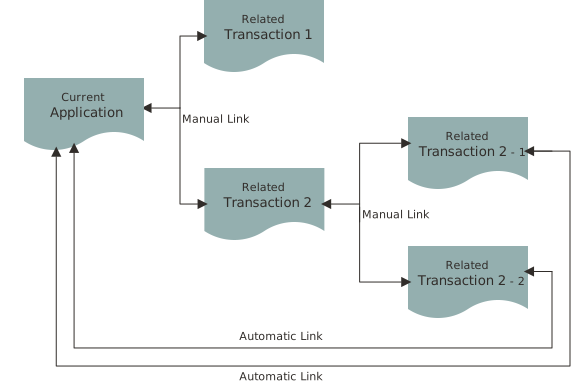
Viewing Related Transactions
The Related Transactions page lists all the transactions linked to the selected application including those transactions that are in turn linked to the transaction you have linked. To view all the related transactions:
Access the Transactions page for your consultation, business license, permit, or planning application from the Agency Springboard. For Code Enforcement, access the Cases page.
Select the business license, permit, case, or planning application for which you want to link a transaction.
Click the Related Transactions link in the left panel to open the Related Transactions page and view related transactions added by applicants, contacts, and agency staff.
Note: For code enforcement cases, only agency staff can add and manage related transactions.View the details of the linked transactions:
Page Element
Description


View the relationship of the linked transaction application with the selected application.
Transaction
View the identifier of the linked transaction, a link to access the application detail, and the type of application.
Note: The detail link is available only for agency staff. Public users accessing this page for their transaction can only view the identifier of the application or case. They cannot drill down to the detail page.Status
View the status of the transaction or case and the date of update.
Description
View the description of the transaction.
Source
View the detail related to the linking of the transaction:
Manual or Automatic linking: The transactions that are manually linked to this application show as Manual and the other transactions that are indirectly linked show as Automatic. For example, if you link transaction 1 to your application X, then the Related Transaction page on your application X shows 1 as Manual and any other transaction that is linked to 1 shows as Automatic.
Primary or Sub-application: The relationship of the linked transaction with the selected application
Linked by <user> with <date>: The user (staff or public user) who linked the transaction, with the date of linking.

Click and choose from options to mark a transaction as primary, sub-application, for removing the link, or for applying conditions of approval to permits. See a separate section on performing actions.
Adding a Related Transaction
As an applicant, you can establish links only from your business license, permit, or planning application. Agency staff can however add related transactions from any transaction.
Code enforcement case related transactions are created and managed only by agency staff such as a code technician.
To link a business license, permit, case, or planning application to a transaction:
Access the Transactions page from the Agency Springboard.
For cases, access the Cases tile from the Agency Springboard.
Select the business license, permit, case, or planning application for which you want to link a transaction.
Click the Related Transactions link in the left panel to open the Related Transactions page.
Click the Link button to open the Link Transaction page, which lists the applications you can link. Agency staff can access the list of cases in a separate tab. These pages list all the active applications and cases related to the selected property or case. Enable the Show All switch to view all the applications or cases in the system.
Note: If no property is associated with the application or case, then all applications are listed by default.Select all the desired applications or cases using the check boxes and then click the Add Selected button to establish a link between the transaction applications. The Link Transaction page closes to show the Related Transactions page, which now lists the new transaction rows.
Performing Actions on Related Transactions
Agency staff and public users such as applicants and contact users with appropriate permissions can mark related transactions as primary or sub-application. Only agency staff can manage related transactions for code enforcement cases.
As an applicant or contact user you can remove the link between related transactions from your transactions. This is not applicable to code enforcement cases.
Agency staff have access to all transactions to remove related transaction links.
Click the Actions menu and select from:
Mark as Primary
Mark as Sub-application
Remove Application Link (Not available for an automatically linked transaction)
Apply Conditions of Approval: Add conditions of approval to the current permit.
Note: This option is available only for permits.
If a transaction is marked as Primary, its Actions menu will show the option to mark it as Sub-application. Likewise, if a transaction is marked as Sub-application, its action will show the option to mark it as Primary.