Using Offline Mode for Inspections
The mobile inspection application automatically connects to your agency's servers when a network is available, but you can also perform mobile inspections using offline functionality in locations where you don’t have access to the agency's servers.
The Inspector Application for downloads data to your mobile device for use offline. When your Internet connection is restored and you're back online, the sync process immediately sends data back to your agency’s Permitting and Licensing Cloud to update the data on the agency server. A sync in progress indicator icon appears at the top of the page. If there's a sync error, a sync error icon is displayed. The inspector can access the Offline Settings - Offline Sync Status page to review the sync issues.
The actions performed offline are transferred back to the agency server once online again, and the changes you made in the offline mode are updated with the changes in the application as well. This way, data in your mobile device browser is synchronized with the permit and business license applications data.
This example illustrates the Offline Settings page in a tablet form factor with the Offline Mode tab selected. The Offline Mode switch is turned on.
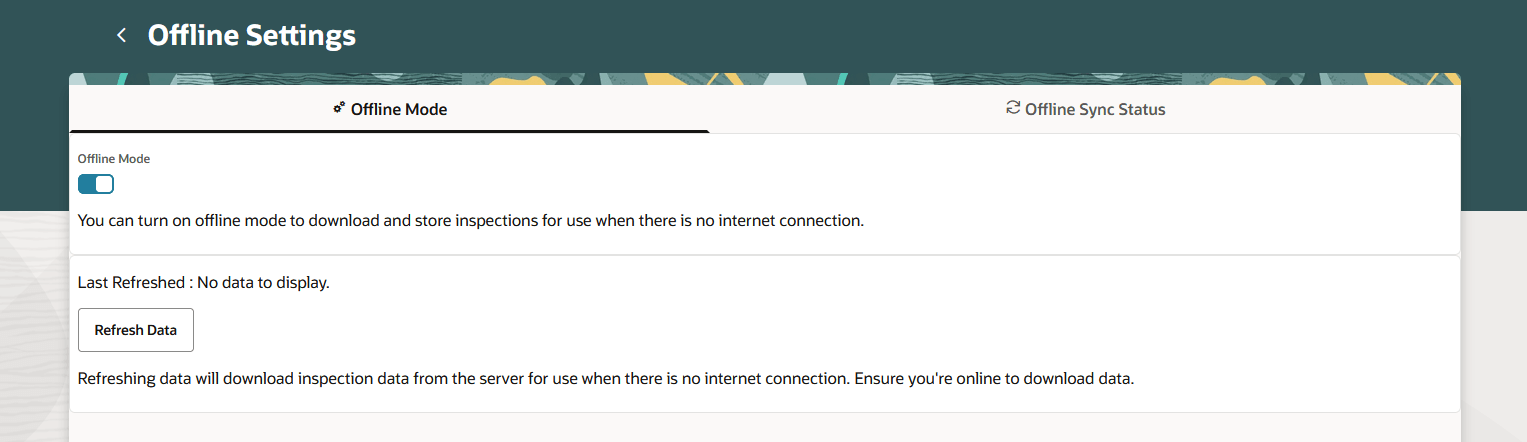
Use the offline settings to manage offline inspections in the Inspector Application. You may only see the icons without labels when viewing the page on a smaller mobile device.
| Page Element | Description |
|---|---|
|
|
Click the Offline Mode tab to access the switch to turn on the offline mode or refresh data. |
|
|
Click the Offline Sync Status tab to view the status of the sync processing between offline and online modes. |


Work with Offline Settings
Your agency determines whether you can work offline. If your agency supports offline mode, you can turn it on or off in the mobile application.
In Inspector Application, click the profile avatar after you sign in to view the menu. Select the Offline Settings menu item to open the Offline Settings page.
Here's how to work with offline settings on your mobile device:
| Page Element | Description |
|---|---|
|
Online Mode |
Turn on the switch to download and store inspections for use when an internet connection is disconnected. If offline mode is enabled, cached data is refreshed daily. |
|
Refresh Data |
Click this button to get a data refresh when the system next checks for updates. Ensure you're online to download data. |
Data Is Downloaded to Your Device
When you log in to the mobile application each day, your inspection data is refreshed and downloaded to your device. The type and amount of data downloaded depend on your inspection assignments and agency configuration settings.
Full Data Download: This inspection data is fully downloaded and cached.
-
Assigned inspections for today and overdue: All inspections assigned to you for the current date and any overdue inspections are fully downloaded, except those marked as Canceled or Completed.
-
Downloaded information includes inspection details, checklist, checklist items, comments, attachments, and time recording.
-
Reference entities: The primary reference entity (such as a building or facility) is included, but detailed attributes (such as specific floors being inspected) aren't downloaded.
Partial Data Download: Other inspection data is downloaded in a limited, or partial, form.
-
Future and past inspections: Inspections assigned to you within an agency-configured number of days before and after the current date are partially downloaded. For more information about the agency settings, see Managing Offline Mode for Inspections.
-
Downloaded information includes inspection details, permit overview, and permit conditions.
-
Checklists, checklist items, comments, attachments, and time recording aren't downloaded in the partial data download.
-
You can't result or submit results for inspections that only have partial data.
The first time that the Inspector Application syncs for the day with your agency's data for working offline may take several minutes. The length of time depends on the amount of data to download and cache, such as number of scheduled and overdue inspections and final attachments. Subsequently the sync process goes more quickly.
The data download status appears in the global header area at the top of the page:
| Download Status | Description |
|---|---|
|
|
Displayed when data is refreshing after clicking the Refresh Data button on the Offline Settings – Offline Mode tab. Once the refresh is complete, the icon disappears. |
|
|
Displayed when the system is online and cached data is being downloaded. If there’s an interruption in network connectivity, the Inspector Application automatically resumes downloading the data when the agency server is available again until the download is complete. |


Perform Inspections While You’re Offline
You can view, create, and edit inspection records in the offline mode, and then the mobile service will sync them once the network connection is restored. This includes comments, supporting documents, and required signatures.
If an inspector creates new inspection and assigns it to themselves while offline, the inspection won’t be available for inspector to work on yet. The newly created inspection needs to be synced to the agency server first; the data is cached to the inspector's device as part of the intermittent system update at an interval set up by your agency.
If you're working offline and try to access inspections before or after today, you'll see partial information. You'll see the inspection details, permit overview or business license activity summary, and application conditions but not the checklist, checklist items, comments, attachments, and time recording. See the section "Data Is Downloaded to Your Device" in this topic.
If you can’t add results, check to see if a condition has been placed on the application. Once any issues are resolved and all of the required results and signatures are complete, you can submit the inspection. All of the actions you perform are sent to the agency’s server when you’re back online.
Any features that need to interact with online data, or interact with other applications, are not available offline. These include maps and reports.
Offline Updates Are Saved
When you are working offline, you can see all of the data that was saved onto the device while you were online. The changes you make are synchronized to the server when you’re back online.
When the application is in offline mode, you can’t view any updates that were made by other inspectors or the agency to the inspection data. You can view those data updates only after refreshing the data that is cached. The data is cached to the inspector's device as part of the intermittent system update at an interval set up by your agency. For more information about the Check for Updates setting, see Managing Offline Mode for Inspections.
Offline Data Is Synchronized
Your data synchronizes automatically when the device detects a network connection and goes online. You’ll see the Synchronization in Progress icon during the sync process.
Wait until synchronization is complete before disabling the offline mode. If you disable the offline mode after performing actions and before synchronizing with the agency’s servers, you’ll lose the work you did offline. Check with your system administrator if you receive persistent errors.
The sync status appears in the global header area at the top of the page:
| Sync Status | Description |
|---|---|
|
|
Displayed when sync is in progress. When going from offline to online, the system automatically syncs the data to the agency server. The system starts the sync process immediately when an online connection is detected. |
|
|
Displayed when there's a sync error. The inspector can review sync issues on the Offline Settings – Offline Sync Status tab. |


Resolve Synchronization Errors
Either you or the inspections supervisor can use a desktop or laptop to go to the offline sync management. In the Ask Oracle global search, enter Inspector Offline Sync Management and select the link to access the Offline Inspection: Conflict and Error Management page. Here you can troubleshoot errors for a particular inspection. The error description indicates the issue to be resolved, which can be fixed while online on your desktop or laptop.
Here's the information to review on the Offline Inspection: Conflict and Error Management page:
-
Inspection
-
Location
-
Application
-
Issue Type
-
Inspected By
-
Resolution Status
For example, you may need to resolve a condition placed on an application while you were offline, causing a synchronization error. After you’ve fixed the problem, you can manually synchronize with your mobile device and refresh the data from the error management page.
If you are online and the synchronization is causing errors, you can disable the offline mode on your mobile device on the Offline Settings page in the Inspector Application and continue to work online. You’ll lose any new work you performed if you turn off the offline mode while offline. Check with your system administrator if you receive persistent errors.