Managing Applications
View application data and statuses for permits and planning applications using the applications list page. You can perform a variety of actions, such as paying fees and accessing detailed application information for the applications in the list.
As agency staff, such as a permit technician or planning and zoning administrator, you can use the Applications pages to view complete lists of permit and planning applications submitted to your agency. Registered public users with application access view their own list of applications on a similar page.
This topic focuses on the lists of permits and planning applications featuring the Redwood Experience. You can view business license activity on the License Applications page in the Redwood Experience. For information about viewing business license transactions, see Managing License Applications.
Here are some of the things you can do on the applications list for agency staff:
-
Manage application activity.
-
Create or resubmit permit and planning applications on behalf of applicants.
-
Manually enter fee payments on behalf of applicants.
-
Access details about permit and planning application activity.
-
View the conditions applied on the permit or planning applications, if any.
You can also cancel pending applications, copy applications, or link permit applications. For information about canceling a pending application, see Canceling an Application. For information about copying an existing permit, planning application, or a preapplication into a new application, see Copying an Application. For information about creating new subapplications from the primary permit application that you are working with, see Working with Linked Permits.
Agency staff can access the Permit Applications page and the Planning Applications page by selecting Permits for Permitting and Licensing or Planning and Zoning Applications in the Home with Ask Oracle search, respectively.
This example illustrates the Permit Applications page for agency staff, showing in-progress applications.
This example illustrates the All Applications list page for registered public users, showing in-progress applications and filter options.
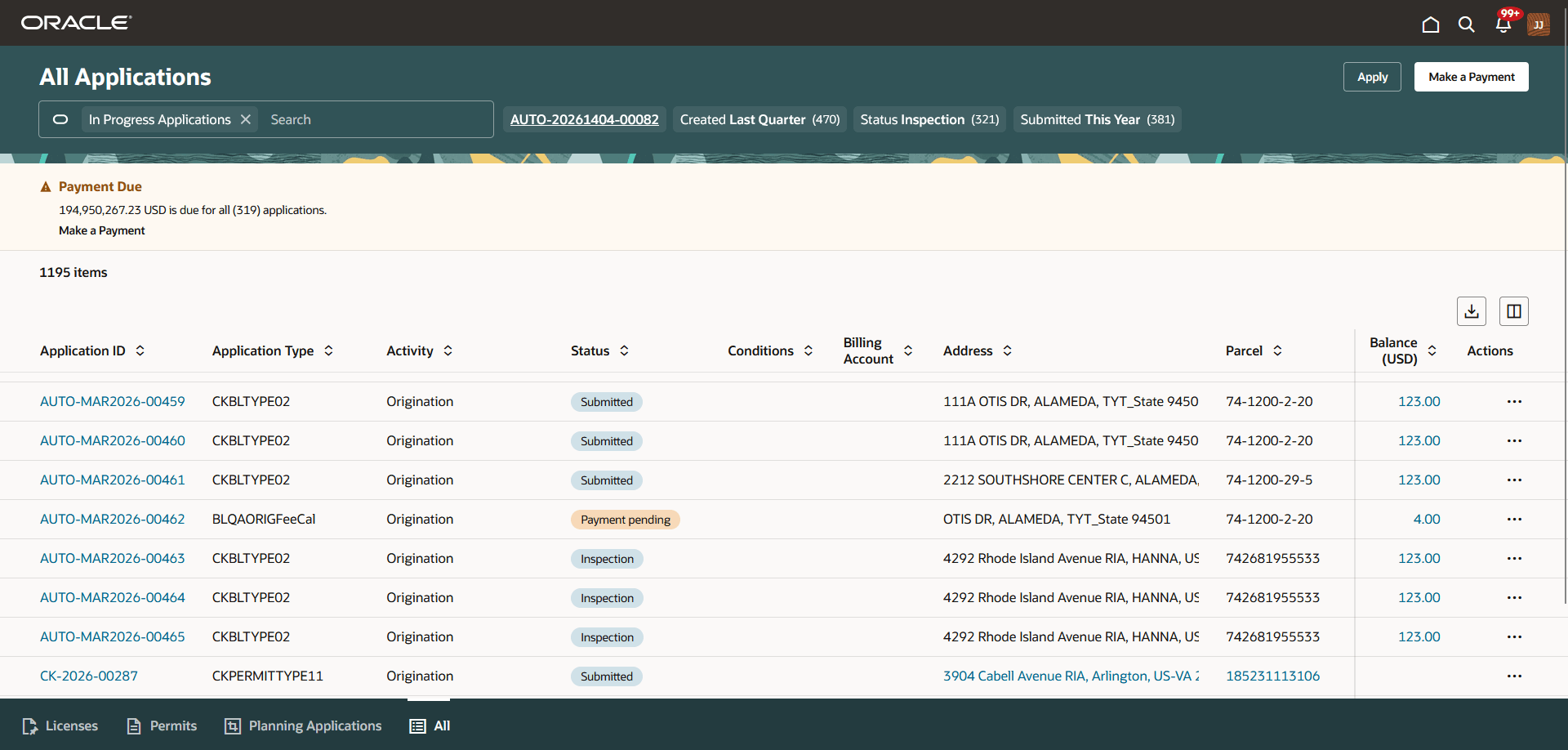
Registered User's Application List
From the registered user’s landing page, registered public users can access the applications list by clicking the Account summary button. On the drawer, click the Applications menu item. Use the tabs at the bottom of the page to filter the list: Licenses, Permits, Planning Applications, or All applications.
Registered users who have applied for a permit or submitted a planning application, for themselves or as a contact or representative for someone else, see only the applications that they are associated with in the list. A logged in user can access all the applications for which the user is the applicant, a contact with application access, or the primary contact.
Applicants can apply for a new permit or planning application and also view the details of their submitted applications on their applications list page. Contacts with application access who were added to an application by the applicant or by the agency staff can access the application detail and pay the fees. Contacts also see the applications for which they are the applicant.
If the applicant or the agency staff removes a contact from an application, then the application is no longer listed on the user's applications page. Applications are not listed for those associated contacts who are neither the primary contact nor have application access. For information about adding and removing contact users, see Working with Application Contacts.
The payments banner at the top of the page displays information if there is a payment due for submitted permit or planning applications. The payment due details include the total amount payable, the number of applications the user is associated with, and a Make a Payment option to pay for all or selected applications. Applicants and contacts can pay for all or selected applications. For more information, see Making Payments.
Users can make a payment for individual applications by clicking the fee amount link for the application or by clicking the three-dot actions button and selecting the option to pay fees. The Pay Fees button is also available in the application details on the Overview page and Fees and Payments page. For more information, see Working with Fees and Payments.
Using the Applications List
Click the tab at the bottom of the page for the type of application you want to view:
-
Licenses: View a list of business license or contractor registration applications.
-
Permits: View a list of permit applications.
-
Planning Applications: View a list of planning applications.
-
All: View a list showing all application types.
You can use these actions to display permits or planning applications. For more information about working with business license applications, see Managing License Applications.
|
Page Element |
Description |
|---|---|
|
Search |
Use filter chips or enter key words in the Search bar to apply a filter to applications in the list. The applications that meet the search criteria are displayed on the page. For more information, see the section in this topic, "Searching the Application List." |
|
Apply |
Click the button to open the page that asks What would you like to apply for? and search for or select the type of application you want to apply for, including contractor registration or business license, permit, or planning applications, depending on the agency offerings. For more information, see Choosing an Application Type and Completing an Application. |
|
Make a Payment |
Click the button to open the Make Payments page, where agency staff can initiate a payment on behalf of a customer. For more information, see Making Payments. |
|
|
Click the Export icon button to download the list of applications to a .csv file. |
|
|
Click to display the Columns window, where you can personalize the display of the grid columns. You can:
You can personalize the column view for each offering type. For example, you can have different column settings for the License Applications page and the Permits Applications page. The personalized view applies only to the signed in user, and the modifications are saved in the browser cache for each device. When personalizing columns:
|
|
|
Click the sort icon buttons next to the column names to display the column information in ascending or descending order. |


 or
or 
Let's take a look at the list of applications and the information available for each application.
|
Page Element |
Description |
|---|---|
|
Application ID and Application Type |
View the application ID and application type of the listed applications. |
|
Status |
View the badge with the application status, for example, Submitted or Permit Issued. |
|
Conditions |
View the name of the most severe condition applied to the application, if there's more than one condition applied. For example, Lock, Hold, or Notice. Click the condition name link to open a Condition summary drawer, where you can view the details of the conditions applied to the application. |
|
Relationship Type and Relationship Details |
(Permits only) Agency staff can view the relationship type of the permit application: Primary or Subapplication. View detail of the primary or subapplication, along with a link to any available linked applications. For more information, see Linking Primary and Subapplications and Working with Linked Permits.
|
|
Property Parcel |
The application list displays the primary address and the parcel ID, when available. When the application has more than one property or parcel, the primary property or parcel number appear as links. Click the link to review all of the addresses and parcel information associated with the application on the Property Information page. |
|
Description |
View the description of the application entered on the application form or on the Overview page in the permit or planning application details. |
|
Applicant |
View the name of the applicant. This may not be the same as the person who created the request. |
|
Created On |
View the date when the application was started or created. |
|
Submitted On |
View the date when the application was submitted. |
|
Expiration Date |
View the date when the application expires. |
|
Total Fees (USD) and Balance (USD) |
Review the total fees that are applicable to the permit or planning application and a fee balance if the total has not been paid. Click the balance amount link to open the Pay fees drawer. |
|
Planner |
(Planning applications only) View the planner assigned to a planning application. This field appears only on the Planning Applications list. |
 |
Click the Resubmit icon button to resubmit the application. The application status is Pending Submit because there may be a problem initiating workflow. Click the Resubmit button to retry initiating workflow. Resubmitting the application doesn't affect the fee calculations. |
 |
Click the Expiration icon button to view expiration information on the Expiration drawer. |
 |
Click the three-dot Actions icon button to view the available actions for the application. Select from these options:
The Pay Fees action is available when there is a balance due in the Balance (USD) column. Click to select fee items on the Pay fees drawer then proceed to pay. For more information, see Making Payments. |
 next to it.
Searching the Applications List
The applications list features Smart Search. Let's take a look at some considerations when using Smart Search to find applications in the list:
|
Search Filters |
Description |
|---|---|
|
In Progress Applications |
The default search filter on the applications list. Displays active applications that aren't in a closed or ending status. For example, active applications have statuses including in process, pending submittal, payment pending, submitted, inspection, and so on. |
|
Status |
Only displays the option to filter on statuses based on the applications currently displayed in the list. If you have In Progress Applications and Status filters operating together, close the in progress applications to filter by closed or ending statuses, such as withdrawn or void. |
|
Created and Submitted |
Select from these options to filter based on the date when applications were created or submitted:
Use the date filters because entering dates won't return results. |
Here's how you can refine your search:
-
Click in the Search field to see a drop-down list of recent searches.
-
Enter alphanumeric characters in the Search field to filter the applications in the list. The applications that meet the search criteria are displayed on the page.
-
For keyword search, enter "begins with" values when entering fragments. You can also enter full words or full numeric segments (such as numbers between dashes). For example, enter "Comm" for Commercial. Entering "12" will find street numbers starting with 12 and parcel numbers containing the segment "-12-."
Search results display only the primary address for the permit or planning application. You can confirm the correct application by clicking the row for the permit or planning application and reviewing all of the associated addresses in the application details.
Updating an Application
As agency staff, you can update existing applications. Only agency staff can update applications that have already been submitted.
If an application has a pending status, the applicant can make updates on the application form. When the applicant selects a pending permit or planning application on their Applications list page, the service directs them back to the application form.
Here’s how agency staff can update an existing application from the applications list:
-
Click the row for the selected application on the applications list to open the details.
-
Go to the page for the information of the existing application that you would like to update, using the links in the left navigation panel. The actions vary by your role and the specific page.
For more information, see Permit Details Topics, Navigating to Planning Application Details, and Navigating to Business License Activity Details.
Accessing Application Details
You can access application details from the Applications list pages.
Click the row for the selected application on the respective applications list page.
The overview page for the application appears in the content pane of the details page.
Click the Go to link at the top of the overview page in the application details to go back to the list of applications where you clicked the application row.
For more information about the overview of permit details, see Viewing the Permit Overview.
For more information about the overview of planning application details, see Viewing the Planning Application Detail Overview.
For more information about business license activity details, see Viewing a Summary of Business License Activity.