Using the Code Officer Worklist
The code officer worklist provides a central location for managing code enforcement inspection tasks on a laptop or desktop computer. Various tabs list inspection records based on where they are in their life cycle, and action menus provide quick access to the tasks that can be performed at each stage. You use the code enforcement Inspection page to manage your code enforcement inspection for an incident or case assigned to you.
As code officers, you can access your inspections on a phone as well as on a laptop or desktop computer. The layout changes based on the device you’re using. For detailed information about mobile inspections, see Accessing the Code Officer Application.
Select Worklist on the Permitting and Licensing home page. If you have access to multiple worklists, the Common Worklist page opens. On the Common Worklist page, select Code Enforcement from the offerings drop-down list.
Initially all tabs to which you have access appear. Click a tab to see the incidents or cases that meet the tab filter criteria and to access the relevant actions.
Common grid controls in Oracle Permitting and Licensing enable public and agency users to perform actions and manage how they display data. For details on the grid controls available in the Worklist, see Using Grids and Personalizing Grid Displays.
All Inspections, Incidents, Notices, Hearings, and Access Requests
By default, the worklist search is filtered to records assigned to the signed-in code officer by automatically applying the corresponding officer filter chip. Administrators and Supervisors are exceptions to this behavior; no officer filter chip is applied for these roles by default, allowing them to view all records in the worklist.
|
Tab |
Filters |
|---|---|
|
Inspections |
|
|
Access Requests |
|
|
Incidents |
|
|
Notices |
|
|
Hearings |
|
|
Cases |
|
|
Incoming Tasks |
- |
|
My Tasks |
Assigned: Today, Earlier |
This example illustrates the Worklist – Inspections page, which is described in the surrounding text.
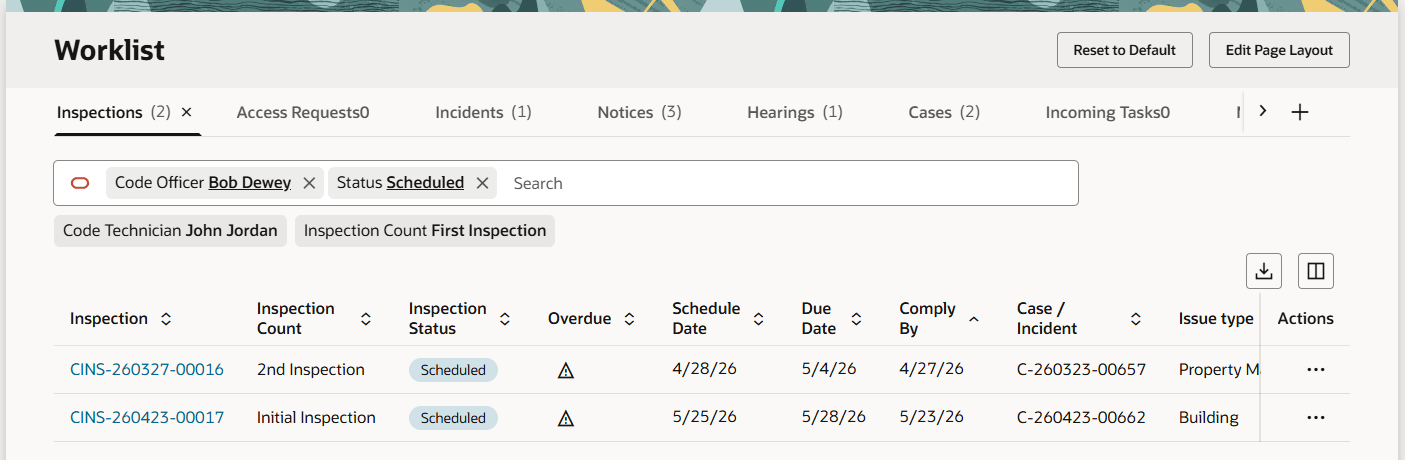
Tabs on the Code Officer Worklist
The code officer worklist has the following tabs:
|
Tab |
Displays |
Available Actions |
Additional Information |
|---|---|---|---|
|
Inspections |
List of all inspections assigned to the logged in code officer as well as the inspections that match the officer's district type and ID. Detail page shows the inspection information and provides access to code violations, comments, attachments, time recording, and prior inspections.
|
List page:
Detail page:
|
For details about result options, see Submitting Code Enforcement Inspection Results. Submitting the details will create a case with the details provided. |
|
First Inspection filter |
List of all new inspections assigned to the officer. Detail page shows the inspection information and provides access to comments, attachments, and applicable code violations. |
Same as listed above. |
|
|
Reinspection filter |
List of reinspections. These are the follow-up inspections after the first inspection is complete with a result. Detail page shows the inspection information and provides access to comments, attachments, and applicable code violations. |
Same as listed above. |
|
|
Access Requests |
Cases assigned to the logged in officer that have pending requests from registered public users who have asked for online access to the case. These include the cases that match the officer's district type and ID. |
|
Public users who are granted access can view details of their cases and notices online. They can also take actions such as submitting an appeal. Users can’t access their case if the agency denies their request. |
|
Incidents |
Unprocessed incidents (including those in the Reported status) where the current user is the assigned code officer as well as the incidents that match the officer's district type and ID. The list also includes reassigned incidents from the administrator or from another staff member. This tab includes:
|
|
The actions that are available here are also available from the incident detail page. Completing any of the available actions removes the incident from this tab. The Overdue filter shows claimed incidents with a due date before the current date. The Priority filter shows claimed incidents where the Priority switch is enabled. |
|
Notices |
List of notices from cases that are assigned to the code officer as well as the notices that match the officer's district type and ID. Notices are separately listed as notice of violations, notice of citations, and ad hoc notices. Violation and citation notice object records are created for violations and citations respectively. |
For notice types: Violation, Citation, and Ad hoc:
For Ready to Mail:
|
There are 3 notice types: Violation, Citation, Ad hoc. The Preview and Generate Notice action signifies that the notice object alone is created, and you should use the action to open the Preview and Generate Notice page complete the details, review, and complete the action using the buttons: Generate and Send or Generate. Once a notice is in Generated status, it moves to the Ready to Mail filter. The Update Generated Notice action signifies that the notice is generated, and you can make changes to the details before sending it. Any changes made to the notice process will automatically update the case detail pages. A citation notice additionally contains information about the citation fees. For more details about Notices see Working with Notices. |
|
Hearings |
Cases assigned to the logged in officer that have requested appeals or hearings in Scheduled status. These include the cases that match the officer's district type and ID. |
|
For details about appeals and hearings, see Working with Appeals and Hearings. |
|
Cases |
List of all the cases assigned to the officer for inspections, as well as the auto-assigned ones. Detail pages show the complete details of the case. |
List page: Create Case button Actions: Select and choose from options:
|
For information about case details, see Processing Cases. |
|
Incoming Tasks |
List of all the workflow tasks related to incidents and cases that are assigned to the logged in officer or the officer group. Incoming tasks remain in the list until they are closed. |
Once claimed, the Actions options allows you to update, release, or reassign the workflow task. |
When you reassign a workflow task to another officer, the My Tasks tab for the assigned officer will list the task. For information on Workflow, see Using Workflow in Code Enforcement. |
|
My Tasks |
Lists the logged in code officer's tasks. |
|
 – Indicates that the incident or case is ready for inspection.
 – Indicates that the case is ready for an early inspection.
 – Indicates that the date scheduled for the inspection has passed.
Grids are rendered in either a condensed or expanded format based on the Functional Setup Manager option selection made by the agency during implementation. On the code officer worklist, each agency staff member can now personalize expanded grids to display information in a manner that suits their own requirement. See Personalizing Grid Displays.