Using Search
On selected pages in Oracle Permitting and Licensing you can use search to find transactions quickly.
Working with Search
To use search:
-
Enter your free-form text search, such as Roof and click search.
Use the filter chips to further refine your search results.
Depending on the content you are searching for, the filter chips for that content type can be different. Click the filter chip and select the value you want to use to refine your search.
For example, you can filter by status, when a transaction was submitted, when a transaction was created, and so on.
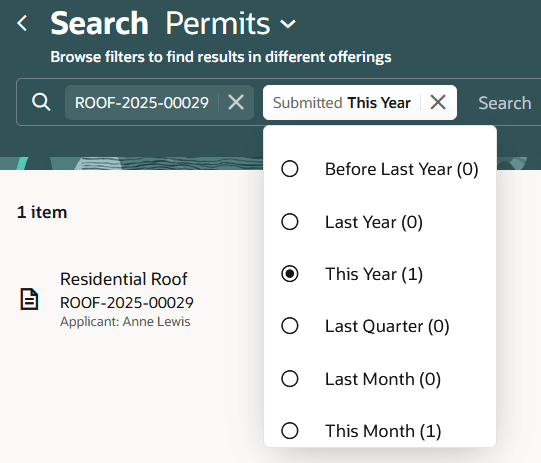
For more information one setting up search indexes, see Managing Search Indexes.
Here's how you can refine your search:
-
Click in the Search field to see a drop-down list of recent searches.
-
Enter alphanumeric characters in the Search field to filter the applications in the list. The applications that meet the search criteria are displayed on the page.
-
For keyword search, enter "begins with" values when entering fragments. You can also enter full words or full numeric segments (such as numbers between dashes). For example, enter "Comm" for Commercial. Entering "12" will find street numbers starting with 12 and parcel numbers containing the segment "-12-."
For examples, see also Viewing the Parcel Page and Managing Applications.
Working with Global Search
On the public user landing page, applicants global search controls are available for Permits, Planning and Zoning, Business Licenses, Inspections, and Code Enforcement incidents, cases, and citations. The controls are available for public users and agency users.
Select what you want to search for, such as Inspections, enter a search term, and click Search.