Using the Code Technician Worklist
The code technician worklist provides a central location for performing code enforcement tasks. Various tabs list incidents or cases based on where they are in their lifecycle, and action menus provide quick access to the tasks that can be performed at each stage.
Security Details for Using the Code Technician Worklist
This section describes important security roles, requirements, or considerations specific to using the code technician worklist.
|
Primary Role |
Access Description |
Associated Job Roles and Abstract Roles |
|---|---|---|
|
PSC Code Enforcement Technician |
Access the Code Enforcement Technician Worklist to review and act on pending tasks on cases assigned to themselves. |
PSC Code Enforcement Technician |
For more information on creating roles for Oracle Permitting and Licensing, see Creating Custom Roles for Oracle Permitting and Licensing.
For more information on all the predefined security data such as abstract roles, job roles, privileges and so on, see the Security Reference for Oracle Permitting and Licensing.
Accessing and Using the Worklist
Select Worklist on the Permitting and Licensing home page. If you have access to multiple worklists, the Common Worklist page opens. On the Common Worklist page, select Code Enforcement from the offerings drop-down list.
Common grid controls in Oracle Permitting and Licensing enable public and agency users to perform actions and manage how they display data. For details on the grid controls available in the Worklist, see Using Grids and Personalizing Grid Displays.
All Inspections, Incidents, Notices, Hearings, and Access Requests
A code technician can view a list of all their assignments together with the assignments in the issue type or subtype that they are assigned to. All assignments – inspections, incidents, notices, hearings, and access requests – can be viewed in separate tabs with their associated filters. Each tab displays the count of assignment records listed on the page, based on the application of any filters.
By default, the worklist search is filtered to records assigned to the signed-in code technician by automatically applying the corresponding technician filter chip. Administrators and Supervisors are exceptions to this behavior; no technician filter chip is applied for these roles by default, allowing them to view all records in the worklist.
|
Tab |
Filters |
|---|---|
|
Inspections |
|
|
Access Requests |
|
|
Unassigned Incidents |
|
|
Incidents |
|
|
Notices |
|
|
Hearings |
|
|
Unassigned Cases |
- |
|
Cases |
|
|
Incoming Tasks |
- |
|
My Tasks |
Assigned: Today, Earlier |
This example illustrates the Worklist – Unassigned Incidents page, which is described in the surrounding text.
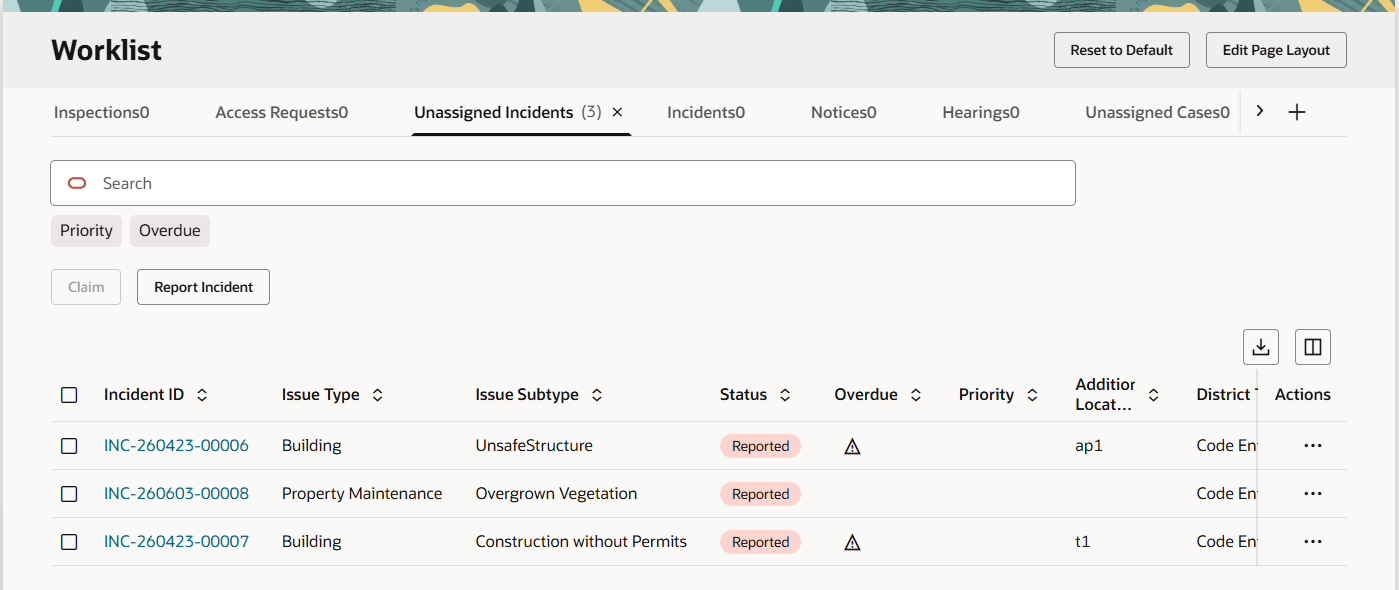
Tabs on the Code Technician Worklist
The code technician worklist has the following tabs:
|
Tab |
Displays |
Available Actions and Filters |
Additional Information |
|---|---|---|---|
|
Inspections |
Displays all inspections |
|
|
|
Access Requests |
Cases assigned to the logged in technician that have pending requests from registered public users who have asked for online access to the case. These include the cases that match the technician's issue type and subtype. |
Note:
An email notification is sent to the registered user about the request approval or denial. For details, see Adding Responsible Parties |
Public users who are granted access can view details of their cases and notices online. They can also take actions such as submitting an appeal. Users can’t access their case if the agency denies their request. |
|
Unassigned Incidents |
These are incidents in the Reported status that do not have an assigned technician. This tab includes:
|
|
Supervisors assign incidents to code enforcement technicians, while technicians claim incidents for themselves. Both actions result in assigning a technician to the incident, which removes the incident from this tab. For more information, see Claiming and Assigning Incidents. The Overdue filter displays unclaimed incidents with a due date before the current date. The Priority filter shows unclaimed incidents where the Priority switch is enabled. |
|
Incidents |
Unassigned incidents (those in Reported status) where the current user is the assigned code technician as well as the incidents that match the technician's issue type and subtype. The list also includes reassigned incidents from the administrator or from another staff member. This tab includes:
|
|
The actions that are available here are also available from the incident detail page. For more information, about taking action on incidents, see Processing Incidents. Completing any of the available actions removes the incident from this tab. The Overdue filter shows claimed incidents with a due date before the current date. The Priority filter shows claimed incidents where the Priority switch is enabled. |
|
Notices |
List of notices from cases that are assigned to the code technician as well as the notices that match the technician's issue type and subtype. Notices are separately listed as notice of violations, notice of citations, and ad hoc notices. Violation and citation notice object records are created for violations and citations respectively. |
For Notice of Violation, Notice of Citation, and Ad hoc in the Pending and In
Progress statuses:
For Ready to Mail in the Generated status:
For Notices in the Sent status:
For Notices in the Hold status:
|
The notices are classified under 3 types – Ad hoc, Citation, and Violation. The Preview and Generate Notice action signifies that the notice object alone is created. You should use this action to open the Preview and Generate Notice drawer to complete the details, and click the Generate and Send or Generate button to complete the action. Once a notice is in Generated status, it is available in the Ready to Mail filter. Any changes made to the notice process will automatically update the case detail pages. A citation notice additionally contains information about the citation fees. The Download to Print action downloads the report in a separate tab, ready to print. The Update Mailing Details action opens the mailing details modal page to update the tracking details of the notice report. The Mark as Sent action changes the status of the notice from Generated to Sent. The record is removed from the Worklist. You can access the Notices page in case details and view the detail. See Editing Notice Details under Working with Notices. |
|
Hearings |
Cases assigned to the logged in technician that have requested appeals or hearings in Scheduled status. These include the cases that match the technician's issue type and subtype. |
For Hearings in the Completed status:
For Hearings in the Not Scheduled status:
For Hearings in the Scheduled and Canceled statuses:
|
For details about appeals and hearings, see Working with Appeals and Hearings. |
|
Unassigned Cases |
Unassigned cases. These are cases that do not have an assigned technician. |
|
When you click the Claim button, the case is assigned to you and the row is removed from this list page. The Multiple Select button allows you to select multiple cases using checkboxes. Click Claim to assign the selected cases to yourself. You can also claim or assign cases to another staff from the Cases list page and the case Overview page. See Processing Cases and Viewing the Case Details Overview. |
|
Cases |
All active cases assigned to the logged in technician, including the auto-assigned ones. The list also includes reassigned cases from the administrator or from another staff member. |
Update Status |
Status options:
Once the status of a case changes to Compliance, it is removed from the list. |
|
Incoming tasks |
List of all the workflow tasks related to incidents and cases that are assigned to the logged in technician or the technician group. Incoming tasks remain in the list until they are closed. |
Once claimed, the Actions options allows you to update, release, or reassign the workflow task. |
When you claim a workflow task, the My Tasks tab will list the task according to how it is assigned – My Tasks or My Group Tasks. You can take these actions:
Note:
The My Tasks tab separates the assigned tasks into two filters – Assigned Today and Assigned Earlier, depending on the time of assignment. When you reassign a workflow task to another technician, the My Tasks tab for the assigned technician will list the task. For information on Workflow, see Using Workflow in Code Enforcement. |
|
My Tasks |
Lists the logged in code technician's tasks. |
|
Grids are rendered in either a condensed or expanded format based on the FSM option selection made by the agency during implementation. On the code technician worklist, each agency staff member can now personalize expanded grids to display information in a manner that suits their own requirement. See Personalizing Grid Displays.