Setting Up Inspection Assessment Types
Assessment types identify the assessment options available when an inspector records results for an inspection, checklist, or checklist item. Each agency-defined assessment is mapped to one of the system results: Pass, Fail, Corrected, or Other.
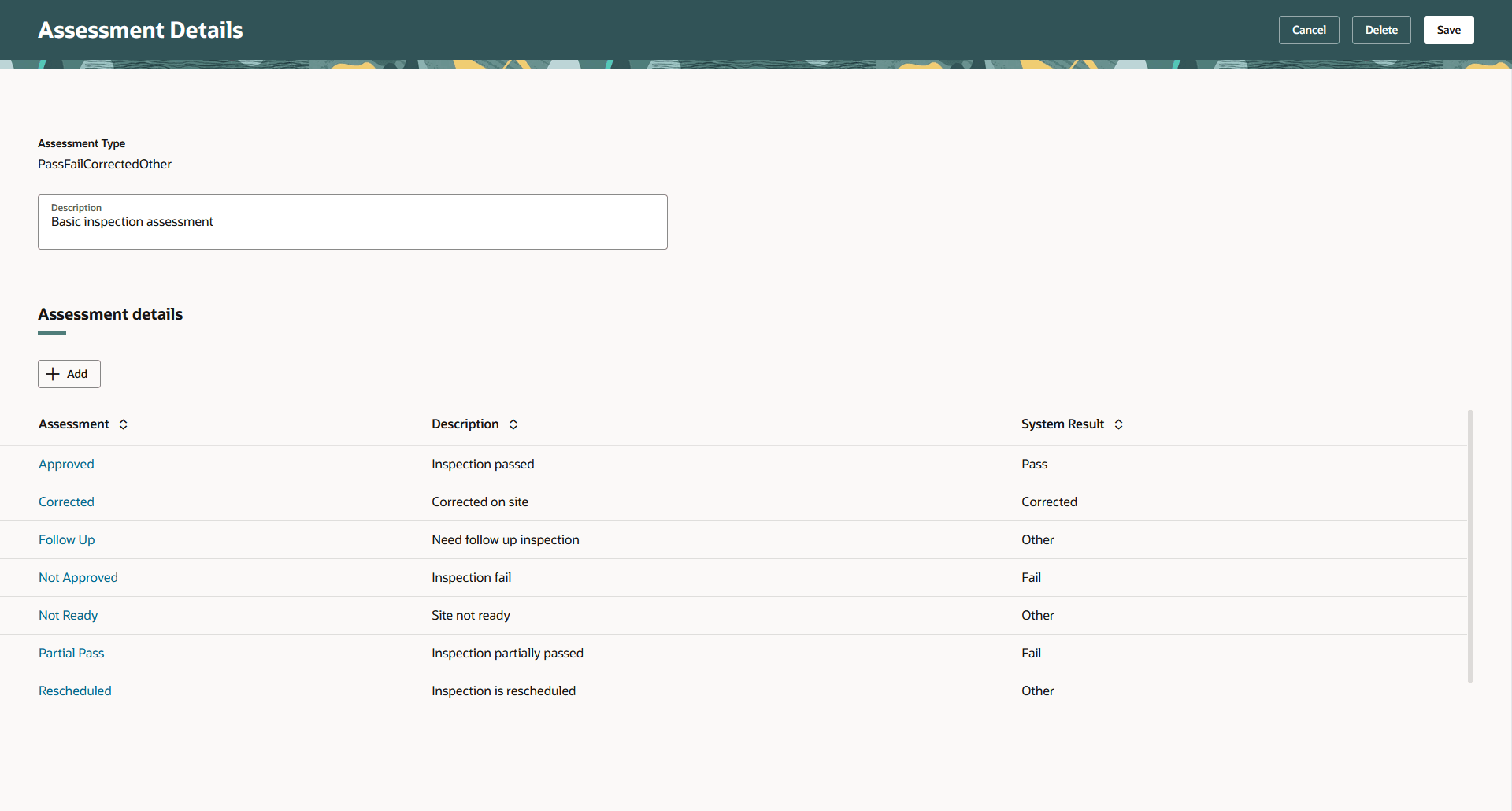
An assessment type can include multiple assessments mapped to the Fail system result. For example, an agency might map both Inspection Failed and Partial Pass to Fail so that inspectors can distinguish between different unsuccessful outcomes while retaining the processing associated with a failed result.
Assessment types are also used for inspection checklist and checklist item results.
Assessment types function independently of the scoring method, maximum score, and minimum score, for example:
-
If the system result is Pass or Corrected, the full score is assigned.
-
If the system result is Other or Fail, the score is 0.
Scoring for each system result is predefined in the system for inspections.
This example illustrates the Assessment Details page for an assessment type with multiple failed inspection result options. The field values are described in the surrounding text.
Adding Inspection Assessment Types
-
In the Functional Setup Manager, select .
-
On the Assessment Type page, click + Add.
-
Enter the assessment type name and description.
-
In the Assessment details section, click Add.
-
Enter the assessment name and description, and select a system result.
Page Element
Description
Assessment
Enter a name.
Description
Enter descriptive text.
System Result
Select the system-defined result to associate with the assessment:
-
Corrected
-
Pass
-
Other
-
Fail
You must map each assessment to a system result. Each assessment type must include exactly one assessment mapped to Pass and at least one assessment mapped to Fail. You can map multiple assessments to Fail, Corrected, or Other. The default system result is Other.
The system result controls inspection result processing and scoring. When scoring is used, assessments mapped to Pass or Corrected receive the maximum score, and assessments mapped to Fail or Other receive no score. Any assessment mapped to Fail is processed as a failed result, regardless of its agency-defined name.
The Inspection Summary report includes violation information when a checklist or checklist item result is associated with the system result Fail.
-
-
Click Add.
-
Click Save.
Here's an example of assessment labels used for resulting inspections and the corresponding system results:
| Example Assessment | Description | System Result |
|---|---|---|
|
Approved |
Inspection passed |
|
|
Not Approved |
Inspection failed |
|
|
Partial Pass |
Inspection partially passed |
|
|
Corrected |
Corrected on site |
|
|
Not Ready |
Site not ready |
|
The agency defines the assessment names and descriptions. In this example, both Not Approved and Partial Pass are processed as Fail because they are mapped to the Fail system result.
An assessment type must contain assessment details, exactly one assessment mapped to Pass, and at least one assessment mapped to Fail. The application prevents you from saving an assessment type that doesn’t meet these requirements.
Modifying Inspection Assessment Type Details
-
Select the link for the assessment type you want to modify.
-
In the header fields on the Assessment Details page, you can only modify the assessment description. You can't change the name.
-
In the Assessment details section, you can:
-
Change the description of an assessment. You can't change the code name.
-
Select a new value in the System Result drop-down list. Available values are Pass, Fail, Corrected, or Other. Each assessment must be mapped to a system-defined result value. The default value is Other.
You can map only one assessment to Pass. You can map one or more assessments to Fail.
Note:Changing an assessment to Fail causes that assessment to use the same scoring and result processing as other assessments mapped to Fail.
-
-
If you made any changes, click Continue.
Deleting Inspection Assessment Types
On the Assessment Details page for the assessment type, click the Delete button. This deletes the assessment type and all of the assessment details.
Deleting Inspection Assessment Type Details
-
On the Assessment Details page for the type, click the assessment details link.
-
Click the Delete button for the assessment you would like to delete. You delete details one row at a time.
-
Click the Save button to update the assessment type.