Changes in Oracle Fusion Cloud Applications Sign In page
Identity and access management for Fusion Applications will be upgraded to Oracle Cloud Infrastructure (OCI) Identity and Access Management if your existing environments aren't already on it. The identity upgrade for your environment family will be scheduled separately, not in the same month as a quarterly update. New environment families and environments created after April 6, 2025 are already on OCI Identity and Access Management, so they don't need an upgrade.
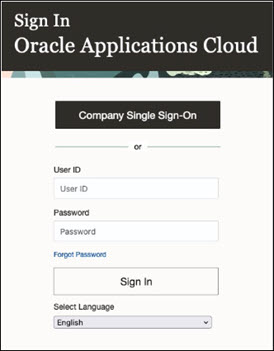
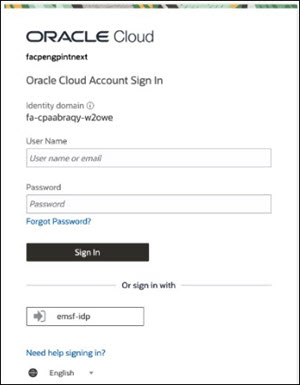
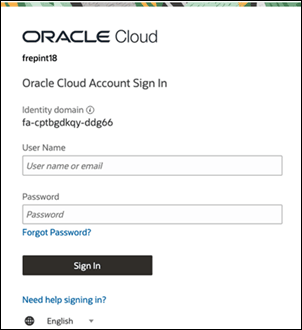
For environments on OCI Identity and Access Management, the Fusion Applications Sign In page looks different from the Sign In page for environments not on OCI Identity and Access Management. For example:
- The Sign In page includes the identity domain and the tenancy name of identity stripe associated with the application.
- The Company Single Sign-On button is replaced with the Identity Provider (IDP) name at the bottom of the Sign In page.
Between the middle of January and end of March in 2026, the Sign In page is changing again for all environments on OCI Identity and Access Management.
This is what the Sign In page looks like to users, depending on the scenario with their environment and whether they’re on federated Single Sign-On (SSO) or not.
| Scenario with the Environment | Federated SSO | Non-Federated SSO |
|---|---|---|
|
Not on OCI Identity and Access Management |
 |
 |
| On OCI Identity and Access Management, before the UI change that happens between the middle of January and end of March, 2026 | 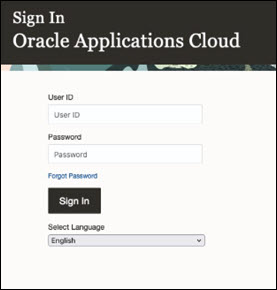 |
 |
| On OCI Identity and Access Management, after the UI change that happens between the middle of January and end of March, 2026 | 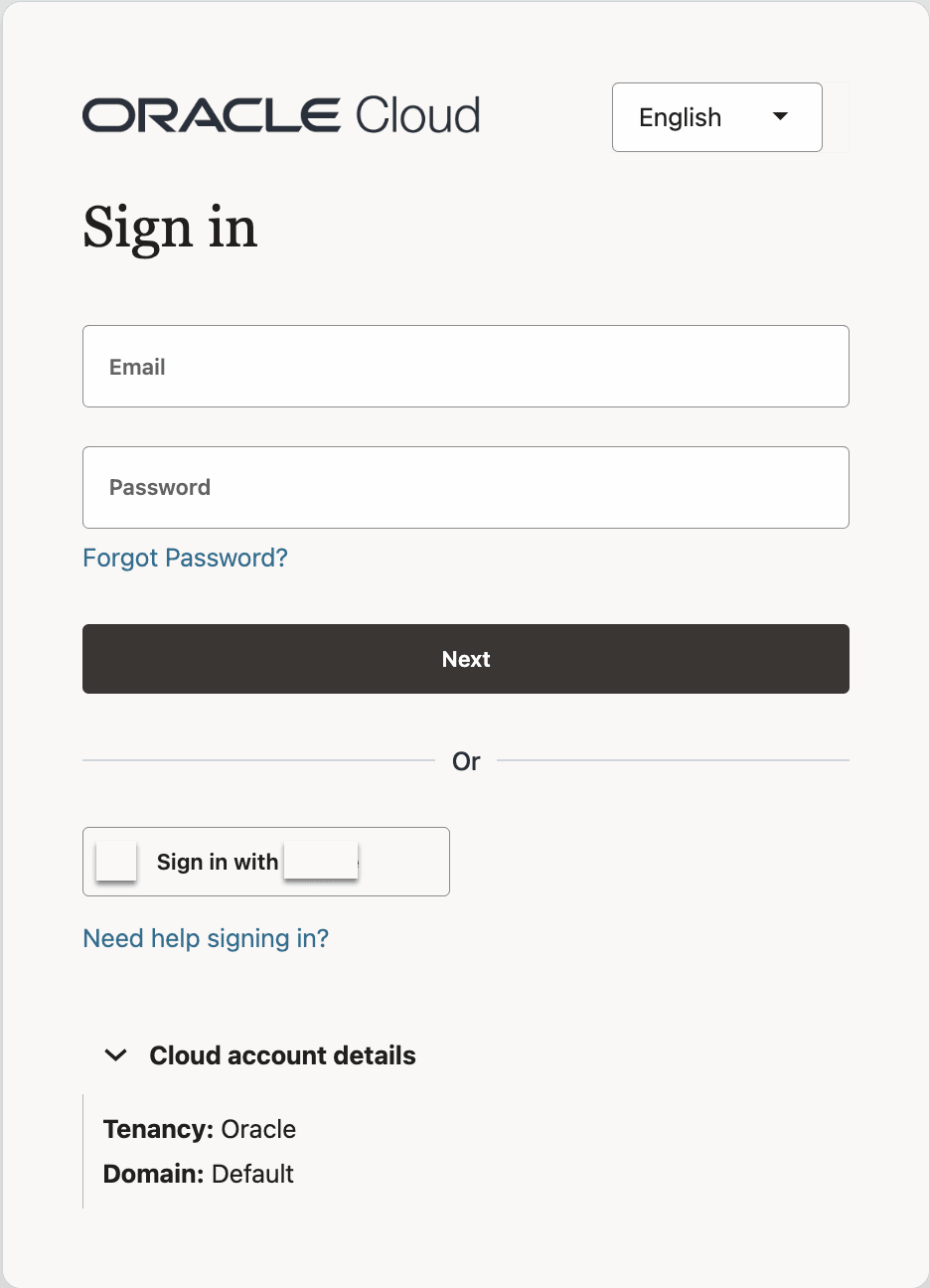 |
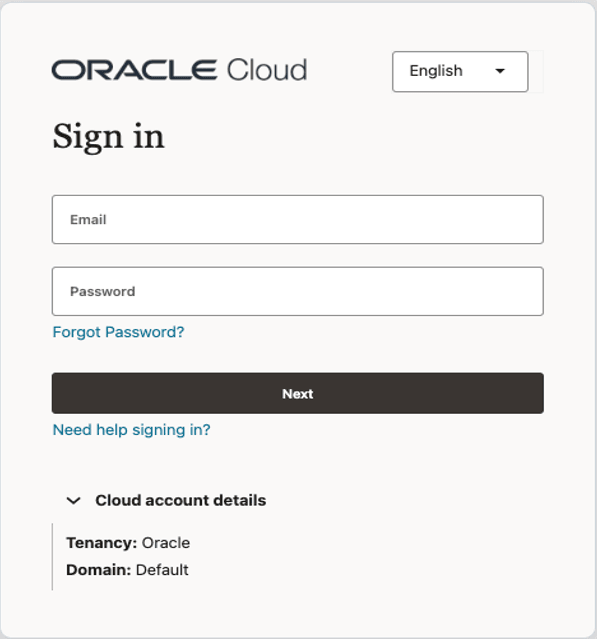 |
The changes to the Sign In page are a result of environments being on OCI Identity and Access Management, and these changes also provide an improved experience for the users.
Steps to enable and configure
You don't need to do anything to enable this feature.
Tips and considerations
- After the identity and access management upgrade, some users might be asked to change their password when they try to sign in.
- Even though environment families and environments created after April 6, 2025 may be on OCI Identity and Access Management by default, there might be a lag before that actually happens.