Redwood appearance editor: Accurate brand color rendering in application pages
Previously, Redwood themes using some custom colors displayed lighter or darker variations instead of the exact specified color. Now, Redwood themes apply the exact input primary color, provided the specified custom color meets the color contrast accessibility requirements defined by the Web Content Accessibility Guidelines (WCAG). This color is applied to supported theming surfaces including page headers and supported areas in Oracle Application Development Framework.
Here's an illustration that shows the difference in color application between the previous release and this release.
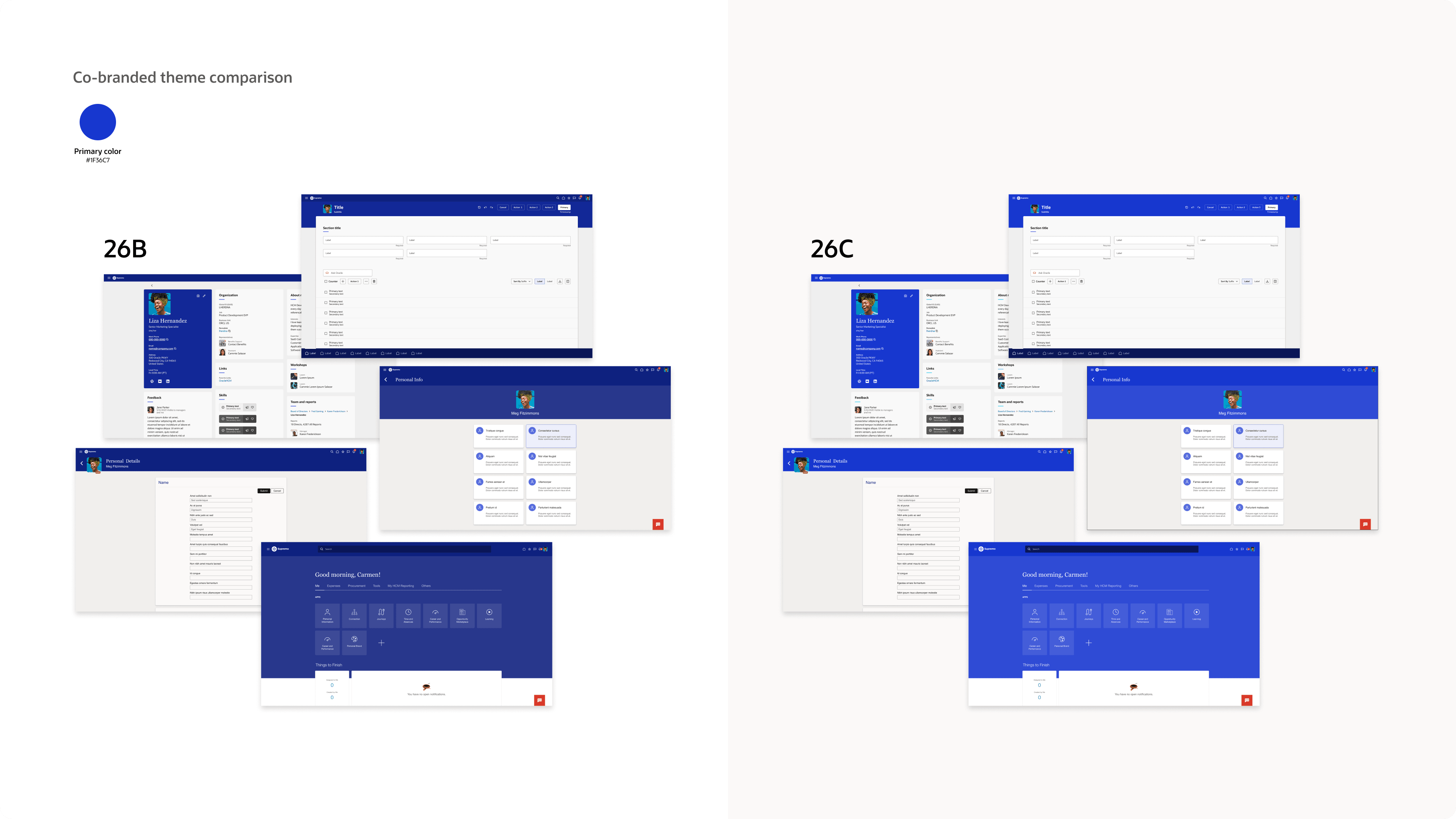
You can now display your exact brand color in Fusion Applications, provided it meets the contrast requirements.
Steps to enable and configure
If you have an existing theme with the custom color that meets the contrast requirements, your color isn't automatically reflected unless you save or apply the theme. To apply the Redwood theme with your brand color:
- In Sandboxes, create a sandbox or enter an existing one. Make sure the sandbox has the Appearance tool. Don't include spaces or special characters in the sandbox name.
- From the sandbox Tools menu, select Appearance.
- Create a Redwood theme with your brand color. Or, if you already have one, save or apply the theme.
- Publish the sandbox.
Note: Your brand color is applied accurately only if it meets the contrast requirements, else you'll see darker or lighter variations of the color.