Embedded Receivables E-Invoice Integration with Thomson Reuters
Use the integration with Thomson Reuters to send Receivables e-invoices to your customers. Receivables uses the Document IO agent to extract, transform, and deliver receivables transactions in electronic formats. The solution leverages a predefined mapping to transform Receivables transactions into e-invoices in a standard format which is then sent to Thomson Reuters.
The Oracle Fusion Cloud implementation experience provides turnkey onboarding for the Thomson Reuters e-invoicing integration, with preconfigured setup data that supports the Thomson Reuters business flows.
The integration with Thomson Reuters provides numerous benefits for businesses:
- Rapid onboarding of an e-invoicing partner without the need for custom development or complex integrations.
- Integrated end-to-end solution for e-invoicing.
- Regulatory compliance with e-invoicing mandates in supported countries.
- Improved operational efficiency through automated, standardized e-invoice processing.
Supported Countries
This release supports PEPPOL-based non-clearance countries:
- Australia
- Belgium
- Denmark
- Finland
- Germany
- Netherlands
- Norway
- Sweden
- United Kingdom
Watch future release readiness updates for expanded customer support, including clearance countries:
- Italy
- Malaysia
- Poland
- Saudi Arabia
- UAE
E-invoicing Process Flow
The diagram below shows how an invoice moves from Oracle Receivables to the customer via Thomson Reuters.
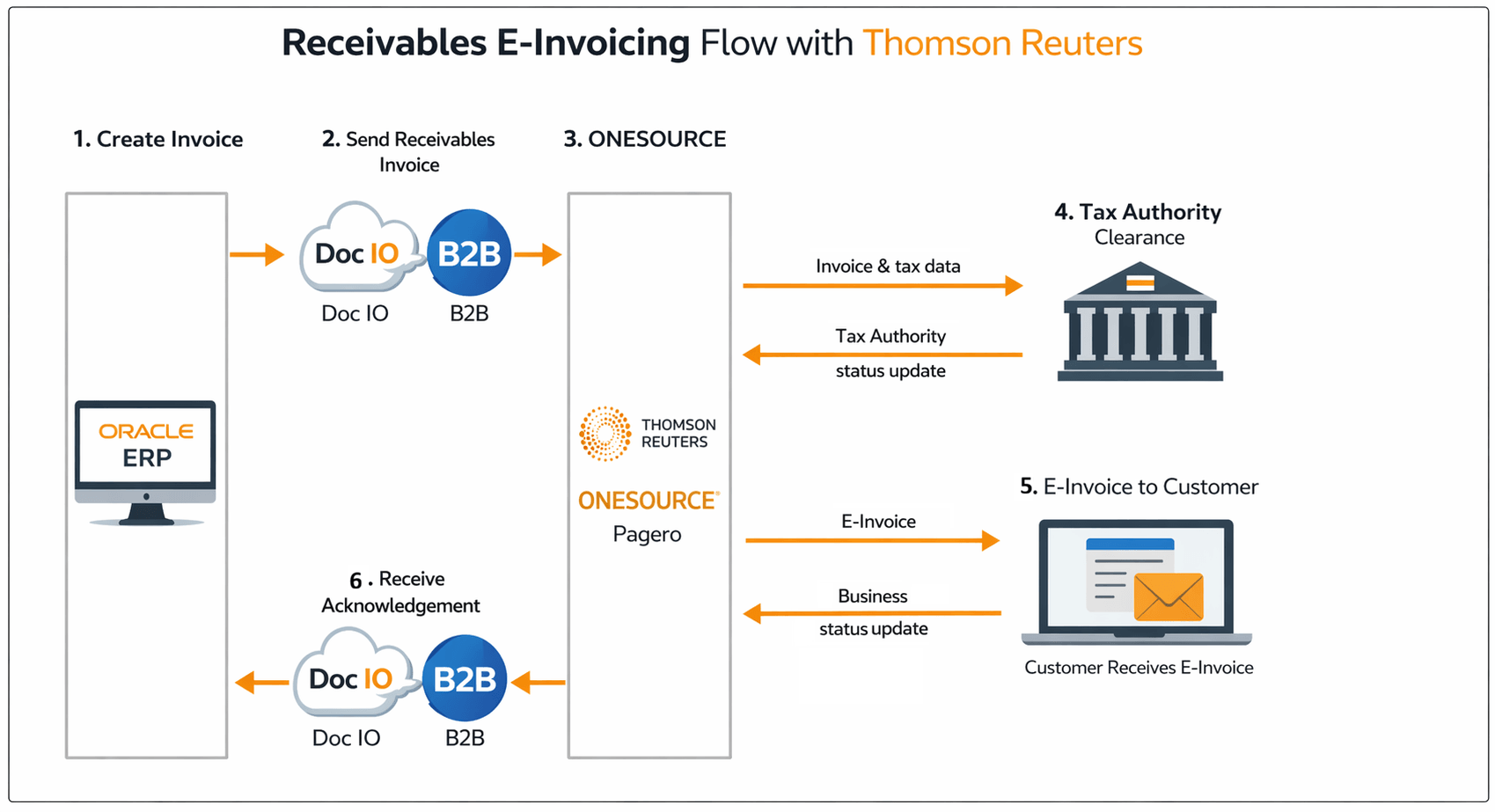
Receivables E-invoicing Flow
This diagram illustrates the complete e-invoicing flow for Receivables transactions. In this release, the supported countries are non-clearance jurisdictions; therefore, tax authority approval and business status are not reflected on the Receivables. These features will be included in future releases.
Step-by-Step Explanation
- Create Receivables Transaction
- Receivables transactions, such as invoices and credit memos, are created and eligible for e-invoicing when complete.
- Send AR invoice as e-invoice
- Data Extraction
- Run the Receivables Generate and Transfer XML Transactions process.
- Sends data to Document IO agent.
- Transformation
- Document IO converts data into standard e-invoice format (PUF).
- Transmission
- Oracle B2B sends transformed PUF invoice XML to Thomson Reuters.
- Data Extraction
- OneSource receives the e-invoice
- Thomson Reuters OneSource receives the e-invoice.
- OneSource validates the invoice.
- OneSource sends to tax authority
- OneSource sends the invoice to tax authority.
- For non-clearance countries, tax authority response is not required before sending the invoice to the customer.
- For clearance countries. tax authorities must validate and approve an invoice before it is sent to the customer.
- OneSource sends e-invoice to buyer
- Buyer response is sent and stamped on Receivables transaction.
- Acknowledgement and Status Update
- OneSource sends delivery status, tax authority status and business delivery status back to Oracle ERP.
- Receivables transactions reflect the statuses in Manage Transactions page.
- In this release, Delivery Status is received and reflected on Receivables transactions.
- Clearance and Buyer statuses will be reflected in future release.
Generate and Transfer XML Transactions Process
Use the Receivables Generate and Transfer XML Transactions process to extract and transfer complete Receivables transactions enabled for XML transaction delivery.
Submitting New Transactions
- To submit new transactions, select values for the following parameters:
- Business Unit
- Business unit with the applicable active legal entity.
- Transactions Included -> Choose 'New Transactions Only'.
- Invoice Template Name => Select the template to be used for printing the invoice document.
- The invoice document will be attached to the e-invoice.
- If no template is selected, the default template will be used.
- The available templates are the same as those configured for the Print Receivables Transaction ESS job.
- If you are submitting a credit memo, debit memo or chargeback, select the applicable template name.
- Optionally specify additional parameters, such as Transaction Class or Transaction Type.
- Business Unit
- Transactions are selected based on the following criteria:
- Transaction is Complete (includes invoices, credit memos, debit memos, and chargebacks).
- Print Status = No.
- Transaction's XML Delivery Status is Null (Status can be viewed from Manage Transactions page).
- The legal entity is activated for Receivables e-invoicing with Thomson Reuters.
Resubmitting Transactions
- To resend transactions, select:
- Business Unit.
- Transactions Included -> Choose 'Resend XML Transactions' .
- From Transaction Number.
- To Transaction Number.
- Note: You do not need to reselect templates. The templates used during the initial submission will be applied automatically.
- Transactions are selected based on following criteria:
- Transaction is Complete.
- Print Status = Yes.
- XML Delivery Status = Delivery Succeeded. (Status can be viewed from Manage Transactions page).
Reprocessing Failed Transaction
- To reprocess failed transactions, select:
- Business Unit
- Transactions Included -> Choose 'Failed Transactions Only'.
- Optionally specify -> From Transaction Number and To Transaction Number.
- Note: You do not need to reselect templates. The templates used during the initial submission will be applied automatically.
- Transactions are selected based on following criteria:
- Transaction is Complete.
- XML Delivery Status = Delivery Failed. (Status can be viewed from Manage Transactions page).
Manage Transactions
Billing specialists can view the delivery status and delivery message on the Manage Transactions page in the Billing work area.
In the Search section of the Manage Transactions page, you can search for XML transactions by setting the Delivery Method field to XML.
Expose the XML Delivery Status and XML Delivery Message columns, if they are not displayed by default.
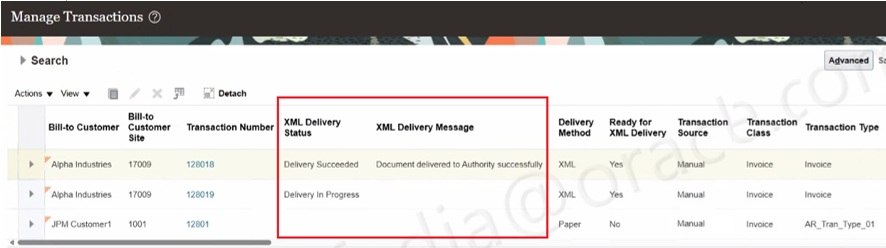
Manage Transactions Page
Business benefits include:
- Faster onboarding – No custom integrations required.
- Built-in compliance – Supports country-specific mandates.
- Reduced manual setup – Preconfigured connectivity and mapping.
- Integrated end-to-end solution for e-invoicing - From creation to compliance.
- End-to-end visibility – Track invoice delivery and status.
Steps to enable and configure
Steps for enabling connectivity with Thomson Reuters
Prior to enabling e-invoicing with Thomson Reuters in Oracle Fusion Cloud ERP, ensure that the following prerequisites are completed:
- Finalize your agreement with Thomson Reuters for use of the e-invoicing solution. You may have to provide the details of the participating legal entities such as name, address and registration number to Thomson Reuters.
- Provision your supplier account in the Thomson Reuters portal.
- If operating in a PEPPOL country, then complete seller registration on the PEPPOL network through Thomson Reuters.
Contact Thomson Reuters by visiting https://www.pagero.com/contact to initiate the integration.
4. Partner E-Invoice Integration with Thomson Reuters is in controlled availability. To enable the feature, log a Service Request (SR) and mention Partner E-Invoice Integration. Oracle Support will provide the instructions for enabling the feature.
Steps for enabling connectivity with Thomson Reuters
Step 1: Assign Required Role
- Login as IT Security Manager.
- Go to Security Console.
- Create a custom role.
- Add privilege: Manage Thomson Reuters Services.
- Assign role to admin user.
- From Tools > Scheduled Processes > Run Import User and Role Application Security Data process.
- Running this process will sync the new role to the user.
Step 2: Enable Integration
- Sign in to Oracle Cloud ERP as an administrator.
- Navigate to My Enterprise -> Setup and Maintenance -> Search Task: Manage Thomson Reuters Services.
- Open Manage Thomson Reuters Services and select E-Invoicing.
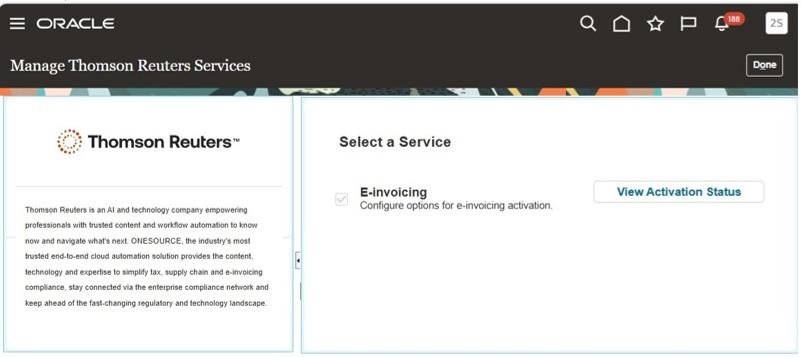
Manage Thomson Reuters Services
4. Click Configure for Activation, then select Receivables, and click on Activate. If the activation is already done, it is indicated with Completed status.
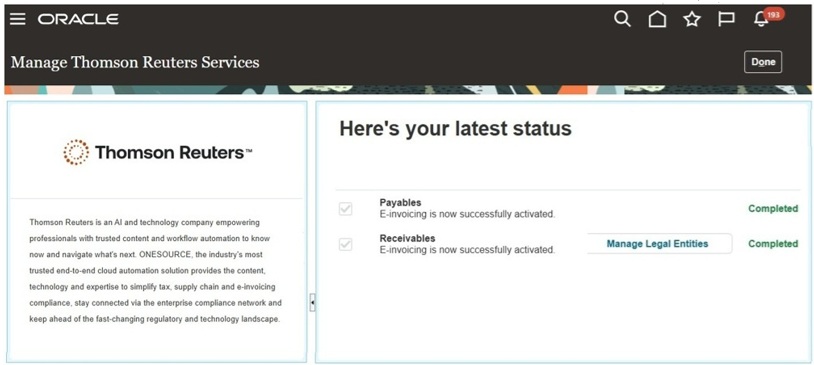
Activate Receivables
4. Activate the connection in the Thomson Reuters portal.
- Enter portal credentials provided by Thomson Reuters.
- Grant consent for enabling the data flow from Thomson Reuters to Oracle Cloud ERP.
- The system automatically establishes a secure connection between Thomson Reuters and Oracle and prepares the service for use through a secure background credential exchange.
- View the status of the service by clicking on the View Activation Status button. Once the enablement process is complete, the status is updated to Completed.
Step 3: Activate Legal Entities.
- After Receivables e-Invoicing activation is complete, navigate to Manage Legal Entities from the Manage Thomson Reuters Services page.
- Search for the legal entities by country.
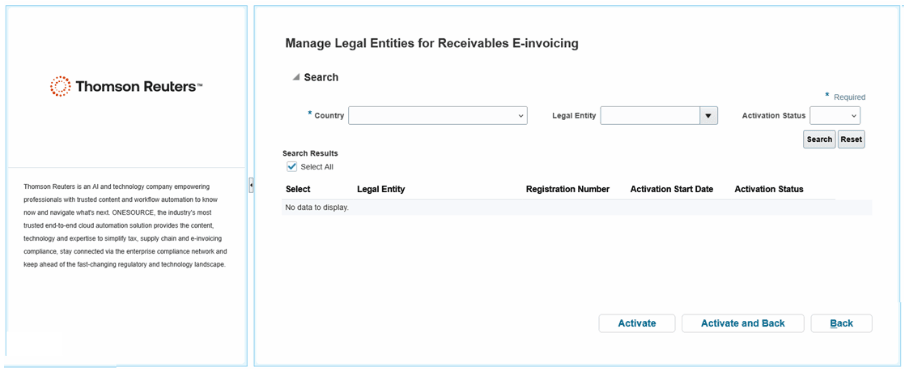
Activate Legal Entities
3. Select the legal entities you want to activate, and add the Activation Start Date for each legal entity. Click on the Activate button.
4.You can only send Receivables transactions as e-invoices from the legal entities you activate.
Step 4: Customer (Buyer) Setup
- All customers (buyers) set up in ERP Cloud are eligible to receive e-invoices.
- E-invoices are sent to all customer accounts with a Preferred Delivery Method of null or XML.
- To exclude a customer, set Preferred Delivery Method to Paper OR Email.
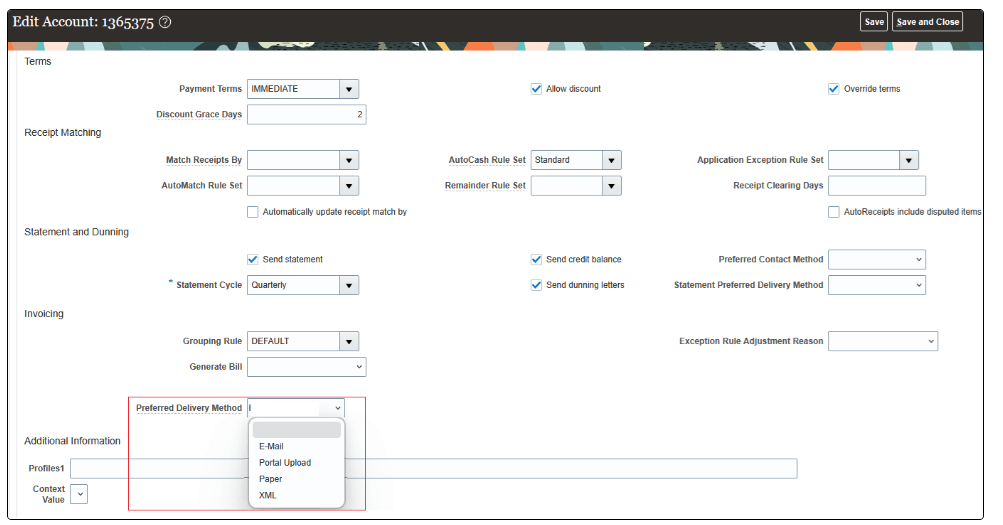
Customer Account Setup
2. You must add a tax registration number to all customers and customer sites that will be referenced in Receivables transactions.
- Navigate to the Manage Customers setup page.
- Open the Edit Customer or Edit Site page.
- Navigate to Tax Profile > Tax Registrations.
- Navigate to Create Third-Party Tax Registration or Create Third-Party Site Tax Registration page.
- Enter the tax registration number.
Step 5: Default Tax registration number
Enable the automatic assignment of the tax registration number to Receivables transactions for each applicable legal entity.
- In Oracle Tax, navigate to Manage Legal Entities.
- Search and select a legal entity
- In the Controls and Defaults section of the Edit Legal Entity Tax Profile page
- Enable the “Assign third-party tax registration number during Receivables transaction creation” option.
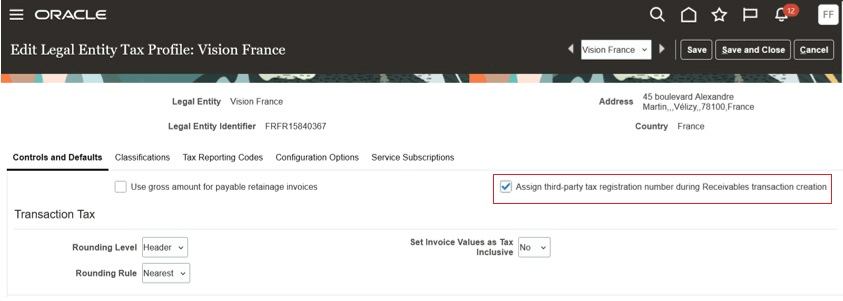
Default Tax Registration Number for Receivables Transaction
Step 6: Setup Domain Value Mapping (DVM)
Domain Value Mapping is used to convert Oracle values into the standard values required by Thomson Reuters.
Examples of Domain Value Mapping
| Type | Fusion Value | Standard Value |
|---|---|---|
| Transaction Type | INV | 380 |
| Unit of Measure | Each | EA |
| Payment Method | Credit Card | 54 |
Setup Steps:
- From the setup manager, navigate to Manage Receivables Lookups.
- Search for the following lookup types:
- ORA_AR_DVM_TRX_TYPE_CODE - Transaction Type Code Domain Value Mapping
- ORA_AR_DVM_UOM_CODE - Unit of Measure Domain Value Mapping
- ORA_AR_DVM_CHARGE_REASON_CODE - Charges Reason Code Domain Value Mapping
- ORA_AR_DVM_TAX_CATEGORY_CODE - Tax Category Code Domain Value Mapping
- ORA_AR_DVM_PAYMENT_METHD_CODE - Payment Method Code Domain Value Mapping
- For each of the above lookup types, add lookup codes as follows:
- Enter a sequence number starting from 1, for every lookup code within the lookup type.
- Enter the Fusion value in the Meaning field of the lookup code.
- Enter the standard value required by Thomson Reuters in the Description field of the lookup code.
- To enter country specific values, add the country in brackets before Fusion value in the Meaning field.
- Following are some examples for lookup codes added for domain value mapping.
DVM Lookup Type and Codes
| Lookup Type | Lookup Code | Meaning (Fusion Value) | Description (Standard Value) |
|---|---|---|---|
| ORA_AR_DVM_TRX_TYPE_CODE | 1 | INV | 380 |
| ORA_AR_DVM_TRX_TYPE_CODE | 2 | CM | 381 |
| ORA_AR_DVM_UOM_CODE | 1 | Each | AE |
| ORA_AR_DVM_CHARGE_REASON_CODE | 1 | Cleaning Services | CG |
| ORA_AR_DVM_TAX_CATEGORY_CODE | 1 | Tax Standard Services | S |
| ORA_AR_DVM_TAX_CATEGORY_CODE | 2 | Tax Exempt | E |
| ORA_AR_DVM_PAYMENT_METHD_CODE | 1 | Credit Card | 54 |
DVM mapping will be referenced during the invoice transformation, and the Fusion values will be replaced with standard values on the generated PUF XML file.
Tips and considerations
- Ensure tax registration numbers are correctly entered for the legal entity and legal reporting unit as this identifies the supplier on the e-invoice.
- Ensure customer tax registration number is correctly entered for the customer as this identifies the buyer on the e-invoice.
Access requirements
- To access the Thomson Reuters Services setup page, you need the Manage Thomson Reuters Services privilege.