Reversal and Rebilling Assistant
Use the Reversal and Rebilling Assistant to identify distributed costs that need to be reversed and rebilled due to a change in ownership definition.
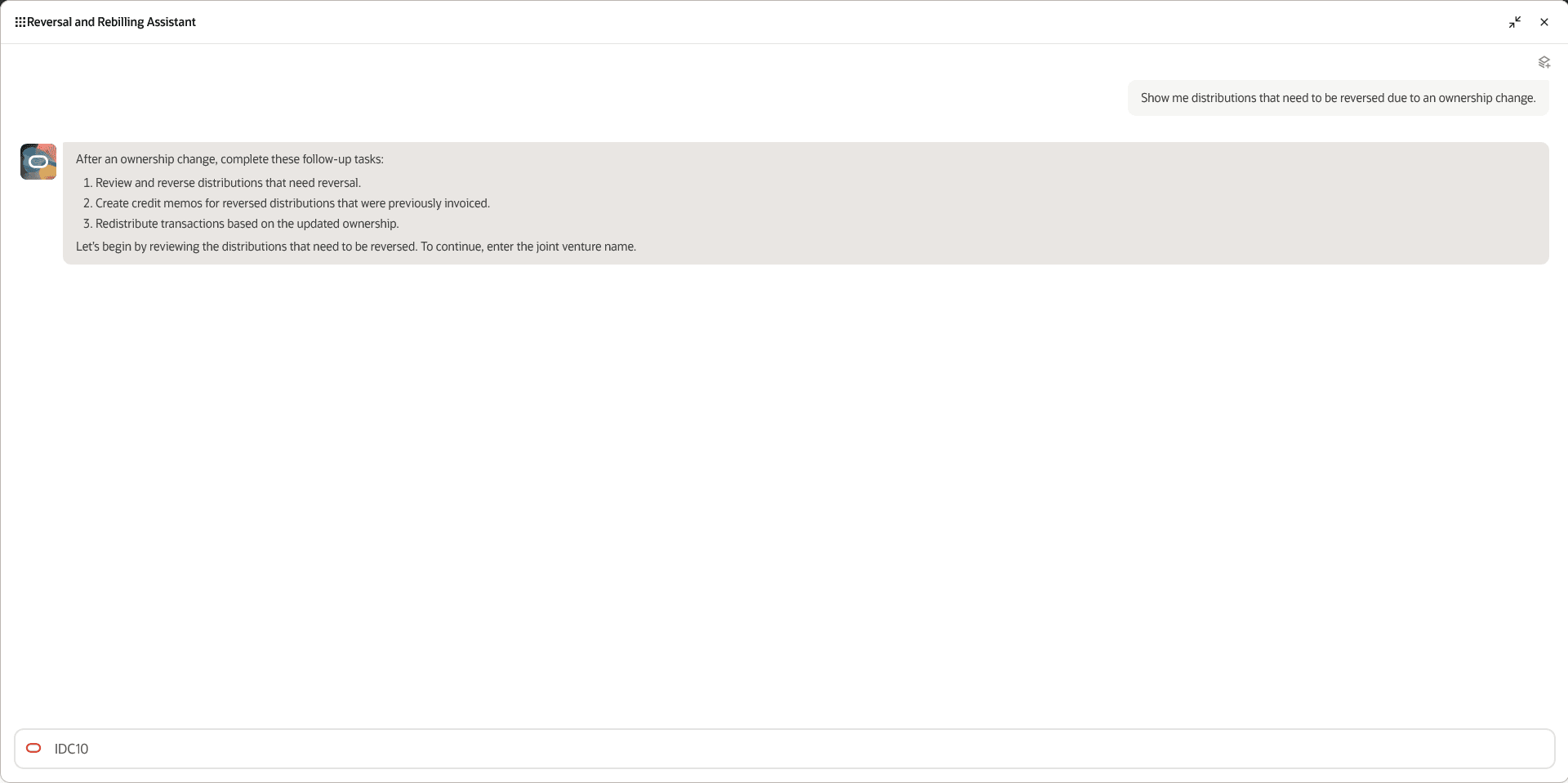
Reversal and Rebilling Assistant displaying its supported tasks in response to the “Show me distributions that need to be reversed due to an ownership change” starter question.
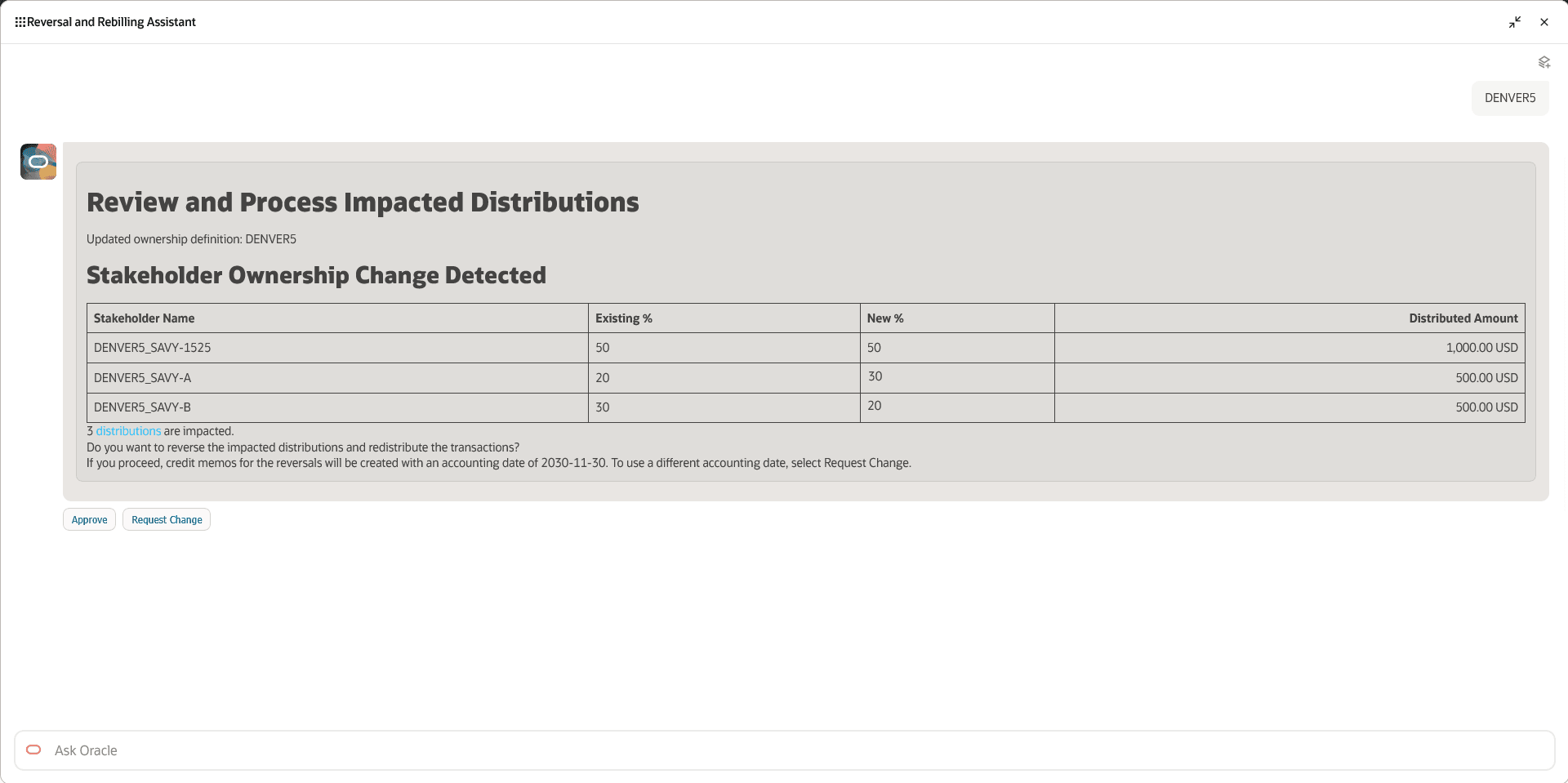
Reversal and Rebilling Assistant displaying the details of the change in ownership definition and prompting the user to run the reversal and rebilling process.
The assistant runs the reversal and rebilling processes and generates the necessary credit memos for the reversed distributions and invoices for the redistributed distributions.
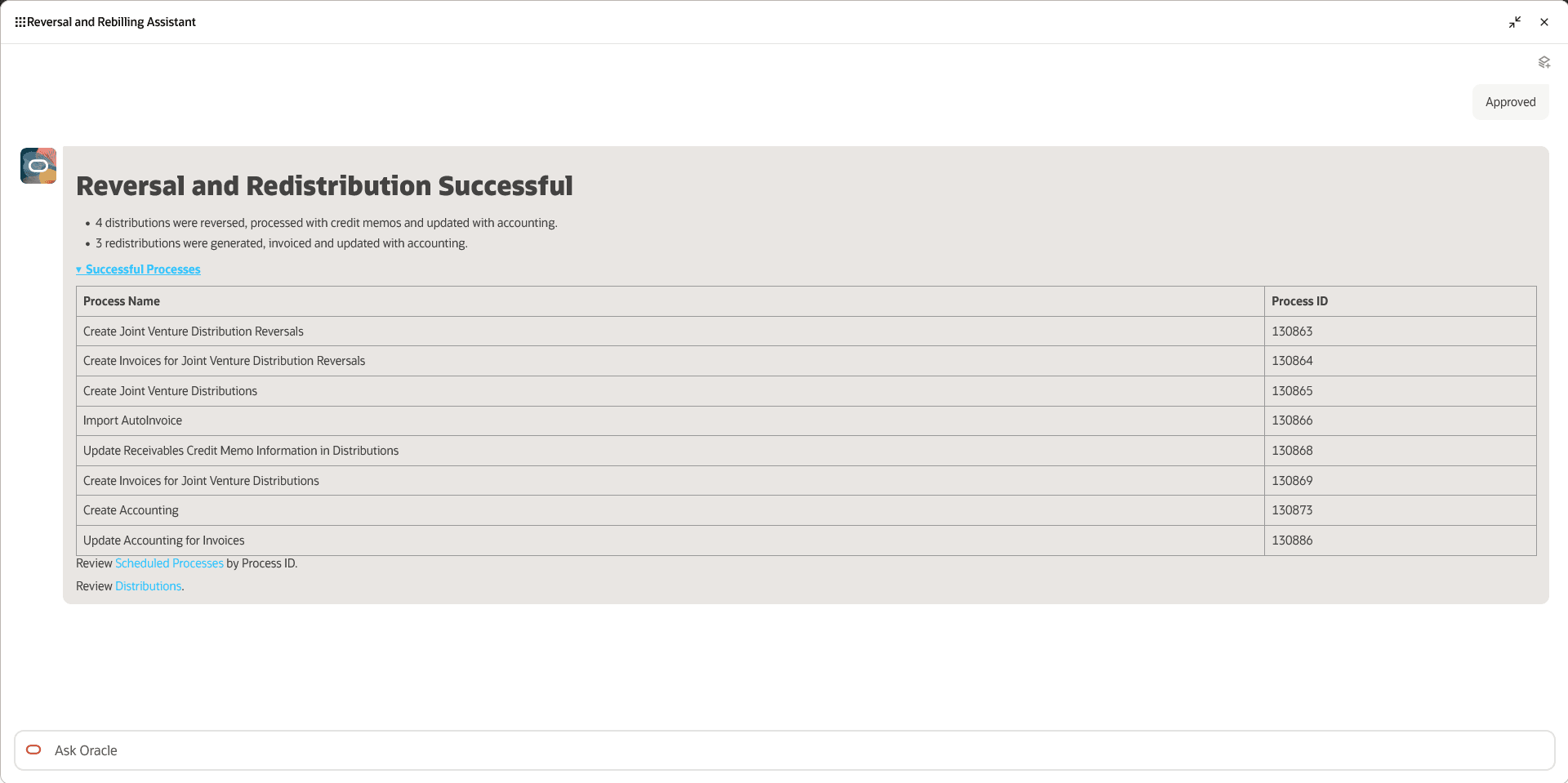
Reversal and Rebilling Assistant displaying the summary after running the reversal and rebilling process.
These are the business benefits:
- Simplifies and accelerates reversal and rebilling.
- Reduces manual effort.
- Helps ensure all required processes are completed.
Steps to enable and configure
Refer to the Access Requirements section to set up the required security roles and privileges. After the required security roles and privileges are set up, users can access the Reversal and Rebilling Assistant from the Explore area on the AI Agents page.
Key resources
For additional information, refer to the Using Joint Venture Management guide.
Access requirements
Perform these tasks to set up access to the Reversal and Rebilling Assistant:
- Create a custom job role, assign the required roles to it, and assign the custom role to each joint venture user.
- Configure data access sets to the joint venture user and role.
Create the custom job role
1. Navigate to the Security Console.
2. Create a new custom job role with the following configurations:
- Role Category: Financials Job Roles
- Enable Permission Groups
3. In Role Hierarchy > Roles and Privileges, add the following roles:
- ORA_JV_JOINT_VENTURE_REBILLING_ASSISTANT_DUTY
This role grants access to joint venture scheduled processes for reversal and rebilling, Receivables AutoInvoice process, Create Accounting process, the REST service for submitting the processes, and deeplinks to review joint venture distributions in the work area.
- ORA_FUN_ERP_SELF_SERVICE_USER_ABSTRACT
4. In Role Hierarchy > Roles and Permission Groups, add this role:
- ORA_JV_JOINT_VENTURE_REBILLING_ASSISTANT_DUTY
This role grants access to the assistant in the AI Agents page.
5. Add the required users to the custom job role, then save and submit the role.
Configure data access
1. From Setup and Maintenance, navigate to the Enterprise Profile functional area, and select the Manage Reference Data Set Data Access task.
2. Select the user and the custom job role, then grant access to the applicable security context and security context value, such as the business unit, ledger, and so on.
3. After assigning data access, select Process Permission Group Policies.
4. After receiving confirmation that the job was submitted, navigate to Scheduled Processes and monitor the Financials Maintenance Stream job until it completes successfully.
You can then access the Reversal and Rebilling Assistant.