Business Rule Defaulting and Validation of Input Values Introduction
You can now default input values when adding a new proposal. Also validate input values during any operations such as add, correct, and update. We added new template rules with these capabilities.
A new attribute can detect whether the user is the initiator or approver. You can include it in your business rule condition, to vary the behavior on the Redwood personal contribution, individual compensation, and administer compensation pages.
Visual Builder Studio validation rules run on every visit to the Additional Compensation section.
- Default Input Values: Use this new field in business rules through an array pair as shown here:
[
    {
        "BaseName": "Amount",
        "ScreenEntryValue": 500
    },
    {
        "BaseName": "Periodicity",
        "ScreenEntryValue": "PRD"
    }
]
For a car allowance, lets set the default value to $500 and Periodicity to Periodically.
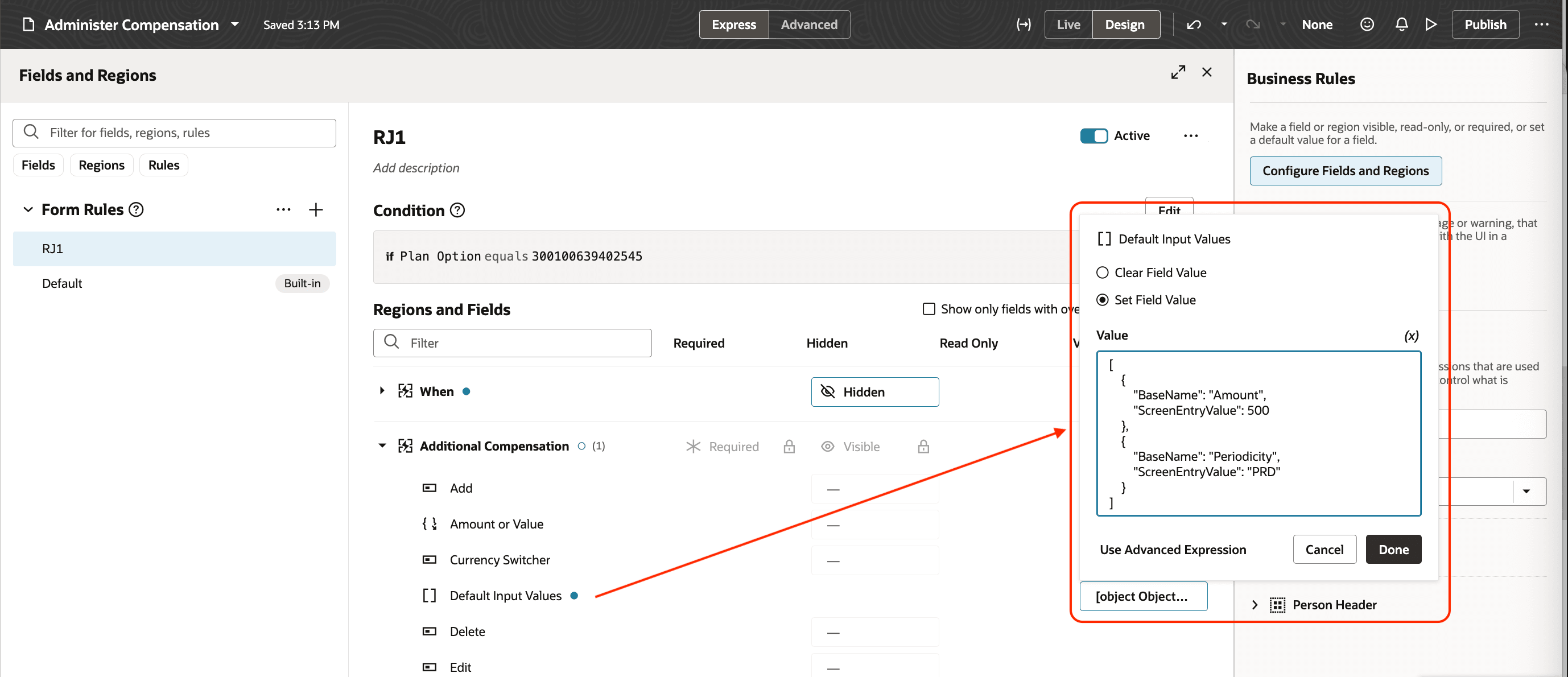
Default Input Values Dialog Box with the Value Code
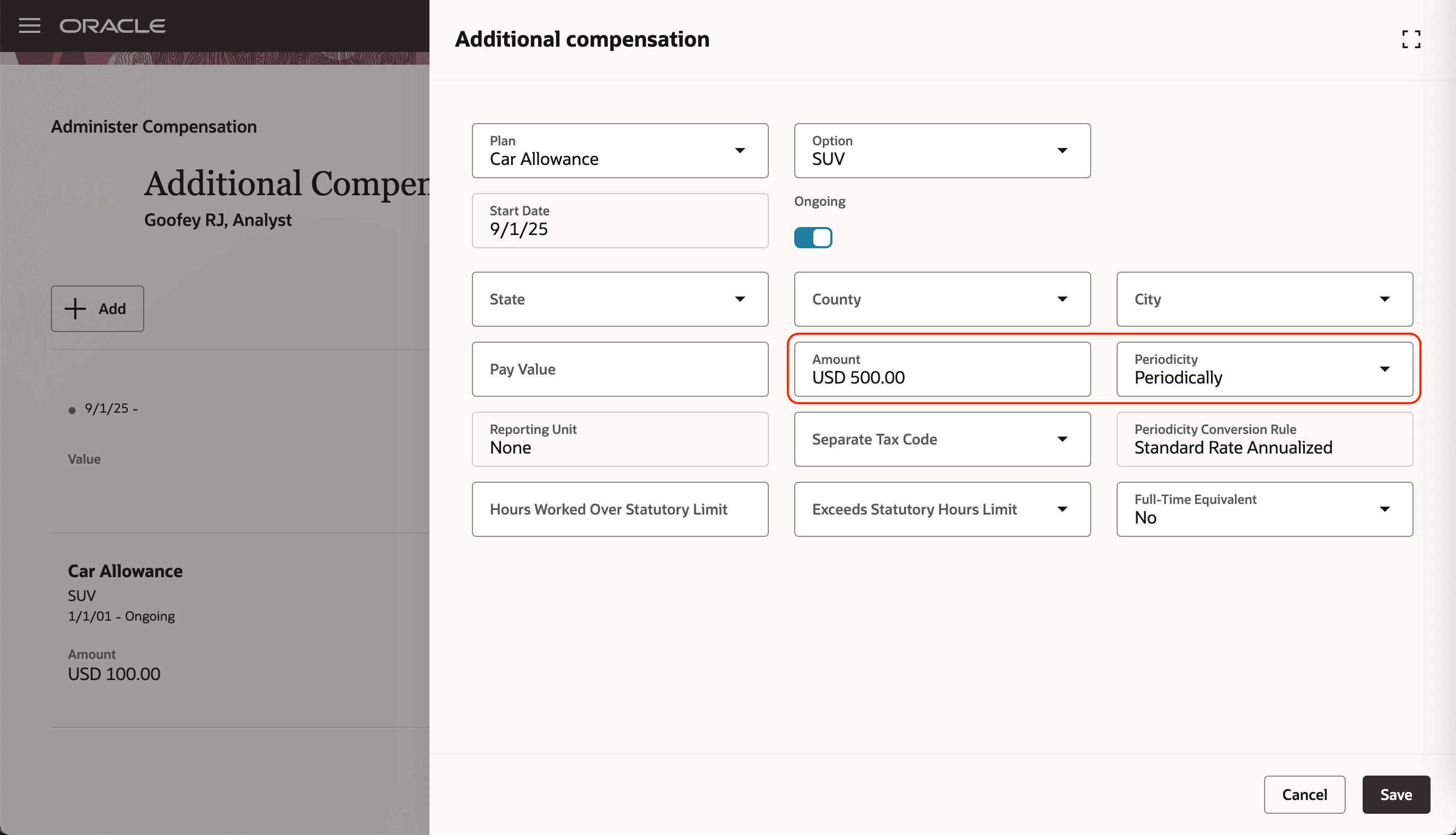
Additional Compensation Drawer Showing the Defaulted Values
For the same car allowance, lets conditionally set the default value to $1000 and Periodicity to Periodically.
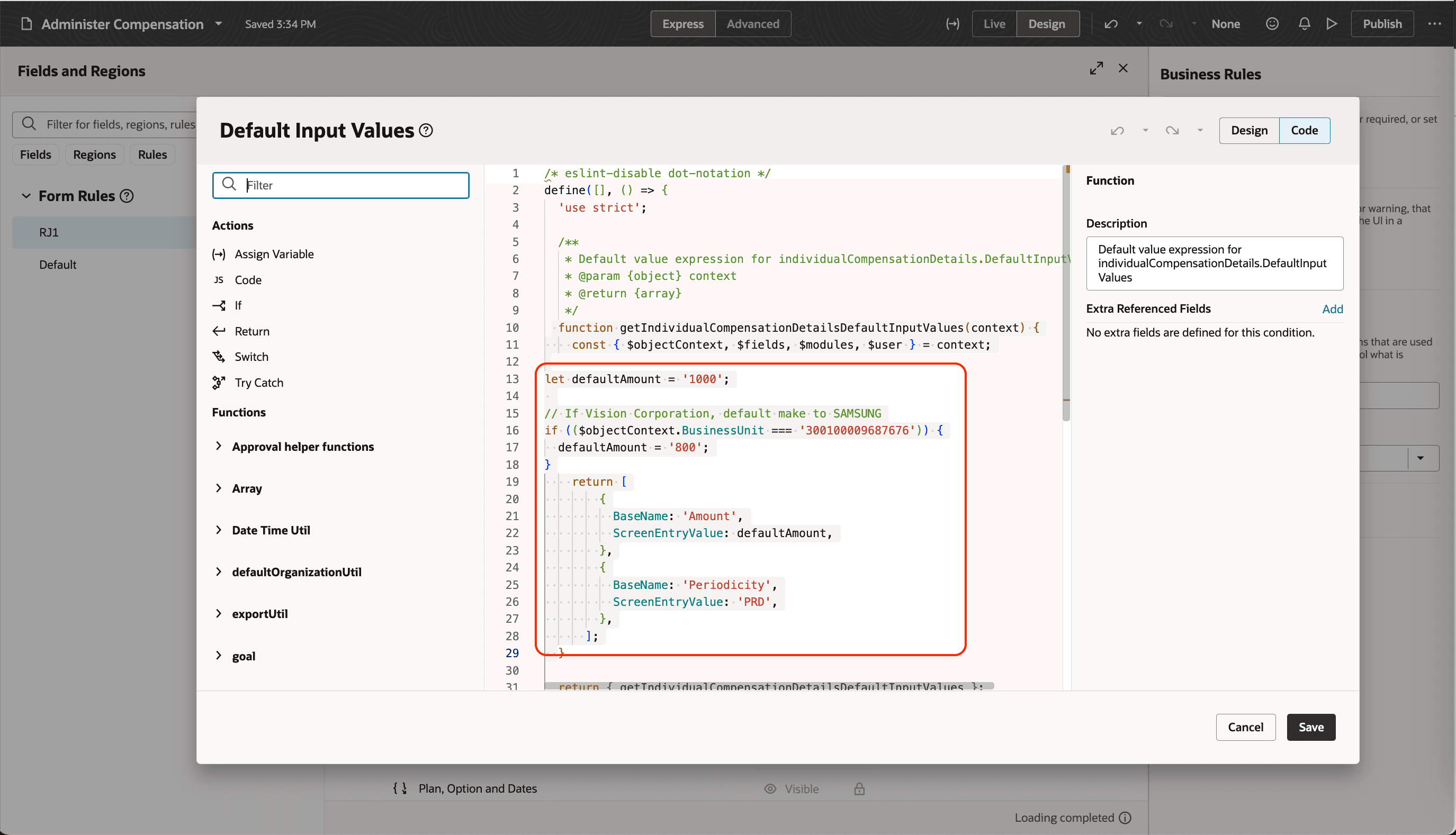
Default Input Values Dialog Box Using an Advanced Expression to Build Conditions and Logic
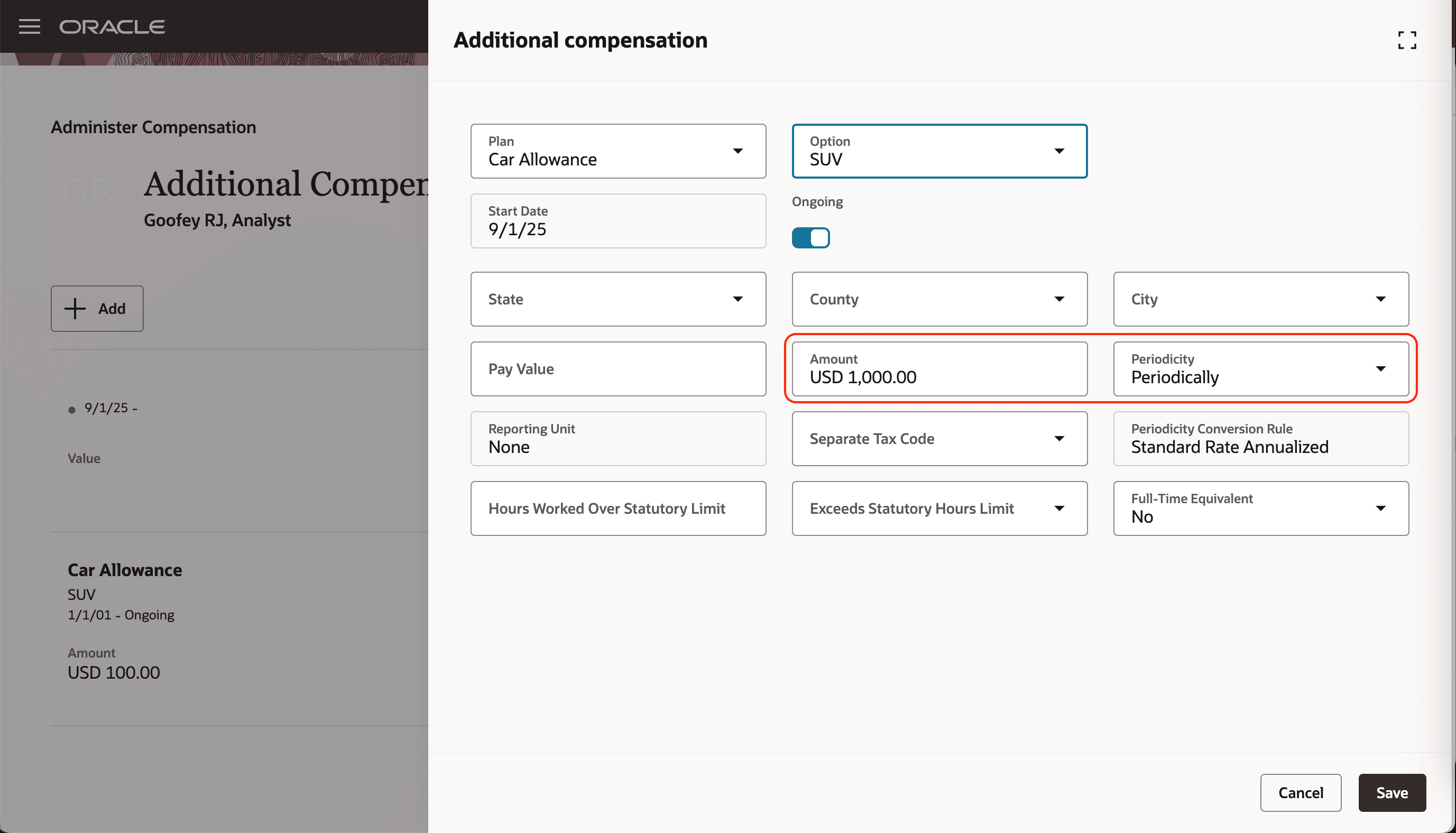
Additional Compensation Drawer Showing the New Defaulted Values
- Validate Input Values: Use the Input Values array to sample the input value through BaseName and the value entered through ScreenEntryValue.
For a car allowance, lets ensure the amount is less than $100 by checking for these conditions:
- Plan is Car Allowance
- Option is SUV
- Input value is Amount and the amount is less than 100
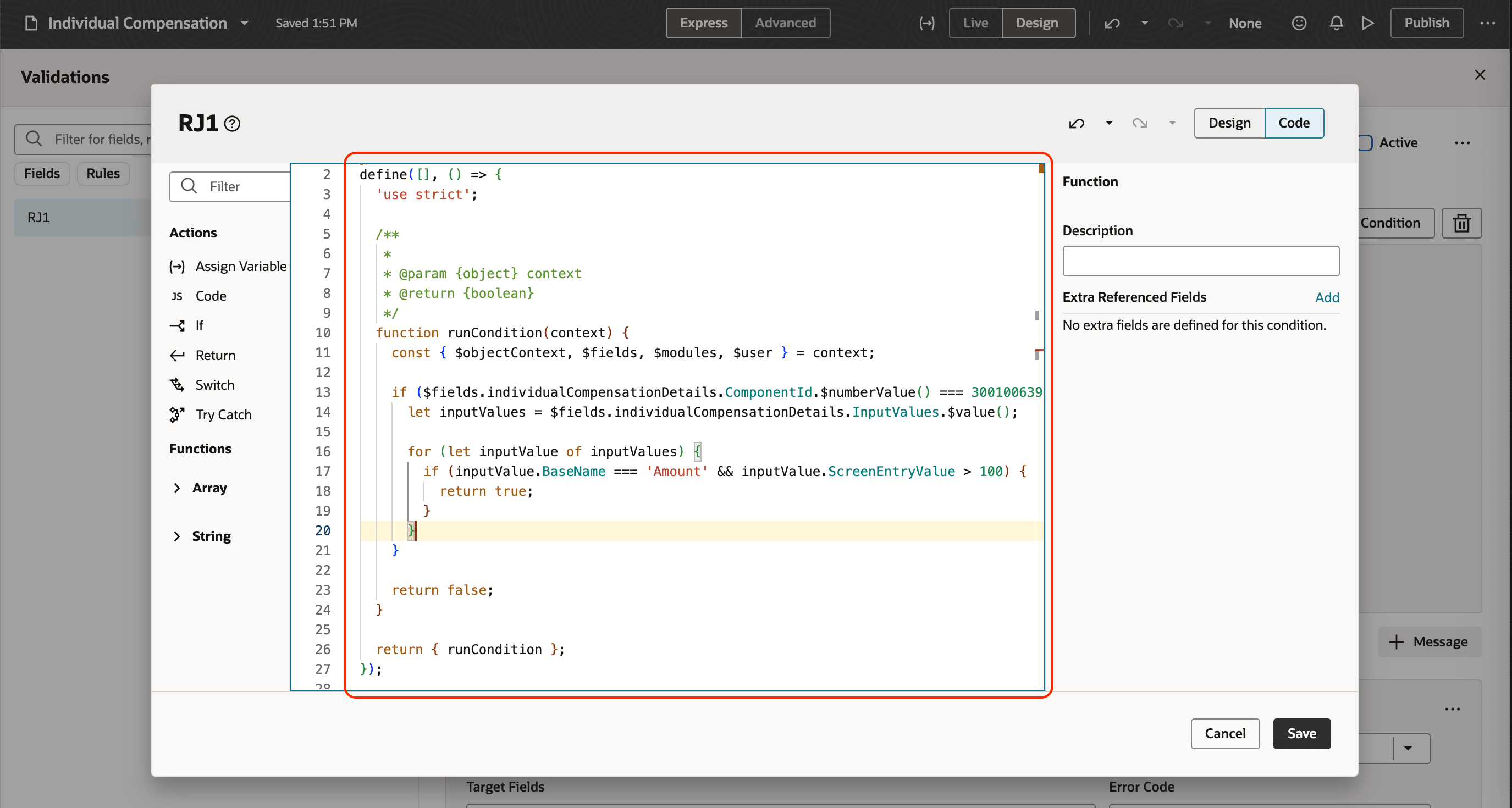
Validation Business Rule in Visual Builder Studio
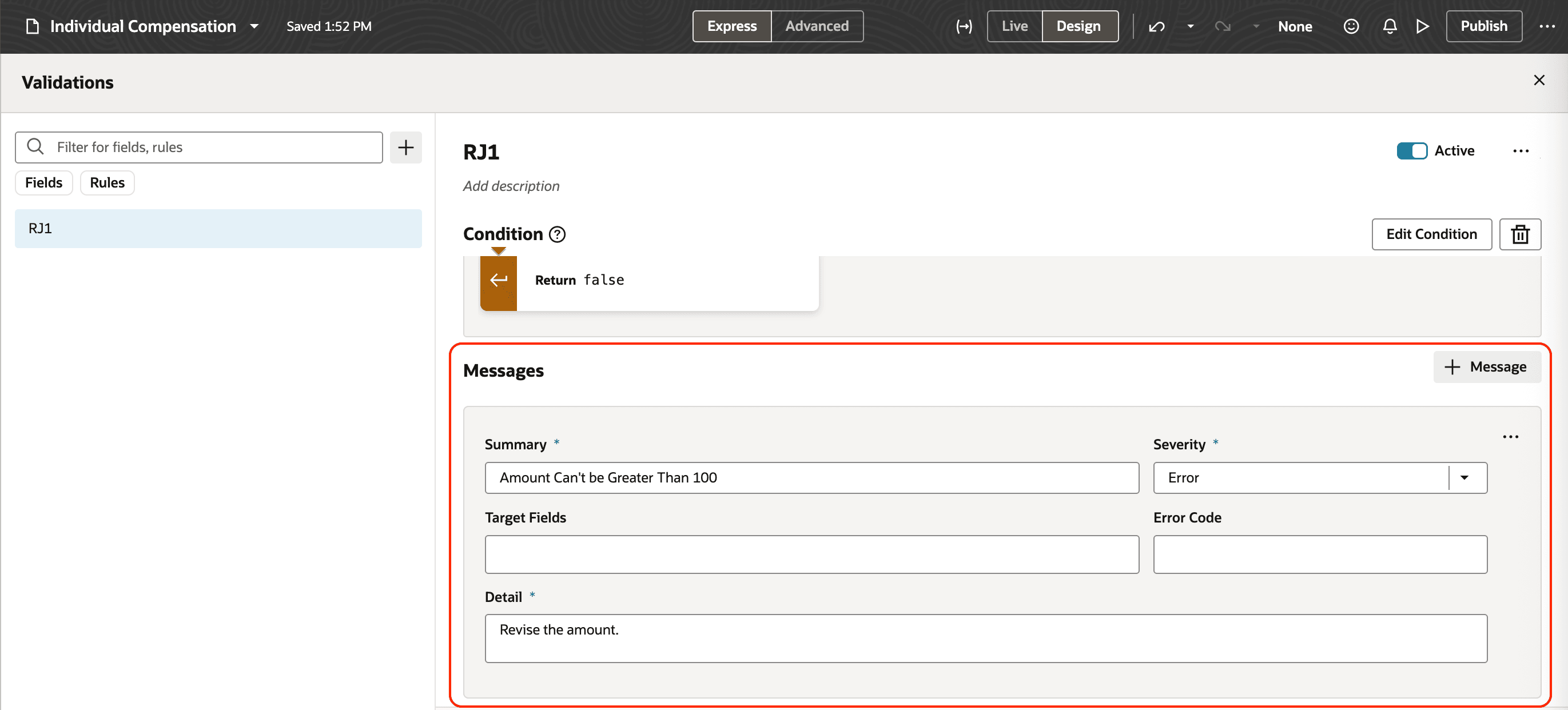
Error Message to Show Whenever the Condition Isn't Met
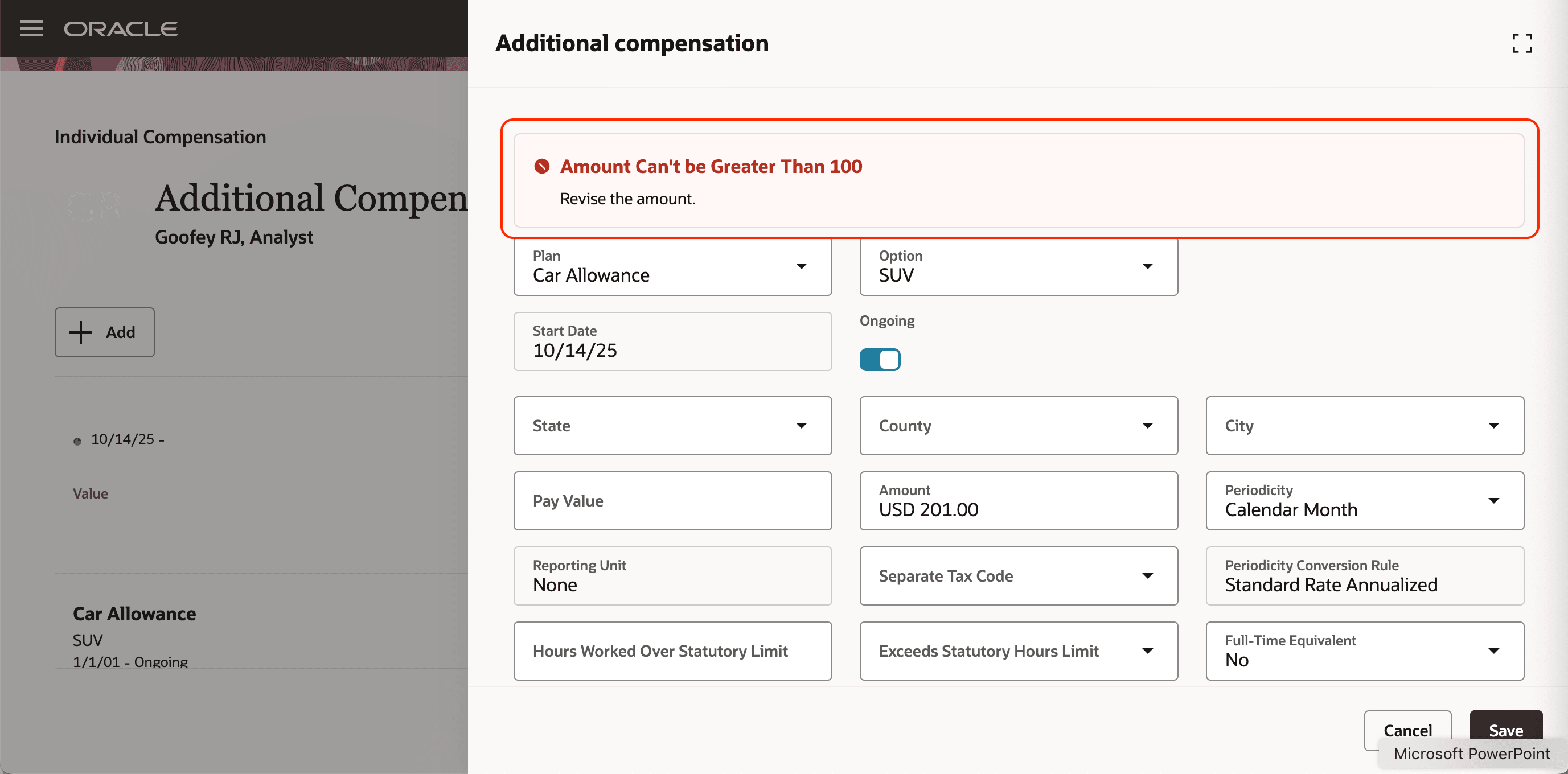
Additional Compensation Drawer Showing the Error Banner Message
This feature lets you default and validate coverage for input values.
Steps to enable and configure
You need to configure security. See the Access Requirements section
Tips and considerations
- You can default and validate input values on these pages:
- Personal Contribution
- Individual Compensation
- Administer Compensation
- Global HR pages, such as Hire an Employee
- Create Offer
- Edit Offer
- This page-level defaulting happens the first time you select the plan and option, but not when you correct or update the plan, option, or both.
- This page-level defaulting overrides defaulting defined in the element configuration.
- These template rules are now available:
- Default Input Values by Individual Compensation Plan Option and Legislative Data Group
- Default Input Values by Element
- Default Input Values Based on Business Unit
- Validate Input Values
- You can't vary the behavior of the Comments and Attachments section using the Initiator or Approver condition.
Additional info:
Use this query to return data as a JSON array that includes the input value and default.
SELECT JSON_ARRAYAGG(
    JSON_OBJECT(
        'BaseName' VALUE PIV.BASE_NAME,
        'ScreenEntryValue' VALUE PIV.DEFAULT_VALUE
    ) RETURNING CLOB
) AS JSON_RESULT
FROM FUSION.PAY_INPUT_VALUES_VL PIV
JOIN FUSION.PAY_ELEMENT_TYPES_F PET
    ON PIV.ELEMENT_TYPE_ID = PET.ELEMENT_TYPE_ID
    AND PET.EFFECTIVE_START_DATE BETWEEN PIV.EFFECTIVE_START_DATE AND PIV.EFFECTIVE_END_DATE
WHERE PIV.USER_DISPLAY_FLAG = 'Y'
AND TRUNC(SYSDATE) BETWEEN PET.EFFECTIVE_START_DATE AND PET.EFFECTIVE_END_DATE
AND PET.BASE_ELEMENT_NAME = 'ZCMP US SUP State-County-City'; |
Key resources
For more information about compensation business rules, see these playbooks:
- How do I configure business rules for Redwood individual compensation pages?
- How do I configure business rules for Redwood salary pages?
Access requirements
Element lists use the payrollElementDefinitionsLOV REST API. To access the lists while defining the business rules, the user's role needs to inherit this aggregate privilege:
|
Aggregate Privilege Name |
Code |
|---|---|
|
Use REST Service - Payroll Reference Data Lists of Values |
ORA_PAY_REST_SERVICE_ACCESS_PAYROLL_REFERENCE_DATA_LOVS |