Enhanced Connections
Keep building your work relationships, engaging, and collaborating better with your coworkers with these new capabilities.
Connections Cards: Horizontal and Waterfall (Vertical) Views
You can now present Connections cards in either a horizontal or vertical (also called "waterfall") view. The following enhancements apply only to the waterfall layout:
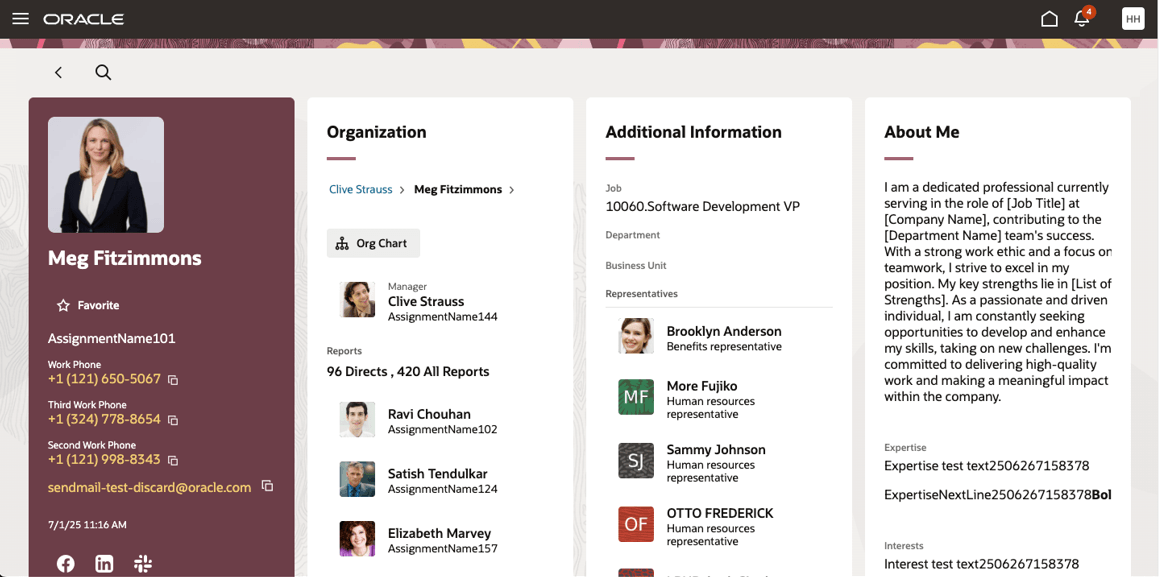
Waterfall mode
- Org Chart Enhancements
- The Department and Location tabs now report the accurate number of worker assignments—even when some assignments do not have a department or a location.
- The Department tab in the Organization Chart now includes a "No Department" box, grouping worker assignments that don’t have a department.
- The Location tab in the Organization Chart now includes a "No Location" box, grouping worker assignments that don’t have a location.
- The Department and Location tabs now report the accurate number of worker assignments—even when some assignments do not have a department or a location.
- Awards and Recognition Sections
- Two new sections, Awards and Recognition, are now displayed based on data from Compensation Celebrate.
- No additional setup is required—new cards display existing awards and recognition received by the worker being viewed.
- A count is shown for each, but only the first five items appear initially.
- Co-workers with security access can create new awards/recognitions or open Compensation Celebrate directly.
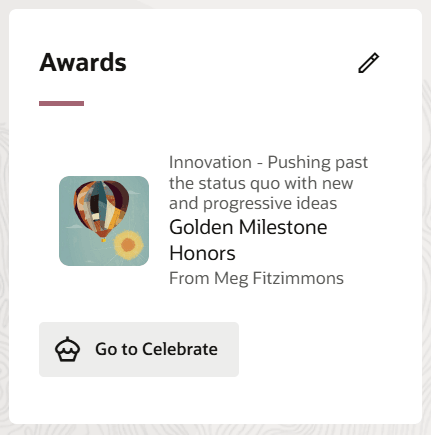
Awards
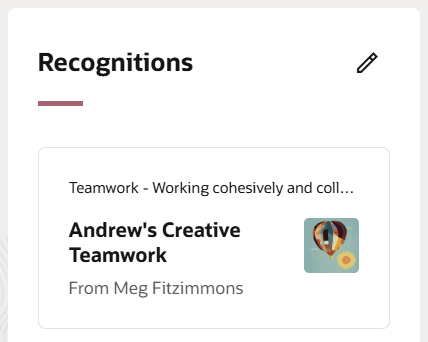
Recognitions
- Photo Editing Control
- Editing the worker's photo can now be disabled, providing you greater control.
Additional Personalization with Express Mode in VB Studio
You can further personalize your experience using Express mode in VB Studio to control the information that's important to you.
- New Page Properties
- The following properties have been added:
- Select between the horizontal view or the vertical (waterfall) view by setting the appropriate page properties.
- The Show Awards and Show Recognitions page properties control the display of the respective cards.
- The Show Edit Profile Photo page property controls whether workers can edit their own photo.
- All page properties are now grouped under the “Common Properties” category and can apply to both views or just the waterfall.
Applies to Page Property Description Default Value Both views showAboutMePrompt This property controls the display of “Tell us more about yourself” prompt in Person Profile page. Set the default value to false to hide the prompt. TRUE Both views showSkillsCard This property controls the display of Skills Panel. Set the default value to false to hide the panel. TRUE Both views showCareerAmbassador This property controls the display of Career Ambassador section in the Skills Panel. Set the default value to false to hide the Career Ambassador section in the Skills Panel TRUE Both views
showOrganizationCard
This property controls the display of Organization card in Person Profile page. Set the default value to false to hide the card. TRUE Both views
showAboutMeCard This property controls the display of About Me card in Person Profile page. Set the default value to false to hide the card. TRUE Both views
showExperienceCard This property controls the display of Experience card in Person Profile page. Set the default value to false to hide the card. TRUE Both views
showAchievementCard This property controls the display of Achievement card of Person Profile page. Set the default value to true to display the card. FALSE Both views
showReportsAndManagersCard This property controls the display of Reports and Managers card in Person Profile page. Set the default value to false to hide the card. TRUE Both views showHierarchyBreadcrumbs This property controls the display of Hierarchy breadcrumbs on the Organization card in Person Profile page. Set the default value to false to hide the breadcrumbs. TRUE Both views pronounNameAttribute This property controls the display of Pronoun in Person Profile page. Set the default value to NameInformation15-30 attributes based on the pronoun configuration. Both views SHOW_AI_ASSIST FALSE Waterfall view
showWaterFallLayout TRUE Waterfall view
useBossCallsForSavingBasicInfoSectionData FALSE Waterfall view showEditProfilePhoto This property controls the ability to hide or display edit profile photo option in Person Profile page. Set the default value to true to show the option. TRUE Waterfall view
showRecognitionsCard This property controls the display of Recognitions card in Person Profile page. Set the default value to false to hide the card. TRUE Waterfall view showAwardsCard This property controls the display of Awards card in Person Profile page. Set the default value to false to hide the card. TRUE
- All page properties are now grouped under the “Common Properties” category and can apply to both views or just the waterfall.
- The following properties have been added:
Customers can view and give awards and recognition from Connections.
Steps to enable and configure
Enable Waterfall Layout in Connections
Here are the steps to configure the waterfall layout in Connections:
- In the Setup and Maintenance area, go to Manage Administrator Profile Options task and set the profile option “ORA_ASE_SAS_INTEGRATION_ENABLED” value to Yes.
- In the Security Console create the below role.
- After entering the below details, click the Enable Permission Groups button and enable it.
- On the Role Hierarchy page, under the Roles and Permissions Groups tab, add the role “ORA_DR_PER_CONNECTIONS_DUTY”.
- On the Users page, add users for which you require the access and create the role.

Create role

Create role hierarchy
- Navigate to Scheduled Processes and run the below 3 processes.
-
- Populate HCM Data Feed Information with parameter as Connections for Data Feed Flow.
- Refresh Manager Hierarchy, and
- Refresh Representative Data
Wait for the processes to succeed.
Schedule and run processes
4. Navigate to Connections Profile page and click on Edit Page in Visual Builder Studio link from the Settings and Actions menu.
- Create or select a project and go to the Advanced mode.
- Set the below options to True
- showWaterfallLayout
- enableBossCalls
- useProfilePageAsDefault
- Click the Preview button from the Directory page or the Profile page.
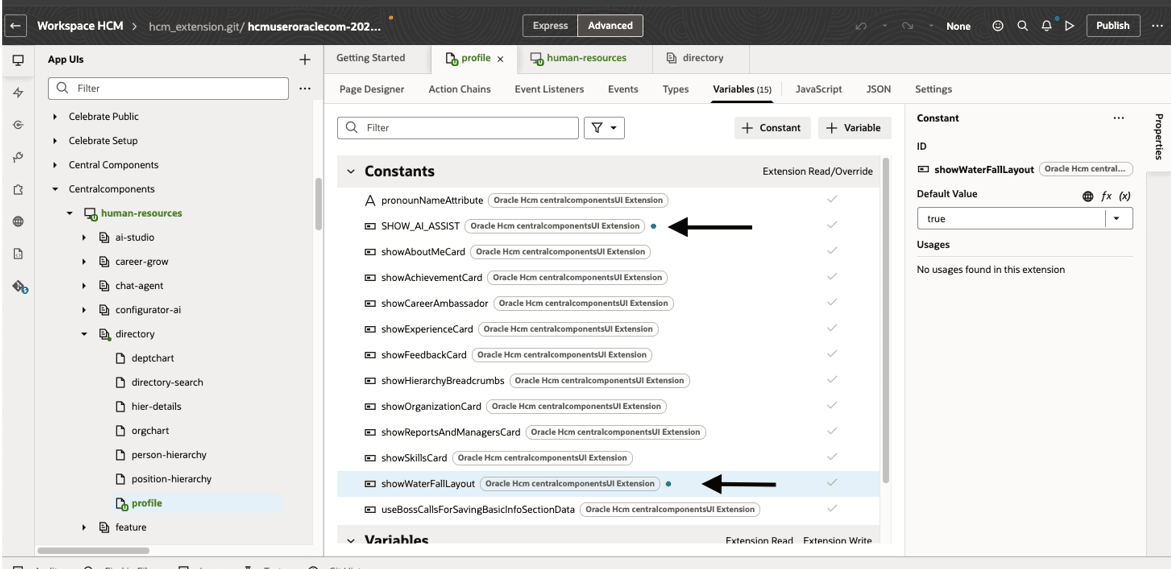
Enable page properties
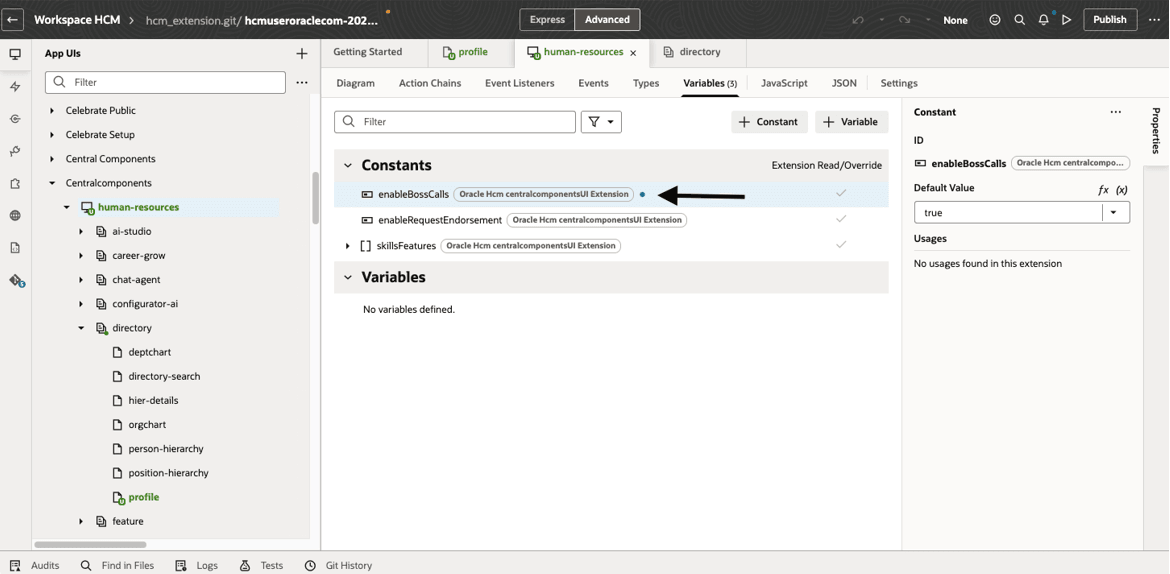
Enable page property
You need to enable the below option to access hero search page in waterfall UI (new connections search UI)
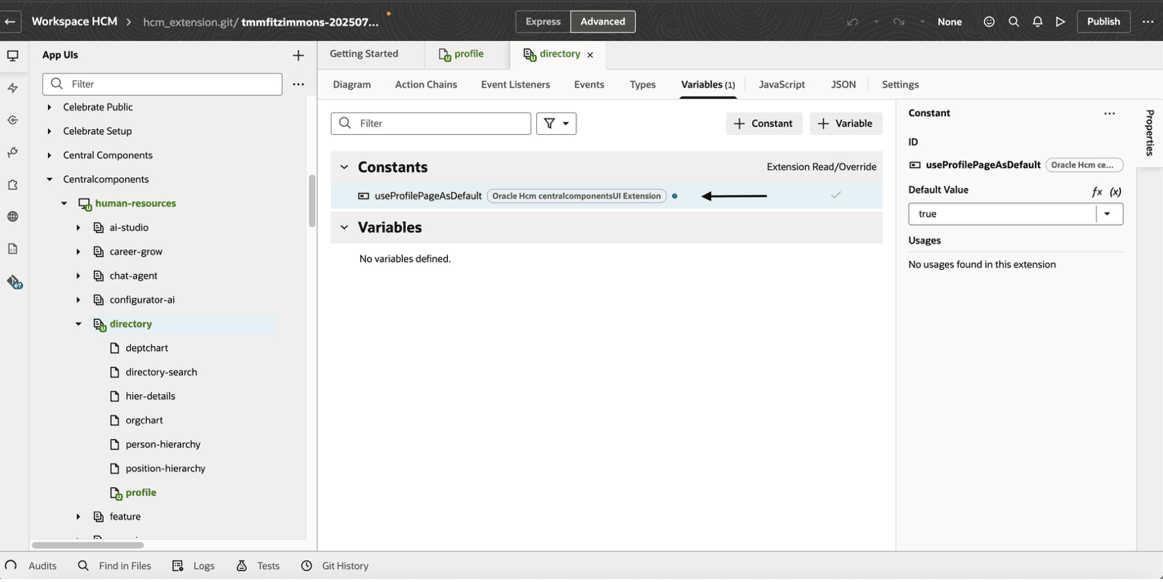
Enable option
UI with waterfall mode will be displayed as below.
Note: You can only set up the above 3 properties for Connections using the Advanced mode. All other configuration must be done in Express mode.
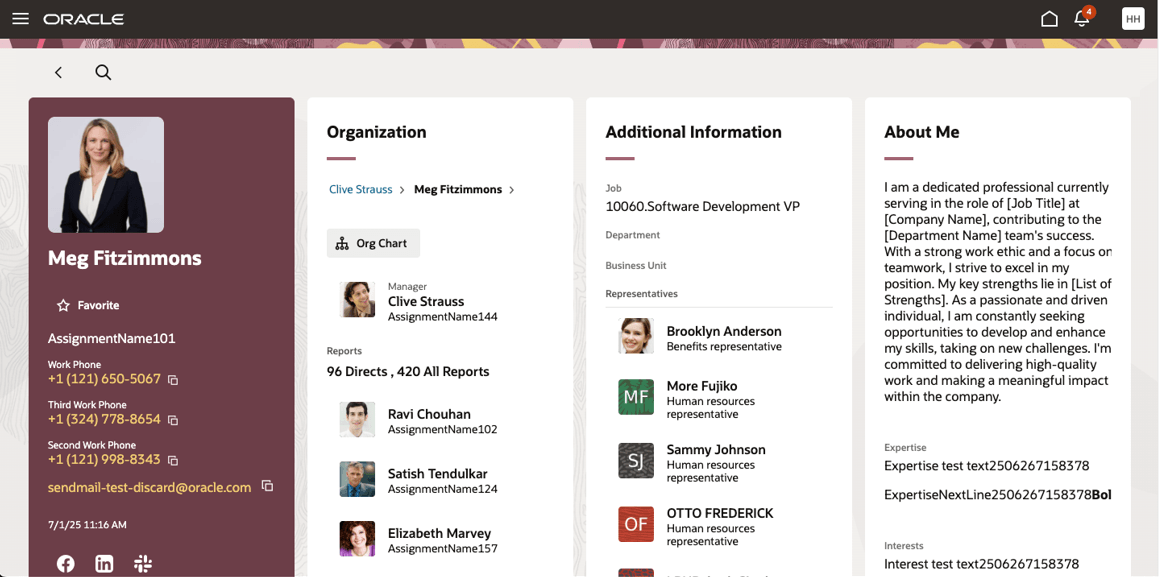
Connections Profile page in waterfall mode
Key resources
For more information, refer to these resources in the Oracle Help Center:
- Overview of Connections in the Using Global Human Resources guide
- Refer to the following documentation in this order:
- Express Mode in VBS for detailed instructions on using specific Express Mode features.
- Extending Redwood Applications for HCM and SCM Using VB Studio for details on what’s supported by HCM.
- You can refer to the VB Studio documentation "Configure an Oracle Cloud Application" to check the steps to access VB Studio from a Redwood page.
- Extending HCM Redwood Applications Using Visual Builder Studio
- Refer to the Customer Connect forum Visual Builder Studio for HCM