Change in Default Value of Profile Option for Redwood Document Type Security Profiles
Effective Update 26B, the Redwood Document Type Security Profiles page will be enabled by default.
The classic Document Type Security Profiles page will no longer be available by default. However, you can still access the page by manually setting the relevant profile option to No.
Here's how you can navigate to the Redwood Document Type Security Profiles page: My Client Groups > Workforce Structures > Document Type Security Profiles
Here's why you should continue with the Redwood page:
-
Modern and Intuitive Experience: Redwood pages offer a streamlined, user-friendly interface.
-
Improved Efficiency and Performance: Built with the Redwood toolset, the new pages reduce the number of clicks and enhance overall performance.
-
Consistent Application Flow: Benefit from a cohesive user experience across the application.
-
End of Support: The classic Document Type Security Profile page will no longer be supported for any bug fixes, nor will they be enhanced.
-
Automatic Enablement: The site-level profile option ORA_PER_DOCUMENT_TYPE_SECURITY_PROFILE_REDWOOD_ENABLED will be set to Yes by default.
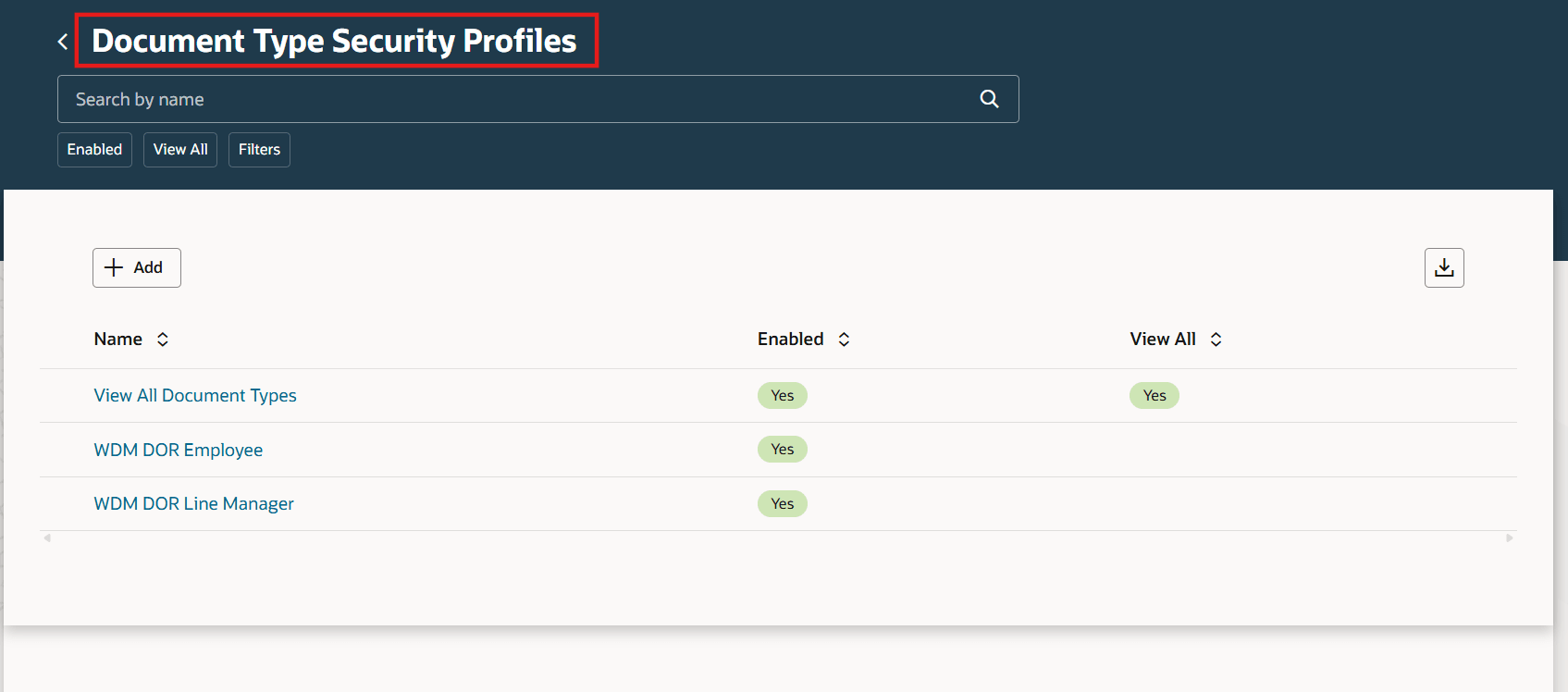
Redwood Document Type Security Profile Page Enabled by Default
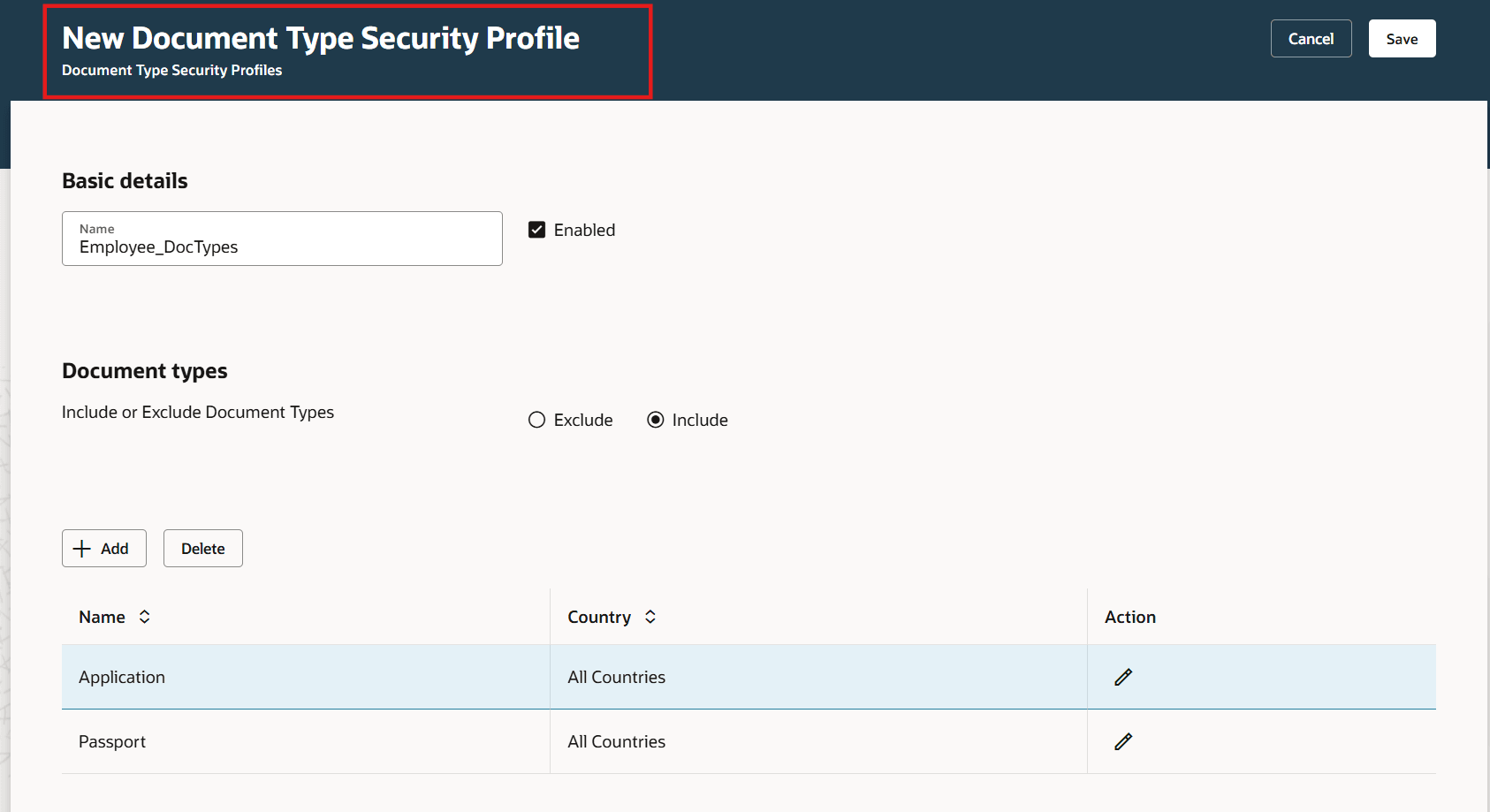
Add Redwood Document Type Security Profile Page
The new page is built using the Redwood toolset and offers a fewer number of clicks and better performance. By using these new pages or flows, you can take advantage of the cohesiveness through the application.
Steps to enable and configure
-
To work with the Redwood Document Type Security Profiles page, you must first enable the ORA_HCM_VBCS_PWA_ENABLED profile option. In addition, check if the ORA_PER_DOCUMENT_TYPE_SECURITY_PROFILE_REDWOOD_ENABLED profile option is also enabled. By default, the profile option ORA_PER_DOCUMENT_TYPE_SECURITY_PROFILE_REDWOOD_ENABLED is delivered as enabled.
-
If you want to use the classic Document Type Security Profiles page, you need to set the profile option ORA_PER_DOCUMENT_TYPE_SECURITY_PROFILE_REDWOOD_ENABLED to No.
-
To enable the profile options, refer to this topic: How do I enable a profile option?
Key resources
For a listing of all profile options for the recreated pages across applications, see the following document on My Oracle Support:
- HCM Redwood Pages with Profile Options – MOS Document 2922407.1
For more information about extending Redwood pages in HCM, refer to this feature announcement on the Oracle Help Center.
Access requirements
Access to the new Redwood Document Type Security Profiles page is controlled using the same security privileges that control access to the classic Document Type Security Profiles page.
For information about existing security privileges, refer to Security Reference for HCM guide