Redwood Experience: Job Offers List Page and Manage Job Offers List Page Extensibility
You can create business rules in Visual Builder Studio to configure the display of columns in the Job Offers list page and Manage Job Offers list page.
Business benefit: This feature improves the user experience as you can configure columns for different users as per your business need.
Steps to enable and configure
To configure the display of columns in the Job Offers list page, you need to create business rules in Visual Builder Studio. You can define which columns are hidden by default, visible by default, or always hidden. Navigate to the Redwood Job Offers list page. Then, in Visual Builder Studio, in the top left menu, select Hiring > Job Offer List. Then follow the steps detailed here: How do I hide or show a field in Visual Builder Studio?
You can also add a condition to display columns for specific user roles.
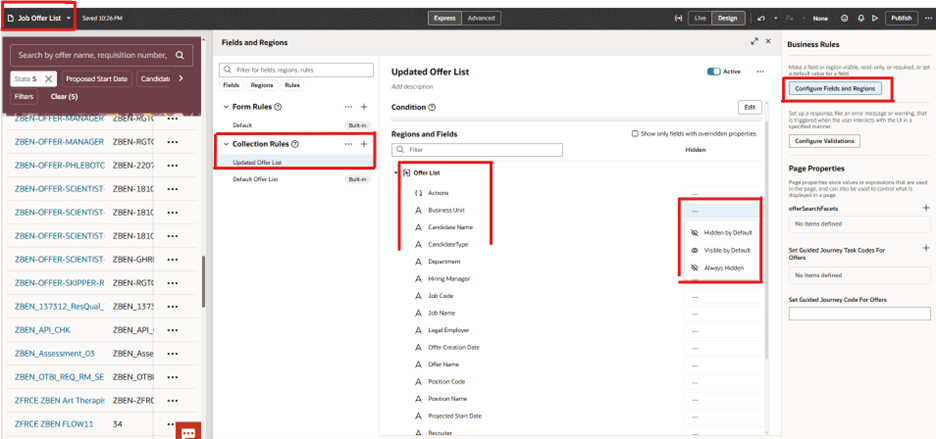
Visual Builder Studio Columns Customization for the Job Offers List Page
To access Redwood job offers list page, you need to enable below profile option:
- ORA_IRC_RECRUITING_REDWOOD_ENABLED
To access Redwood Manage job offers list page, you need to enable below profile option:
- ORA_IRC_MANAGE_JOB_OFFER_LIST_REDWOOD_ENABLED
For details, see How do I enable a profile option?
For details on enabling and customizing Redwood for HCM, see How do I adopt Redwood for HCM? and Extending Redwood Applications for HCM and SCM Using Visual Builder Studio.