 Redwood: New Visual Builder Studio Page Properties
Disable Request for Information Options in the Manager Goal Approval Flow
As administrators, you can now ensure that managers don’t reroute their approvals by disabling the options shown in the Request for Information window. You can disable these options when the managers view approval details on a direct report’s Goals page from these navigations:
- My Team > Team Goals Center > Select either Performance or Development tab > Select a direct report whose approval request needs to be reviewed.
- My Client Group > Show More > Goals Center > Select either Performance or Development tab > Select a direct report whose approval request needs to be reviewed.
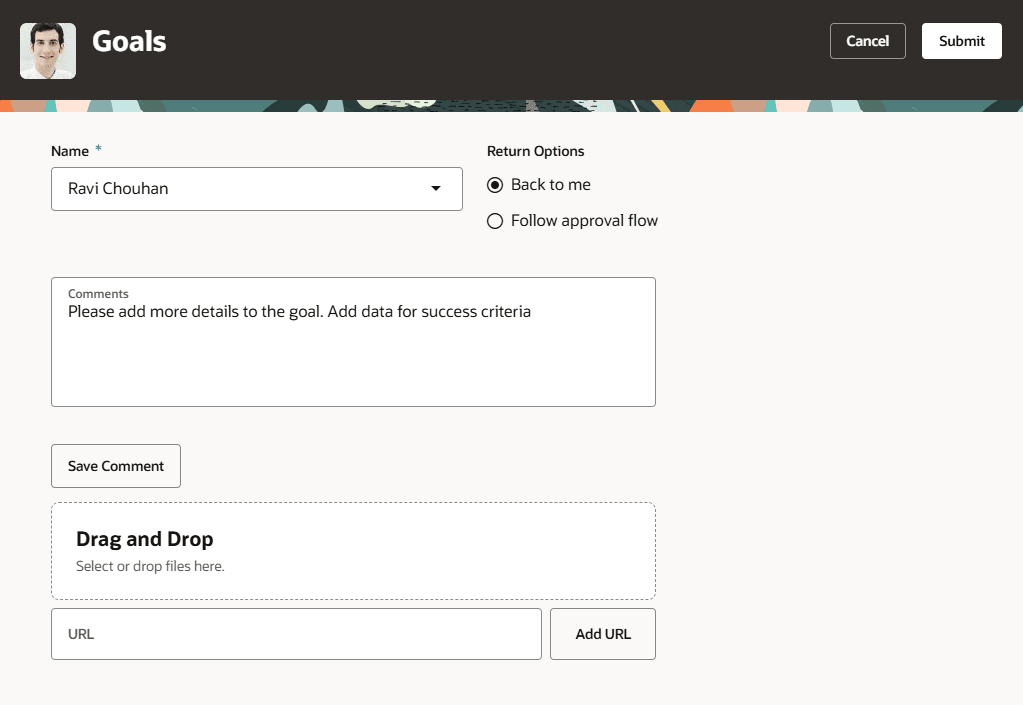
Request for Information Window
Note: You can’t disable the request for information options when the manager views approval requests on the Bell notification or the worklist.
Disallow Sharing Goals with Any Person
As administrators, you can now prevent employees and managers from sharing goals with any person in the organization who they normally don’t have access to. After you do this, employees won’t be able to share goals and managers can share goals only with their team members.
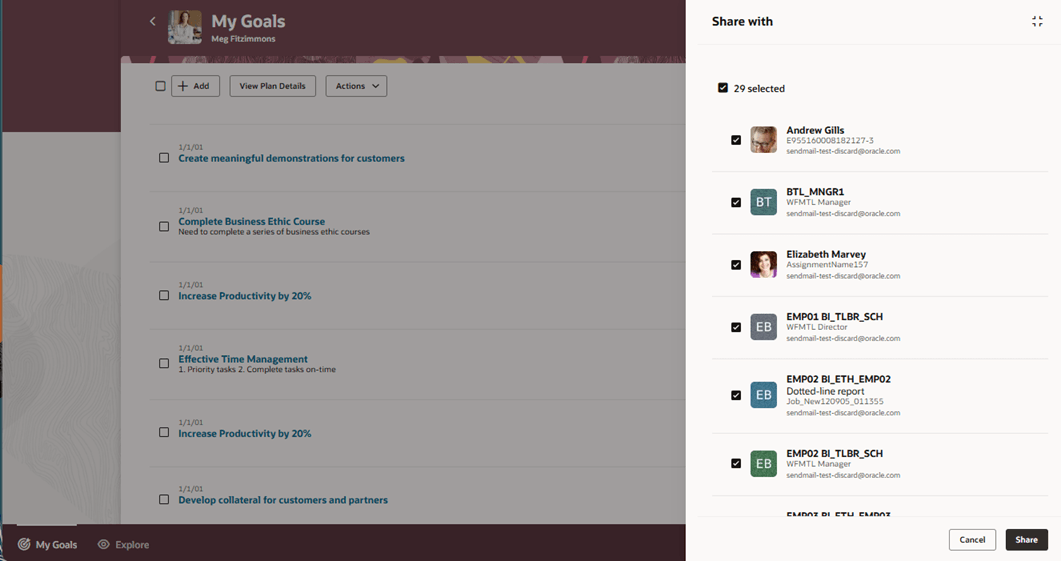
Share with Panel Without the Any Person Share Option
Disallow Adding Tasks for Performance and Development Goals
As administrators, you can now prevent users from adding tasks for performance and development goals.
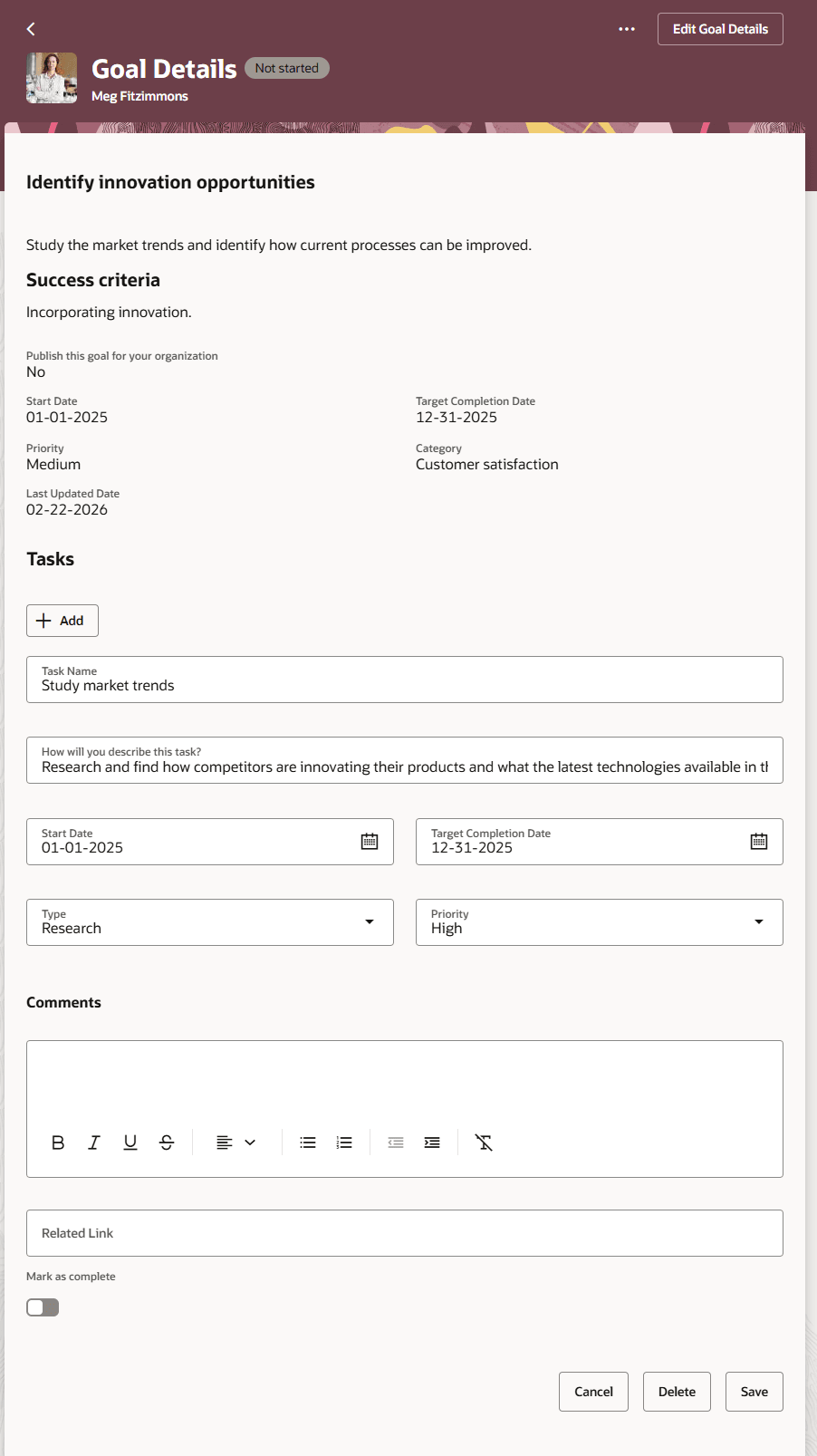
Disabled Add Task Button in a Performance Goal
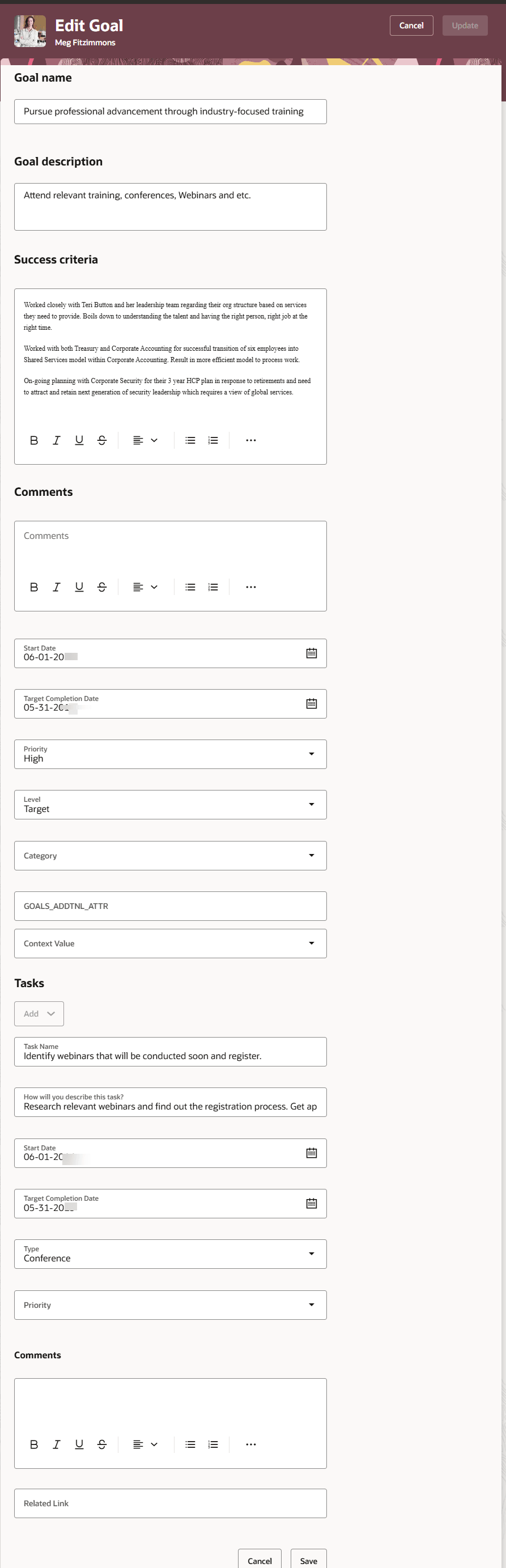
Disabled Add Task Option in a Development Goal
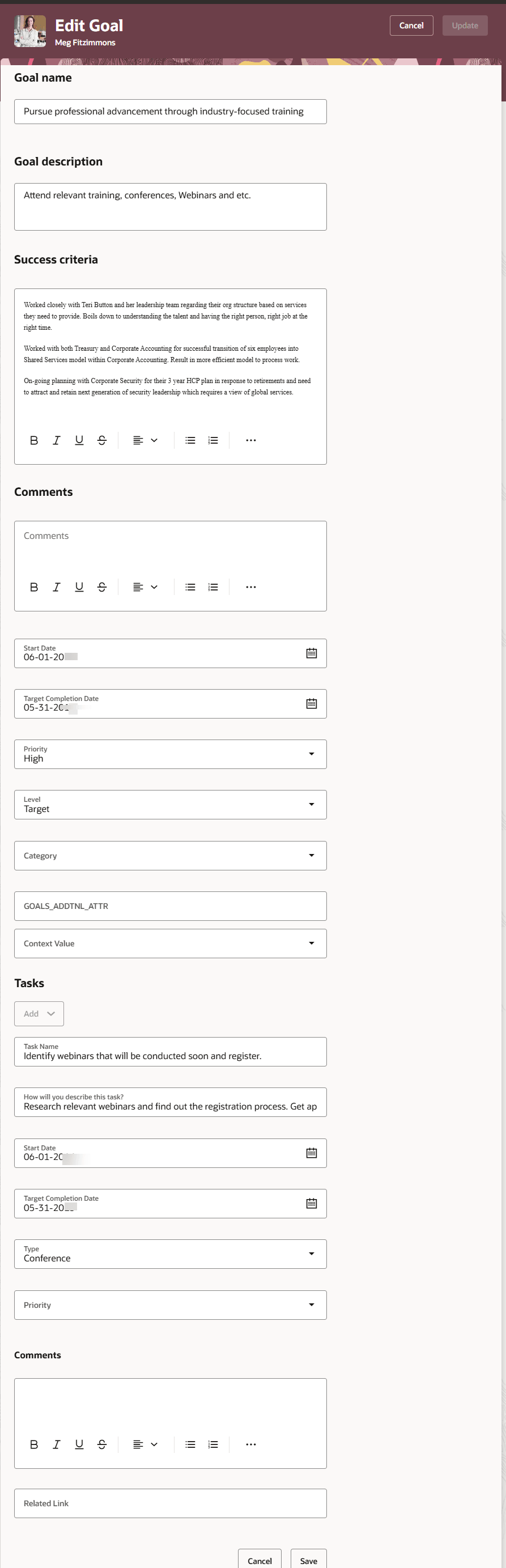
You can also ensure that certain task attributes can't be edited for performance and development goal tasks.
Task with Read-Only Fields in a Development Goal
Disallow Adding Measurable Tasks for Performance and Development Goals
As administrators, you can now prevent users from adding measurements for tasks added to performance and development goals. After you do this, users can add tasks but not measurable tasks.
Task with No Measurements in a Performance Goal
Task with No Measurements in a Development Goal
Hide Dotted-Line Reports on Team Goals Center
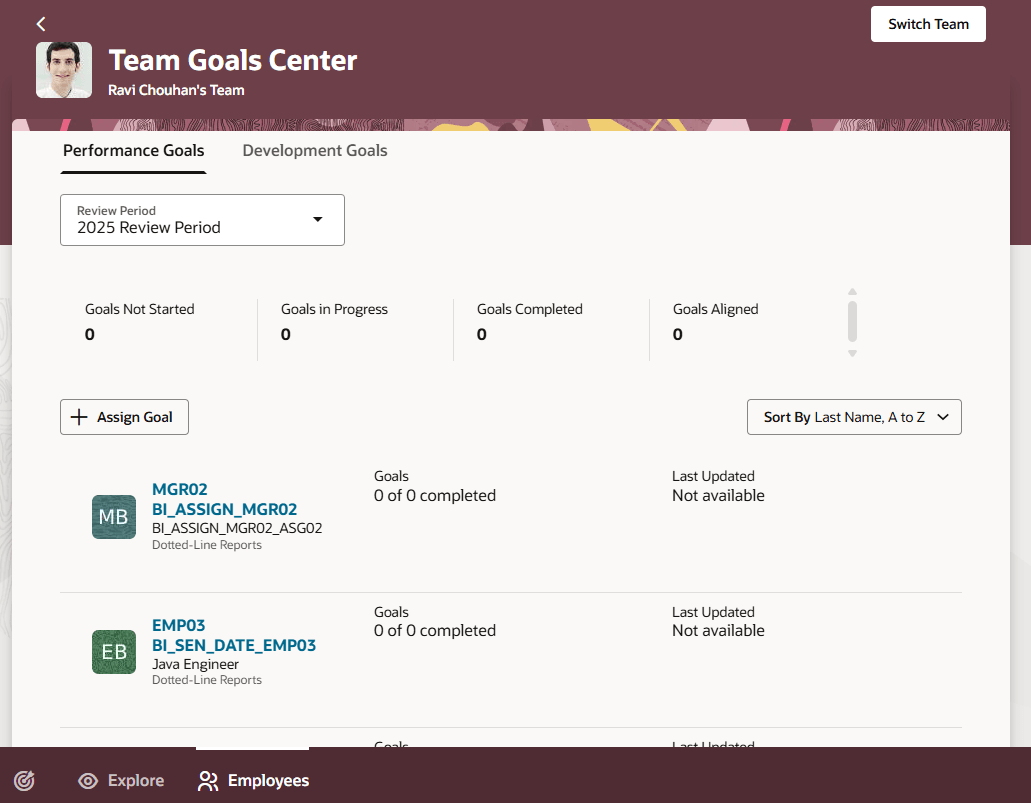
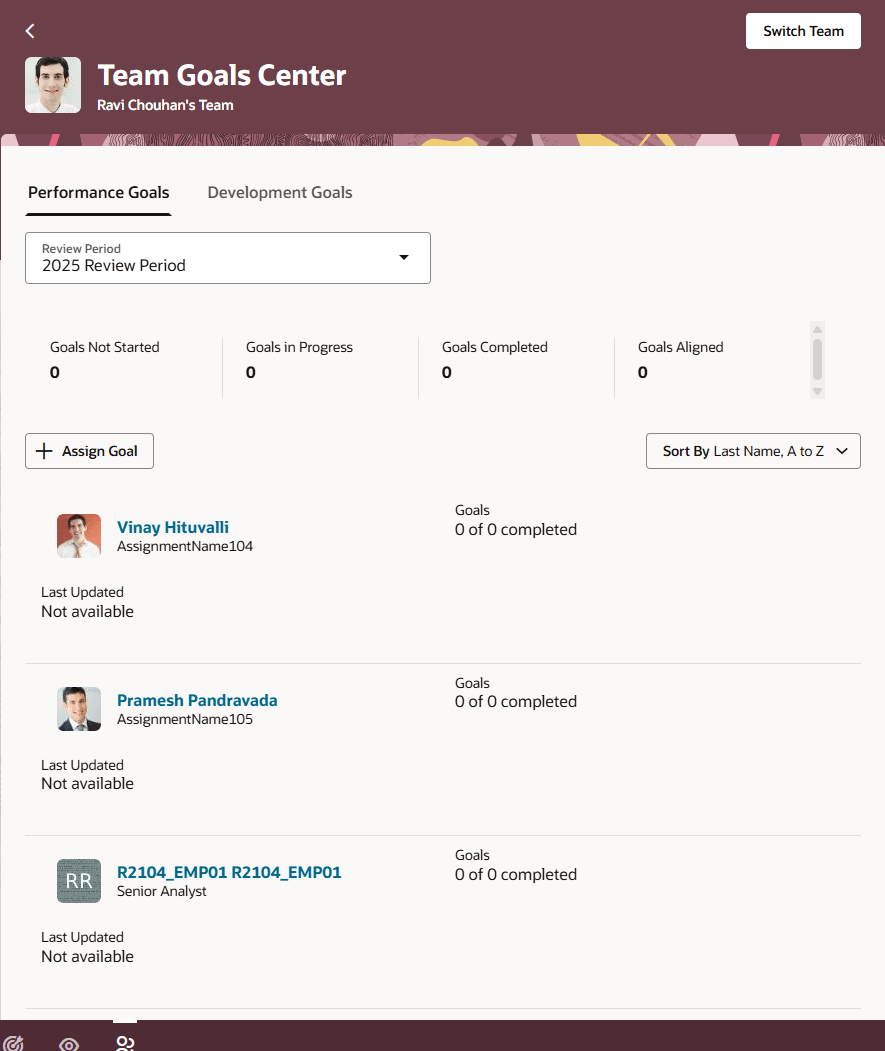
As administrators, you can now hide the listing of dotted-line reports on a manager's Team Goals Center. After you do this, manager's can't assign goals to their dotted-line reports.
Note: When you switch team, the Switch team panel will list the dotted-line reports also. In a future release, after you hide the listing of dotted-line reports, they won't be listed in this panel.
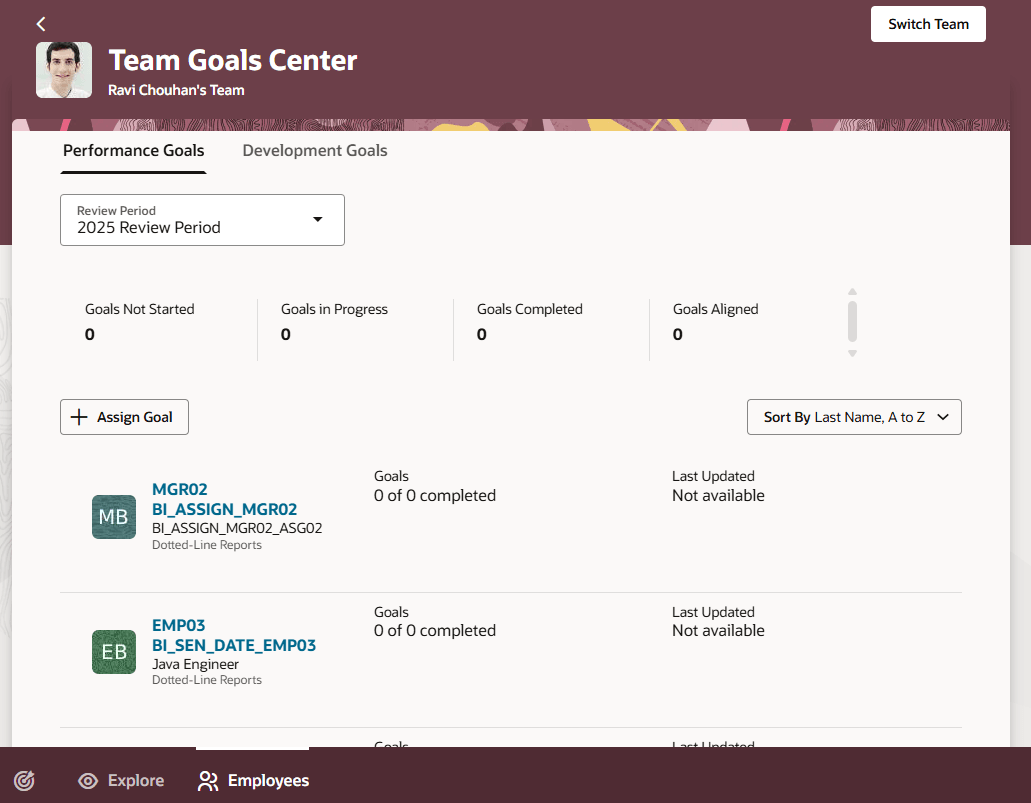
Team Goals Center with Dotted-Line Reports
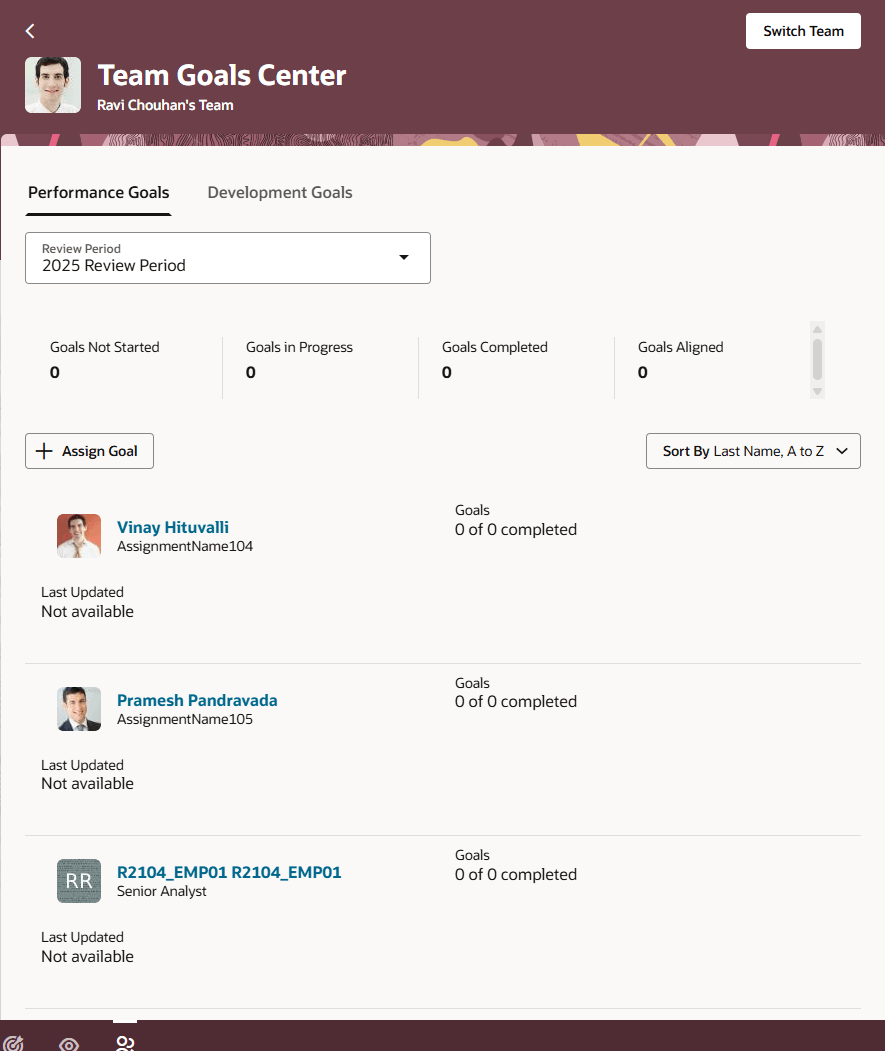
Team Goals Center Without Dotted-Line Reports
Leverage these additional page properties to get these benefits:
- Ensure that goal approvals are completed only by the person’s manager.
- Streamline goal assignment by restricting goal sharing only to persons that the manager can access.
- Ensure that users don't have to enter measurement details for tasks if your organization doesn't want to record these details. Make goal creation easier by ensuring that users only enter the necessary details.
- Streamline goal management by ensuring that managers manage the goals of only their direct reports.
Steps to enable and configure
To enable Redwood Goals Center, you need to enable the profile options indicated in the table.
|
Profile Option Code |
Profile Option Display Name |
Value |
|---|---|---|
|
ORA_HCM_VBCS_PWA_ENABLED |
Enable VBCS Progressive Web Application User Interface |
Y |
|
ORA_HRA_PERFORMANCE_DOCUMENTS_AND_GOALS_REDWOOD_ENABLED |
Enable Redwood Performance Documents and Goals Center |
Yes |
NOTE: The Performance Document, Check-in, and Goals Center features are closely connected. So, the Redwood version of these pages can all be enabled or disabled only using the common ORA_HRA_PERFORMANCE_DOCUMENTS_AND_GOALS_REDWOOD_ENABLED profile option. These features can't be enabled individually.
For more information, see How do I enable a profile option?.
-
To prevent sharing of goals with any person in the organization, edit these pages in Visual Builder Studio and set the Hide Any Person Option for Sharing Goals page property to true.
- My Goals
- Goal Details
- To disable the request for information options for performance goals, edit the Goals page in Visual Builder Studio, expand the Performance Goal Approvals section, and set the Enable Request Information Options page property to false.
- To disable the request for information options for development goals, edit the Goals page in Visual Builder Studio, expand the Development Goal Approvals section, and set the Enable Request Information Options page property to false.
- To disable the addition of tasks for performance goals, edit the performance goals details page in Visual Builder Studio and set the Show Add Button in Tasks Section property to false.
- To disable the addition of tasks for development goals, edit the development goals details page in Visual Builder Studio and set the Show Add Button in Tasks Section property to false.
- To disable adding task measurements for performance goals, edit the Goal Details page of a performance goal in Visual Builder Studio, and set the Show Measurable Task Switch page property to false.
- To disable adding task measurements for development goals, edit the Goal Details page of a development goal in Visual Builder Studio, and set the Show Measurable Task Switch page property to false.
- To hide dotted-line reports on Team Goals Center, edit the page and set the Show Dotted-Line Reports page property to false.
For more information on how to do this, see How do I control the display of a UI element in Visual Builder Studio?.
To make task attributes read-only for performance goals or development goals:
- Edit the performance goal or development goal details page in Visual Builder Studio.
- Select Configure Fields and Regions.
- Create a rule.
- Set the Read Only property for the attributes to Read Only.
- Publish your changes.
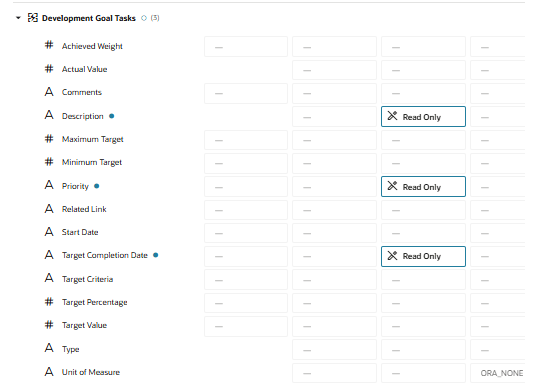
Set Task Attributes as Read Only