Absence Types Redwood Experience
The absence type setup page is now available in Redwood, providing a simplified and improved user experience, in line with other Redwood pages in Absences.
Organization
The attributes and the rules in the Display Features tab in the classic version are now split into two tabs- Display Features and Rules respectively. The Display Features tab consists of sections and the attributes, while the Rules tab consists of all the rules.
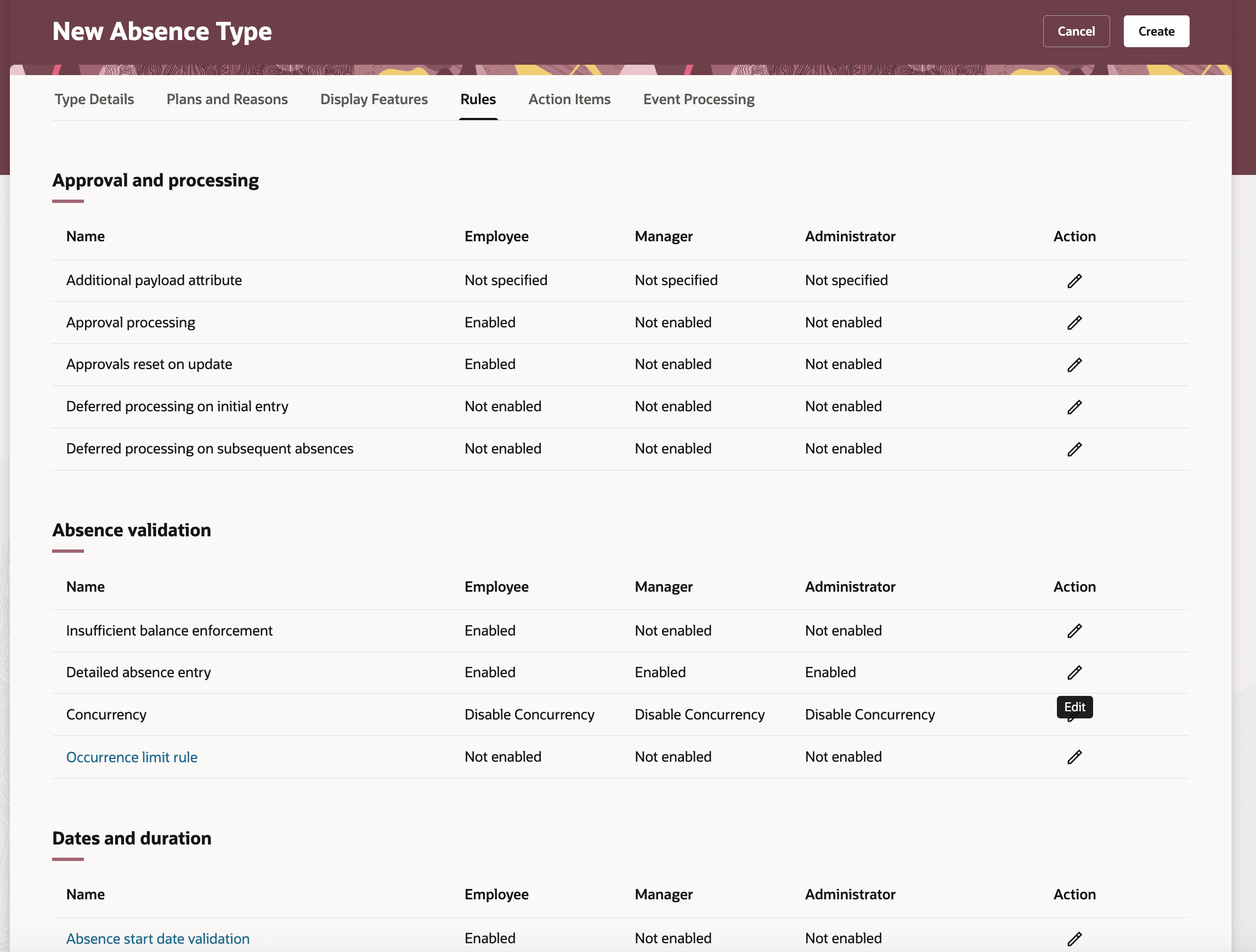
Rules tab in the absence type setup page
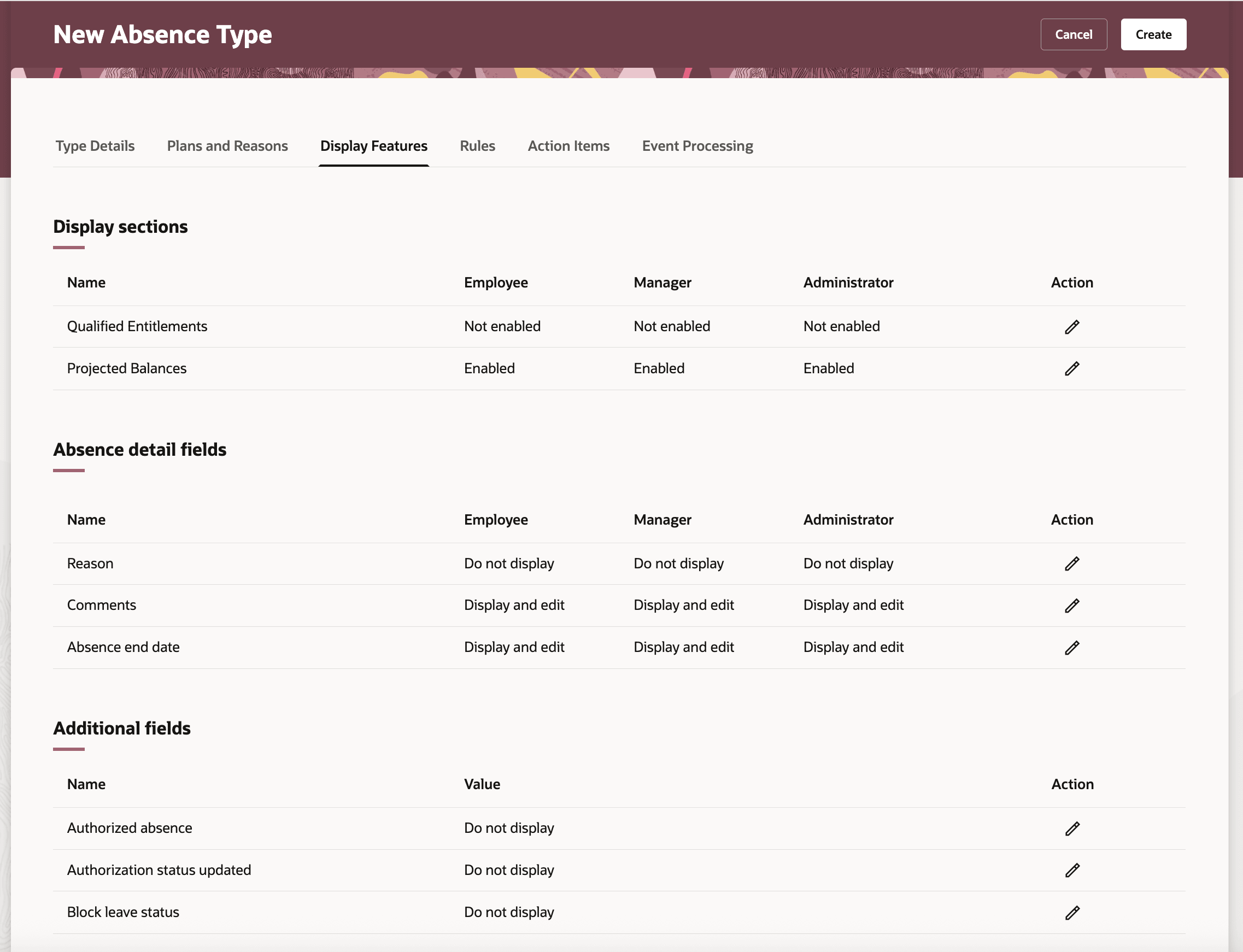
Display Features tab in the absence type setup page
Functional Updates in Redwood
You can now set a single display value for the following supplemental fields for all three user roles (Employee, Manager, and Administrator):
- Authorized Absence
- Authorization Status Update
- Blocked Leave Status
- Notification Date
- Condition Start Date
When updating an existing absence type in Redwood experience, any correction or update in the value of the above listed fields will apply the same display value to all three user roles.
Here are some further changes:
-
- Supplemental region is now removed and will be shown as 'Additional Fields' as mentioned above. Review existing Absence type configuration for the above listed fields.
- The Entry display order field is now replaced with Entry display priority
- The Entry display priority check-box enables absence types that have this attribute checked, to be prioritized in the absence types list of values, sorted alphabetically.
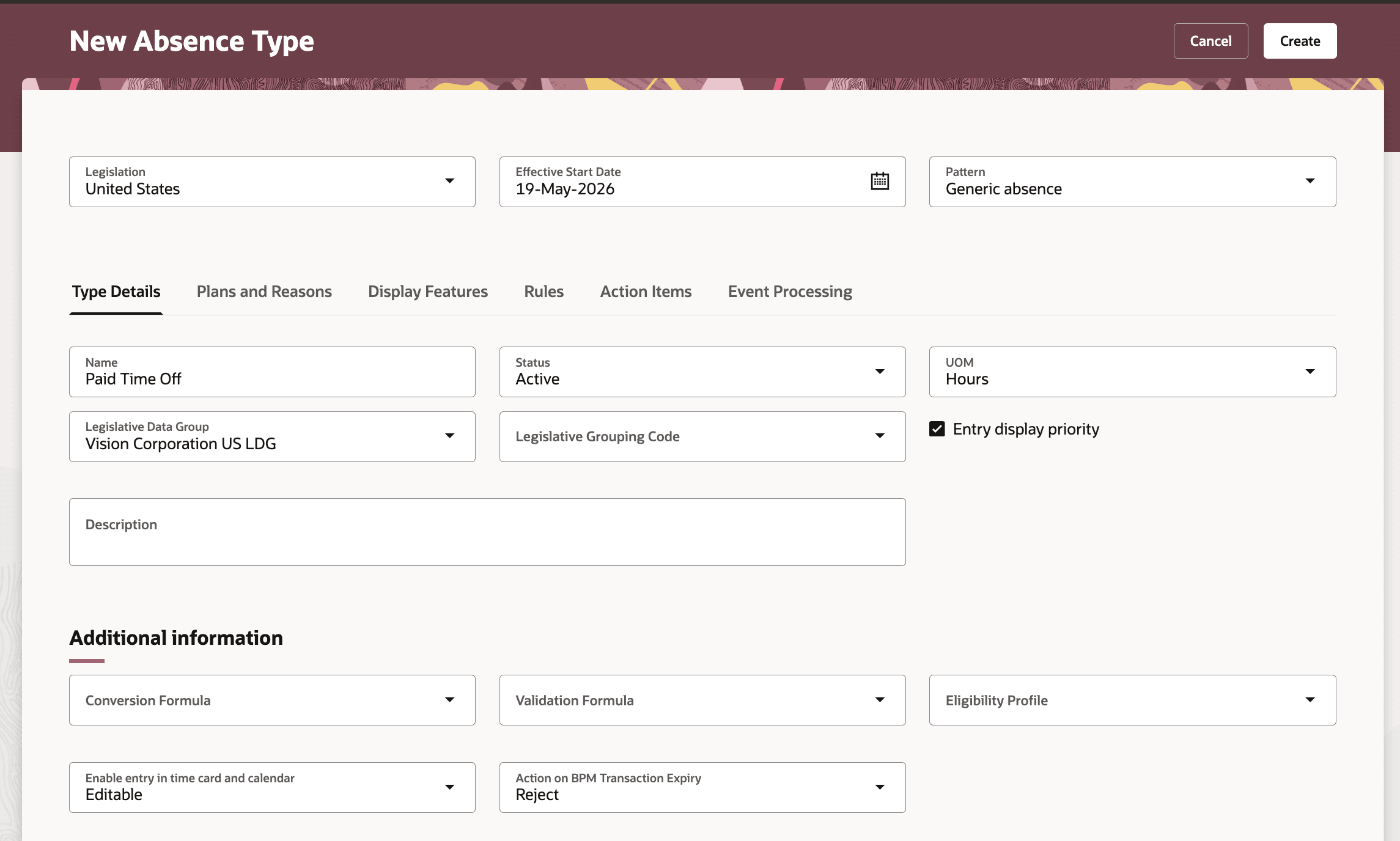
Entry display priority check box
Maternity field changes
Maternity fields will not be part of the absence type configuration. They will be displayed and editable for all three users- Employee, Manager, and Administrator, on the redwood absence entry page automatically when an absence type of pattern Childbirth or placement is selected. These maternity fields are
-
-
- Planned absence start date
- Planned absence end date
- Intend not to return to work
- Expected Date of Event
- Matching date (Displayed when the Event Type is configured as placement)
- Actual Date of Event
- Expected week of event
-
You can configure the display properties of these fields only from Visual Builder studio. You need to review existing absence type configuration for Maternity based absence types and setup relevant business rules as required.
Impact on new and existing absences based on the functionality changes
- If you are using the classic absence entry page, there is no impact on any absences.
- If you are using the redwood absence entry page, then all Maternity attributes are visible and editable. The display features configuration set for maternity fields in your absence type configuration will be ignored for both existing absences and new absences. Review and setup business rules accordingly.
Note:
Even if you don't immediately enable absence type redwood experience, you will still have to setup business rules for the maternity fields where you can adjust visibility, editing rules, and validity based on workflow of the user.
Advanced absence entry renamed to Detailed absence entry
The advance absence entry rule is now renamed to Detailed absence entry. This change applies to both classic and Redwood experience. There's no impact on the functionality.
Deprecated unused fields and rules
Below fields are removed from the absence type configuration in redwood.
- Late notification waived
- Late notification
- Late notification waiver date
- Disease code
- Initial reporting organization
The Late notification evaluation rule is deprecated.
The new redwood page provides an high-fidelity interactive experience along with a simplified and organized setup experience for the administrators to set up absence types.
Here's the demo of these capabilities:
Steps to enable and configure
This page is disabled by default. You need to enable the ORA_ANC_TYPES_VBCS_UI_ENABLED profile option to use this page.