Redwood: Display Side Panel for Adding Skills
Provides a drawer in Enhanced Skills Center where users can search for skills, browse suggested skills, and view a list of newly added skills. Skills suggested are shown as chips along with a "+" icon to quickly add them. The Newly Added Skills section displays each skill with its chip, target level, self-rated level, and a delete option using a trash can icon, making it simple to manage skills in one place.
To access the drawer, choose Add on the Self Developing or All Skills tab.
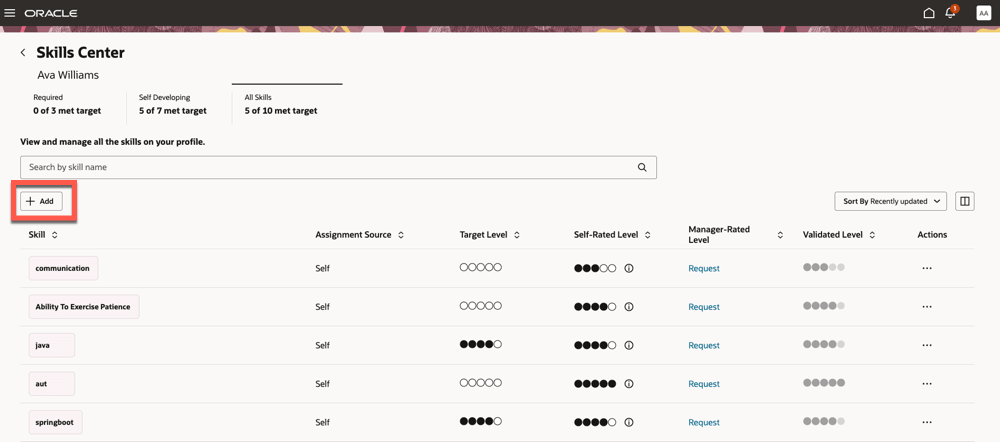
Add button to launch the drawer
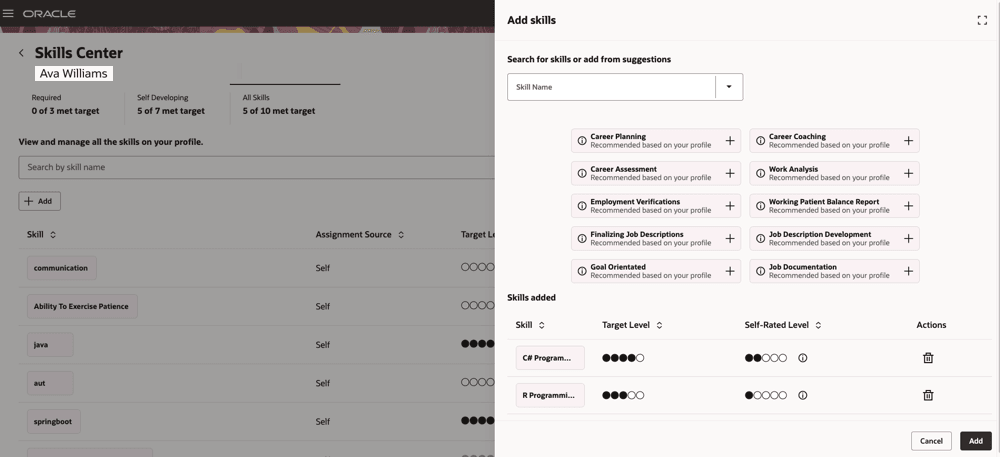
Drawer for adding skills
You can view more information such as skill description, domain, business driver, and business capability about a skill by clicking on the information icon on the skill chip. After selecting a skill from the drawer, you can set both the target level and your self-assessed level. The information icon provides details about each rating level and helps you determine your self-rating by offering a set of details.
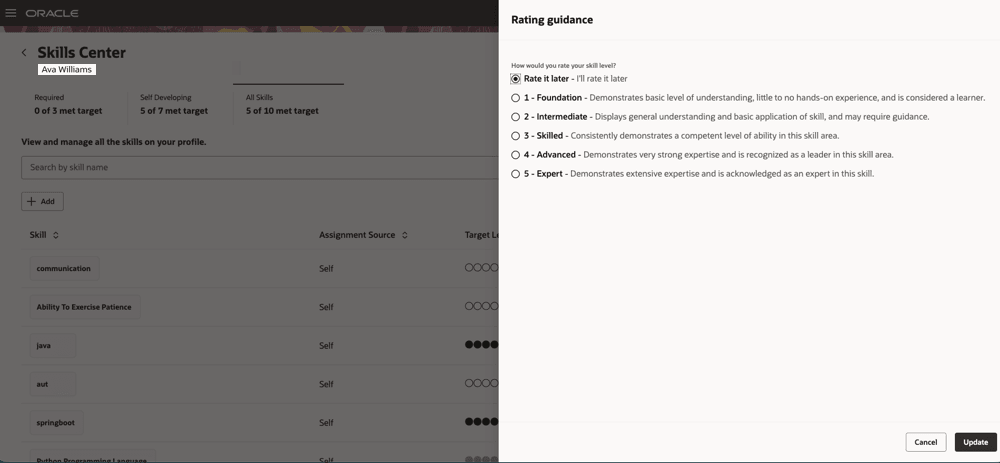
Rating guidance for skill
Provides an improvised user experience, making it simple to manage skills in one place.
Steps to enable and configure
You have enabled:
- Enhanced Dynamic Skills. For details, see Pathways to Enhanced Dynamic Skills.
- Enhanced Skills Center. For details, see How can i enable Enhanced Skills Center?
Rating levels can be displayed as circular or textual. Circular ratings are supported only when there are 7 or fewer rating levels. If there are more than 7 rating levels, the display switches to text-based ratings. If the display is set to textual, rating levels are displayed as text regardless of the number of rating levels. Select how the rating levels are displayed. For details, see How can I enable circle rating?
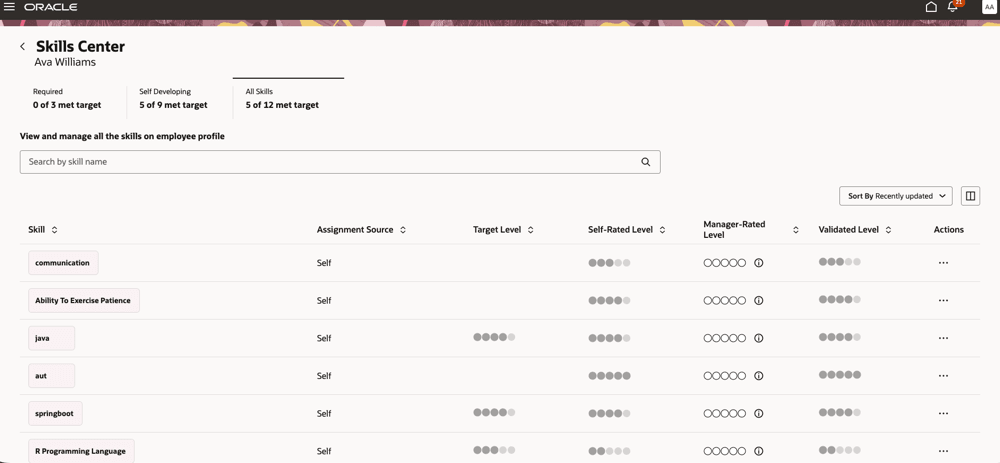
Circular ratings for target level, self-rated level, manager-rated level, and validated level
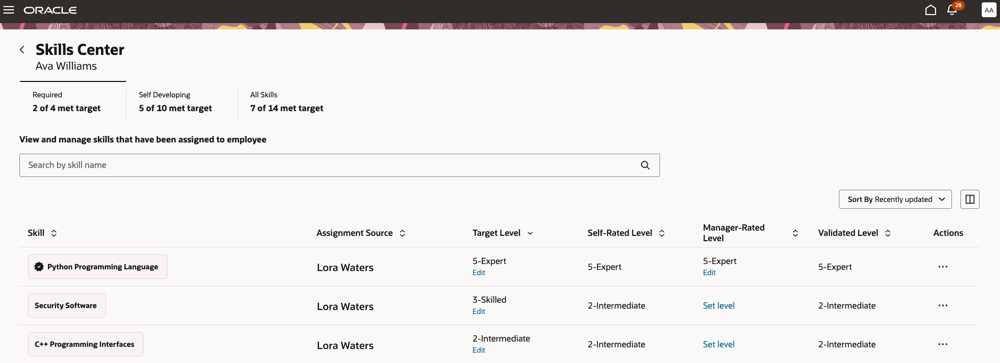
Text based ratings for target level, self-rated level, manager-rated level, and validated level
Tips and considerations
Information such as skill description, domain, business driver, and business capability about a skill that displays when you click the information icon on the skill chip can be disabled using Visual Builder Studio. After you enable them, they display only if they have a value.
Key resources
For more details on extensibility, see Extending Redwood Applications for HCM and SCM Using Visual Builder Studio.