Redwood Experience: Alerts Composer
Take advantage of the new Redwood-designed Alerts Composer tool, built to deliver a more intuitive, modern, and efficient workflow.
With its enhanced design and improved overall performance, you can create and manage alerts more seamlessly. The updated experience simplifies navigation and usability and makes tasks more responsive.
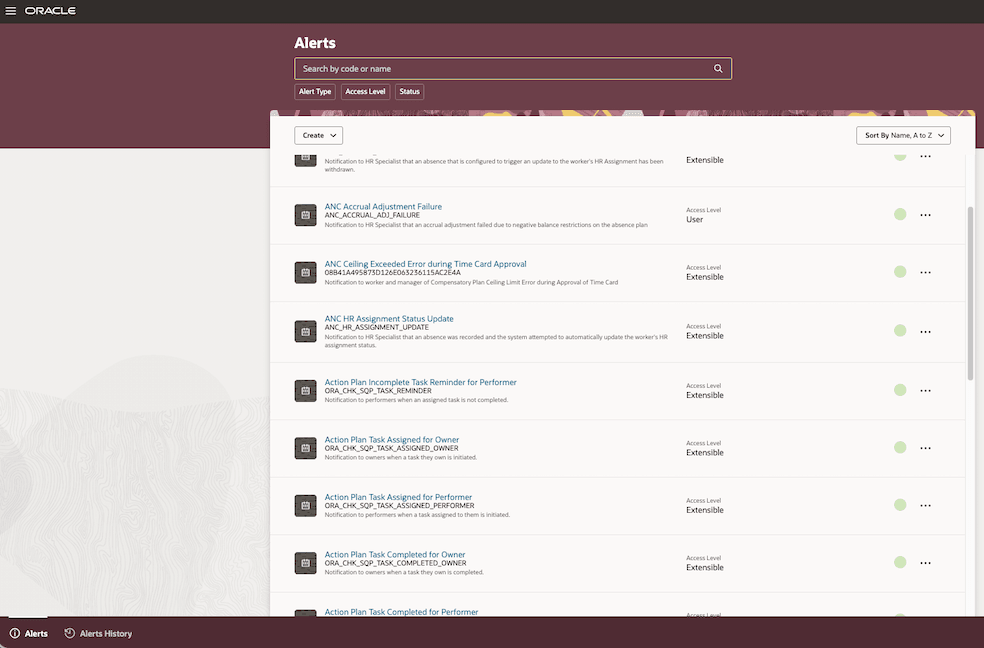
Alert Overview
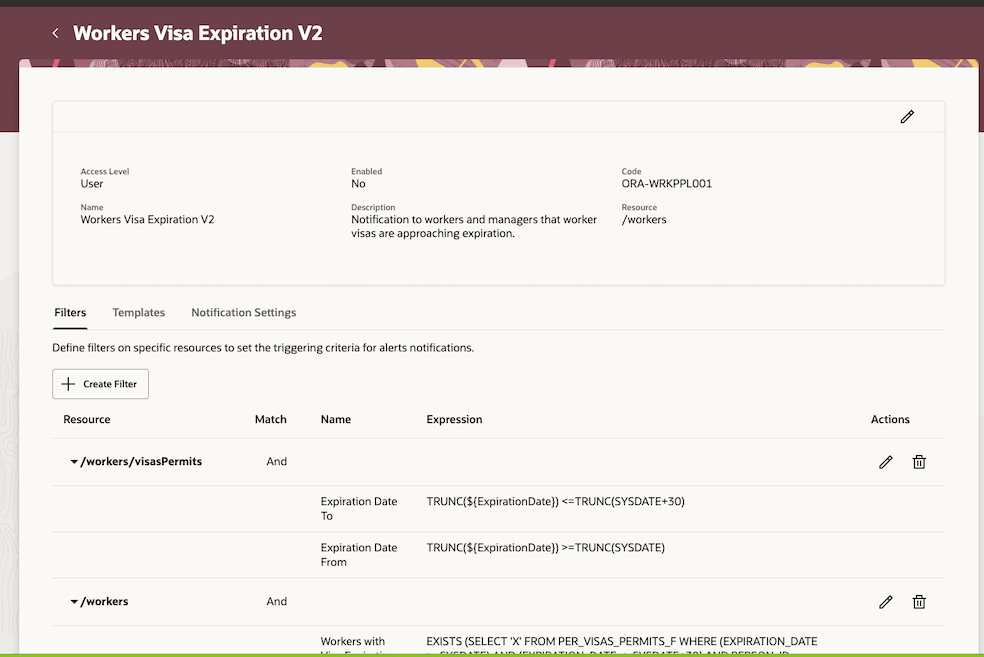
Alert Details
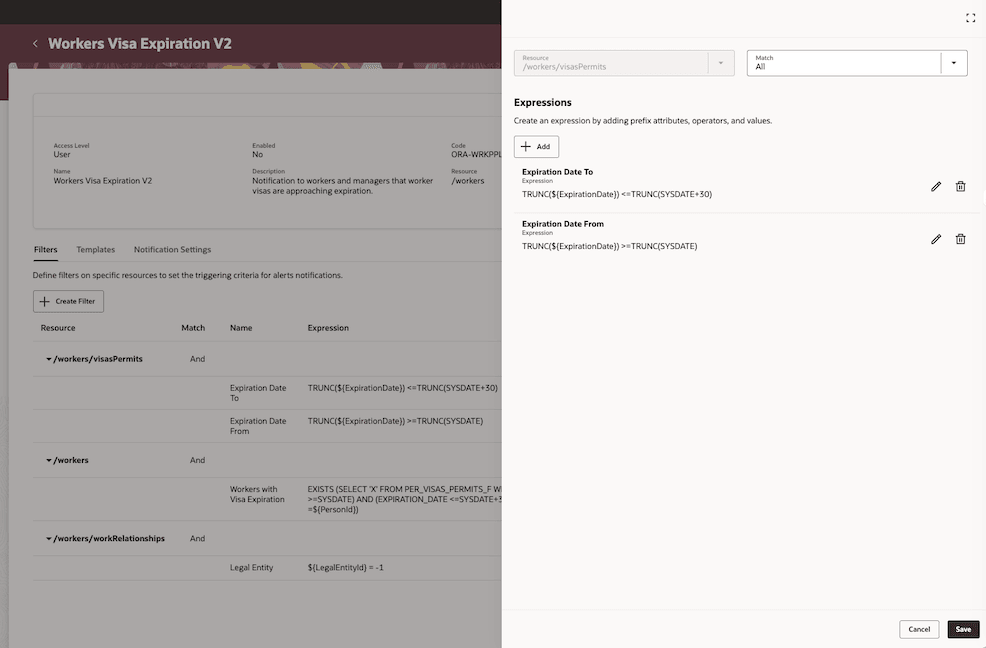
Alert Details
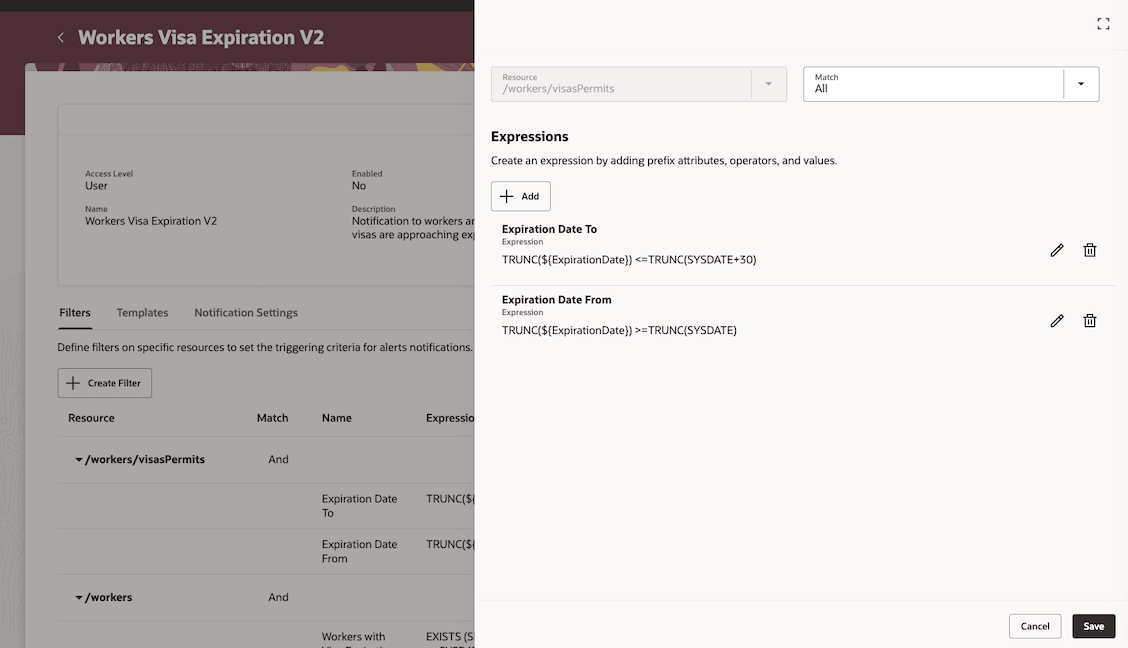
Filter
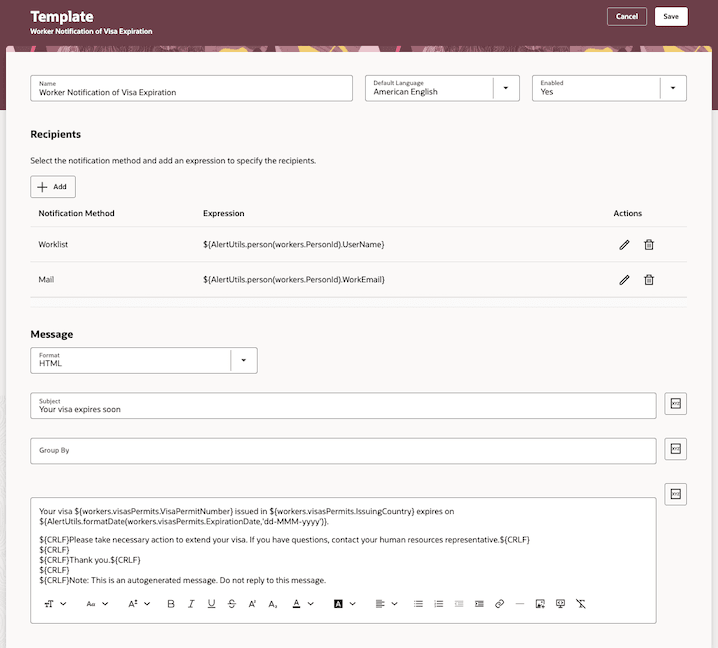
Alerts Template
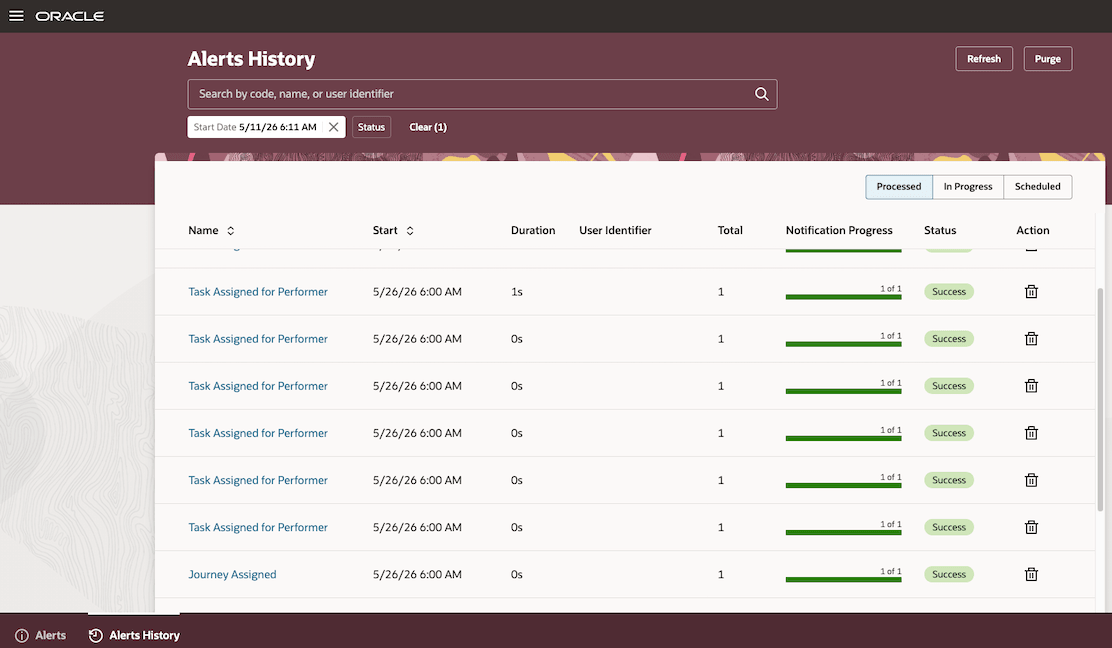
Alert History
The enriched Redwood design and improved performance provide you a smoother and a more professional user experience for creating and managing alerts.
Steps to enable and configure
You need to enable these profile options to access the new Alerts Composer workflow.
| Profile Code | Display Name | Description |
|---|---|---|
| ORA_HCM_VBCS_PWA_ENABLED | Enable VBCS Progressive Web Application User Interface | Option to enable VCBS UI for HCM Level. |
| ORA_HRC_ALERT_COMPOSER_REDWOOD_ENABLED | Redwood HCM Alerts Composer Enabled | Option to enable Redwood Alerts Composer. |
For details, see How do I enable a profile option?.
Access requirements
Users require these security privileges to access the Redwood Alerts Composer.
- Access Alerts Composer (HRC_ACCESS_ALERTS_COMPOSER_PRIV): Allows access to Alerts Composer. Assigned to Human Capital Management Integration Specialist.
- Process a Predefined Alert (HRC_PROCESS_PREDEFINED_ALERT_PRIV ): Allows processing of predefined alerts. Assigned to Human Capital Management Integration Specialist.
- HCM Alerts (ORA_DR_HRC_ALERTS_DUTY ): Allows setting up and running alerts in the HCM Alerts Composer tool. This role applies only to the Redwood experience. Assigned to Human Capital Management Integration Specialist.
For more information, see: https://docs.oracle.com/en/cloud/saas/human-resources/faucf/functional-privileges-and-access-levels.html
How to enable permission groups
Follow these steps to enable permission groups for the predefined job role.
- Click Roles in the security console.
To access the security console, click Navigator > Tools > Security Console.
-
Choose for Roles and Permission Groups and Search for the ORA_HRC_HUMAN_CAPITAL_MANAGEMENT_INTEGRATION_SPECIALIST_JOB role.
- Select the Edit Role option from the search result section.
- Click Enable Permission Groups to enable permission groups for the role. Confirm your choice.
- Click the Summary step and click Save and Close. You can also navigate to the Summary step by clicking Next until you reach the final step.
Follow these steps to use a custom job role:
- Click Roles in the security console.
To access the security console, click Navigator > Tools > Security Console.
-
Search for the ORA_HRC_HUMAN_CAPITAL_MANAGEMENT_INTEGRATION_SPECIALIST_JOB role.
- Select the Copy Role option from the search result section.
- Select Copy top role and inherited roles in the Copy Options dialog and click Copy Role.
- Optionally edit the name and code for the custom role.
- Click Enable Permission Groups to enable permission groups for the role. Confirm your choice.
- Click the Role Hierarchy step. You can also click Next until you reach the Role Hierarchy step.
- Click the Roles and Permission Groups tab and click Add Role.
-
Search and add the duty role ORA_DR_HRC_ALERTS_DUTY.
- Click the Summary step and click Save and Close. You can also navigate to the Summary step by clicking Next until you reach the final step.
Note:
-
You need to enable permission groups for any predefined or custom roles that you may be using already to access Alerts Composer.
-
When searching for the duty role (ORA_DR_HRC_ALERTS_DUTY) to add, search by Roles and Permission Groups in the Security Console.
Tips:
To ensure that the changes to the roles have been readily synced, you may need to run the Import User and Role Application Security Data and Retrieve Latest LDAP Changes scheduled processes:
- See Schedule the Import User and Role Application Security Data Process for more help.
- See Retrieve Latest LDAP Changes for more help