AI Agent: Spreadsheet Data Loader Advisor for HSDL
Oracle Fusion Cloud HCM introduces a new AI-powered Spreadsheet Data Loader (HSDL) Advisor that simplifies spreadsheet-based data loading through a guided conversational experience.
The HSDL Advisor enables you to upload CSV files and use natural language instructions to initiate HSDL processing. The advisor assists throughout the upload lifecycle, including business object identification, template discovery, column mapping, validation, file preparation, and data loading.
You can also interact with the advisor to receive guidance and insights related to HSDL data sets, templates, uploads, and supporting documentation using natural language questions.
Salient Features:
-
Feature Description CSV-Based HSDL Upload Initiation Users can upload a CSV file through the HSDL Advisor experience and optionally provide an active template code to initiate Spreadsheet Data Loader processing. Automatic Business Object Identification The advisor analyzes uploaded CSV headers to automatically identify the associated HSDL business object.
Active Template Discovery After identifying the business object, the advisor displays all active spreadsheet templates available to the user for that business object. Cross-Platform CSV Upload Support CSV-based uploads are supported without requiring the Windows-only Desktop Integration tooling previously used for spreadsheet uploads, enabling HSDL uploads from platforms such as macOS. Template Validation and File Preparation The advisor validates the selected template, maps uploaded CSV headers to the template structure, and prepares the file before initiating the Spreadsheet Data Loader process. Automated File Upload and Load Initiation The processed file is uploaded to Oracle WebCenter, and the Spreadsheet Data Loader process is initiated automatically. Load Progress Monitoring The advisor provides a direct link to the Recent Spreadsheet Loads page where users can monitor load progress and processing results. Conversational Guidance and Documentation Assistance Users can interact with the advisor using natural language questions to receive guidance related to HSDL supporting documentation, setup, and configuration information.
ACCESSING THE SPREADSHEET DATA LOADER ADVISOR -
- Navigate to Navigator > Tools > AI Agent Studio.
- Open the Agent Teams tab.
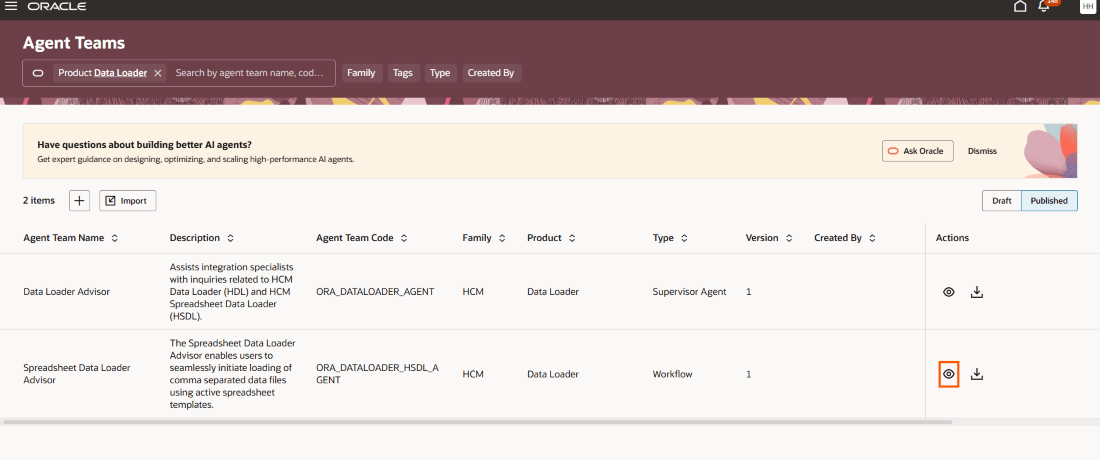
- In the Product filter, select Data Loader.
- From the Published tab, locate Spreadsheet Data Loader Advisor and click the View icon to review the agent team configuration.
- Click on the View icon under the Actions column to launch the Spreadsheet Data Loader Advisor.
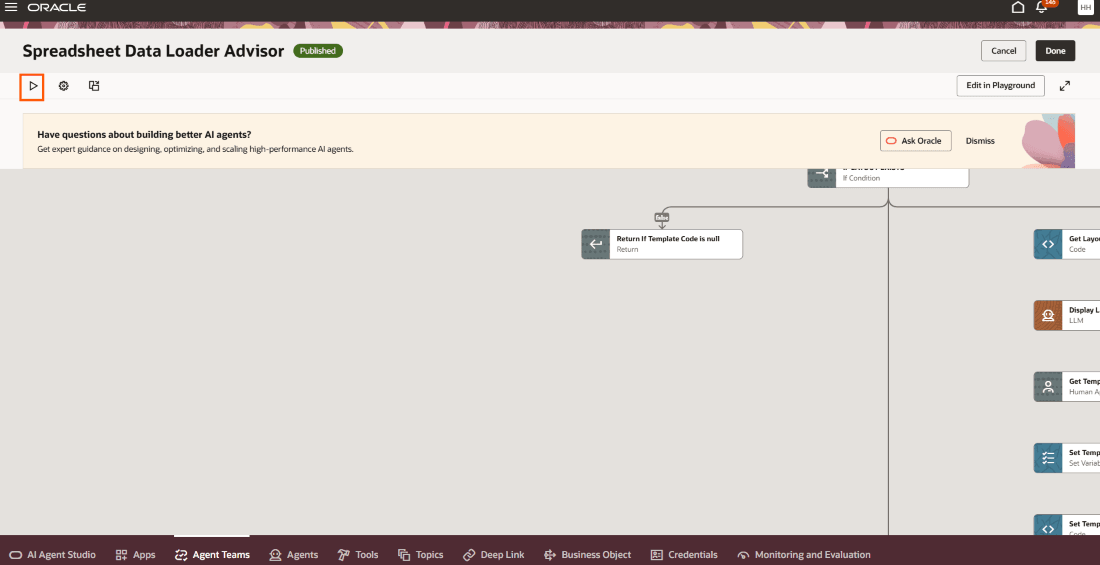
- Click on the Play icon to open the Spreadsheet Data Loader Advisor drawer.
INITIATING AN HSDL LOAD
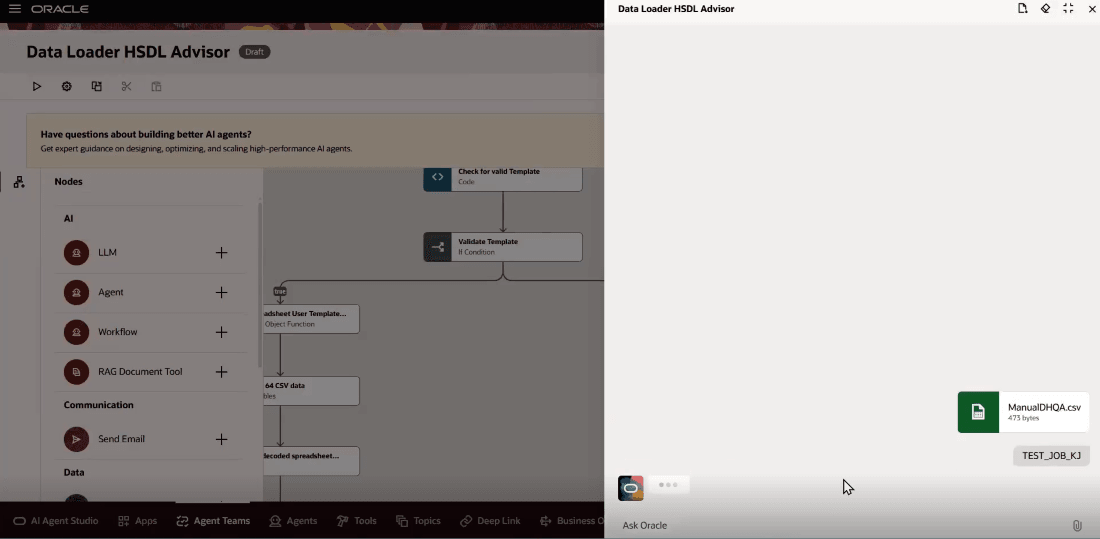
Begin by uploading a CSV file and, optionally, provide the applicable active template code to initiate processing.
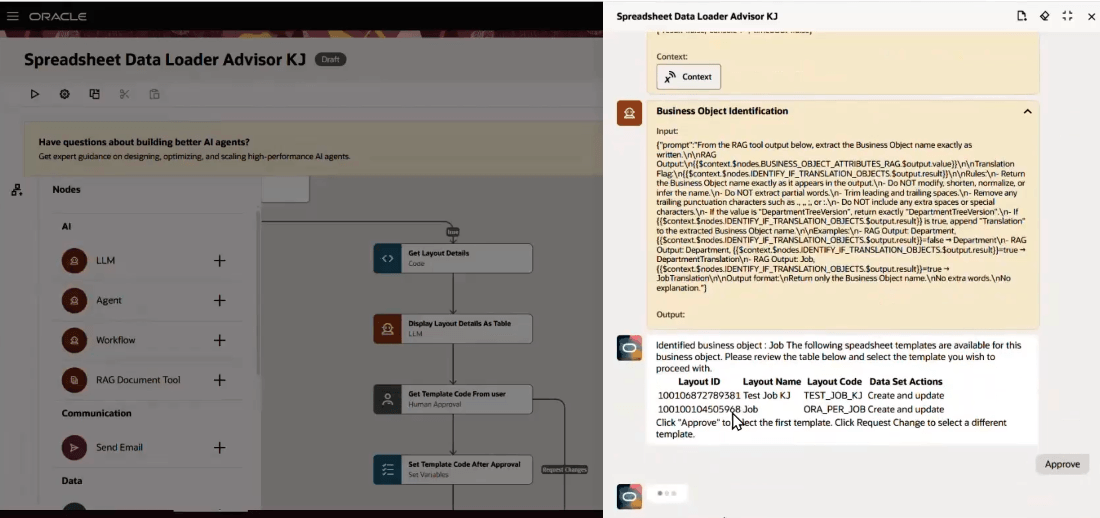
The HSDL Advisor automatically identifies the appropriate business object from the uploaded CSV file based on the column headers and displays all active templates associated with that business object. You can review the available templates and select the appropriate one using the Approve or Request Change options.
After template selection, the advisor validates the template availability and analyzes the uploaded column headers and file structure. It then maps and reorganizes the columns to align with the selected HSDL template format, uploads the transformed file to Oracle WebCenter, and automatically initiates the Spreadsheet Data Loader process.
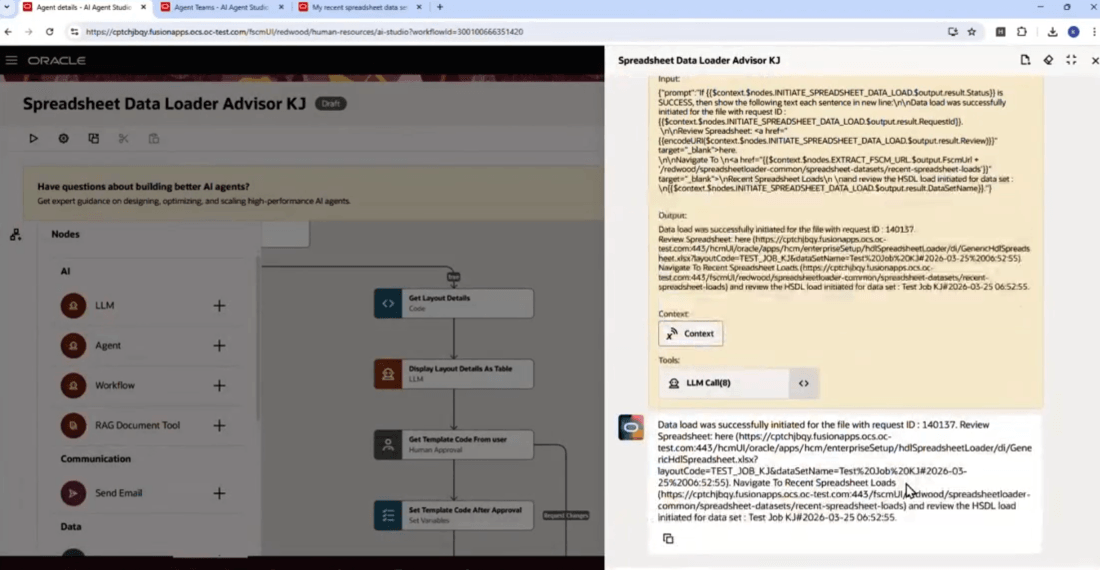
The HSDL Advisor provides a direct link to the Recent Spreadsheet Loads page, allowing users to monitor upload and processing progress in real time.
You can also interact with the advisor to receive guidance and insights related to HSDL supporting documentation, setup, and configuration information.
- How do I install the HSDL extension for generating spreadsheets?
- Which template should I use for loading new hires?
- What active templates are available for the Worker business object?
Business Benefit: The HSDL Advisor agent significantly improves the spreadsheet data loading experience by reducing technical complexity, minimizing upload errors, and accelerating data preparation and execution. The enhancement helps in streamlining HCM data loading processes while improving usability, efficiency, and accuracy across spreadsheet-driven data management activities.
Steps to enable and configure
For the document tools included in the Spreadsheet Data Loader Advisor you need to run the Process Agent Documents process to ingest the documents.
Prepare the Data Loader AI Agent
Before using the HSDL Advisor, run the required scheduled processes to prepare and index the agent documents used for document-based interactions.
- Navigate to Tools > Scheduled Processes.
- Click Schedule New Process.
- Search for and select Prepare HCM Data Loader AI Agent, then select OK and Submit.
- After that process completes, select Process Agent Documents, then select OK and Submit
One-Time Setup Steps
You need to perform the following steps to enable the HDL Agent in the HDL pages:
- Enable the following profiles in the Manage Administrator Profile Values task in Setup and Maintenance:
- ORA_PER_GUIDED_JOURNEYS_ENABLED
- ORA_PER_GUIDED_JOURNEYS_SETUP_REDWOOD_ENABLED
- ORA_ASE_SAS_INTEGRATION_ENABLED
- ORA_HCM_VBCS_PWA_ENABLED
2. Configure the Spreadsheet Data Loader AI Advisor Guided Journey
- In My Client Groups, select Show More and search for the Guided Journey quick action.
- Create a Guided Journey and add a task with these values:
-
-
Task Name HCM Spreadsheet Data Loader AI Agent
Task Description Get guidance on using HSDL, upload CSV files and initiate HSDL uploads, perform actions on HSDL data sets, and review the status and errors of recent uploads. Task Type Agent Agent Type Workflow Agent Workflow Agent Spreadsheet Data Loader Advisor
-
- Record the Guided Journey Code and Guided Journey Task Code, then save and activate the guided journey.
3. Extend the Run Spreadsheet Data Loader and Recent Spreadsheet Loads pages with the AI Advisor Guided Journey
- In the Data Exchange work area, open Run Spreadsheet Data Loader or Recent Spreadsheet Loads.
- From Settings and Actions, select Edit Page in Visual Builder Studio.
- Create or select an existing project.
- Set the guidedJourneyCode and guidedJourneyTaskCodes page properties to the codes you recorded.
- Preview the page, then publish the customization according to your organization's process.
- Repeat these steps for the other page if you want the Spreadsheet Loader Advisor to be available on both pages.
Your environment must have the appropriate services for Oracle Applications Platform deployed. For more information, see FAQ2521 on My Oracle Cloud Support.
Set the Enable Security Console External Application Integration (ORA_ASE_SAS_INTEGRATION_ENABLED) profile option to Yes and enable permission groups for the appropriate roles. See Access Requirements for AI Agent Studio.
Tips and considerations
- Initial setup is needed only when the Spreadsheet Data Loader Advisor hasn't already been configured. After every upgrade, run Prepare HCM Data Loader AI Agent and then Process Agent Documents to uptake the latest agent definition and documentation.
- HSDL data sets contain one business object, so actions apply to the data set rather than to individual business objects.
- Rollback is available only when the associated business object supports rollback.
- The agent asks for confirmation only when more than one data set matches the request.
Key resources
Access requirements
SAS Roles and policy:
| Display Name | Name | Description |
|---|---|---|
| Access HCM Spreadsheet Data Loader Advisor | ORA_DR_HRC_ACCESS_HSDL_LOADER_ADVISOR | Allows the user to access the HCM Spreadsheet Data Loader Advisor agent team. |
| Access Spreadsheet Data Loader Advisor Agent Team Policy | ORA_DR_HRC_ACCESS_HSDL_LOADER_ADVISOR_read | Allows users to access the HCM Spreadsheet Data Loader Advisor agent team |