Tax Calculation Statement Page
This feature delivers a detailed online tax calculation statement for a specific employee and payroll run. Access the content using the new Tax Calculation Statement tab on the Person Results page. This gives payroll administrators a run-specific view of how each selected tax type was calculated for an employee. The page displays the components for each tax type’s calculation and the steps used in each calculation. These steps include the logic used in the calculations, and the calculated intermediary and final results.
Data on the page is displayed by:
- Process
- TRU
- Year-End Reporting Type
- Tax Type
The Calculation Results view shows the individual data components for each tax type’s calculation, including:
- Tax Withheld/Tax Liability: Final calculated amounts for the tax type
- Employee Tax Information: Additional employee attributes used in the tax calculation
- Tax Rules: Settings or legislative rules used in the tax calculation (for example, settings at PSU, TRU, or statutory rates applied)
- Tax Information
- Tax Credit Information: Employee-level tax card information used in the tax calculation
- Balances: Balances used in the tax calculation
The Calculation Steps view shows the step-by-step calculation sequence of the tax calculation, with expressions, intermediary values, and the final results. Each line item in the calculation displays:
- Step number
- Description
- Logic
- Calculation
- Result
This image shows the new Tax Calculation Statement tab that is now located next to the Run Results tab in the Person Results UI.
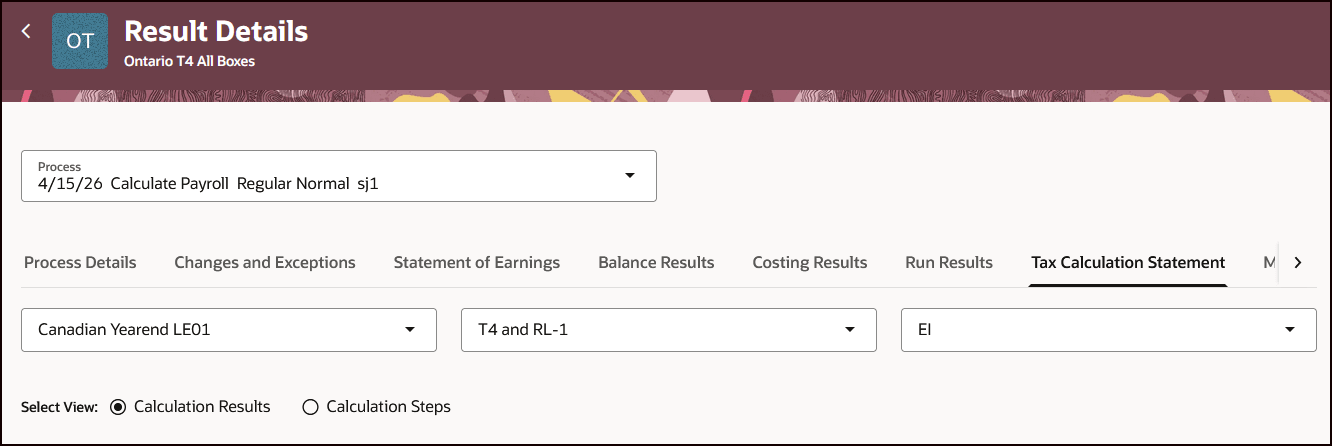
Image: Tax Calculation Statement Tab
This image shows an example of the Calculation Results for the tax type EI, where you can see all the attributes and values used in the EI tax calculation.
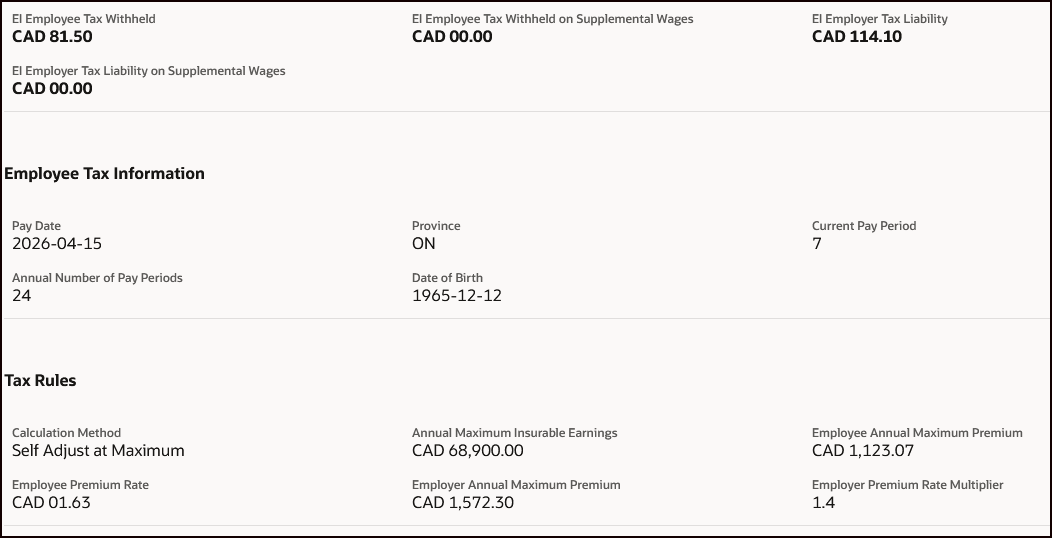
Image: Calculation Results
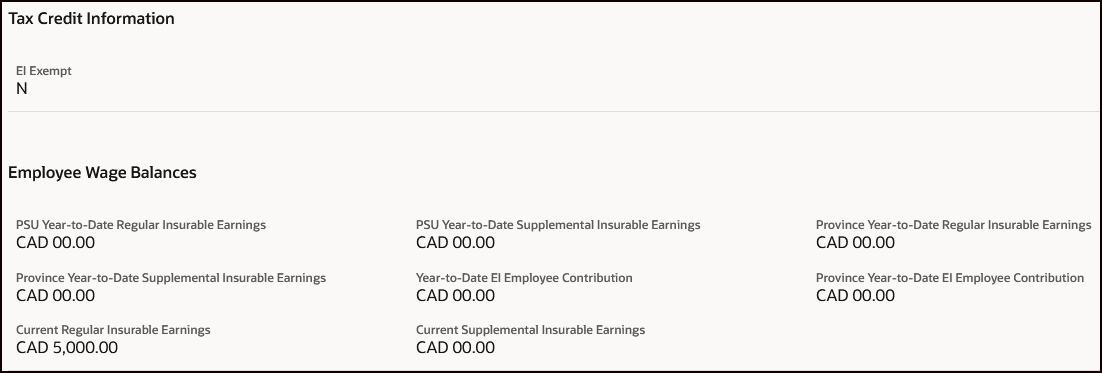
Image: Calculation Results
This image shows an example of the Calculation Steps for EI, where you can see the step-by-step EI calculation, along with the actual values that are calculated for the intermediary and final steps.
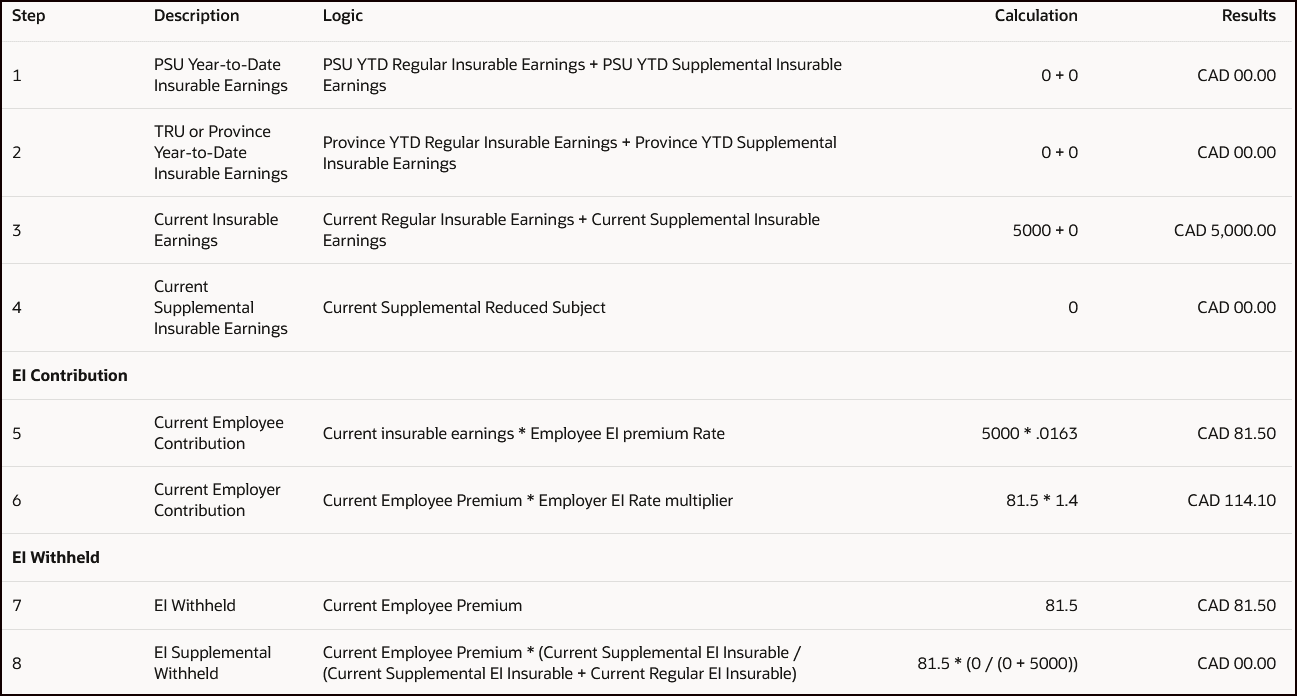
Image: Calculation Steps
This feature helps payroll administrators explain and troubleshoot tax deduction queries more efficiently by exposing tax calculation components, underlying logic, and computed results in context, thereby reducing the need for manual reconstruction efforts.
Steps to enable and configure
You don't need to do anything to enable this feature.
Tips and considerations
Note these tips and considerations for the feature:
- Use the Process LOV to switch between multiple payroll processes (for example, if there are regular and separate payments) and view each process’s results.
- If data for only one TRU exists, the TRU will be defaulted in the TRU LOV for selection.
- If data for only one Year-End Reporting Type exists, the Year-End Reporting Type will be defaulted in the TRU LOV for selection.
- Only the tax types that were generated for the employee for the payroll run are available for selection in the Tax Type LOV.
- When no data exists for the tax type, the message “No data to display.” appears.
- This feature is available only for payrolls processed in 2024 or later; payrolls run before 2024 won’t display data.
Key resources
Refer to these documents located on the Canada Information Center (KA144) for additional information.
- Administering Payroll for Canada
- CA – Payroll tab > Product Documentation > Payroll Guides > Administering Payroll for Canada