 Redwood: Enable HR Administrators to Publish Organization Goals on Behalf of Executive Leaders
From this release, as administrators you can enable HR specialists who are granted the Create Organization Performance Goal for Others aggregate privilege to create performance goals for a manager's hierarchy. When these HR specialists add a performance goal from their Goals Center page, they’ll see a switch that allows them to publish the goal for that person’s organization. They need to set this switch to the On position to publish the goal for the person's hierarchy.
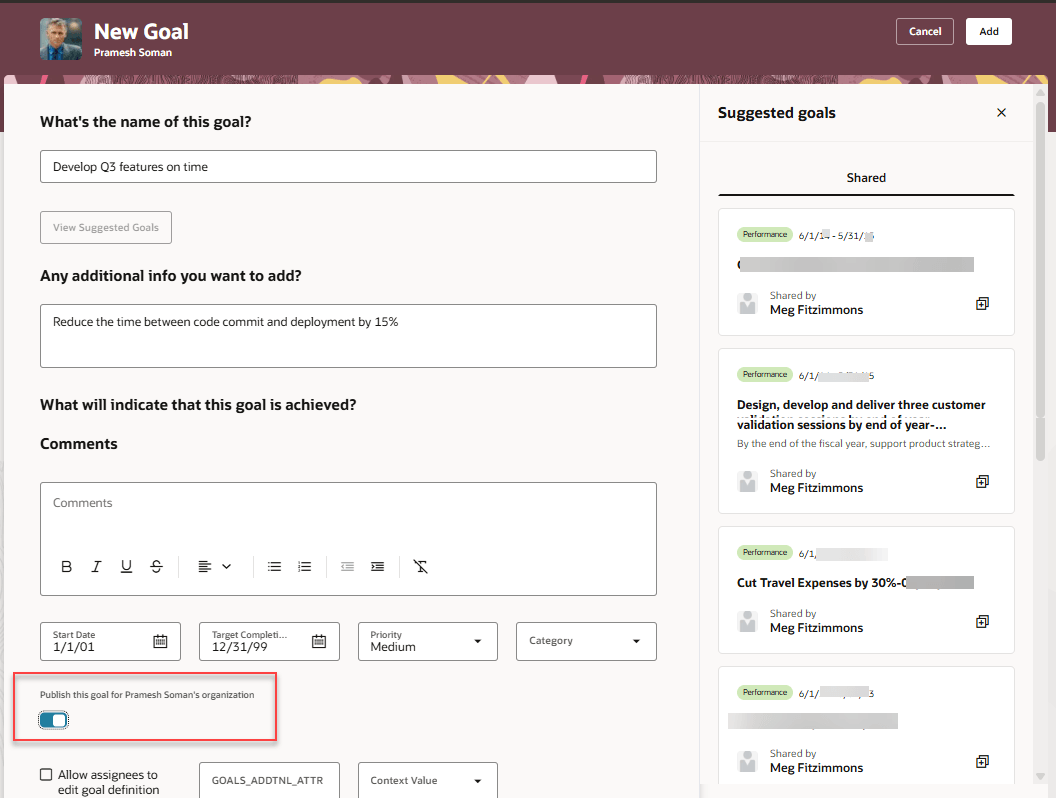
New Goal page
When members of the organization leader’s hierarchy view organization goals on the Explore tab or in the Suggested goals panel, they can see the goal as published by their organization leader and not the HR specialist.
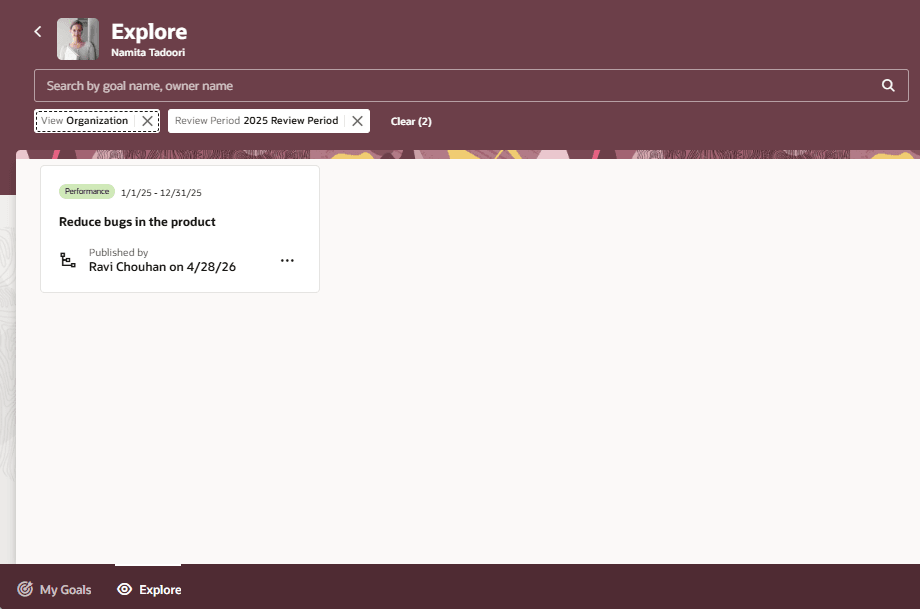
Organization goals on Explore tab
Business Benefit
Reduce the workload of organization leaders by enabling HR specialists to assign goals on their behalf.
Steps to enable and configure
To enable Redwood Goals Center, you need to enable the profile options indicated in the table.
|
Profile Option Code |
Profile Option Display Name |
Value |
|---|---|---|
|
ORA_HCM_VBCS_PWA_ENABLED |
Enable VBCS Progressive Web Application User Interface |
Y |
|
ORA_HRA_PERFORMANCE_DOCUMENTS_AND_GOALS_REDWOOD_ENABLED |
Enable Redwood Performance Documents and Goals Center |
Yes |
NOTE: The Performance Document, Check-in, and Goals Center features are closely connected. So, the Redwood version of these pages can all be enabled or disabled only using the common ORA_HRA_PERFORMANCE_DOCUMENTS_AND_GOALS_REDWOOD_ENABLED profile option. These features can't be enabled individually.
For more information, see How do I enable a profile option?.
You need to ensure that the Publish this goal for your organization attribute is set to Visible when configuring business rules. For more information on how to do this, see How do I hide or show a field in Visual Builder Studio?.
Access requirements
To enable HR specialists to publish organization goals on behalf of an organization leader, you need to do these steps:
- Go to Tools > Security Console.
- Create a custom role for allowing HR specialists to create organization goals for others.
- Select the category as HCM-Job Roles.
- Enable permission groups.
- On the Role Hierarchy train stop, add the Create Organization Performance Goal for Others aggregate privilege.
- On the Users train stop, assign this custom role to the users who you want to create organization goals for business leaders.
- Save your changes.
- Go to the Setup and Maintenance work area.
- Search for and open the Manage Person Security Profiles task.
- Create a new person security profile.
- Give it a suitable name.
- Secure it by one of these attributes depending on the requirement:
- Manager hierarchy
- Department
- Business unit
- Person type
- Custom criteria
- Submit your changes.
- In the Setup and Maintenance work area, search for the Manage Data Roles and Security Profiles task.
- Edit the custom role that you created to allow HR specialists to create organization goals for others.
- On the Security Criteria train stop, select the person security profile you created earlier.
- Submit your changes.
- Go to Tools > Security Console.
- Select the Roles tab.
- Edit the custom role that you created to allow HR specialists to create organization goals for others.
- Verify that the role has the data security policy and person security policy that you created.
- Select the Users tab.
- Verify that the intended users are assigned the Create Organization Performance Goal for Others aggregate privilege.