New Redwood Time Profiles
Time and Labor administrators now have a consolidated Time Profile page in Redwood. The page brings together the three legacy profile types: Time Entry, Time Processing, and Time Device. With the new page administrators can:
- View existing legacy profiles and create, save, submit, and manage new Redwood Time Profiles from one unified profile.
- Use one Time Profile object for entry, processing, and device settings.
- Save profiles in draft before finalizing the configuration. Draft profiles are not applied to workers and can be saved with minimal information, for example, name and effective start date.
- Submit profile updates to run full validation. Profiles become active after validation issues are resolved.
- Set profile priority after submission. You assign HCM Groups with a priority to assign Time Profiles in 26C.
- Make date effective updates or corrections to Time Profiles. Use ‘Correction’ to save changes within the current record version or ‘Update' to create a new effective-dated record version.
- Profiles (Entry, Processing, and Device) created using classic page can be viewed and managed from the new Redwood Time Profiles.
- Redwood Time Profiles now support defaulting time entries for non-public holiday calendar event categories.
Runtime Evaluation
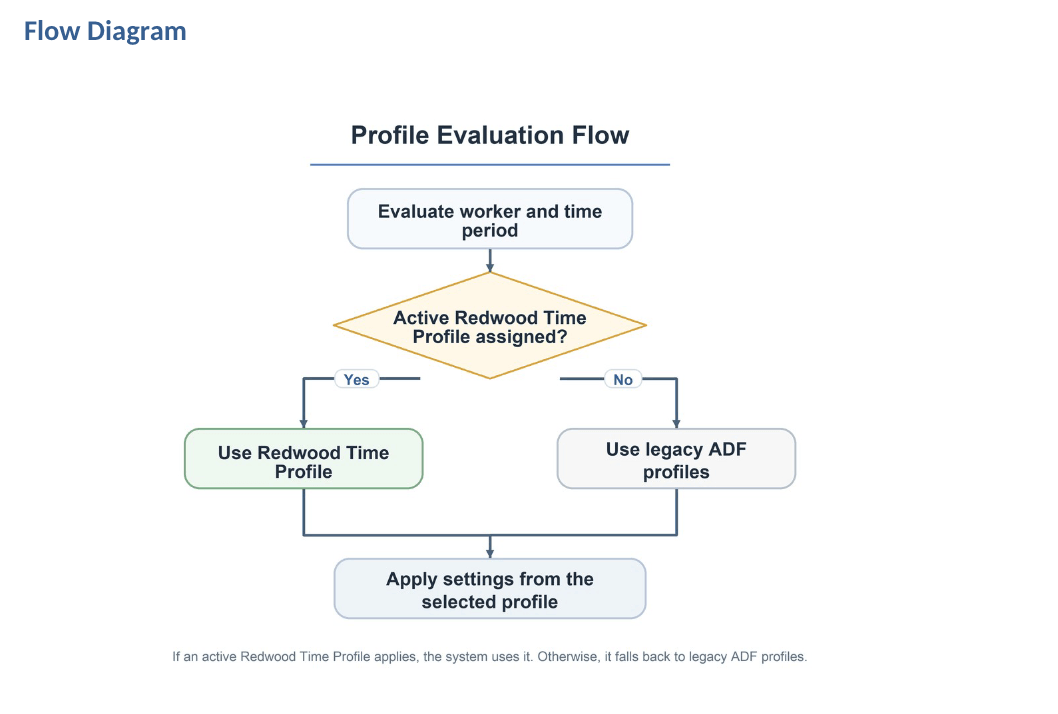
When the system determines which profile applies, it evaluates Redwood Time Profiles and legacy profiles by assignment and effective-dated coverage.
- Existing legacy profiles aren’t automatically converted to Redwood Time Profiles.
- If a Redwood Time Profile is assigned and active for the evaluated time period, the system will use that profile.
- If no Redwood Time Profile applies, the system continues to use the worker’s legacy ADF profiles.
- If more than one profile applies during a time card period, the system uses each profile’s effective dates to determine which profile applies for each portion of the period.
- The system doesn’t combine Redwood and legacy profile settings for the same attribute. For example, if the applicable Redwood Time Profile defines the time card submission settings, the system uses those settings from the Redwood profile. It doesn’t use some submission settings from the Redwood profile and other submission settings from the legacy ADF profile.
Time Card Permissions
- Administrators configure one days-before and days-after window per role: worker, line manager, and time and labor manager. This single window applies to all time card actions instead of separate windows by action and status. For example, if the worker permission window for editing is set to 7 days before and 14 days after, workers can edit time cards within that time window, regardless of the time card status.
- View Time Card is enabled by default and isn’t configurable by status as it was in legacy profiles. Unlike legacy profiles, it isn’t configured separately by time card status.
- The days-before and days-after window is calculated from the time card period start and end dates plus the configured offsets. For example, if the time card period is May 12 through May 18, and the worker window is 7 days before and 14 days after, the worker’s access window runs from May 5 though June 1.
Updated Configuration Options
The following setup options are no longer required or supported in the new Time Profiles definition:
- Cost Override Option
- Allow Edits to Worker Schedules
- Enable re-submission of future time cards: This is enabled by default
- Enable submit time cards for scheduled processing
- Change Audit for scheduling
A unified Time Profile reduces administrative fragmentation by moving Time Entry, Time Processing, and Time Device setup into one flow. Administrators can review setup options in a single guided experience, manage draft and active profiles, and assign profiles by HCM groups.
Here's the demo of these capabilities:
Steps to enable and configure
- Set the ORA_HXT_ENABLE_TIME_PROFILE administrator profile option to “Yes”. The delivered default is “No”.
- Confirm that administrators have the required Time and Labor privileges, including HXT_MANAGE_WORKER_TIME_ENTRY_PROFILES_PRIV and HXT_MANAGE_WORKER_TIME_PROCESSING_PROFILES_PRIV.
Tips and considerations
- Troubleshoot, single-person profile evaluation, and individual worker assignment or overrides are not available in 26C.
- Save validates only Name and Effective Start Date. Submit runs full validation of Time Profiles.
- Profile priority is set after submission, and draft profiles aren’t considered in the profile prioritization.
- When effective date is updated, system treats changes to the Time Profiles as date effective updates. When effective date isn’t updated, changes to Time Profiles are treated as correction.
- Profile evaluation depends on effective-dated ranges. Verify effective dates and group assignments so the intended profile applies to the right time card periods.
- Use the Profile Type filter to view Redwood Time Profiles or one legacy profile type at a time: Entry, Processing, or Device.
Key resources
- ADF Legacy - Worker Time Entry Profile
- ADF Legacy - Worker Time Processing Profile
- ADF Legacy - Worker Time Device Profile
Access requirements
- HXT_MANAGE_WORKER_TIME_ENTRY_PROFILES_PRIV is required to access the Time Profile page. This is the same privilege used to access the legacy Worker Time Entry Profile.
- HXT_MANAGE_WORKER_TIME_PROCESSING_PROFILES_PRIV is required to access Worker Time Processing Profile setup.