Introducing the Total Compensation Generated Statements Subject Area
Now you can report on the total compensation statements generated. In the previous release we offered reporting on the setup configuration. The subject area has 4 fact folders and dimension folders as shown below.
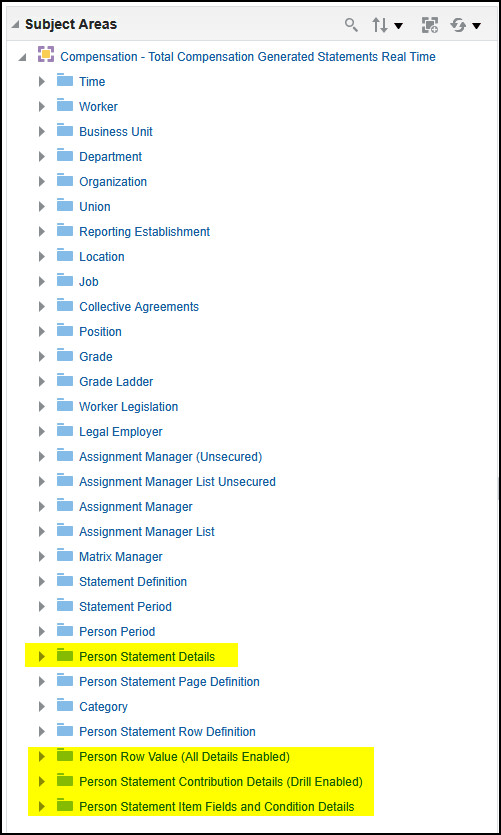
Compensation - Total Compensation Generated Statements Real Time
Fact Folders
- Person Statement Details
- This fact has metrics related to statement information for a person/worker.
- Person Row Value (All Details Enabled)
- This fact has metrics information about the person row value from the statement definition.
- Person Statement Contribution Details (Drill Enabled)
- This fact has metrics information on contribution summary of each person for every statement.
- Person Statement Item Fields and Condition Details
- Apply mandatory filters to enable reporting on Item Tag (Field) and Criteria (Condition) presentation folder as advised in Tips.
Reporting Components
Person Period
- Provide details on the period for the person statement generated
- For example, "Your 2022 Total Compensation Statement"
Person Statement Details and Page Definition
- Provides details on the compensation statement generated
- Details on the categories and subcategories defining the statement
- For example, "2022 US Total Compensation", "Monetary", "Nonmonetary"
Person Statement Row Details and Row Values
- Provide details on the row for the category
- Details on the person row value from the statement definition
- For example, "Housing", "Automobile Allowance"
Person Statement Contributions
- Provides details on the worker statement’s sections along with the breakdown of each category
- For example, "Monetary", "Nonmonetary"
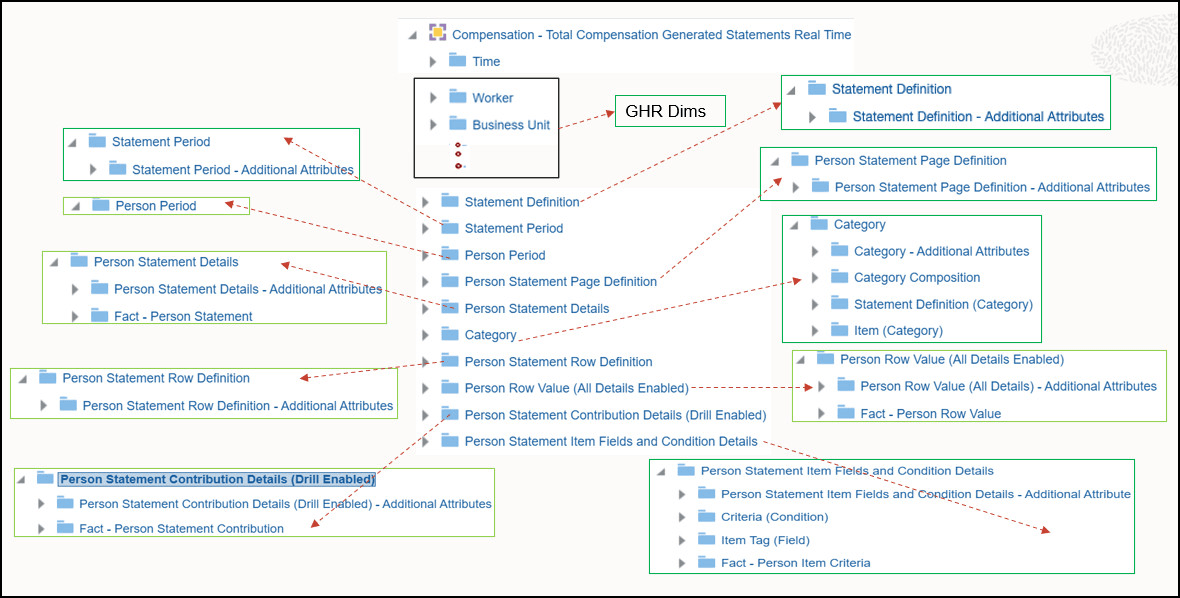
Presentation Layer Illustration
Introducing the ability to report on generated statements in the "Compensation - Total Compensation Generated Statements Real Time" subject area. This enhancement allows users to report on worker total compensation statements.
Steps to enable and configure
Leverage new subject area(s) by adding to existing reports or using in new reports. For details about creating and editing reports, see the Creating and Administering Analytics and Reports book (available from the Oracle Help Center > your apps service area of interest > Books > Administration).
Tips and considerations
- The "Compensation - Total Compensation Generated Statements Real Time" subject area is based on a multi-fact model. Therefore, to ensure proper support for the multi-fact architecture, it is mandatory to enable "DIMENSIONALITY" while creating reports using this subject area.
- It is important to apply filters on “Statement Definition Name” and “Period Display Name” to generate a meaningful report. This helps provide clear insight into which statement was generated and for which period the report applies to a specific worker/person.
- For creating reports using the Presentation Folder Criteria (Condition) and Item Tag (Field) for "Person Statement Item Fields and Condition Details", it is mandatory to apply filters on the Item Tag and Criteria Tag columns accordingly.
Key resources
One of 2 subject areas. Click to see the first subject area release notes:
Introducing the Total Compensation Statements Setup Subject Area
https://docs.oracle.com/en/cloud/saas/readiness/hcm/26c/comp-26c/26C-compensation-wn-f49862.htm
Access requirements
Data Security
- Duty ORA_FBI_HCM_TOTAL_COMPENSATION_STATEMENT_TRANSACTION_ANALYSIS_DUTY_HCM
Functional Security
- Duty FBI_HCM_TOTAL_COMPENSATION_STATEMENT_TRANSACTION_ANALYSIS_DUTY
- Duty Name: Total Compensation Statement Transaction Analysis Duty
Fusion Job Roles:
- Compensation Manager
- Compensation Administrator
- Compensation Analyst