Redwood Experience for HCM Extracts: Extract Definitions
Use the redesigned Extract Definitions page, developed with the Redwood toolset, to create, manage, and work with HCM extract definitions in a modern, streamlined experience.
The page includes your existing extract definitions as well as predefined, seeded extract definitions delivered by Oracle. You can use a seeded extract definition as a starting point by copying it and then configuring the copied definition to meet your business requirements.
Search for an extract definition by name, or refine the displayed definitions using filters such as type, status, and legislative data group. You can also sort the list of extract definitions.
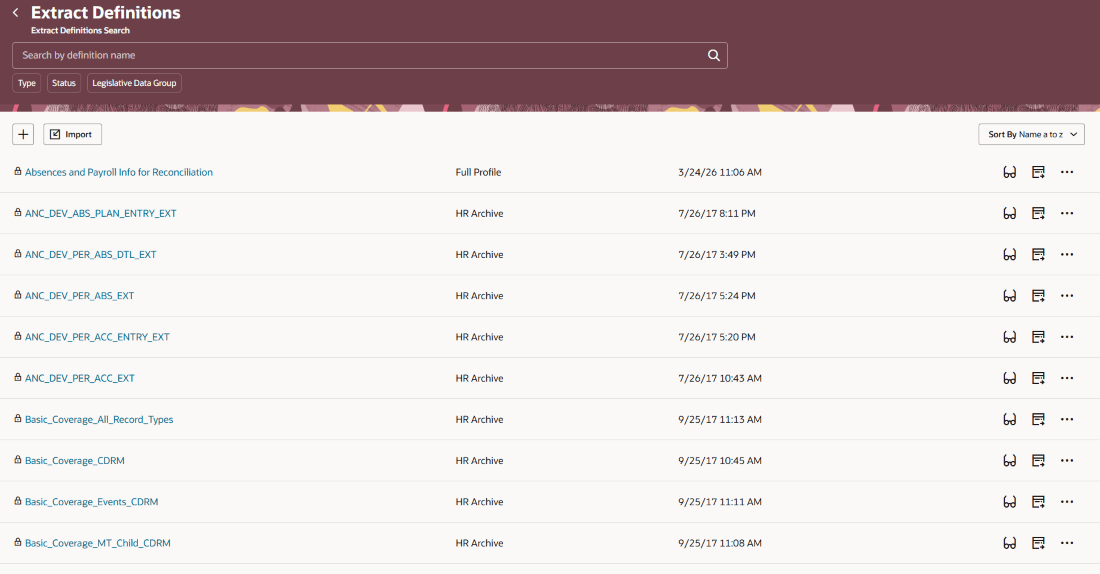
Extract Definitions page
Import an extract definition
Import an existing extract definition from the Extract Definitions page. Specify a definition name and legislative data group, select or drop the file containing the extract definition, and indicate whether it's a changes-only extract.
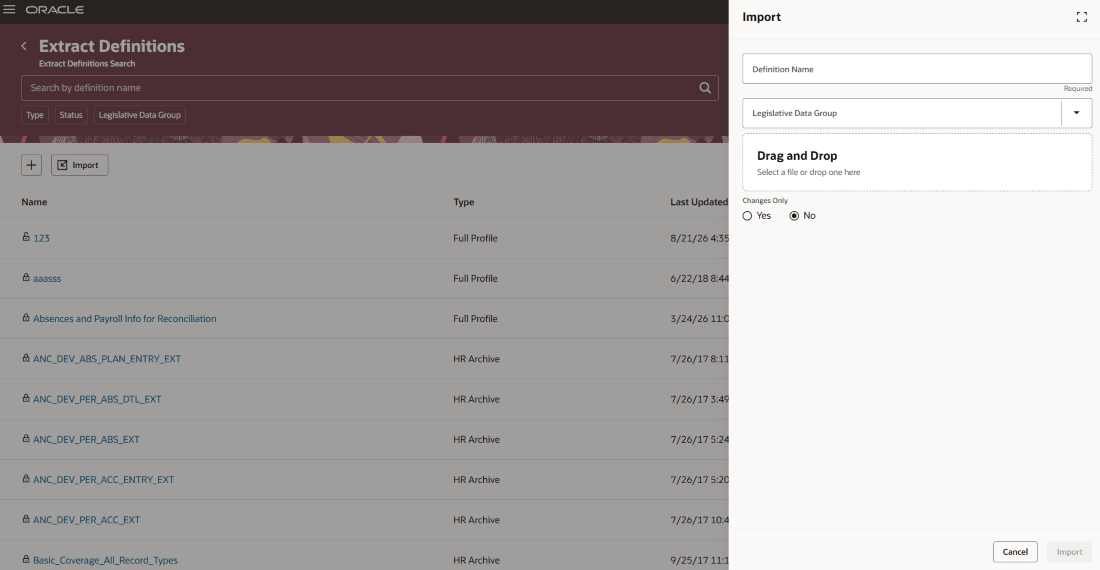
Import an extract definition
Manage existing extract definitions
Use the actions available for an existing extract definition to manage it directly from the Extract Definitions page. Depending on the extract, you can copy, export, rename, delete, or upgrade the definition. You can also review its dependencies and hierarchy.
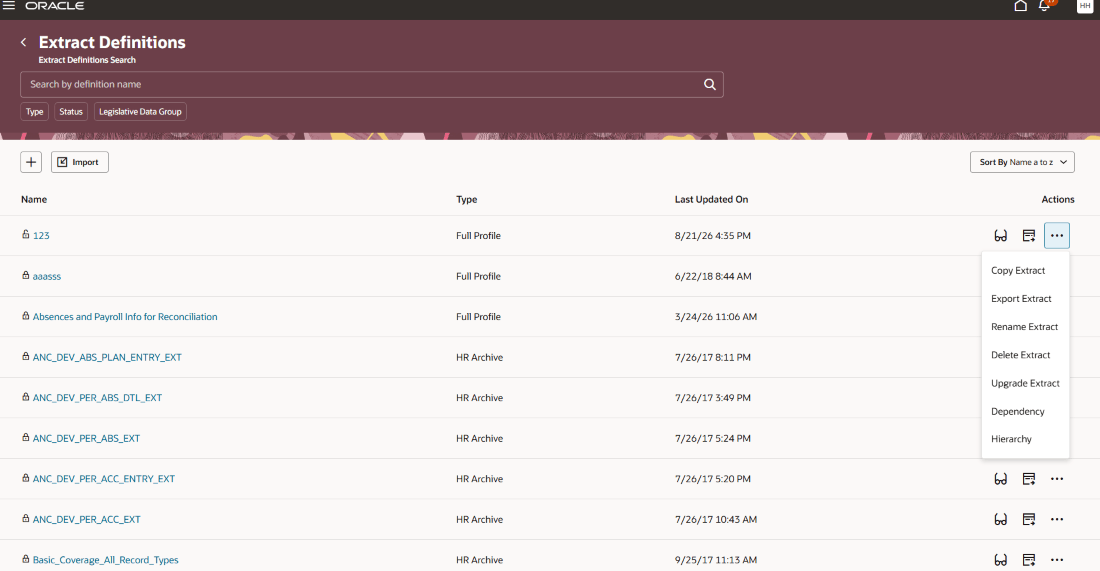
Manage existing extract definitions
Copy an extract definition
Create a new extract definition based on an existing definition and specify the applicable details for the copied definition, including whether it's a changes-only extract.
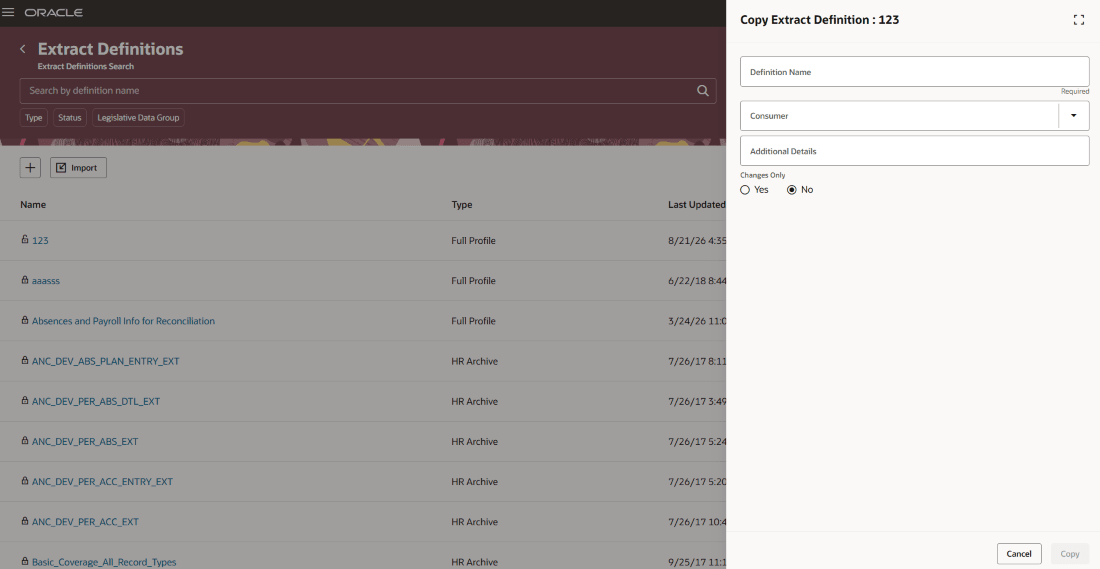
Copy an extract definition
Export an extract definition Export an existing extract definition to download it as an XML file. A notification confirms when the extract definition is successfully exported.
Delete an extract definition Delete an extract definition when it's no longer required. Before the definition is deleted, a confirmation message prompts you to confirm the action, helping prevent accidental deletion.
Rename an extract definition
Rename an existing extract definition directly from the Extract Definitions page.
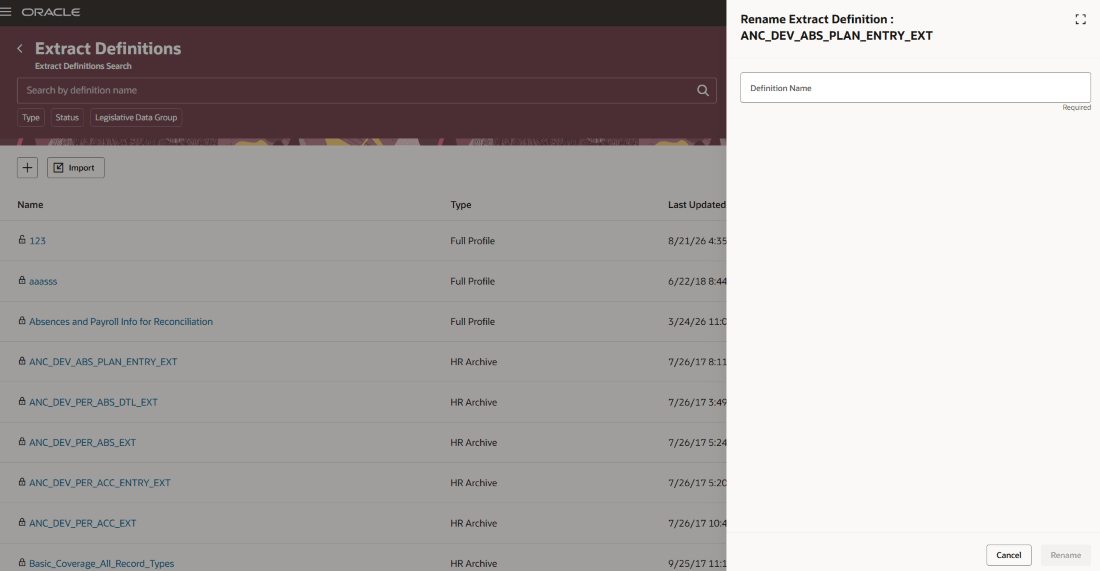
Rename an extract definition
Upgrade an extract definition
Upgrade an existing extract definition to run on the latest version of the extract engine by providing the applicable definition details before validating or continuing with the upgrade.
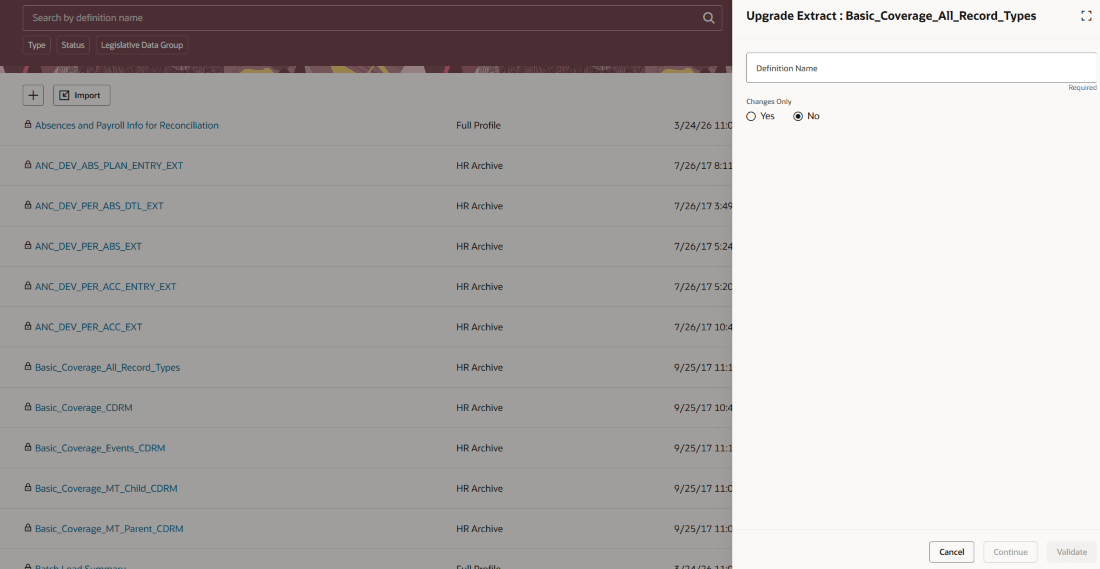
Upgrade an extract definition
Review extract dependencies
Review the objects that an extract definition depends on to understand related objects before making changes to the definition.
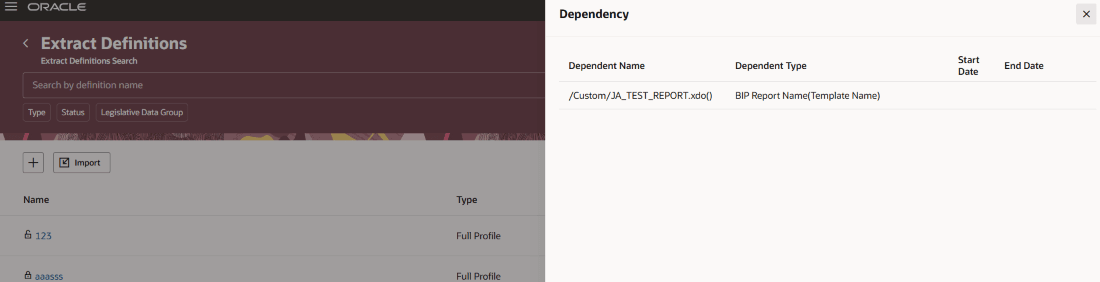
Review extract dependencies
View the extract hierarchy
View the hierarchical structure of an extract definition, including its data groups and records. The hierarchy provides a quick way to understand the structure of an existing extract without opening each component individually.
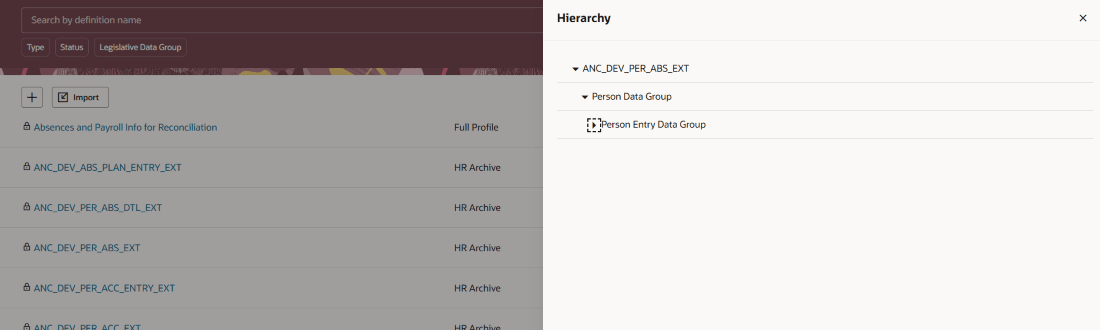
View the extract hierarchy
Create an extract definition
You can create an extract definition from a predefined template or configure a new definition yourself. Select Create From Template for a guided starting point based on a predefined configuration or select Create New to configure the extract based on your requirements.
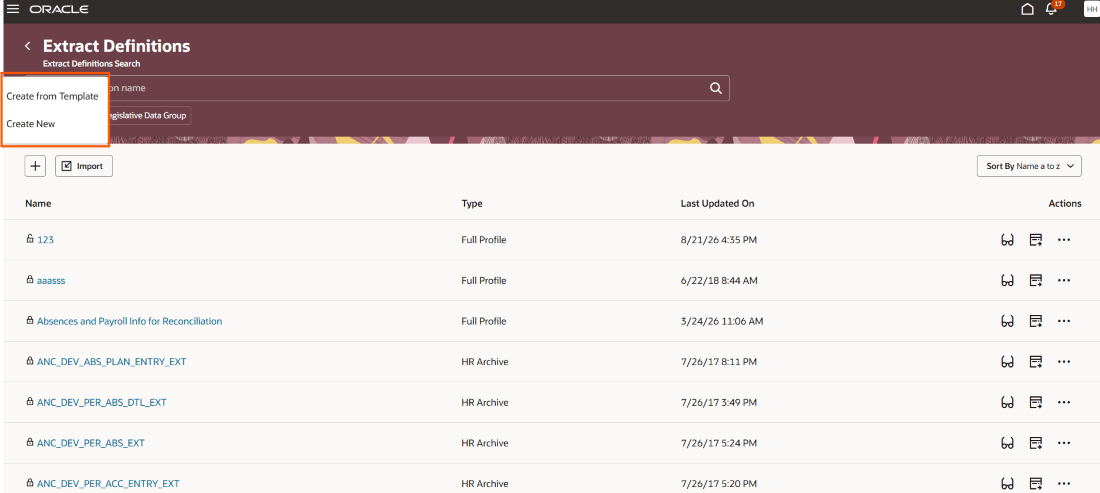
Create an extract definition
Create an Extract definition from a template
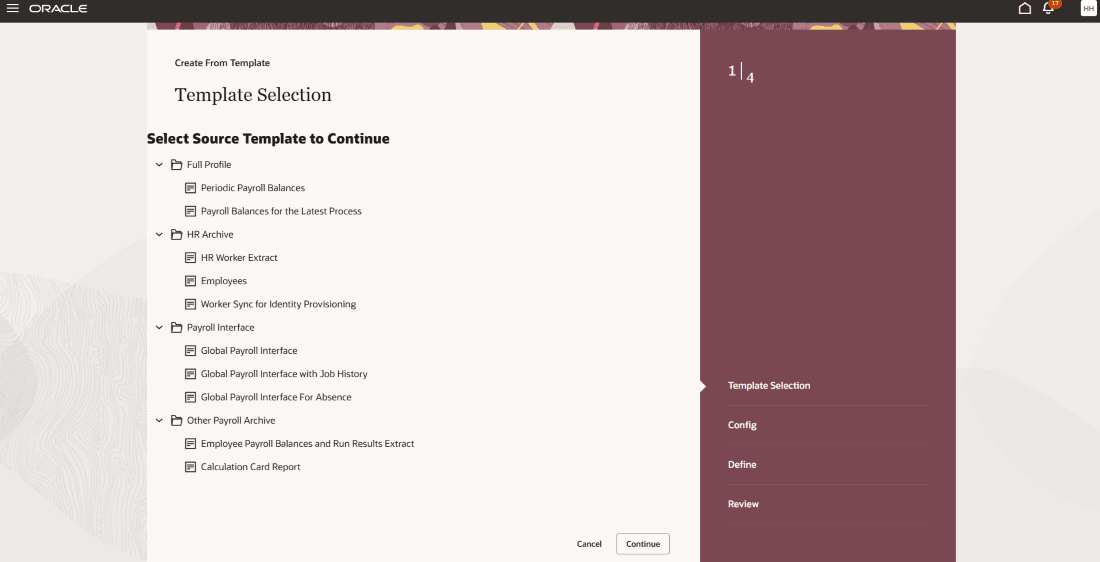
Step 1: Select a template
Select Create from Template to start with a predefined extract configuration. Browse the available templates by extract type and select the template that best matches your business requirement.
Templates provide a guided starting point for commonly used extracts and reduce the amount of configuration required to create an extract definition.
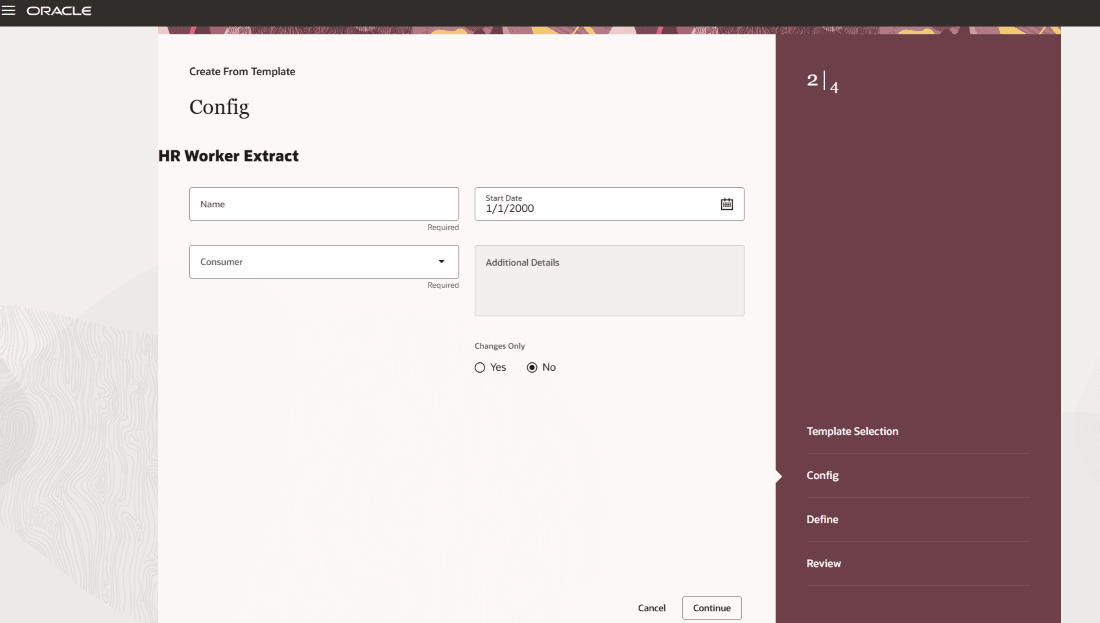
Step 2: Enter extract information
After selecting a template, provide the information required for the new extract, such as its name, start date, consumer, additional details, and changes-only setting. Continue through the guided process to complete the extract definition.
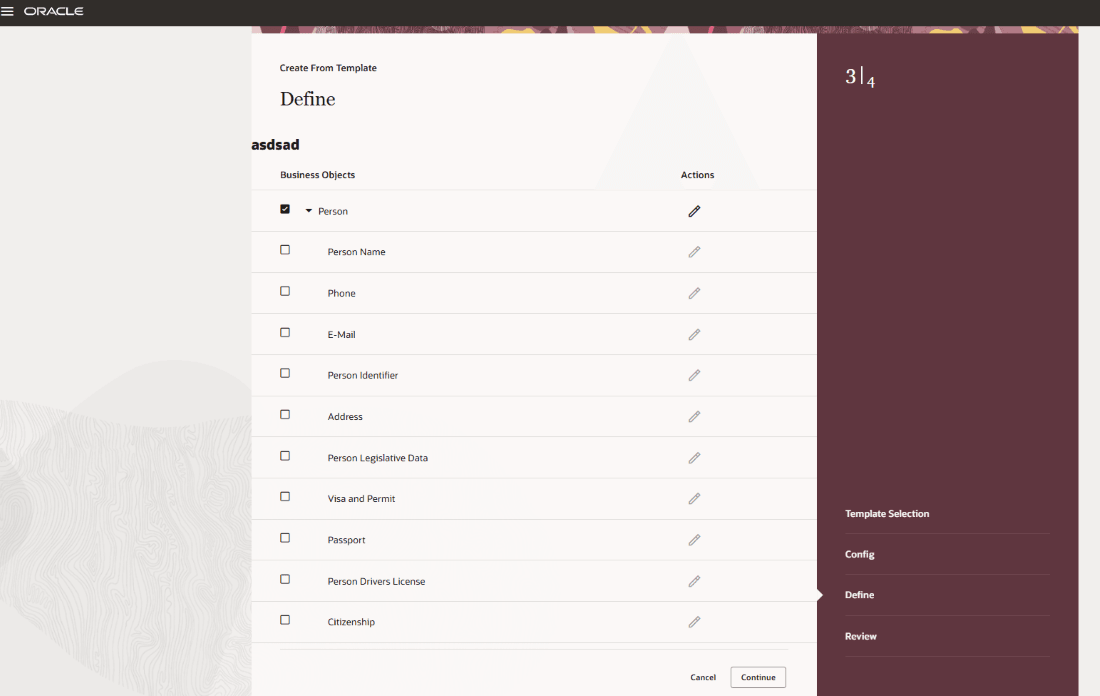
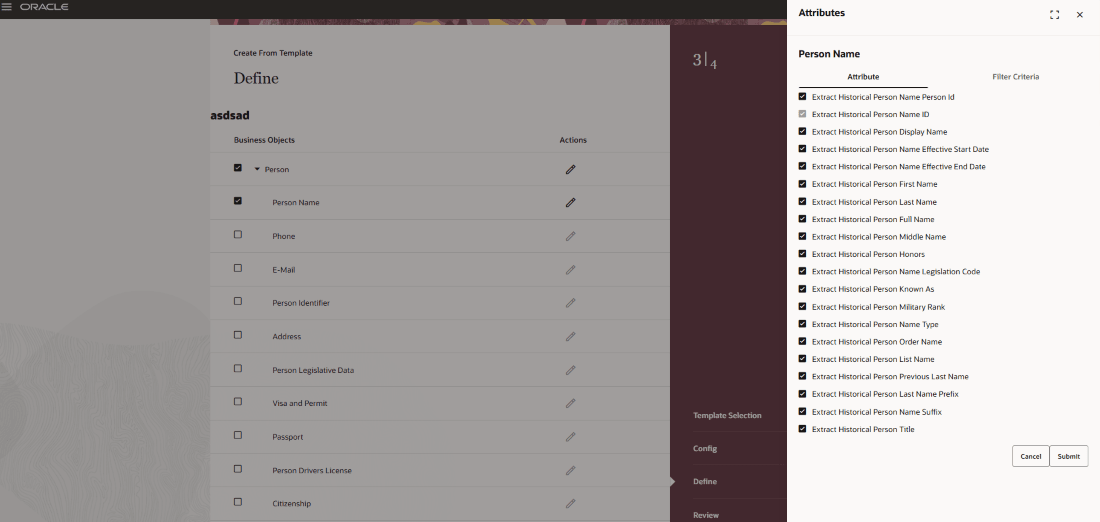
Step 3: Select data groups
Select the business objects and data groups to include in the extract. Configure attributes and filter criteria as needed.
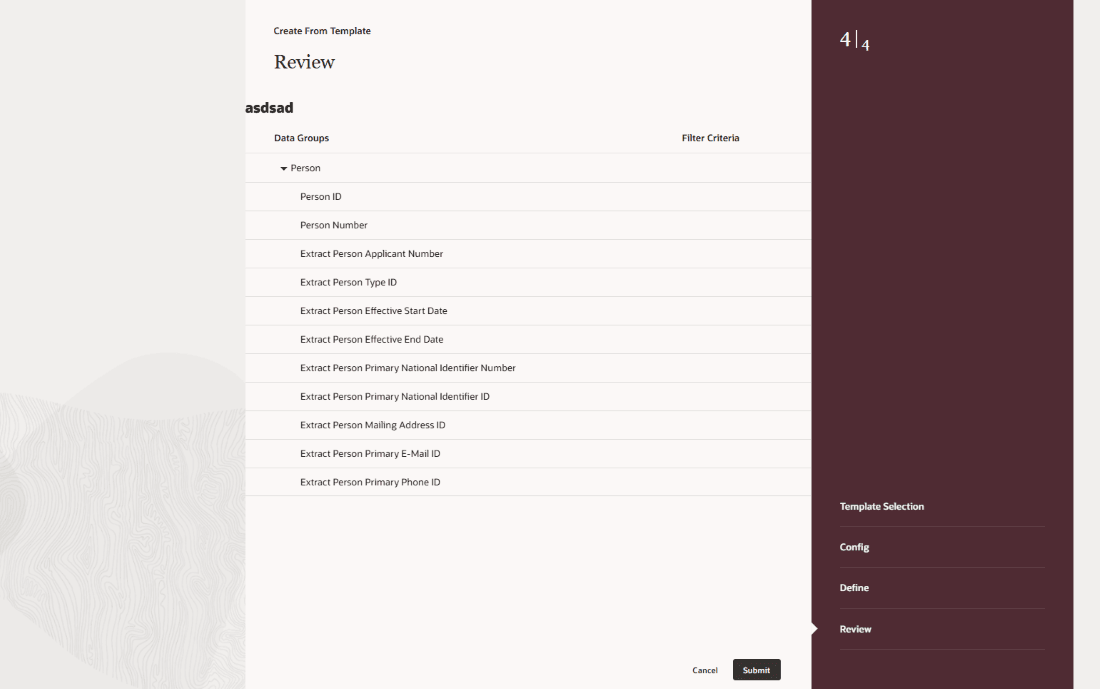
Step 4: Review and create
Review the extract information, selected business objects, attributes, and filter criteria before creating the extract definition.
Create a new extract definition
Select Create New to configure a new extract definition. The guided experience organizes extract creation into Define, Design, Deliver, and Validate stages.
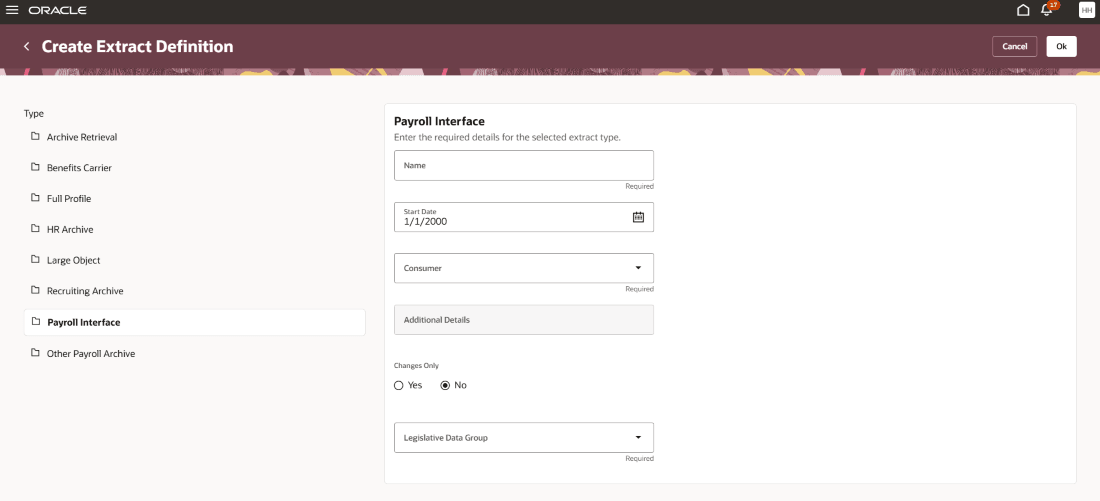
Select the extract type and enter the applicable information, such as the name, start date, consumer, and legislative data group.
Define:
In the Define stage, specify the basic properties of the extract and configure its parameters.
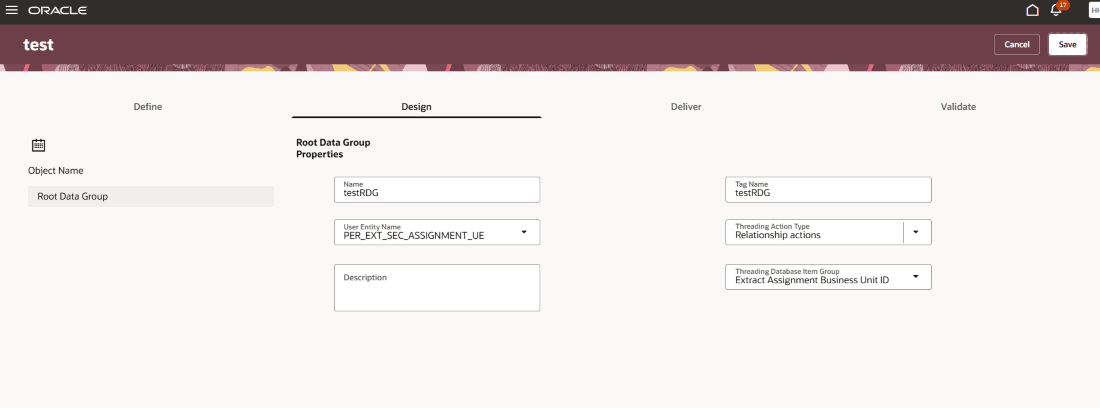
Design:
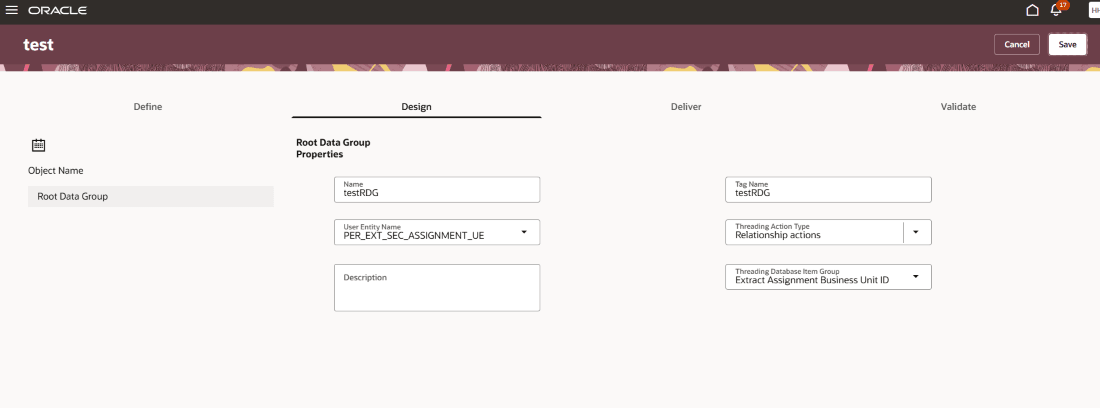
Use the Design stage to configure the structure of the extract. Define properties for the root data group and configure the user entity and applicable threading options.
Deliver:
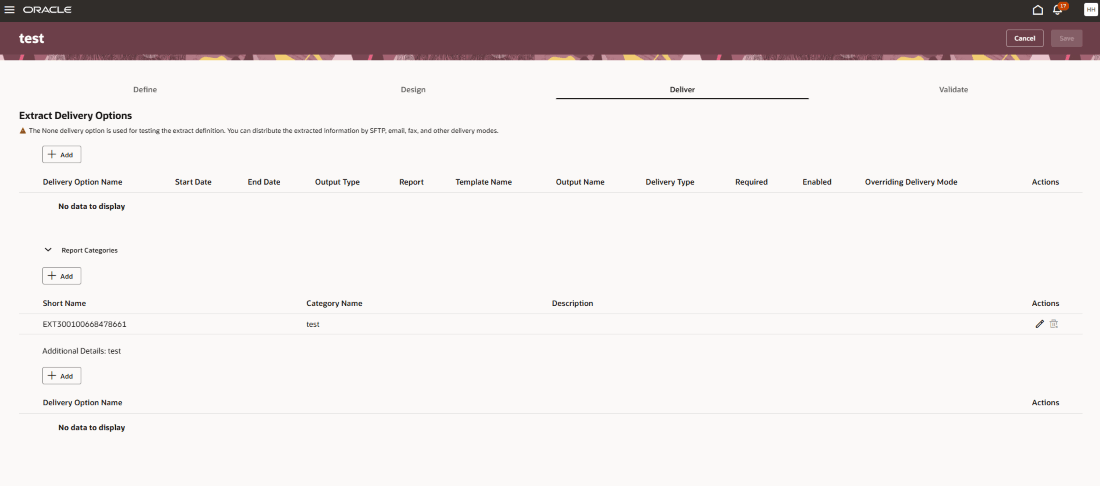
Use the Deliver stage to configure how generated extract data is delivered. You can add delivery options and configure report categories and their associated details.
Create delivery option:
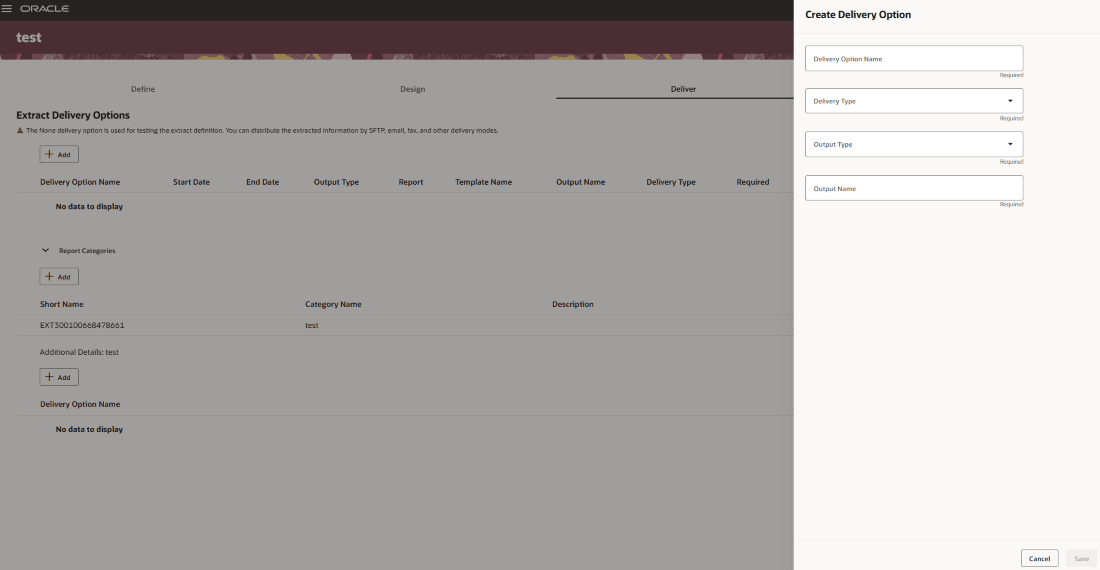
Create a delivery option by specifying its name, delivery type, output type, and output name. Delivery options determine how the generated extract output is distributed.
Create report category:
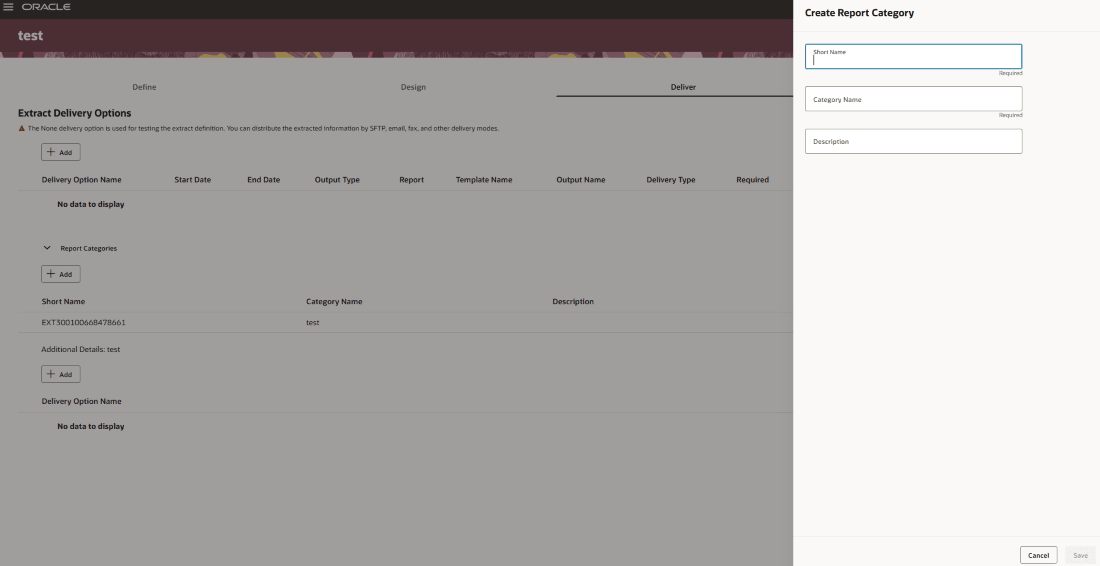
Create report categories for the extract by specifying a short name, category name, and optional description.
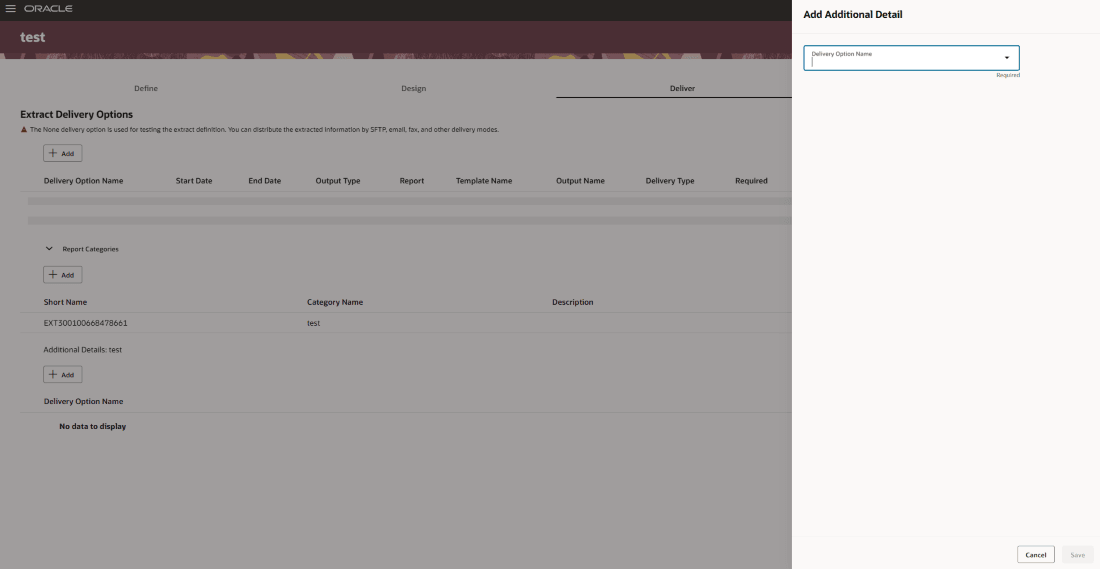
Add additional details:
Add additional details associated with a delivery option when required by the extract configuration.
Validate the extract definition
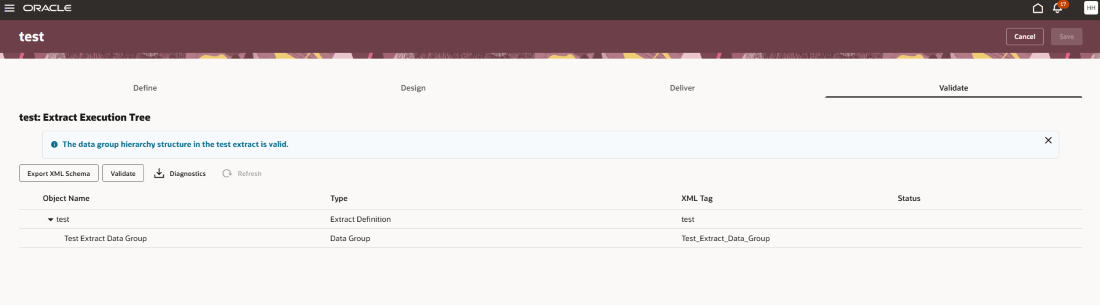
Use the Validate stage to review the extract execution tree and validate the data group hierarchy. You can also export the XML schema and access diagnostic information to help verify the extract configuration.
Preview the extract definition
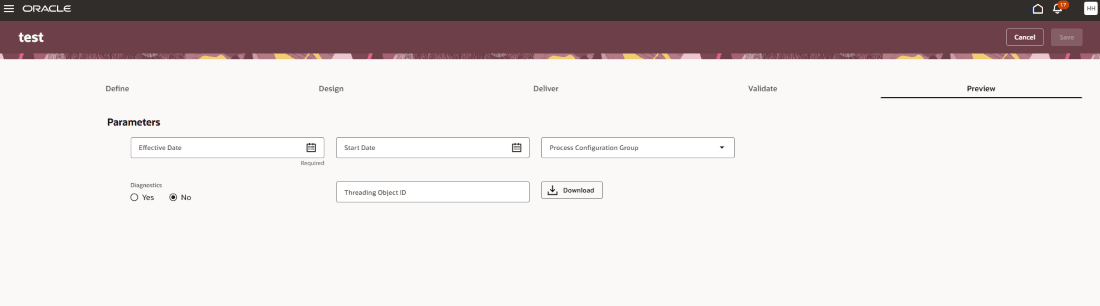
After validating the extract definition, preview it to review the configuration before submitting it for processing. The preview provides a consolidated view of the extract and helps you verify the setup before running it.
Run and review an extract
After configuring and validating an extract definition, submit the extract for processing and review the generated results.

The redesigned Extract Definitions experience makes it easier to create, find, and manage HCM extracts. Guided workflows and reusable templates simplify extract creation, while improved management and validation capabilities help you configure and maintain extract definitions more efficiently.
Steps to enable and configure
To work with the new Extract Definitions page, enable the associated profile option. The profile option is disabled by default; set it to Yes to access the page.
| Profile Option Code | Profile Option Display Name | Default Value |
|---|---|---|
| ORA_HCM_EXTRACT_DEFINITIONS_REDWOOD_ENABLED | Enable Redwood Extract Definitions | No |
Tips and considerations
- The Extract Definitions page includes existing extract definitions and Oracle-delivered seeded extract definitions. To customize a seeded extract definition for your requirements, copy the definition and configure the copy rather than modifying the seeded definition directly.
- When creating an extract definition, choose the starting point that best fits your requirements. You can copy an existing or seeded definition, import an extract definition, create one from a template, or use Create New to configure a new definition. Your draft currently exposes all of these paths, but doesn't yet bring them together for the customer.
- Use Preview after configuring and validating an extract definition to review its configuration before submitting it for processing.
- Exported extract definitions are downloaded as XML files, which can be useful when you need to reuse or transfer a definition.
- Deleting an extract definition requires confirmation before the definition is removed.
Key resources
For more information, see How do I enable a profile option?
Access requirements
The Extract Definitions page is secured with the function security privilege: PER_MANAGE_HCM_EXTRACT_DEFINITION_PRIV