Tax Calculation Statement Page: Social Security
This feature delivers a detailed online tax calculation statement for a specific employee and payroll run. Access the content using the new Tax Calculation Statement tab on the Person Results page. This gives payroll administrators a run-specific view of how each selected tax type was calculated for an employee. This page displays the components for each tax type's calculation and the steps used in each calculation. These steps include the logic used in the calculations, and the calculated intermediate and final results.
Data on the page is displayed by:
- Process
- TRU
- Tax Type
The Calculation Results view shows the individual data components for each tax type’s calculation, including:
- Tax Withheld/Tax Liability: Final calculated amount for the tax type
- Tax Calculation Results: Calculated intermediate amounts used in the tax calculation
- Tax Rules: Settings or legislative rules used in the tax calculation (for example, settings at PSU, TRU, or statutory rates applied)
- Tax Information
- Tax Withholding Mexico: Employee-level tax card information used in the tax calculation
- Employee Wage Balances: Balances used in the tax calculation
The Calculation Steps view shows the step-by-step calculation sequence of the tax calculation, with expressions, intermediate values, and the final results. Displayed for each line item in the calculation are:
- Step number
- Description
- Logic
- Calculation
- Results
This image shows the new Tax Calculation Statement tab that is now located next to the Run Results tab in the Person Results UI.
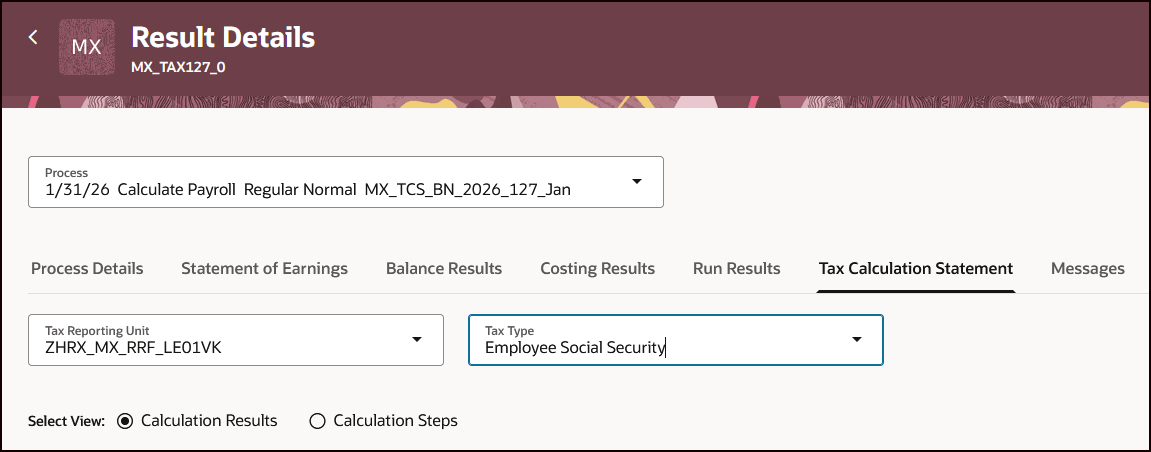
Image: Tax Calculation Statement tab
This image shows an example of the Calculation Results for Employee Social Security, where you can see all the attributes and values used in the tax calculation. This image shows an example of the Calculation Results for Employee Social Security, where you can see the calculation components and their values used in the tax calculation.
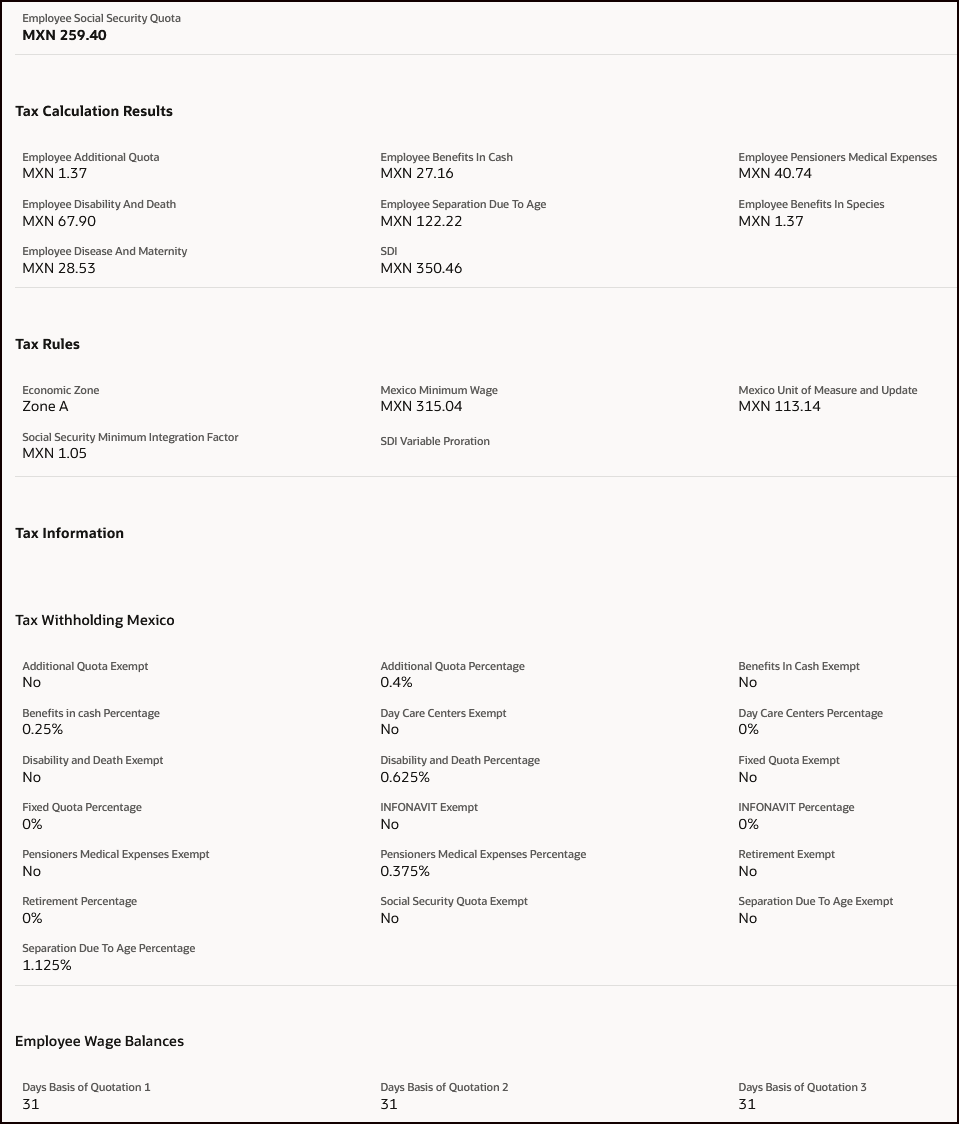
Image: Calculation Results
This image shows an example of the Calculation Steps for Employee Social Security, where you can see the step-by-step calculation, along with the actual values that are calculated for the intermediate and final steps. This image shows an example of the Calculation Steps for Employee Social Security, where you can see the step-by-step calculation, along with the actual values that are calculated for the intermediate and final steps.
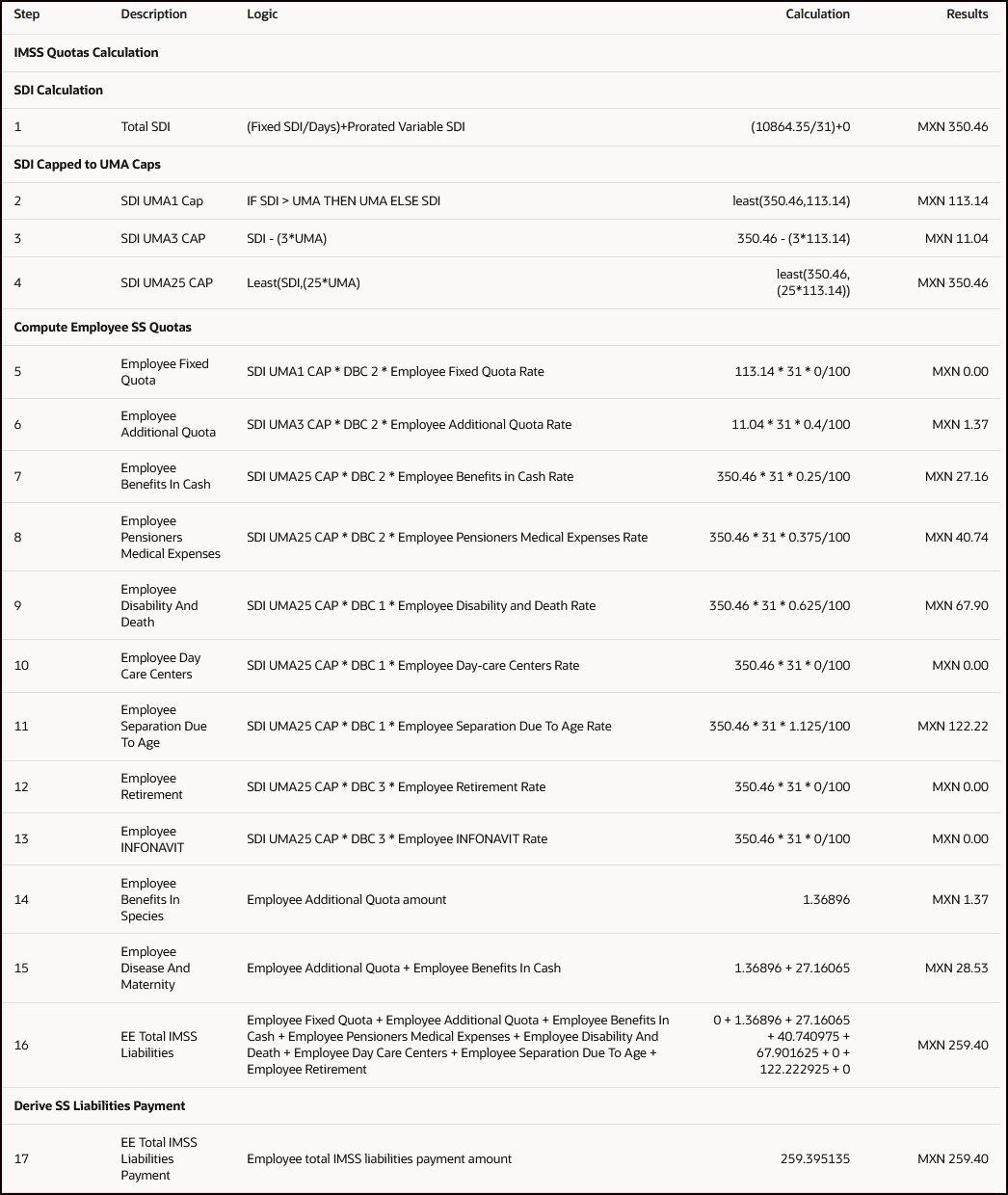
Image: Calculation Steps
This feature helps payroll administrators explain and troubleshoot tax deduction queries more efficiently by exposing tax calculation components, underlying logic, and computed results in context, thereby reducing the need for manual reconstruction efforts.
Steps to enable and configure
You don't need to do anything to enable this feature.
Tips and considerations
Note these tips and considerations for the feature:
- Use the Process LOV to switch between multiple payroll processes (for example, if there are regular and separate payments) and view results from each process..
- If data for only one TRU exists, the TRU will be defaulted in the TRU LOV for selection.
- Only the tax types that were generated for the employee for the payroll run are available for selection in the Tax Type LOV.
- When no data exists for the tax type, the message “No items to display.” appears.
- The Tax Calculation Statement tab and data will be displayed only after Update 26D is applied, and only for future payrolls processed after the upgrade.
- Currently, this feature only supports Social Security (Employee Social Security and Employer Social Security). Other tax types will be delivered in later releases.