 Show/Hide Time Zone Dropdown For Inline Edit and Mass Update
This feature provides a Workbench Logic Configuration parameter "SHOW TIME ZONE IN INLINE EDIT" that allows you to show (default) or hide (new option) the Time Zone dropdown list when you perform an Inline Edit or Mass Update on Date Fields.
In the example below, the Workbench Logic Configuration parameter "SHOW TIME ZONE IN INLINE EDIT" has been set to the False, which will remove the Time Zone dropdown for Inline Edit and Mass Update.
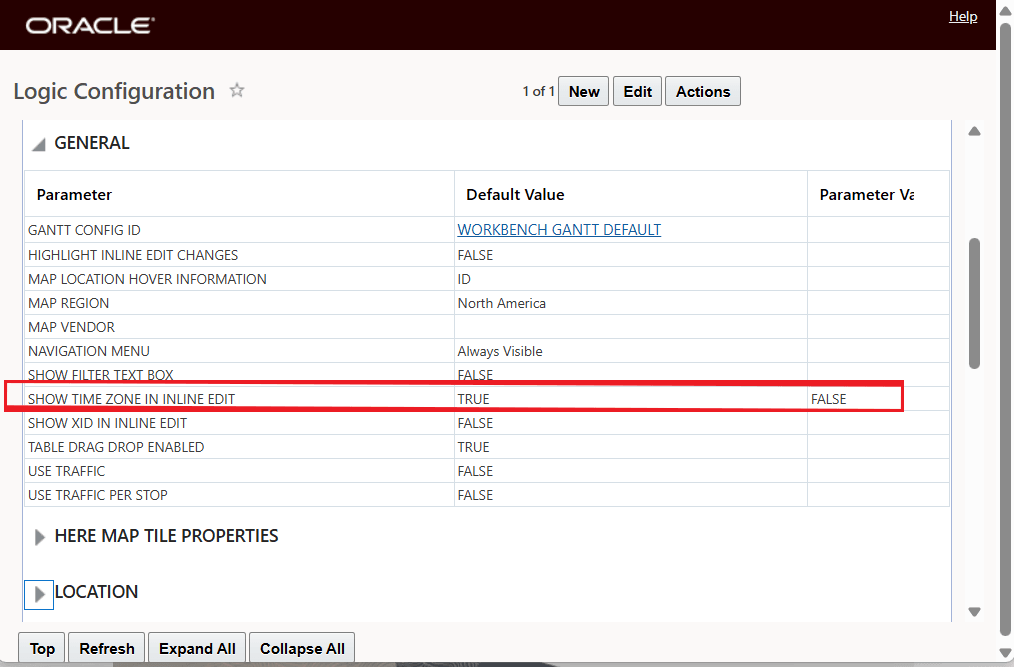
Workbench Logic Configuration Parameter- Show Time Zone In Inline Edit - Set to False
With the configuration above, the Inline Edit for the Order Release Date Fields is shown below, note that the Time Zone field with the drop down are hidden.
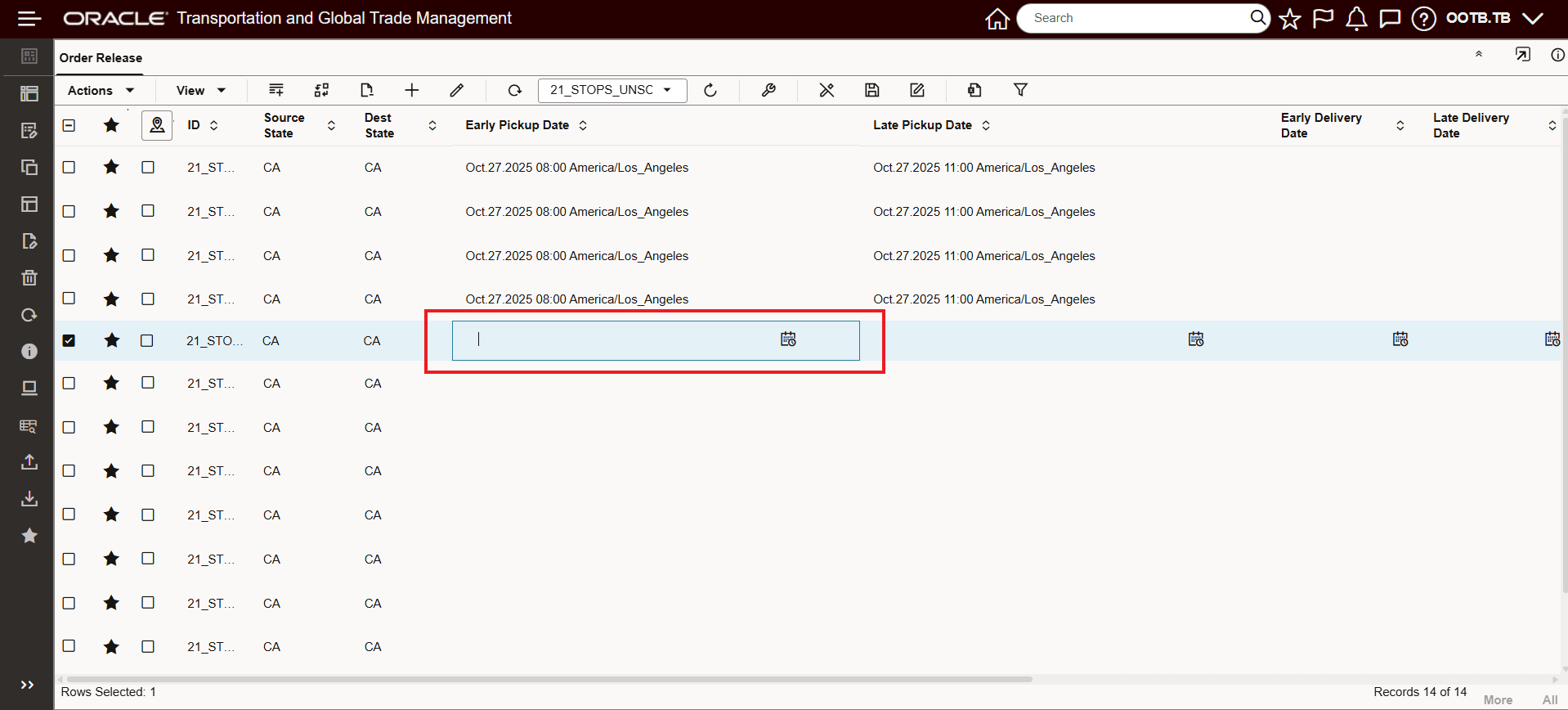
Show Time Zone In Inline Edit Set to False
With the same Logic Configuration setting "SHOW TIME ZONE IN INLINE EDIT" has been set to the False, the Mass Update screen will also no longer show the Time Zone Drop Down - as shown below.
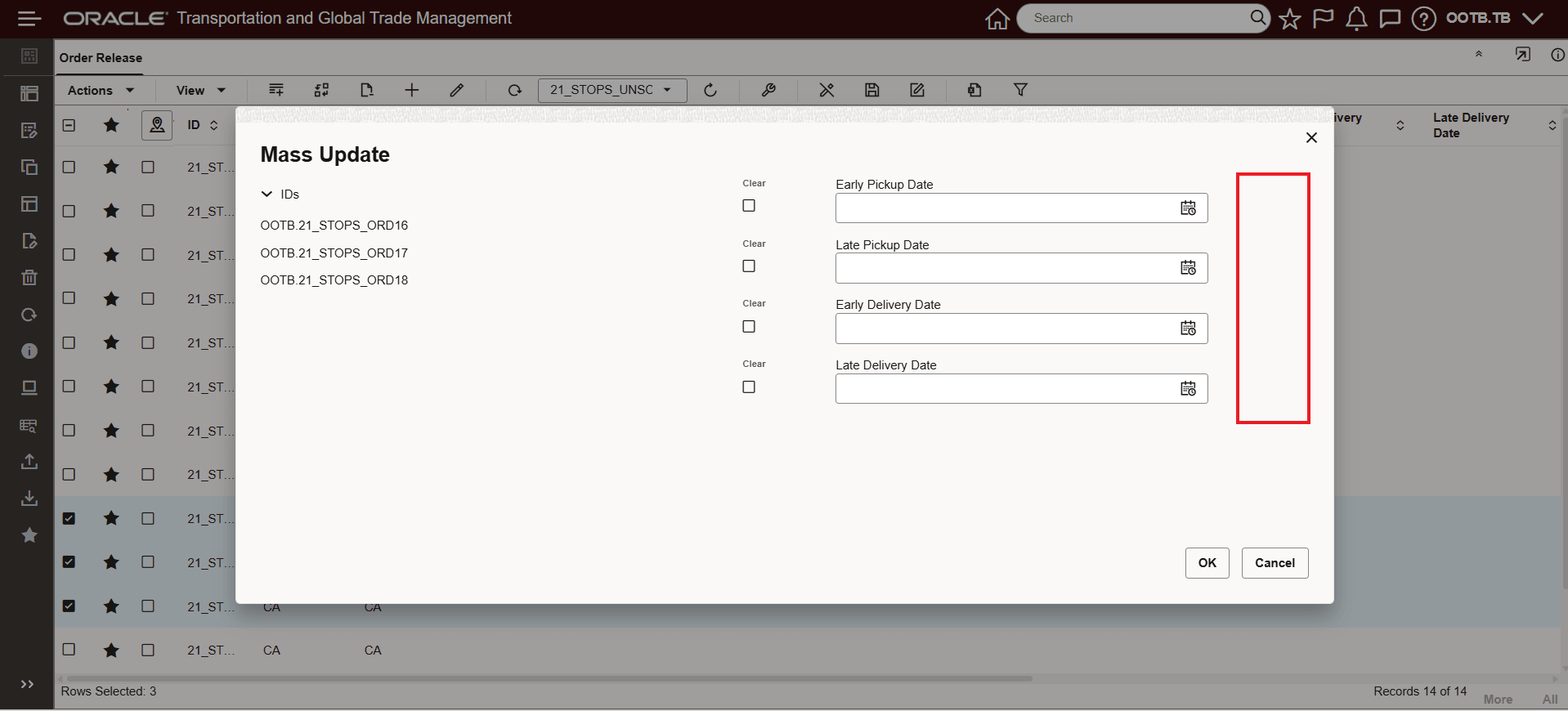
Show Time Zone In Inline Edit Set to False - Mass Update
In the example below, the parameter "SHOW TIME ZONE IN INLINE EDIT" is set to True, the default value. In this case, the User Preference Time Zone (American/New_York) is shown by default, and the Dropdown options is available to show all the available Time Zones to select from.
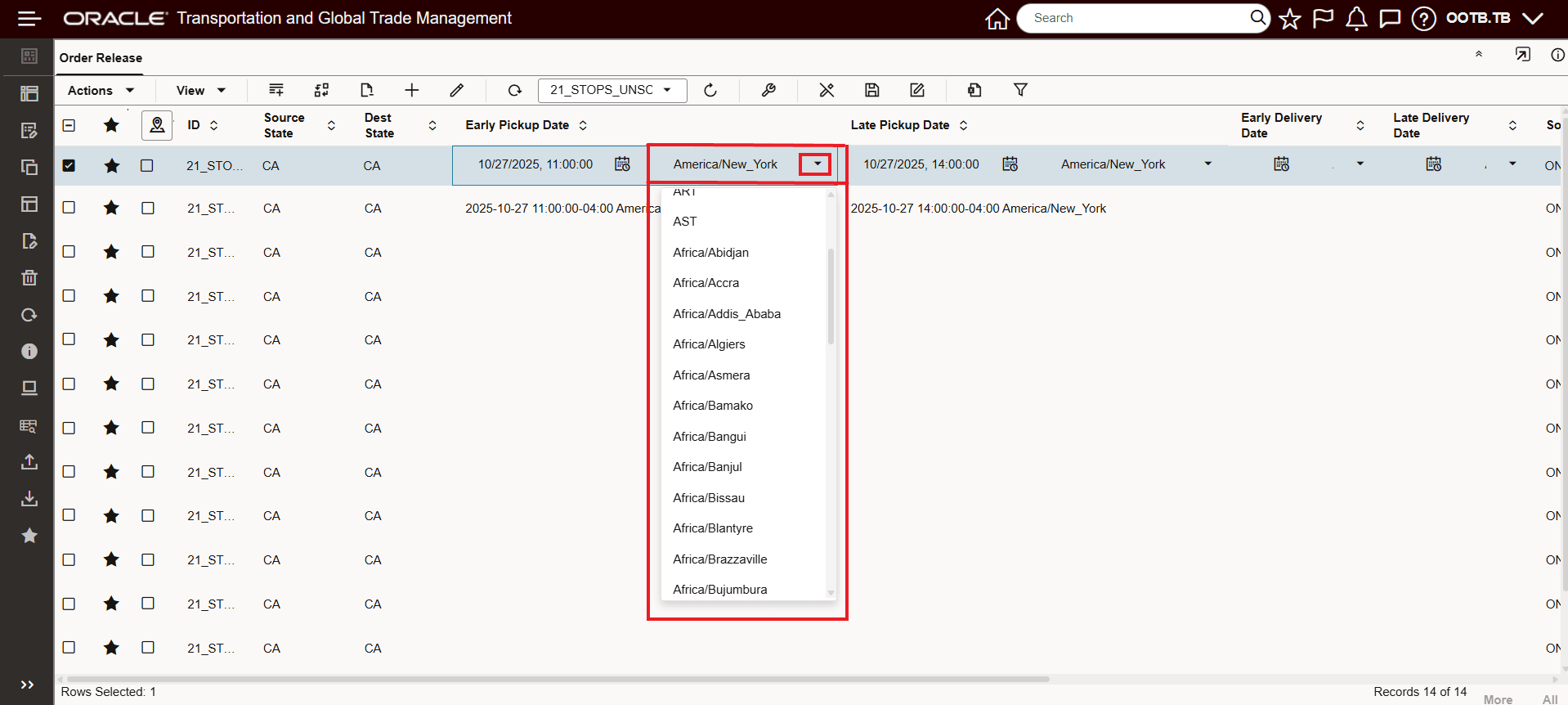
Show Time Zone In Inline Edit Set to True - Default
With the same Logic Configuration setting "SHOW TIME ZONE IN INLINE EDIT" has been set to the True (default), the Mass Update screen shows the Time Zone Drop Down - as shown below.
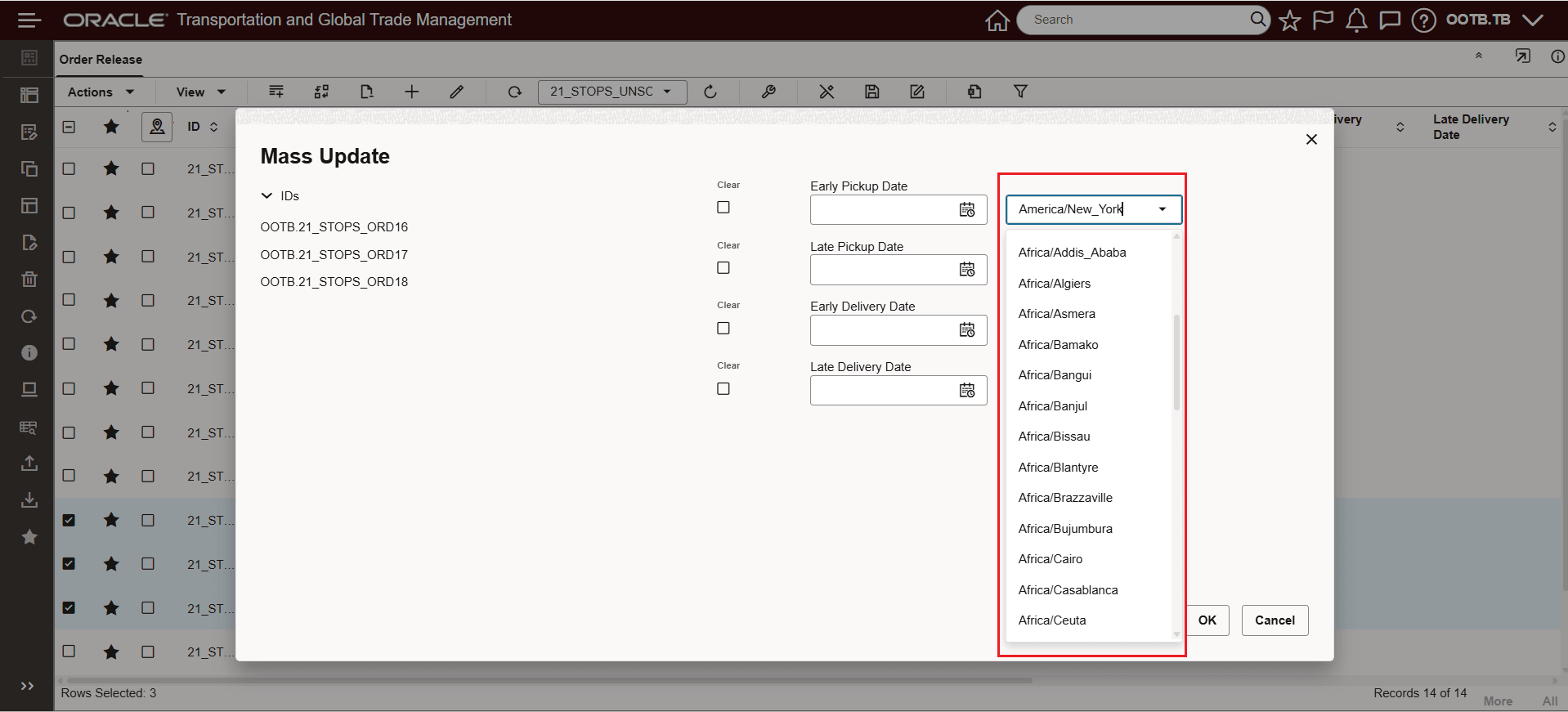
Show Time Zone In Inline Edit Set to True - Default - Mass Update
Business Benefit: This feature streamlines data entry by allowing you to configure whether the Time Zone dropdown appears during Inline Edits and Mass Updates of date fields. By hiding the Time Zone dropdown, where it is not needed, the risk of data entry errors is reduced, and the time required to complete routine update tasks is improved.
Steps to enable and configure
To enable or disable the Time Zone Dropdown for Inline Edit and Mass Update - use the Logic Configuration parameter "SHOW TIME ZONE IN INLINE EDIT".
- Default value = TRUE - Time Zone Dropdown is visible
- Set the value to FALSE to hide the Time Zone Dropdown for both Inline Edit and Mass Update
Tips and considerations
Note that hiding the default User Preference and Time Zone Drop Down does not change the logic used to convert entered times from the Time Zone used for entry to the location's time zone. In the example below, the User Preference Time Zone is set to America/New York, the locations related to the Order Release Source and Destination are in the state of California and are in the America/Los_Angeles Time Zone. Note that while the initial entry of the Time value does not show the User Preference Time Zone, the User Preference Time Zone is shown before hitting Save - the saved Time entered with the User Preference Time Zone American/New_York is converted to the America/Los_Angeles Time Zone for the locations associated with the entered Date fields, which is as designed.
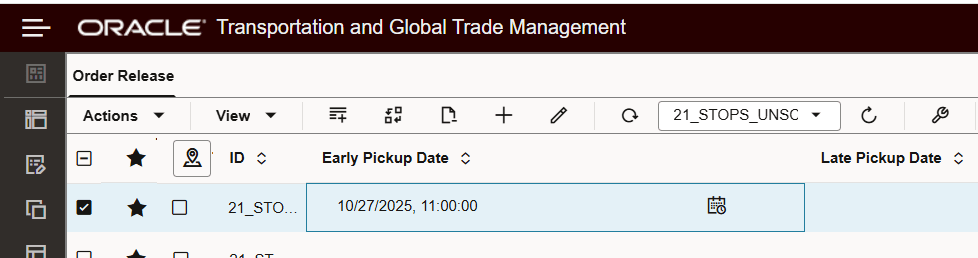
Inline Edit - Time Zone Not Initially Shown
When Inline Edit entries are complete the User Preference Time Zones are displayed - as shown below.
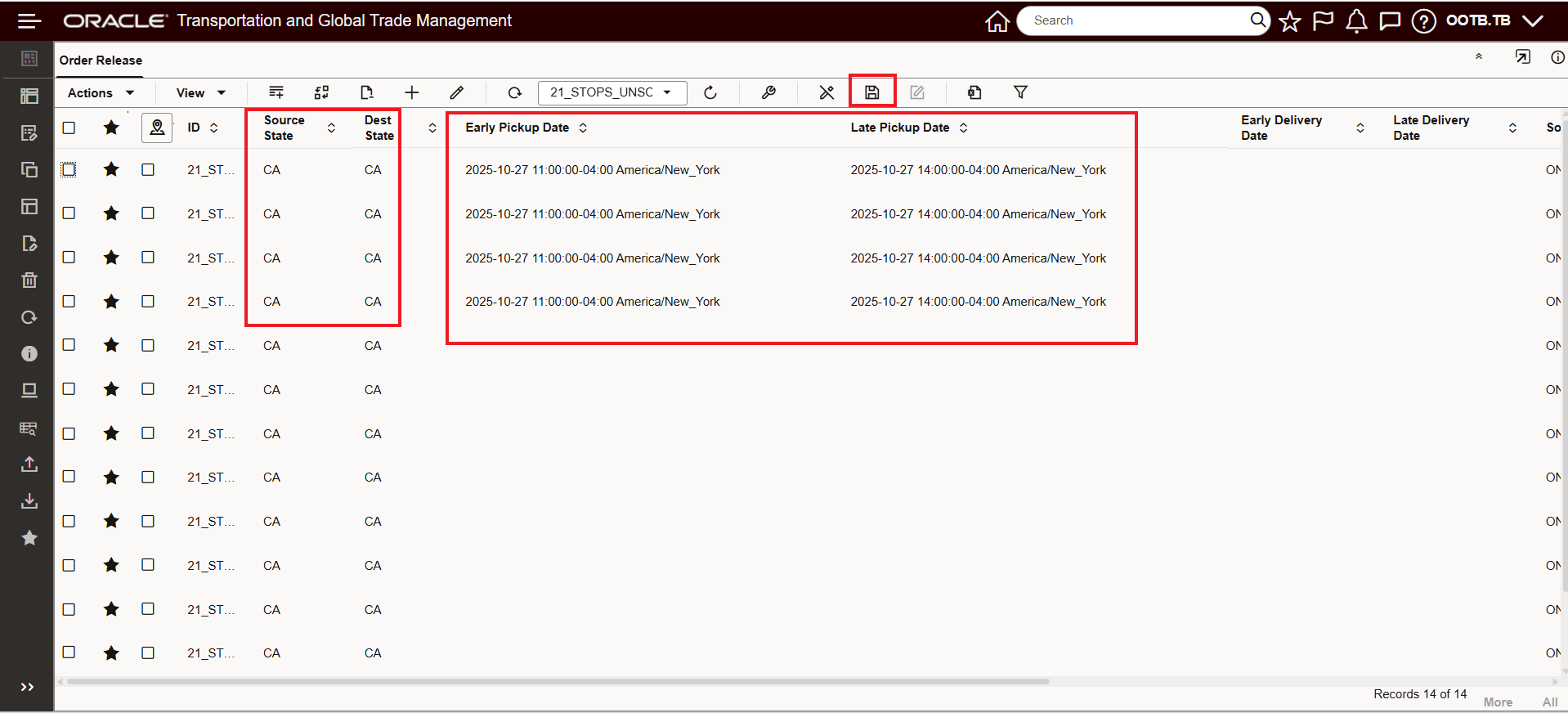
Inline Edit Before Save - User Preference Time Zone Shown
After hitting Save, the Early Pickup and Late Pickup Date fields entered with the America/New_York Time Zone are converted to the California location's America/Los_Angeles Time Zone - as shown below, i.e., times are 3 hours earlier.
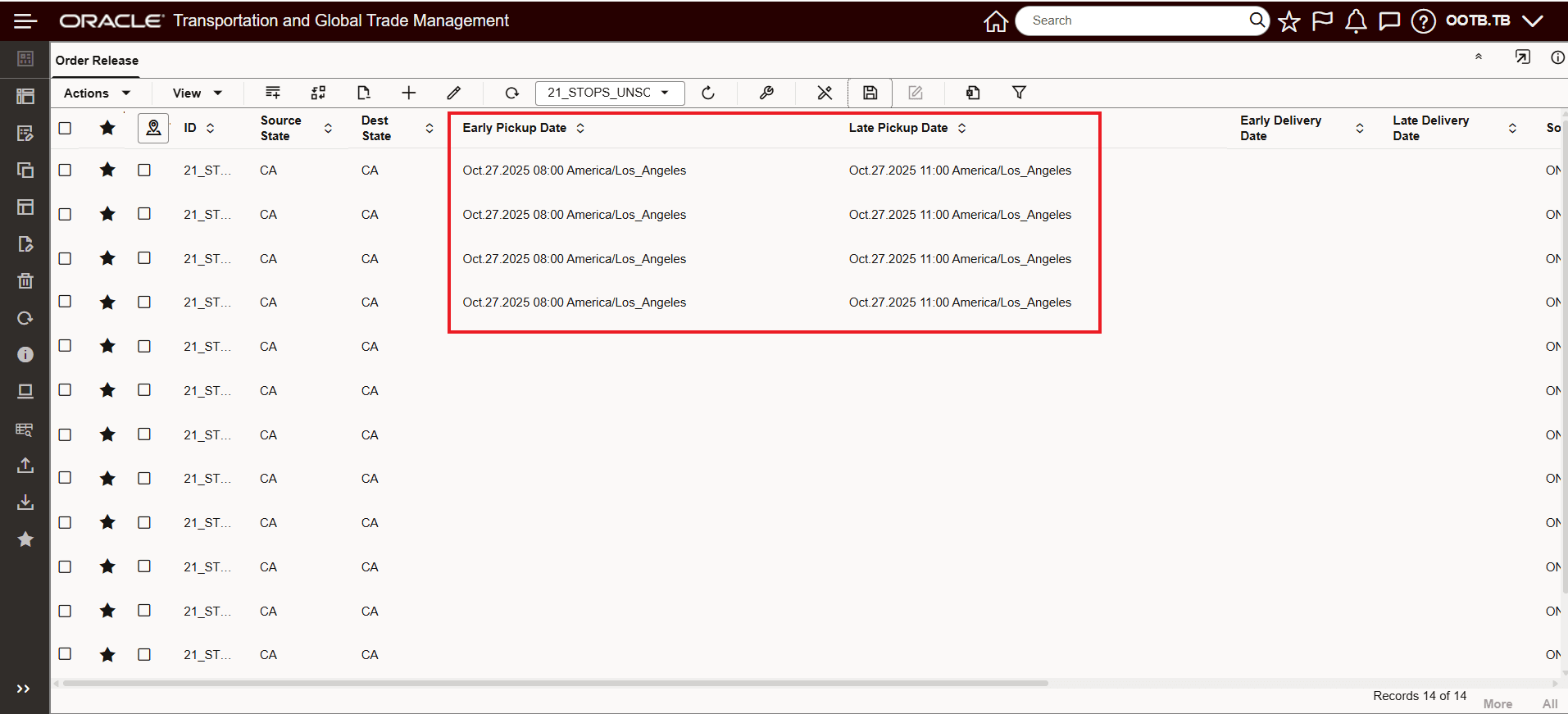
Inline Update - Times Adjusted to Location Time Zone
Note that User Defined Date Attribute Fields for the same object will not be converted as to the location's Time Zone - again as designed, the values entered with the User Preference Time will be the values saved.
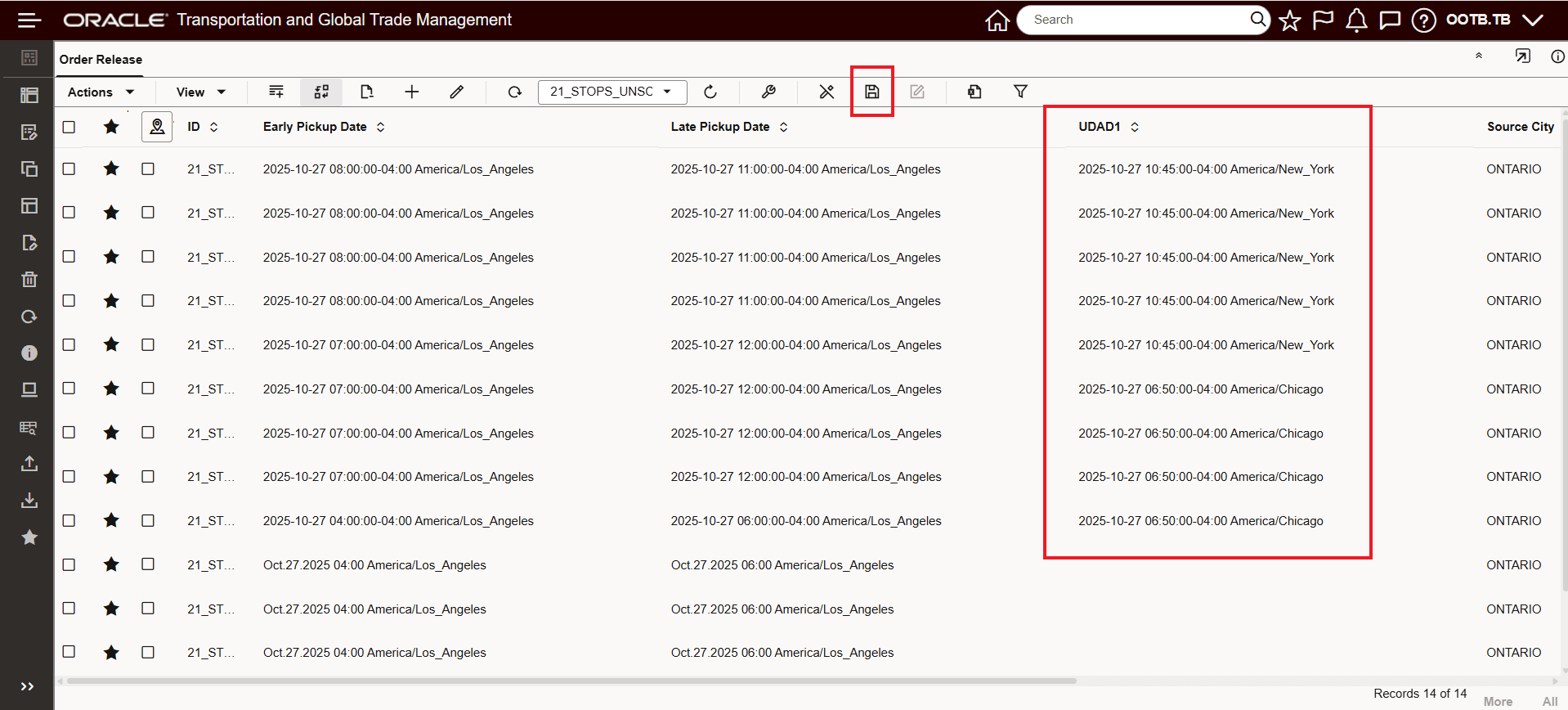
Inline Edit User Defined Date Field
The result of the Inline Edit is below, values and Time Zone entered remain the same as entered above - no Time Zone conversion.
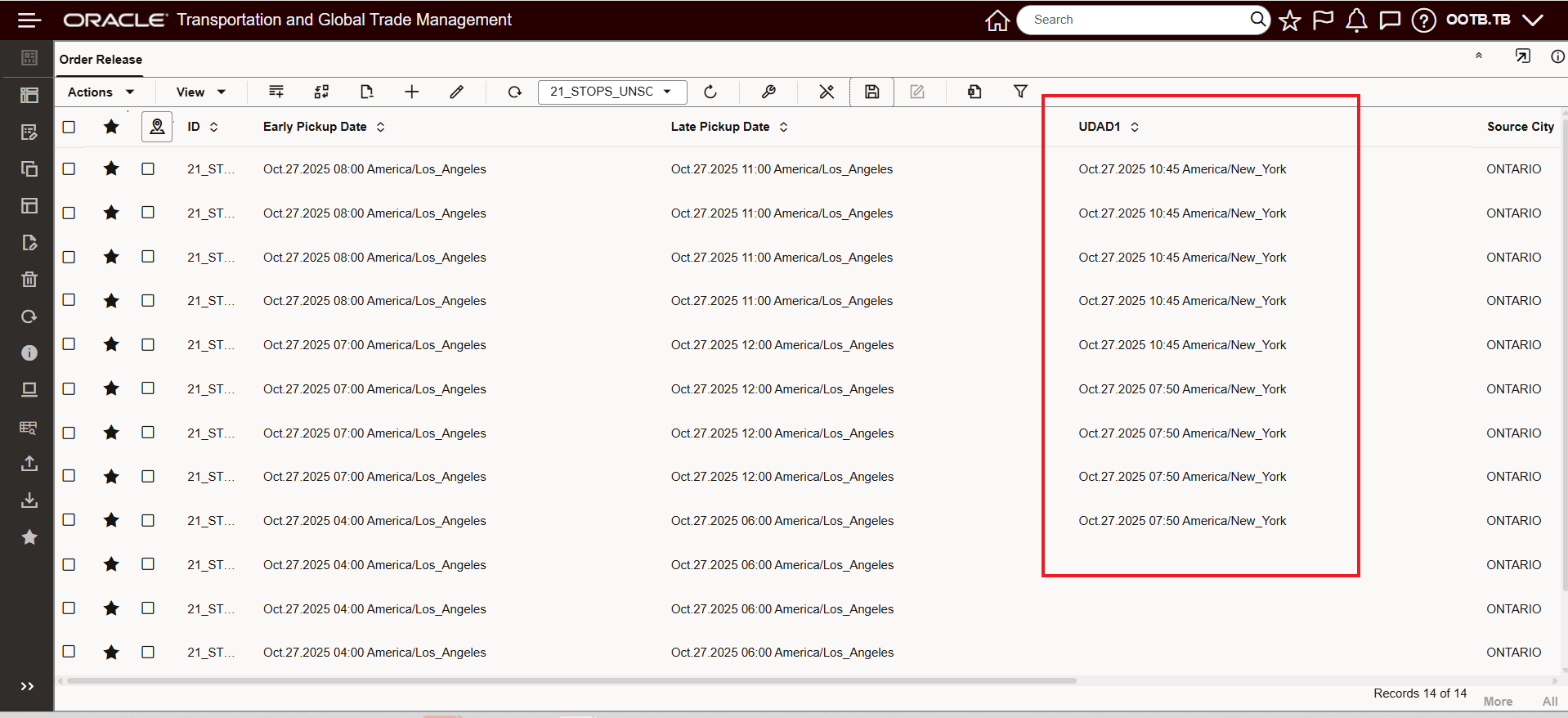
Inline Edit User Defined Date Field Saved Result