Smart Search
This enhancement incorporates Smart Search capabilities into the Enhanced Workbench Tables. Smart Search is an Oracle user experience feature designed to simplify and accelerate information retrieval across all Oracle Cloud applications.
In the example below, the Order Release Screen Set for the Enhanced Workbench Table shown below has been configured to provide the Smart Search capabilities. The Smart Search menu provides you access to all your Saved Searches along with all the Quick Search configured fields on the Screen Set (see the Steps To Enable section). In this example, there are five configured Quick Search fields - Total Gross Weight, Destination Location Name, Source Location Name, Early Pickup Date and Destination City. The highlighted magnifying glass allows you to toggle the Smart Search menu on/off.
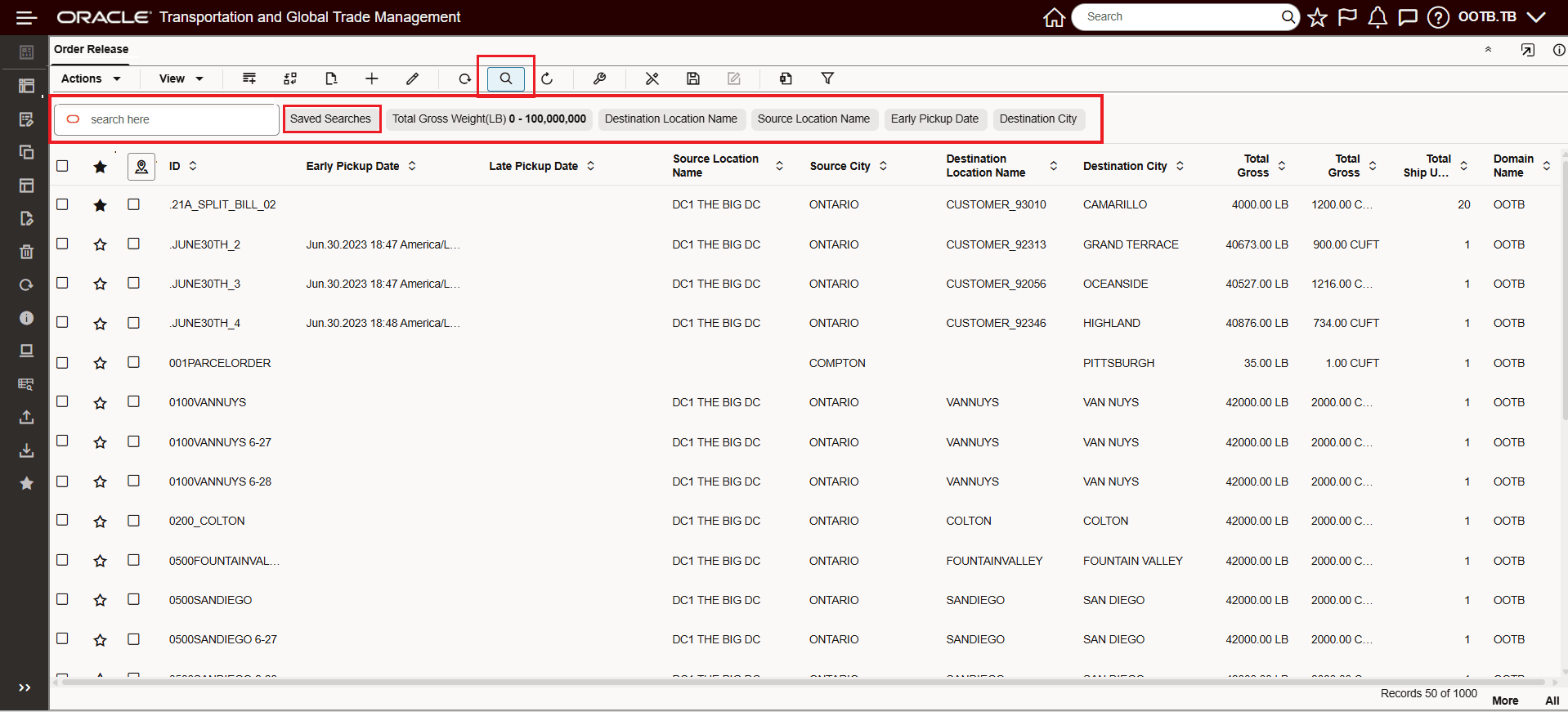
Smart Search
To Show/Hide the Smart Search menu - you will use the Magnifying Glass icon as shown below.
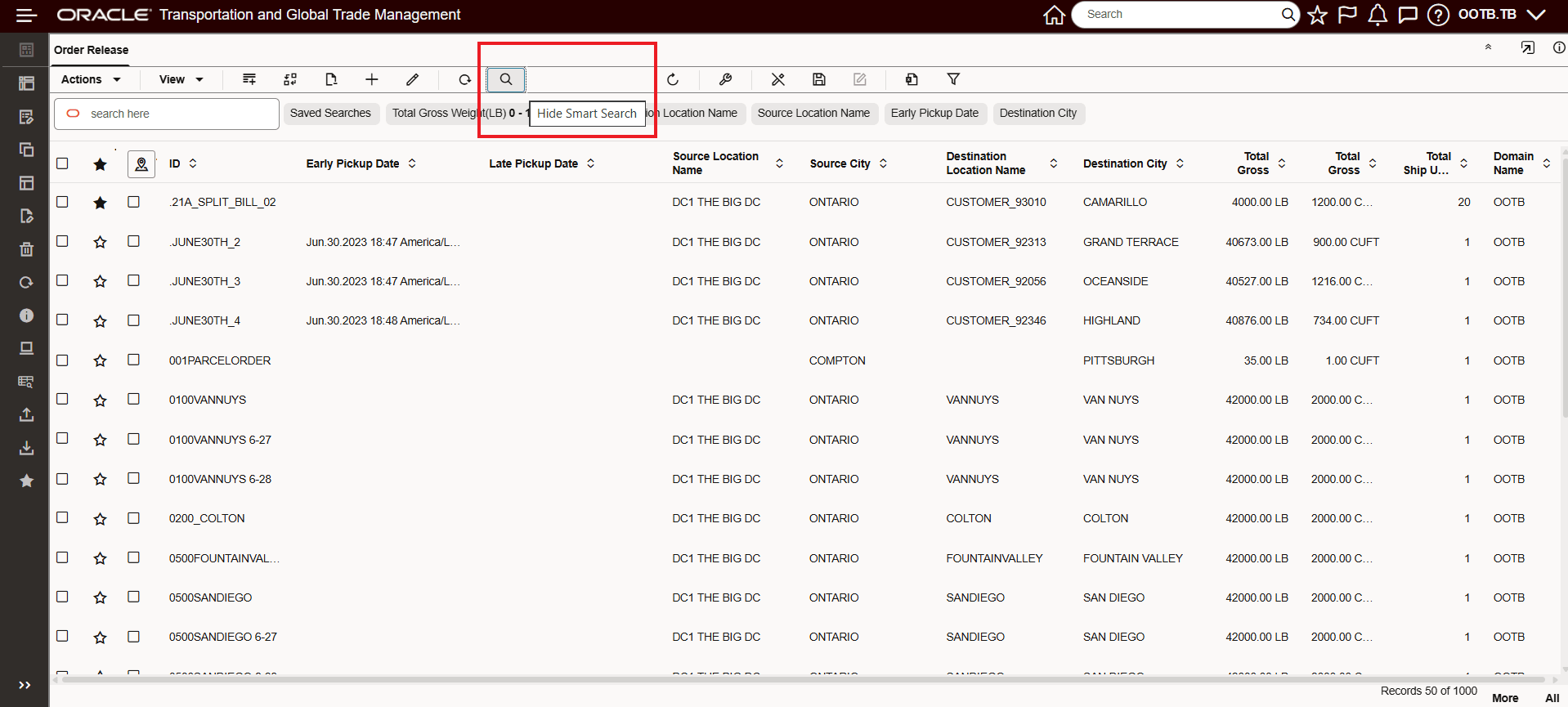
Hide Smart Search
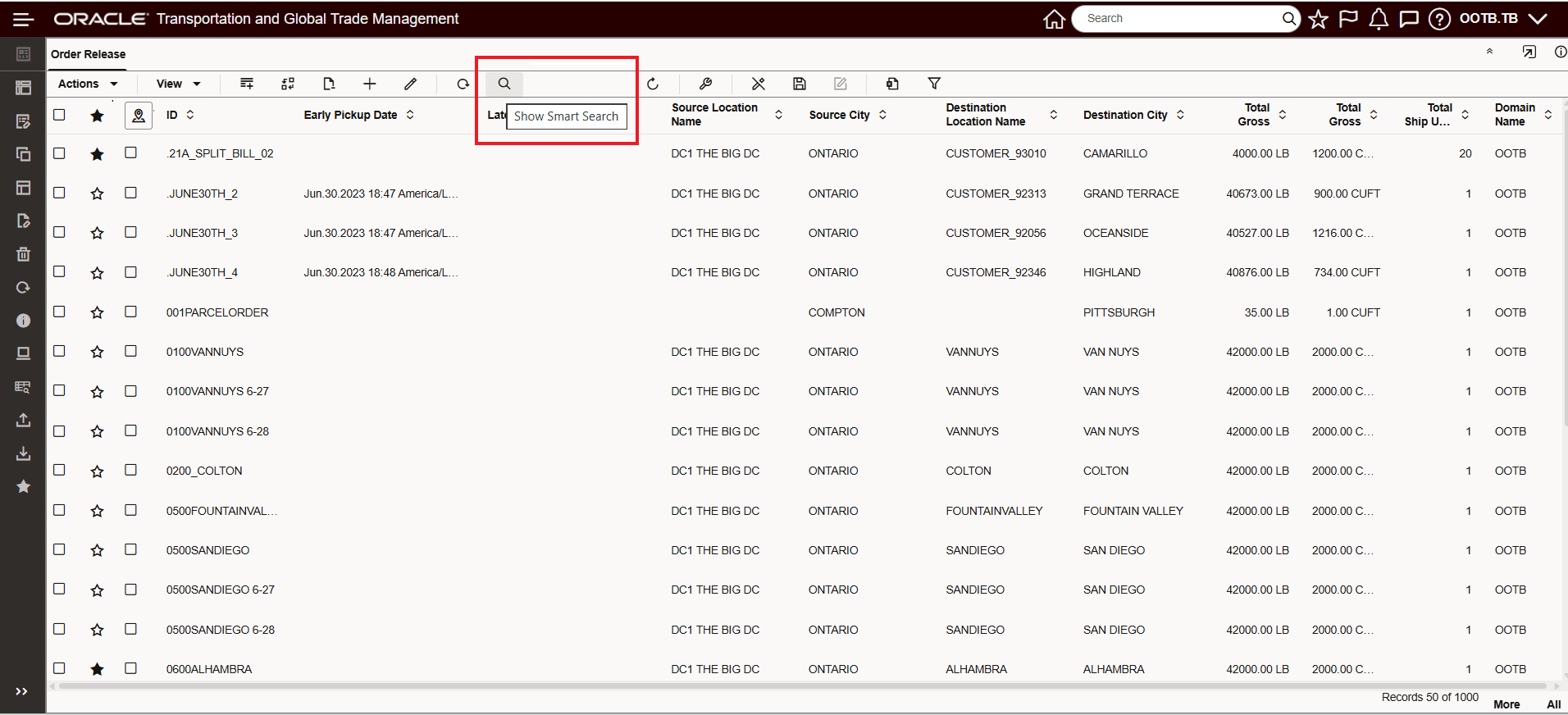
Show Smart Search
The examples below show how the Smart Search can be used to quickly find the information you're looking for.
Use the Smart Search to find all order releases with a pickup date between two dates, in this case between 5/18/2008 and 12/18/2008. The search that is run is between the dates and inclusive of the dates entered. Note that the Date control for the Smart Search is always between two dates.
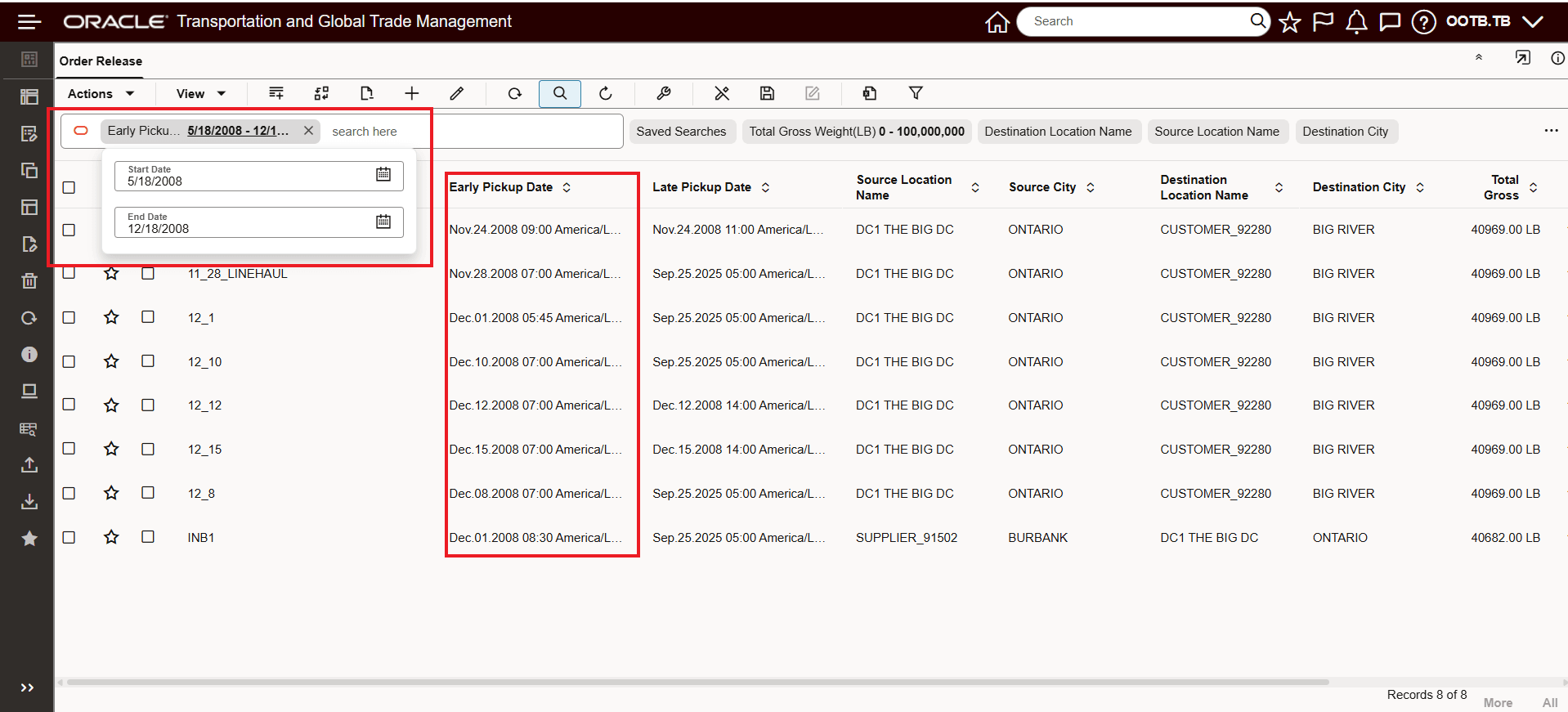
Smart Search - Date Field
Use the Smart Search to find all order releases where the Destination Location Name begins with CUSTOMER.
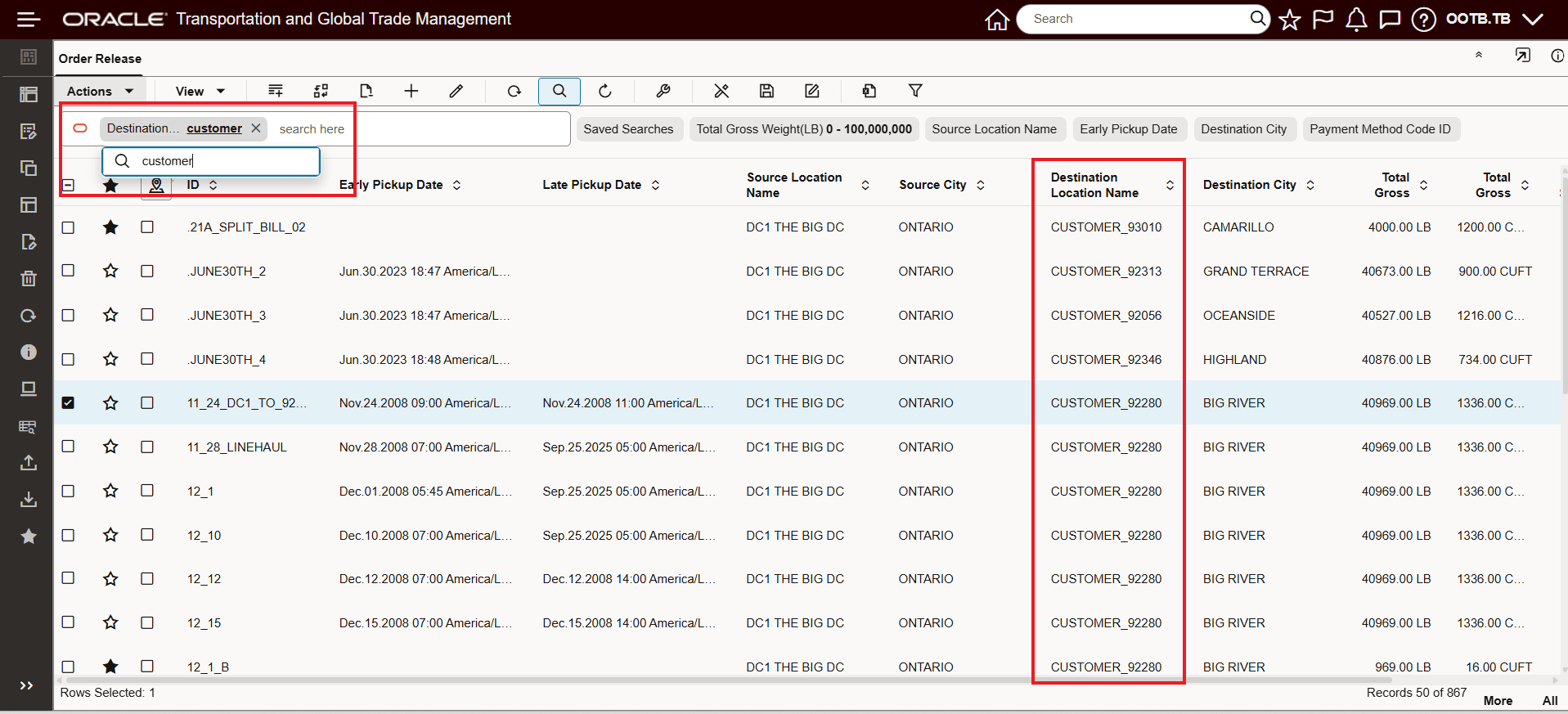
Smart Search - Text Field
In the example below, multiple search fields will be used to find all the order releases that have a Pickup Date between 5/18/2008 and 12/18/2008 and have a Destination City of ONTARIO. The operator between the Smart Search criteria, is - as expected, an "AND" operator.
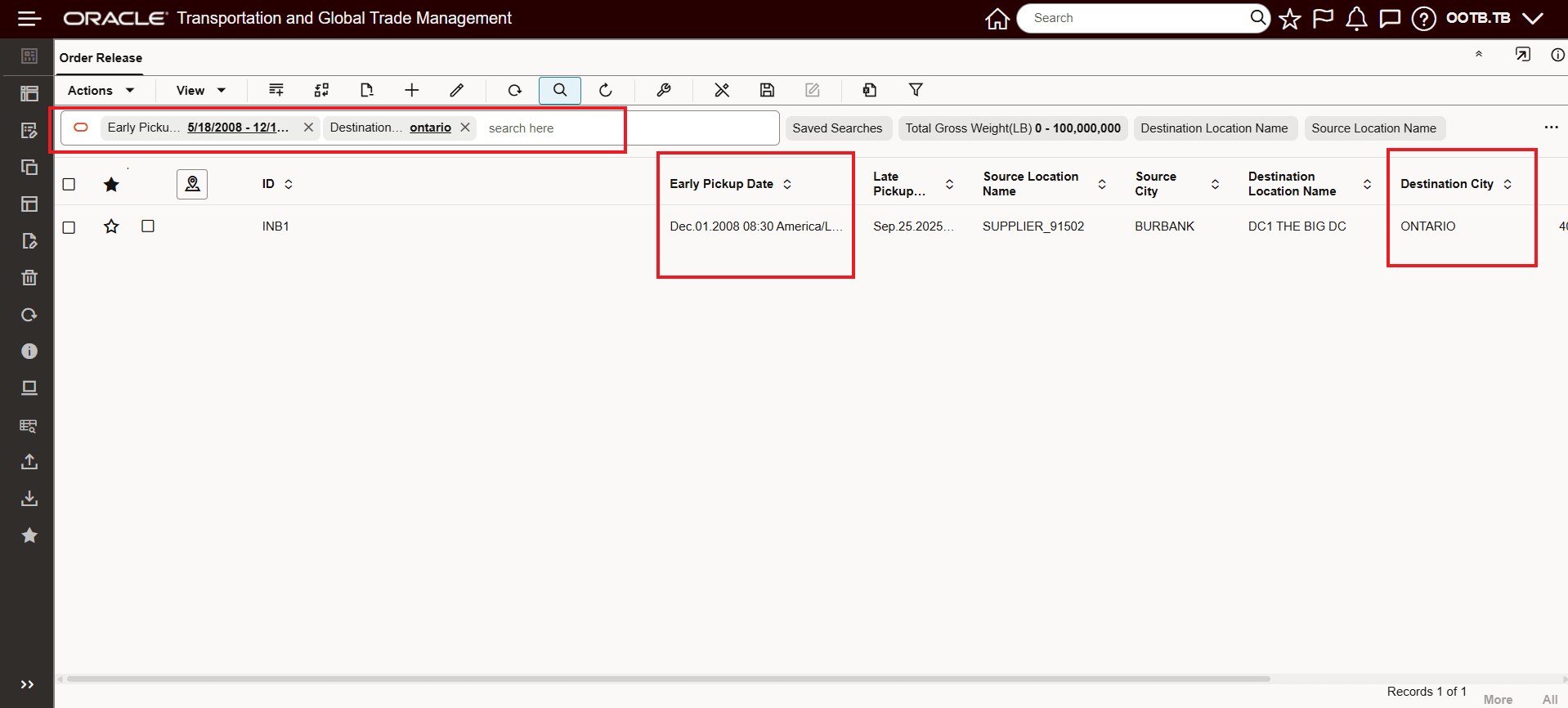
Smart Search - Date Field AND Text Field
In the example below, using the "Buy Shipment Enhanced Workbench" provided as part of the "Try the new Redwood Experience" - the default setup for the Quick Search fields provided with the Smart Search, will be all the fields defined on the first tab of the Screen Set - if no Quick Search Fields are configured in the Screen Set. Note that the "..." provides access to the additional fields that do not fit on the Smart Search menu.
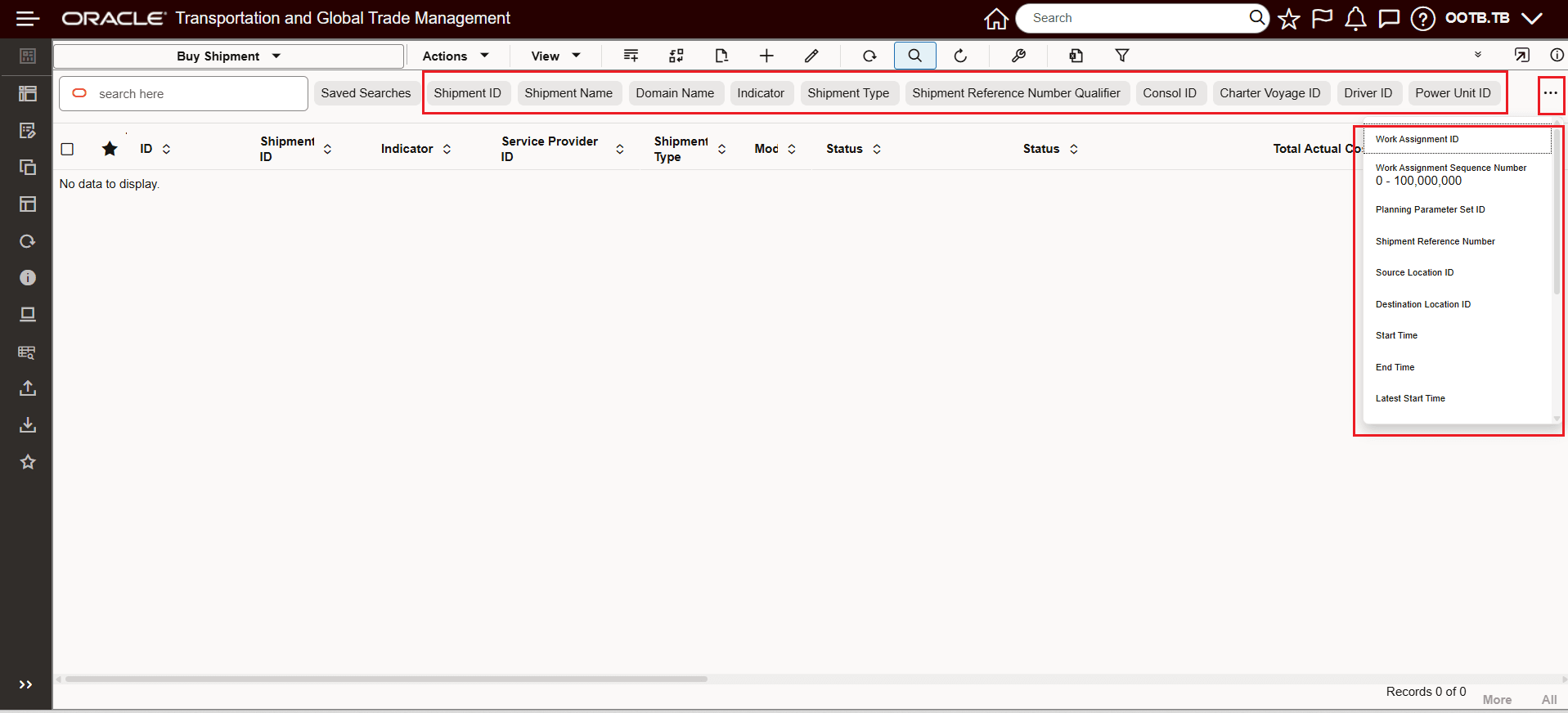
Smart Search - Quick Search Fields - Default List First Tab Of Screen Set Finder
Business Benefit: The Smart Search provides a consistent and simplified search experience across all Oracle Cloud applications. These capabilities streamline business processes, improve productivity, and help you find and act on information faster.
Steps to enable and configure
To take advantage of the Smart Search capabilities you will need to do the following:
- You will need to create or modify an Enhanced Workbench Table with the Population Method set to "Smart Search". As shown below.
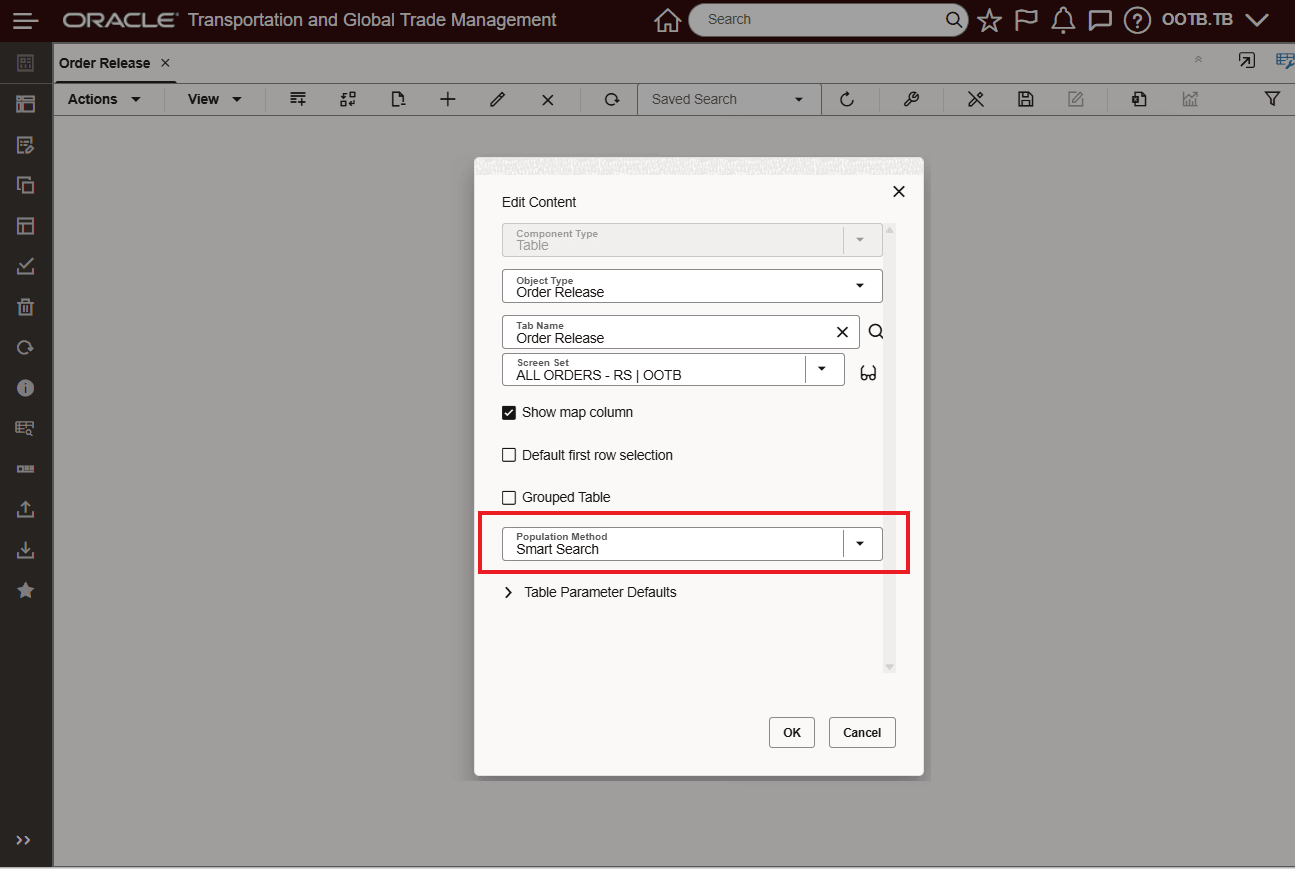
Smart Search - Table Population Method Set To "Smart Search"
- You will also need to configure the set of Quick Search fields you want to include in the Smart Search. This is accomplished by editing the table's related Screen Set. For the table's Screen Set, navigate to Configuration and Administration > User Configuration > Screen Set Manager, edit, and go to the Search tab. On the Search tab you will need to either edit the fields you want to include as Quick Search fields or Add and configure the fields so they are included in the Smart Search. The example below shows the Destination City configured to be a Quick Search field that will be included in the Smart Search. Note that the Default Operator configured here will be the Operator used by the Smart Search for the Quick Search Field - in this case "Begins With".
- Note - If you do not configure any Quick Search fields on the Screen Set, then all the fields on the first search tab of finder set will be considered as Smart Search criteria.
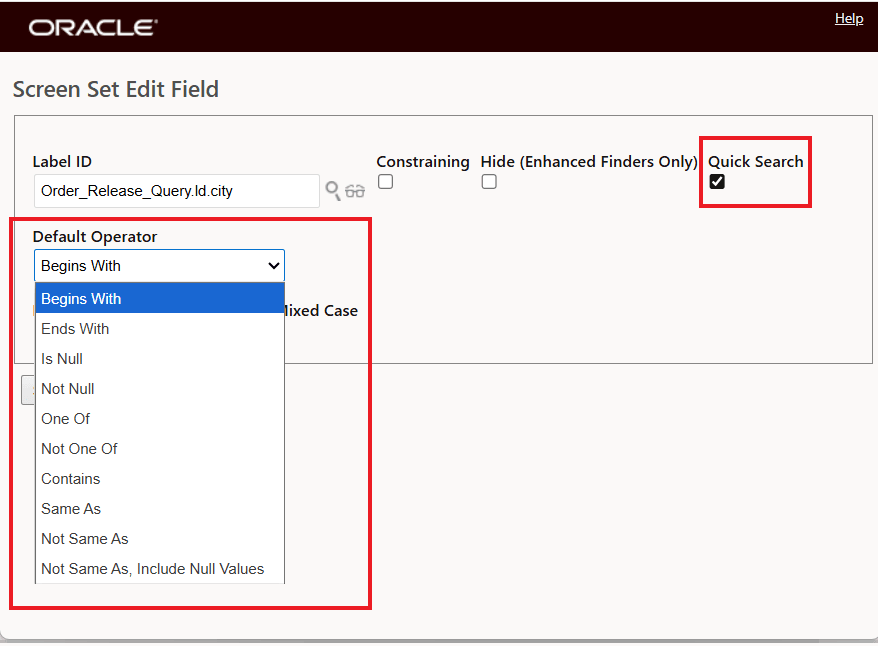
Quick Search Field Configuration for Inclusion in Smart Search - Destination City
The different options available for Search Criteria are provided below, by field type.
Search Criteria By Field Type
|
Field Type |
Operators Supported |
Note |
|
Text Pseudo Field |
starts-with (default) |
Operators can be defined in screen set search field. |
|
Picklist |
starts-with (default) |
Operators can be defined in screen set search field. |
|
Droplist |
same |
|
|
UOM |
between (inclusive) |
Operators can be defined on screen set search field. Can be changed on smart search page. |
|
Currency |
between (inclusive) |
Operators can be defined on screen set search field. Can be changed on smart search page. |
|
Fixed DropList |
same |
|
|
Date |
between (inclusive) |
With the Tables Population Method set to "Smart Search" and with all the desired Quick Search fields configured, the table will now include the Smart Search option in the Enhanced Workbench. The Smart Search will provide access to the configured Quick Search fields and the Quick Search will also include the Saved Searches field. In addition, a new icon will be displayed on the Table menu, the Icon will allow you to toggle on/off the Smart Search.
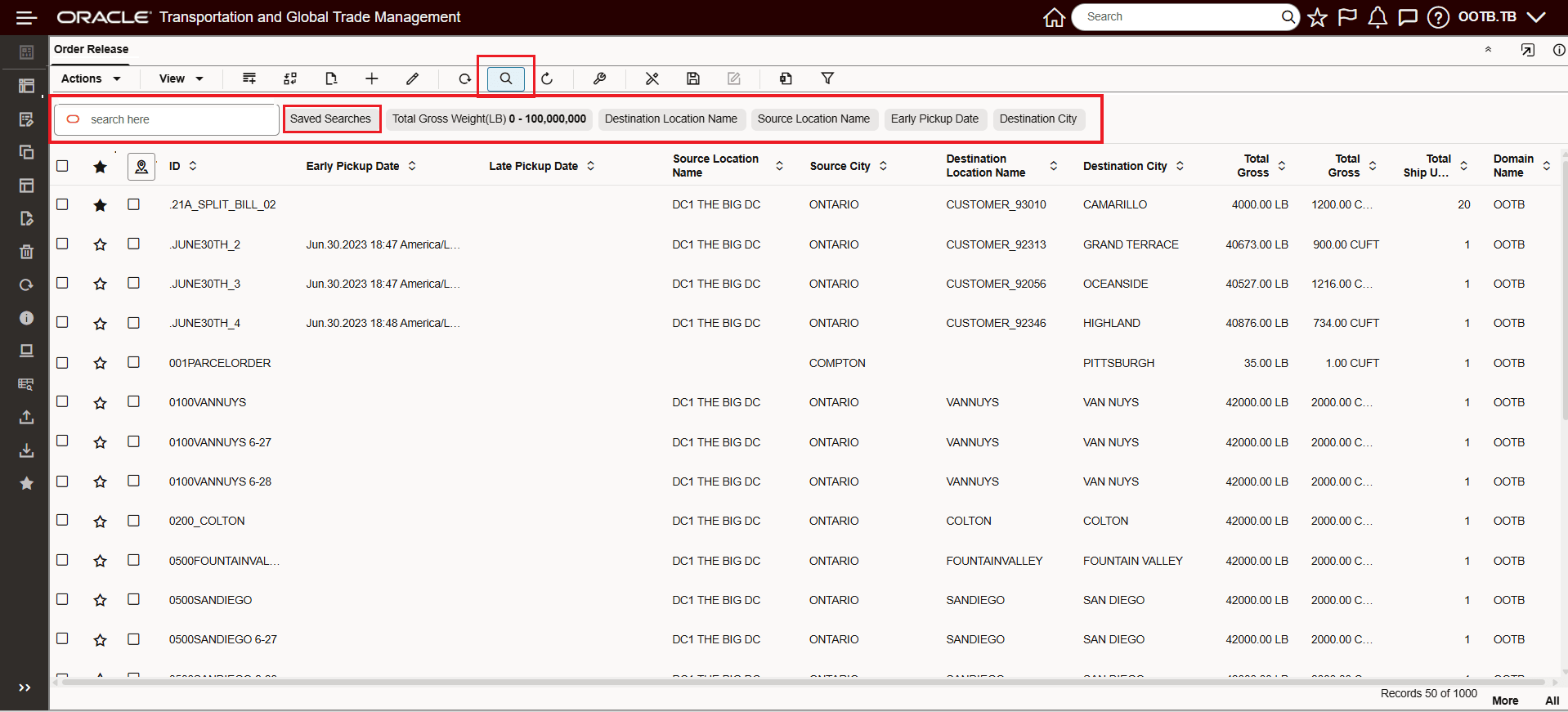
Smart Search Configured
Tips and considerations
Smart Search only supports either a Saved Search or a Quick Search field(s) search, you cannot combine the Quick Search field(s) search with a Saved Searches query. When a Smart Search is attempted that includes both a Saved Search and a Quick Search field, the warning message below is displayed.
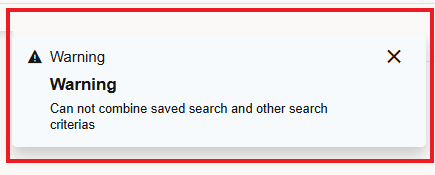
Saved Searches and Quick Search Field Smart Search Warning Message
Derived Fields – will not be quick search enabled.
Five new PUBLIC workbench layouts have been added to demonstrate the Smart Search capabilities. These new PUBLIC Enhanced Workbenches are available as part of the Try the New Redwood Experience.
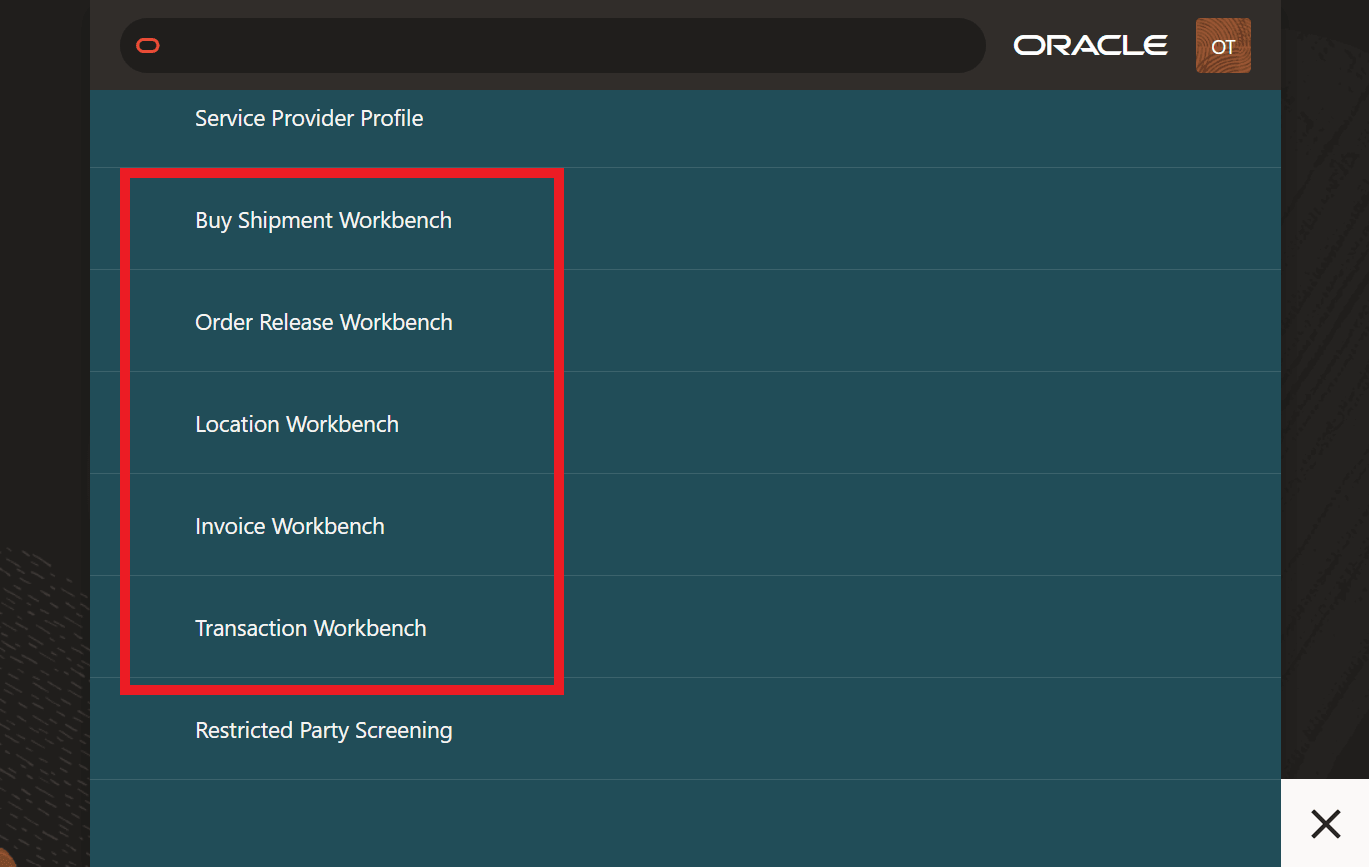
Smart Search Single Table Workbenches