AI Agent: Wave Research Advisor
The Wave Research Advisor AI Agent is an intelligent, automated solution designed to simplify and enhance your review of warehouse wave runs. By analyzing data from wave logs, metrics, and related entities, the agent delivers immediate, consolidated insights without requiring users to navigate multiple screens or pages.
Using a workflow format, the Wave Research Advisor Agent empowers warehouse supervisors and outbound managers to more efficiently monitor wave performance, quickly identify and address issues, and focus on optimizing operations.
Here's a snapshot of the Wave Research Advisor Agent's capabilities:
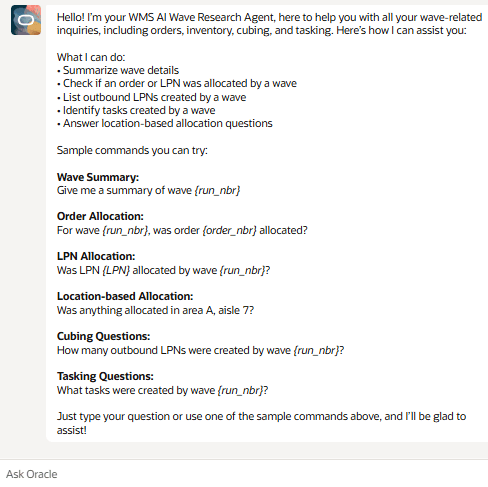
Wave Research Advisor Agent
To implement this AI Agent, we have introduced the following in Redwood:
- A new app configuration “AI-AGENT-STUDIO” on the SAAS App Configuration (SaasAppConfigView) UI to connect with Fusion AI Agent Studio.
- A new UI screen AI Agent Configuration (AiAgentConfigView) to add AI Agents.
- A new action button AI Agents on the Groups UI to assign AI Agents to a group.
- New Agent Code Parameter parameter which allows you to configure launching agents from the Wave Inquiry screen.
- A new elipses button “Ask” on the Redwood UI and Redwood Mobile to launch AI Agents.
Before you use the AI Agent, you have to complete the key configurations mentioned below in Steps to Enable and Configure. Once you complete all configurations, you can launch the AI Agent and use prompts to perform specific tasks.
KEY SCREEN PARAMETERS – WAVE INQUIRY UI
Wave Research Advisor Parameter
You can also launch the agent directly from the Wave Inquiry UI in Redwood which will allow you to easily pull in wave information when you are working with the agent.
- From Screens -> Screen Parameters, assign the agent code Parameter Value (Wave Research Advisor) for the ai-agent-code parameter. Then assign the Parameter Value Wave Summary {run_nbr} to the ai-agent-selected-row-question parameter.
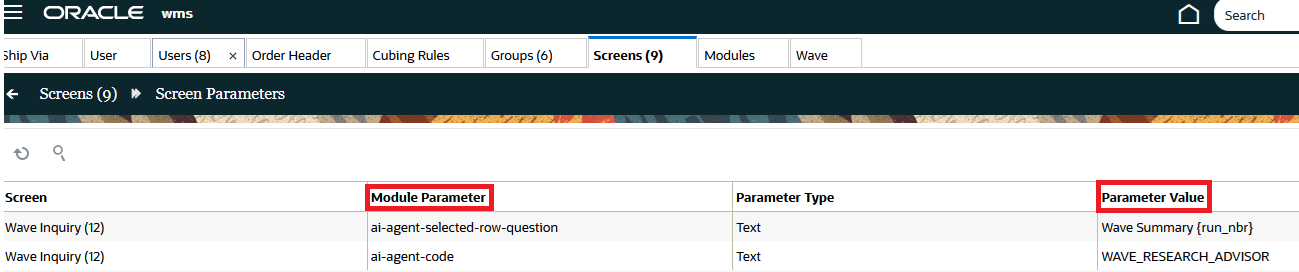
Screen Parameter Value
- From the Redwood Groups UI, select a group for which you want to assign the AI Agent.
- Click More Actions (elipses button to the right of the Refresh button) (…), then AI Agents action button.
- On the AI Agents screen, click Create.
- To assign an AI Agent to the selected group, select an AI Agent from the drop-down list.
- Click Save.
- You’ll then be able to launch the Wave Research Advisor agent via “Ask Oracle.” From the Wave Inquiry UI.
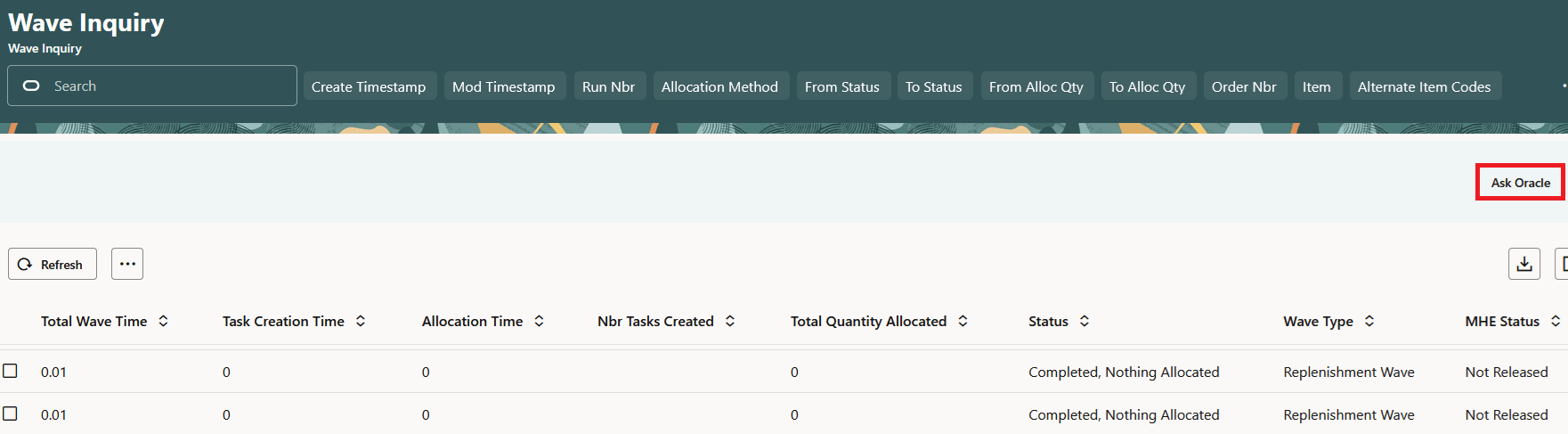
Launch Agent from Wave Inquiry UI
AI Agent Selected Row Question Parameter
A new screen parameter, ai-agent-selected-row-question, is available on the Wave Inquiry UI. This parameter allows users (or admins) to define a default question template containing a placeholder ({{{} {run_nbr}{}}} or similar) which will then populate the AI Agent Chat window.
If the user selects exactly one row and the ai-agent-selected-row-question parameter is populated:
- The system substitutes the selected row's field inside the brackets. (e.g., {run_nbr}
- The resulting question is automatically sent as the initial message to the AI agent when the chat opens.
- If the placeholder does not match any available field, the literal template string is sent as the initial chat message (e.g., "Wave summary {wave_nbr}").
For example:
The following is an example of two selected rows with the Wave Summary run number and Task creation run number:
Summary {run_nbr}
Task created {run_nbr}
SELECT AI AGENT
Once you have your agent configured, you have the option to switch to a different agent from inside the agent chat window.
To switch to a different agent, click the Select AI Agent button.

Select AI Agent
Here are some sample prompts/questions that could be useful when interacting with the Wave Research Advisor agent:
| Category | Sample Prompt/Question | Example Answers |
|---|---|---|
| Orders |
|
|
|
Orders |
|
|
|
Orders |
|
|
| Location based queries |
|
|
Steps to enable and configure
KEY CONFIGURATIONS
To connect with the Fusion AI Agent Studio app, do the following:
- On the SAAS App Configuration UI, click Create.
- From the App Name drop-down list, select AI-AGENT-STUDIO.
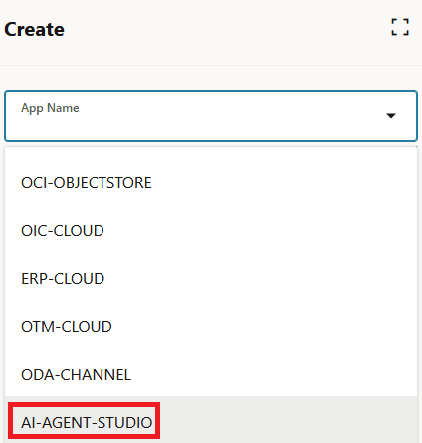
SaaS App Configuration
- Enter the following mandatory fields detailed in the table below:
Refer to the following table for each parameter’s meaning and the format required.
NOTE: Prerequisite – make sure FA IDCS Oauth2 with grant-type JWT confidential app is configured.
| Field Name | Description | Details |
|---|---|---|
| Base URL | FA AI Studio Base URL |
Fusion base URL where AI Studio is hosted. https://xxx.fa.us6.oraclecloud.com |
| App parm3 | IDCS Token URL |
https://idcs-xxx.identity.oraclecloud.com:443/oauth2/v1/token |
| App parm4 | Client id of the WMS confidential app in FA IDCS |
Enter the Client ID. In your OCI Instance follow the path “Identity and Security” --> Domains --> select the domain that hosts the OIC instance. From the Domains screen, click “Oracle Cloud Services” tab. Search or browse to your OIC application, click to open. |
| App parm8 |
Private Key for the WMS confidential app in FA IDCS |
A valid RSA private key. This is used to sign the access token request. NOTE: App parm8 is encrypted in the database and not displayed in the grid view (but it is editable). |
| App parm9 | Public x509 cert |
corresponding to private key entered in parm8 field |
NOTE: SaaS App configurations can be created for Facility * (one AI Agent configuration per company).
- Click Save.
To add the Wave Research Advisor AI Agent to the list of available AI Agents, do the following:
- Once you’ve added the AI Agent Configuration UI from Modules, you’ll be able to access it from Redwood Desktop -> Configuration Tab or -> searching from Ask Oracle.
- From the AI Agent Configuration UI, click Create.
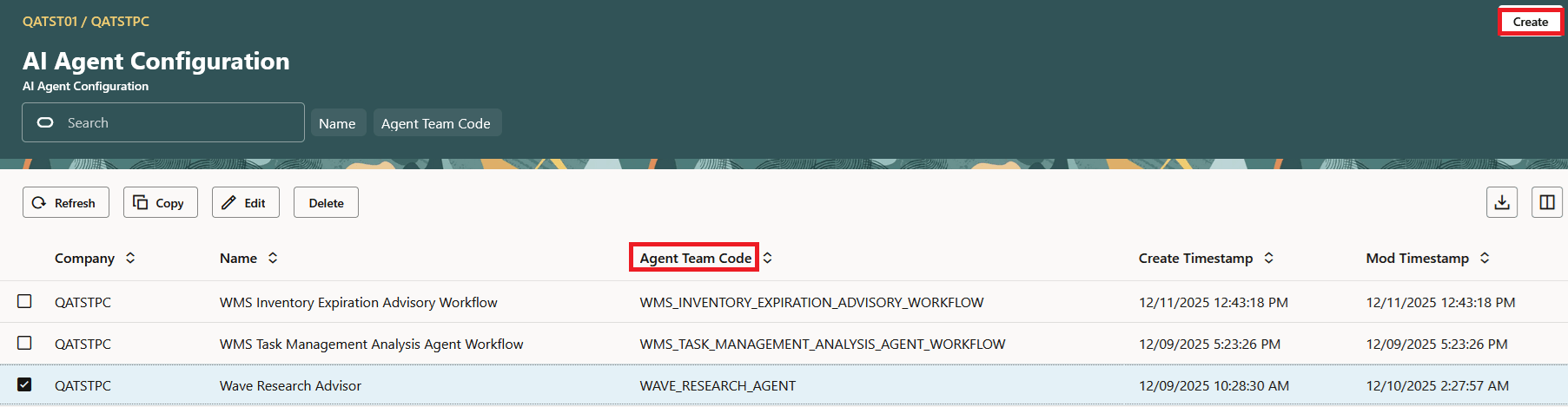
AI Agent Configuration UI
- Enter your AI Agent Name and Agent Team Code.
NOTE: Agent Team Code must be unique to the company and match the agent team code in Fusion AI Agent Studio.
- Click Save.
REQUIRED CONFIGURATION VIA GROUPS
Additionally, you need to assign access to agents by assigning them to Groups. To add an AI Agent to a group, do the following:
- From the Redwood Groups UI, select a group for which you want to assign the AI Agent.
- Click More Actions (elipses button to the right of the Refresh button) (…), then AI Agents action button.
- On the AI Agents screen, click Create.
- To assign an AI Agent to the selected group, select an AI Agent from the drop-down list.
- Click Save.
To access the Wave Research Advisor AI Agent after it is configured:
- From the User drop-down, select Try the New Redwood Experience.
- Hover your cursor over the Ask Oracle button, and an elipses slide-out button will appear. Click the elipses button.

Elipses Ask Button
NOTE: If only one AI Agent is configured, the system launches the configured AI Agent. From Redwood Mobile, you can click the Ask button to launch the AI Agent pane.
- From the list, select the Inventory Expiration Assistant AI agent and enter a prompt to get started.
NOTE: For information on using AI Agent Studio, see How do I use AI Agent Studio?