 Introduce Item-Specific Intraclass UOM Conversions
Supporting more granular and accurate UOM conversions within the same class at the item level, we are introducing Item-Level Intraclass UOM conversions to allow each SKU to define its own conversion factors within the same UOM class. This expands the existing Item Specific UOM Conversion framework so warehouses can manage SKU-specific UOM variations more accurately. This enhancement allows Intraclass UOM Conversion to be used in Input interfaces, APIs, Output Interfaces, Mobile transactions, and other quantity computation logics where the intraclass UOM Conversion takes priority over global conversions.
The intraclass UOM conversion capability expands how Oracle WMS Cloud handles item-specific quantity conversions for UOMs that belong to the same class. Prior to 26A, the system could only compute quantities using global interclass rules. This sometimes led to more manual workarounds to maintain inventory accuracy and tracking if a single UOM has multiple item specific definitions.
This enhancement supports more precise inventory tracking and efficient operations.
NOTE: Intraclass conversion is evaluated first, before any global conversion. When no intraclass rule exists, the system falls back to global conversion.
INTRACLASS CONVERSION LOGIC
Intra-class UOM conversion allows inventory to be converted between unit of measures within the same UOM class. On the Item specific UOM conversion Redwood UI, users by default see the standard mode where inter-class fields can be defined. To define an intra-class conversion, users must toggle to Intraclass UOM mode, which enables the intra-class conversion specific fields.
In this mode, the user specifies the Item, Target UOM, and the Conversion Factor. The system automatically derives the conversion definition based on the item’s Primary UOM + Target UOM combination. Each combination is unique — only one record can exist for a given item Target UOM and Primary UOM combination, ensuring consistent and conflict-free conversion logic.
NOTE: After setup, the conversion is applied automatically during Inbound / Outbound and Inventory Operations.
Conversion Logic: 1 Target UOM = Conversion Factor x Primary UOM
When the user opens the Item Specific Conversion screen, the system defaults to Inter-class mode. In this state, all intraclass-specific fields are disabled, and only standard inter-class fields are active.
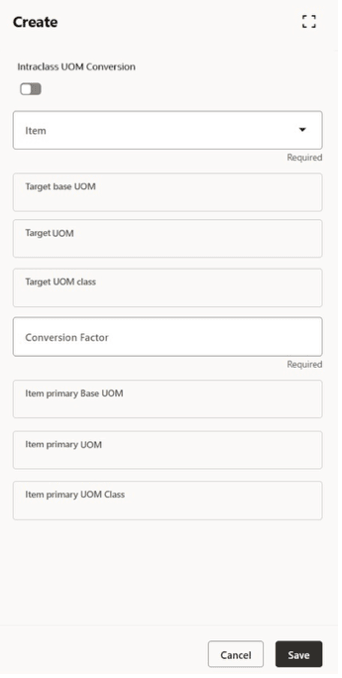
InterClass Toggle Mode
When the user switches the toggle to Intraclass UOM Conversion, the form transitions to intraclass mode. The system auto-populates the item’s Primary UOM and Primary UOM Class based on the Item selection. A user must then enter the Target UOM and Conversion Factor, based on the conversion formula: 1 Target UOM = Conversion Factor × Primary UOM.
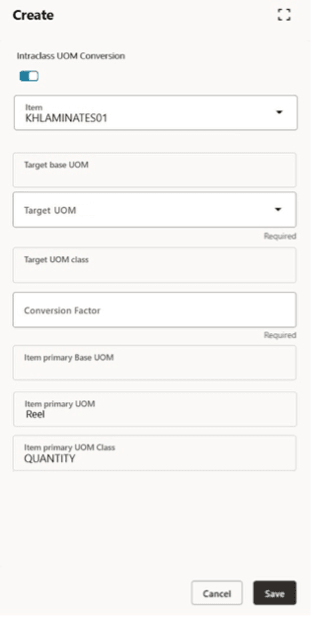
Toggle to Intraclass UOM Conversion
Only one conversion record can exist per Item + Primary UOM + Target UOM combination, ensuring uniqueness and preventing duplicate or conflicting intraclass conversion definitions for a single item.
IMPORTANT NOTE: The intraclass UOM conversion is to provide more granular flexibility in case multiple definitions of the same UOM exists. However, the inventory tracking will always be done in terms on Primary UOM of an item.
WHERE THE ITEM SPECIFIC INTRACLASS UOM IS SUPPORTED?
Item-specific Intraclass UOM is supported only for UOMs that are not defined as a Pack / Case UOM of an item. Hence, intraclass conversion is not applicable for Infer UOM if the Item Barcode UI is configured with a Pack or Case UOM of an item.
In legacy screens, intraclass records appear in read-only mode. They cannot be created, copied, or edited there. However, you can delete the records. Creation and Editing of Intraclass UOM records is fully exclusive to Redwood UI, and it is recommended all maintenance should be done through the new Redwood Item Specific UOM Conversion View screen.
VALIDATIONS INCLUDED IN INTRACLASS LOGIC
The system enforces strict validations to maintain data consistency:
-
Intraclass does not support Pack or Case UOM of an Item.
-
Intraclass is exclusive to Redwood UI; in legacy screens, it is read-only.
-
If a UOM is part of intraclass definitions, it cannot be assigned as Pack or Case.
-
If intraclass exists for an item, you cannot change the primary UOM.
-
In case of Infer UOM, Intraclass definition applies only when the UOM comes from an Item Barcode that is not a Pack / Case UOM of that Item.
ITEM MASTER AND INTERFACE IMPACTS
Intraclass conversion is maintained exclusively in the Redwood Item Specific UOM Conversion UI.
Restrictions
-
Prevent Pack/Case UOM if Intraclass Exists
If a UOM already has item specific intraclass rules defined, the system prevents you from assigning it as Pack or Case.
Error: “%uom used in Item specific conversion, cannot be used as package UOM.” -
Prevent Primary UOM Change
If item specific intraclass rule is defined for an item, the primary UOM of the item cannot be updated.
Error: “Item in use. Cannot change primary UOM for item %s”
Interface behavior mirrors the UI behavior. Stage table records fail with the same errors when UOMs or updates are attempted through the Item interface.
These validations ensure correct item configuration and prevent conflicts in warehouse operations.
NOTE: If Item Facility UOM is configured for an item, the system considers the Item Facility setup first. In this case, all UOM records are displayed under the Item Facility level.
The conversion between Item Primary and Item Facility currently happens using the Global UOM Conversion. However, if there is an Intra-class UOM Conversion defined between an Item Primary and an Item Facility UOM, that conversion takes precedence while displaying quantities in the item facility UOM. The system prioritizes the Item Intra-class conversion over the global one, even though all values continue to be shown at the Item Facility level.
INTRACLASS UOM CONVERSION IMPACTS
Intraclass UOM conversion enhances inventory accuracy and operational efficiency by enabling representation of supplier-specific packaging, thereby reducing downstream inconsistencies.
IMPACT ON INPUT INTERFACE
Prior to 26A, when ASN, PO, Planned Load, Order, Work Order, or Movement Request is created in WMS, the system converts the interfaced UOM to the Item’s Primary UOM using the global conversion factor.
With this enhancement, if an intraclass conversion is defined between the item Primary UOM and the interfaced UOM, the system should use the intraclass UOM conversion instead of the global one.
So, during interface processing:
-
The system checks if a conversion is defined between the Primary UOM and the interfaced UOM.
-
If it exists, intraclass conversion is applied.
-
If not, the system uses standard/global UOM conversion.
Example: IB Shipment / Purchase Order
Intraclass conversion for SKU01:
| SKU | Primary UOM | Target UOM | Conversion Factor | Comments |
|---|---|---|---|---|
| SKU01 | Each | Box | 24 | 1 Box Equals to 24 Each |
User interfaces ASN01 with 5 Boxes.
Primary UOM = Each.
Global conversion = 1 Box = 12 Each.
Since intraclass exists: 5 × 24 = 120 Each
| ASN | Shipped / PO Quantity | UOM | SKU |
|---|---|---|---|
| ASN01 | 120 (24 x 5) | Each | SKU01 |
If intraclass was not defined, qty would be 60 (12 × 5).
Example: Sales Order
Intraclass conversion for SKU01:
| SKU | Primary UOM | Target UOM | Conversion Factor | Comments |
|---|---|---|---|---|
| SKU01 | Pieces | Barrel | 300 | 1 Barrel equals to 300 Each |
User interfaces ORD01 with 5 Barrels.
Primary UOM = Each.
Global conversion = 1 Barrel = 200 Each.
Since intraclass exists: 5 × 300 = 1500 Each
| ORD | Ordered qty | UOM | SKU |
|---|---|---|---|
|
ORD01 |
1500 (300 × 5) |
Pieces |
SKU01 |
If intraclass was not defined, the quantity would be 1000 (200 × 5).
APIs THAT SUPPORT INTRACLASS UOMS
APIs may receive quantities in different units of measure depending on how suppliers or systems send data. To ensure accurate inventory updates, the system will now look for item-specific intraclass UOM conversions when processing these API inputs. If a conversion is defined, the system will convert the interfaced UOM to the item’s Primary UOM automatically.
This enhancement ensures that quantity calculations in APIs remain accurate even when the same UOM represents different quantities for different items.
This applies to the following documents received through APIs:
- Purchase order
- Sales Order
- Movement Request
- Planned Load
- Manufacturing API
- Receive LPN: The system now checks for item-specific intraclass UOM conversion rules during receiving LPN via API.
- Cycle Count: The From MHE Cycle Count Info API now considers item-specific intraclass UOM conversions to calculate the counted quantities.
IMPACTS ON OUTPUT INTERFACE
In the Outbound Interface, we now convert the quantities in terms of the interfaced UOM from Primary UOM using Intraclass UOM conversion. This allows the external host to view the quantities in terms of the interfaced UOMs.
This is applicable to all formats of the following interfaces:
- Inbound Shipment Verifications Export
- Container Outbound Load Export (LLS)
- Order Outbound Load Export (PLS)
- Outbound Loads Export (SLS)
- OBLPN Shipping Info (OLI)
- Pallet Shipping Info (PLO)
IMPACTS ON RECEIVING
The receiving process now supports item-specific intraclass UOM conversions when a user receives inventory in terms of an Ordered UOM.
If an intraclass conversion exists for the ordered UOM, the system uses it to convert the received quantity to the item’s Primary UOM.
If no intraclass conversion exists, the system automatically falls back to the Global UOM conversion.
This ensures that warehouses can receive items in supplier-defined packing (for example, Box, Bundle, crates etc) and still track quantities accurately in the item’s Primary UOM without manual corrections.
HOW IT WORKS DURING RECEIVING:
- User performs receiving in Ordered UOM or any UOMs other than the items primary UOM.
- System checks whether an item-specific intraclass UOM conversion exists between receive UOM and Primary UOM.
- If found, the system converts the quantity using the item-specific intraclass conversion between the receive UOM and the Primary UOM.
- If not found, the system converts the quantity using the global conversion factor.
- System updates inventory in Primary UOM.
Example: IB Shipment Receiving using Intraclass
|
SKU |
Primary UOM |
Target UOM |
Conversion Factor |
Comments |
|
SKU01 |
Each |
Box |
24 |
1 Box equals 24 Eaches |
The ASN is created for 50 Boxes of SKU01.
A global conversion also exists: 1 Box = 12 Eaches.
|
ASN |
Shipped Qty (Primary) |
Shipped UOM Qty |
SKU |
|
ASN-01 |
1200 Each (50 × 24) |
50 Box |
SKU01 |
During RF receiving, the user receives 15 Boxes.
What system does
- Checks for item-specific conversion first > 1 Box = 24 Each
- Converts 15 Boxes > 15 × 24 = 360 Each
- Updates shipment and inventory in Each, and displays quantity in Box
OTHER TRANSACTIONS WHERE INTRACLASS IS SUPPORTED
SWITCH UOM: CTRL+K
The SWITCH UOM enhancement ensures that whenever a user changes the UOM context using CTRL + K (or UOM is inferred from an item barcode), the system evaluates item-specific intraclass UOM conversion rules first. If a matching intraclass conversion exists, the system applies it. If not, it falls back to global UOM conversion.
Screens / Modules Were Implemented
|
Area / Flow |
Transactions / Screens Updated |
|
Inbound Shipment Receiving |
Receive by Shipment, Receive by Load, Single SKU Receiving, Sort and Receive |
|
Create LPN |
Create LPN / Create LPN from Active |
|
Cycle Counting |
Cycle Counting Location (Active and Reserve), Item Driven Cycle Counting, Cycle Count LPN. |
|
Putaway |
Putaway Cart / Putaway / Manual Putaway to Active |
|
Container |
Split Inbound Container |
|
Outbound |
Distribute LPN |
INFER UOM
INFER UOM comes into the play when UOM is inferred from vendor item barcode and when a transaction is configured to infer UOM from item barcodes.
How Infer UOM Works?
- When Infer UOM from Item Barcode is enabled and a vendor barcode is scanned, the system will check intraclass UOM conversions only for non-package UOMs during cycle count.
- Pack and Case UOMs are never inferred — they always follow the exact UOM defined in the barcode, even if intraclass conversions exist.
IMPACTS ON INBOUND TRANSACTIONS
- Putaway
- Cycle Count Location
- Putaway Cart
- Receive Shipment
- Receive Load
- Single SKU receiving
- Sort and Receive
- Create LPN
IMPACTS ON OUTBOUND TRANSACTIONS
- RF Combine OBLPN
- Distribute Replenishment
- Pack NC Active
- IBLPN Pick for Consol Replenishment
- Pick IBLPN
- Distribute {OBLPN}
- Pick Cart
- Repack OBLPN
IMPORTANT NOTE: If an Item has both Item Facility UOM defined and an Intraclass UOM conversion configured, the system does not support weight and volume calculations based on the intraclass definitions in release 25B.
ITEM SPECIFIC UOM CONVERSION: CALCULATION SUPPORT
A new “Calculate interface qty” action button is now available on the Item Specific UOM Conversion – Redwood UI. This feature gives users a quick way to calculate how a quantity in a target UOM translates to the primary UOM, based on the selected item-specific UOM conversion record.
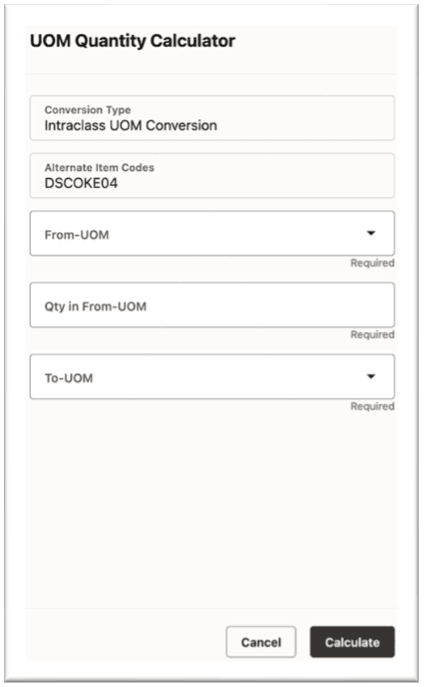
UOM Quantity Calculator
HOW IT WORKS
When a user selects an item-specific UOM conversion record and clicks “UOM Quantity Calculator”, a calculator form opens showing:
|
Field |
Description |
What the User Should Enter |
|
Conversion Type |
Shows the type of UOM conversion being applied. |
Auto-populated — no input required. |
|
Alternate Item Codes |
Displays the item code selected for UOM conversion. |
Auto-populated — no input required. |
|
From-UOM |
The Unit of Measure of the quantity you want to convert from. |
Select the UOM you currently have. |
|
Qty in From-UOM |
Quantity value in the selected From-UOM. |
Enter the numeric quantity that needs to be converted. |
|
To-UOM |
The Unit of Measure you want to convert to. |
Select the UOM you need the result in. |
The Target UOM dropdown adjusts based on the selected conversion type:
-
Interclass conversion > shows all target-base UOMs
-
Intraclass conversion > shows only the defined target UOM
As users enter the target-UOM quantity, the system computes and displays the equivalent To-UOM quantity in real time.
ADDITIONAL NOTES:
-
No extra permissions are required; the action button is available to all roles.
-
The calculator is available only in the Redwood UI.
-
The calculated values are not stored and are intended purely for user validation.
-
The To-UOM shows all the UOMs from the item’s primary UOM class
Steps to enable and configure
You don't need to do anything to enable this feature.