Shipment Summary Using AI
The AI Assistant - Shipment Summary is the first feature providing you with access to a Large Language Model (LLM) to provide summarization capabilities directly from within the Enhanced Workbench. With the initial release of this functionality, you can use the integrated LLM summarization capabilities to provide summary information for your Buy Side Shipments.
In addition to the enabled integration with the Cohere LLM, this feature provides you with an out-of-the-box Public Workbench which you can launch using the Buy Side Shipment Action "Shipment Summary". You have the option to configure and assign your own Enhanced Workbench to the Shipment Summary action using the Action Parameter SHIPMENT SUMMARY LAYOUT ID. To support the configuration and incorporation of summarization capabilities within your Enhanced Workbench a new Workbench AI Summary component has been added allowing you to create and/or modify your existing Enhanced Workbenches to incorporate the AI Summary capabilities. The options for configuring your own Enhanced Workbench are explained below in the Steps to Enable section.
In the series of examples below, Buy Side Shipment Action Shipment Summary and the related Public Workbench will be used to demonstrate the out-of-the-box AI Assistant Shipment Summary capabilities.
To initiate the process, select a shipment or shipments from your Buy Shipments finder results, select Actions > Shipment Management > AI Assistant > Shipment Summary as shown below.
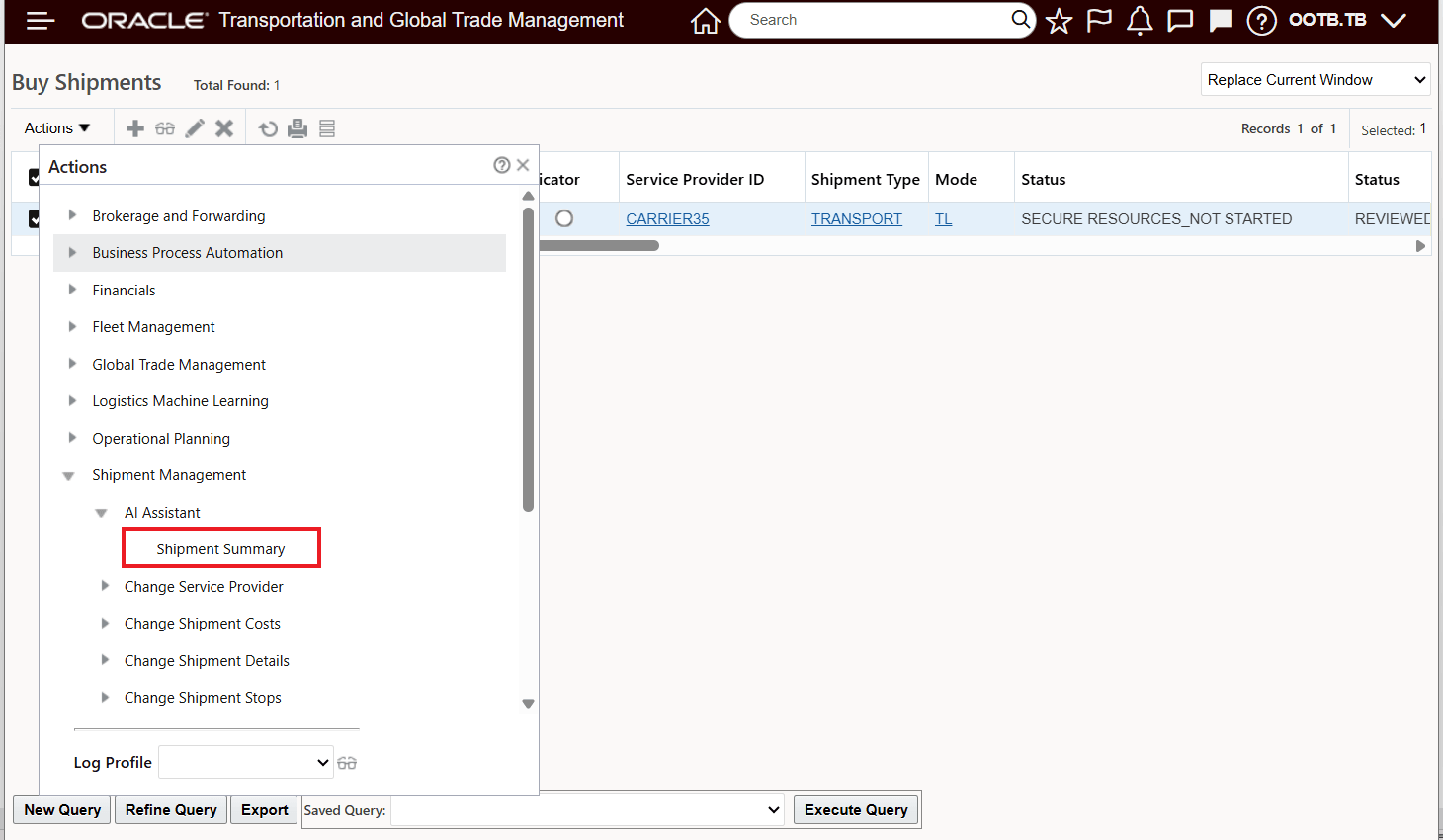
AI Assistant - Shipment Summary
The Shipment Summary action - by default - will open the Shipment Summary Enhanced Workbench below. The provided Public Enhanced Workbench comes pre-configured with the AI Assistant component. To initiate the Shipment Summary and Chat, select the desired shipment (or shipments) and then select the AI Assistant Icon as shown below.
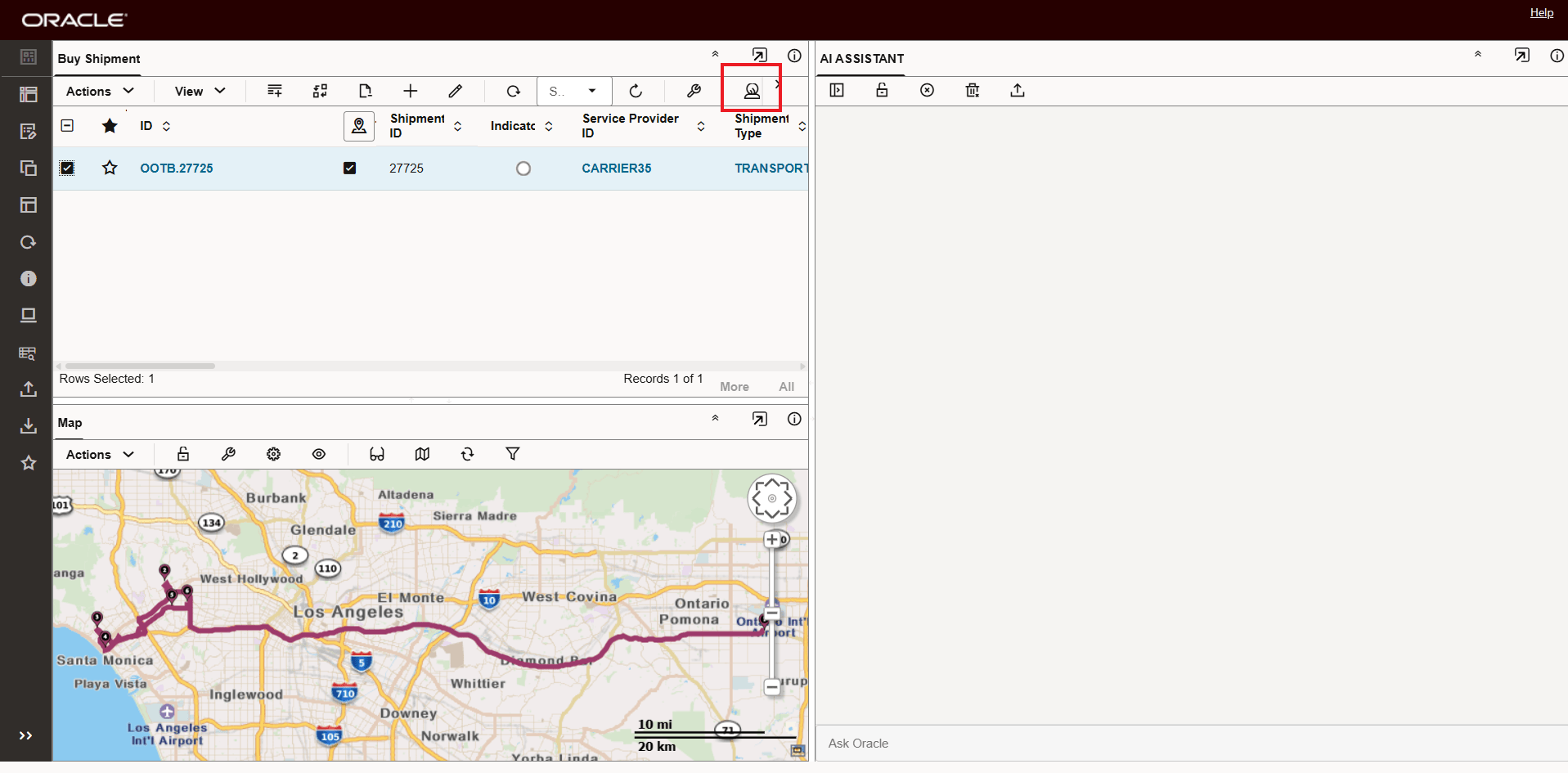
Initiate Shipment Summary Using AI Assistant Icon
The initial result of the Shipment Summary using the LLM is shown below. The provided summary covers overall shipment statistic including duration, cost, total weight, volume etc.and also provides a summary of the shipment stops and other key metrics.
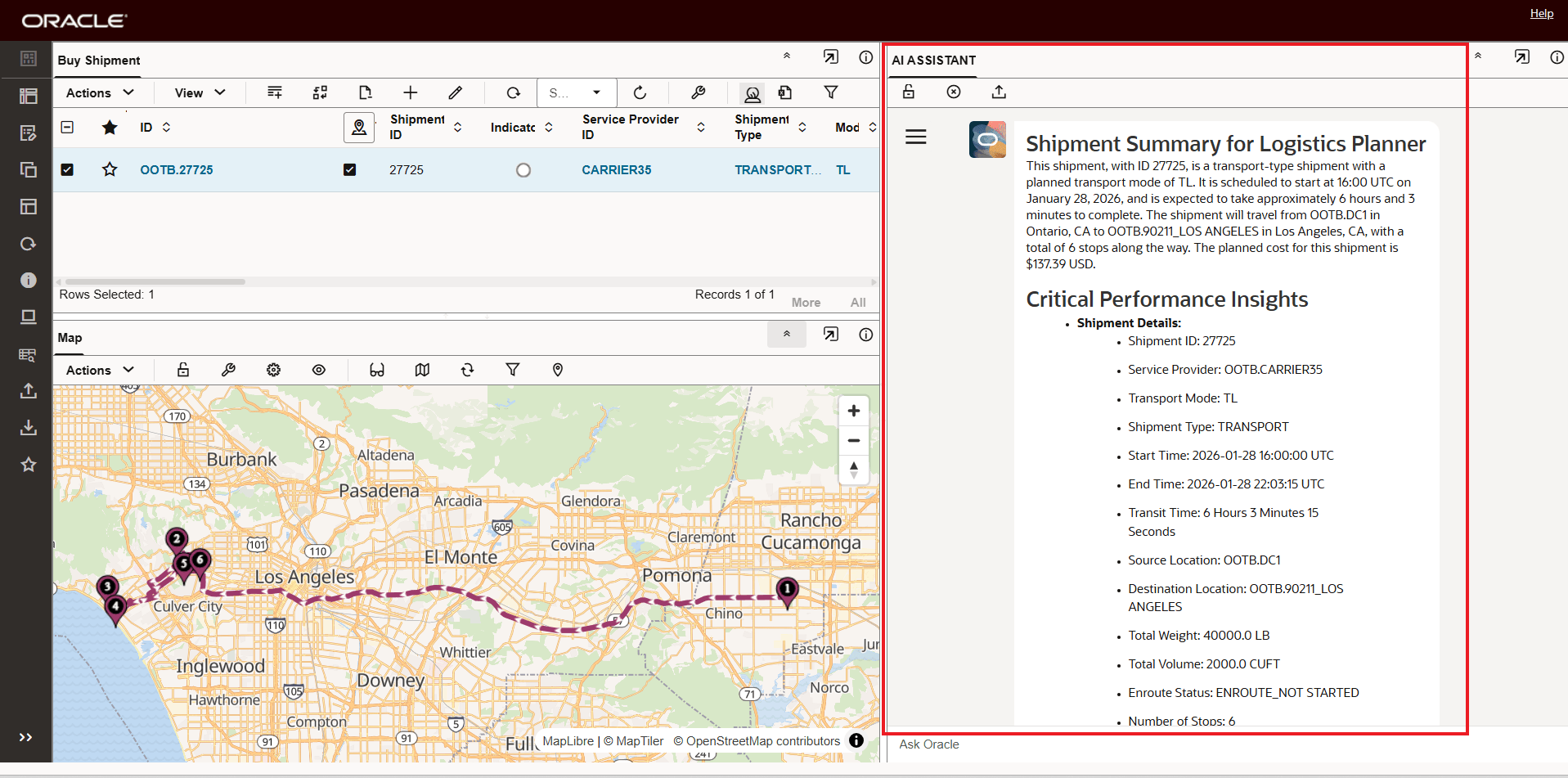
AI Assistant - Shipment Summary
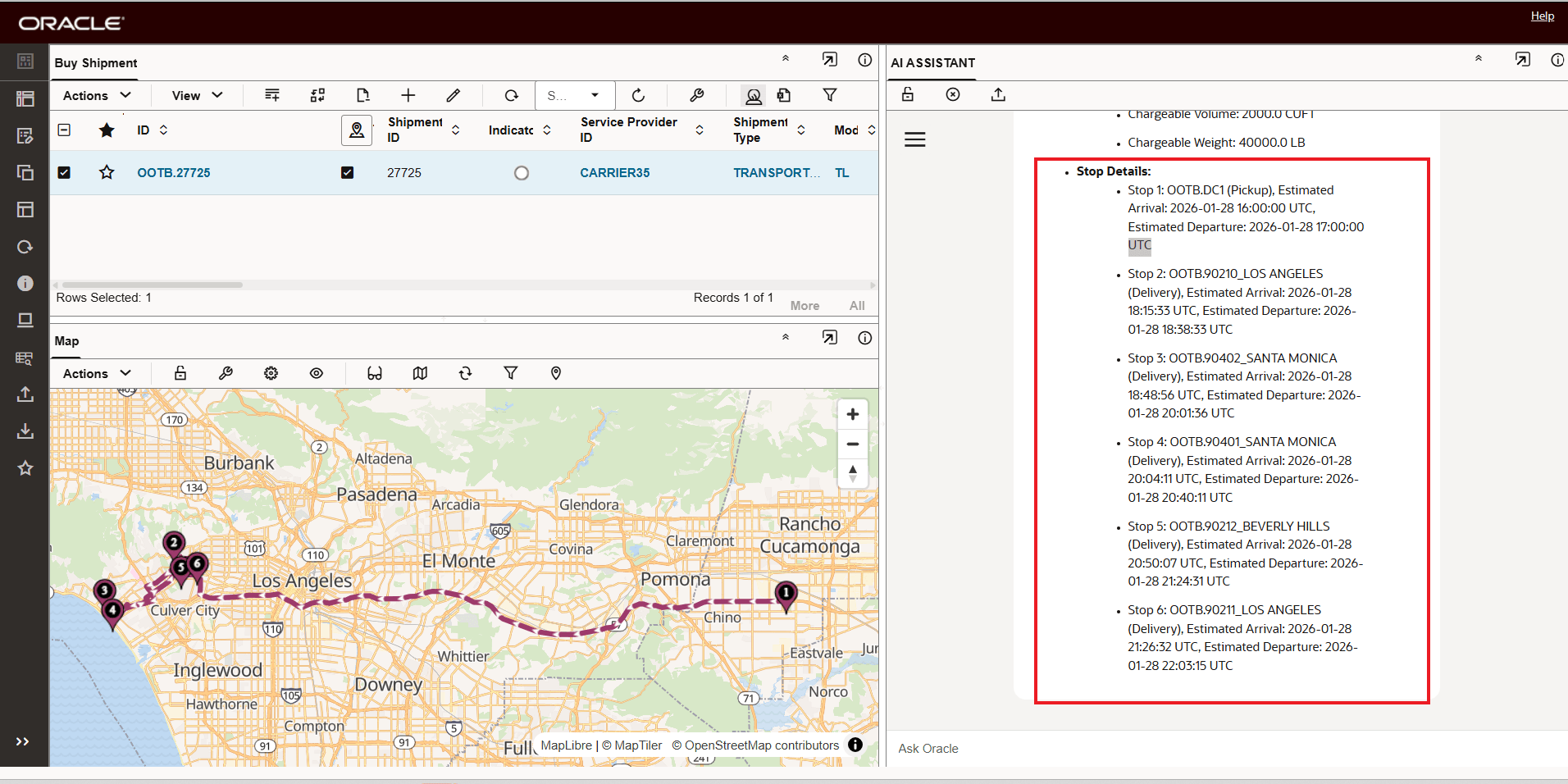
AI Assistant - Shipment Summary Stop Details
While the standard summarization information provided by the LLM are useful in and of themselves, the AI Assistant allows you to initiate a Chat where you can further refine the information you wish to have summarized. In the example below, a request is entered to provide more information about the shipment stops activity times.
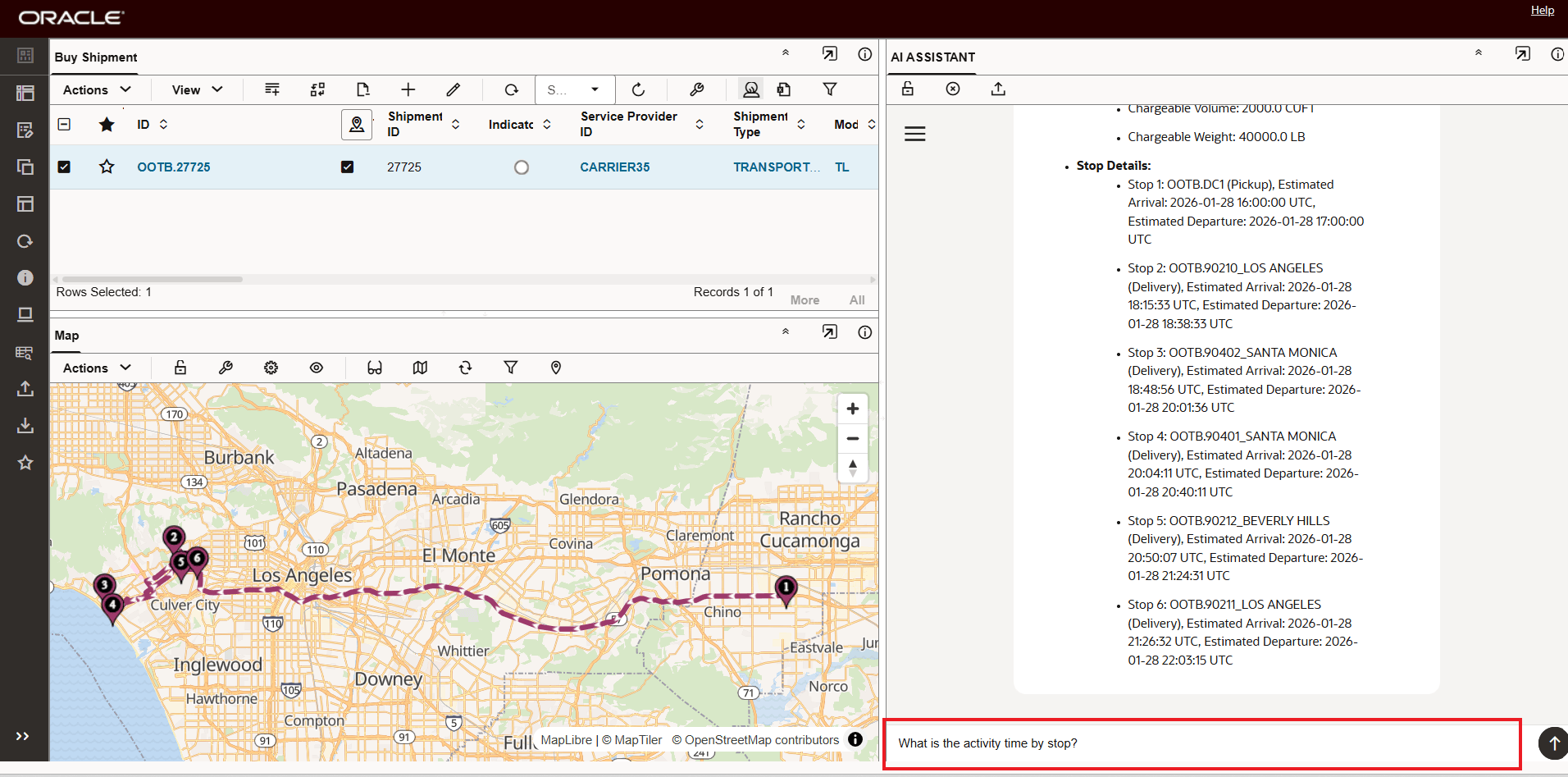
Initiate a Chat To Gain Additional Insight
The response - below- to the question raised above via the Chat provides a summary, as requested, of each stops activity time.
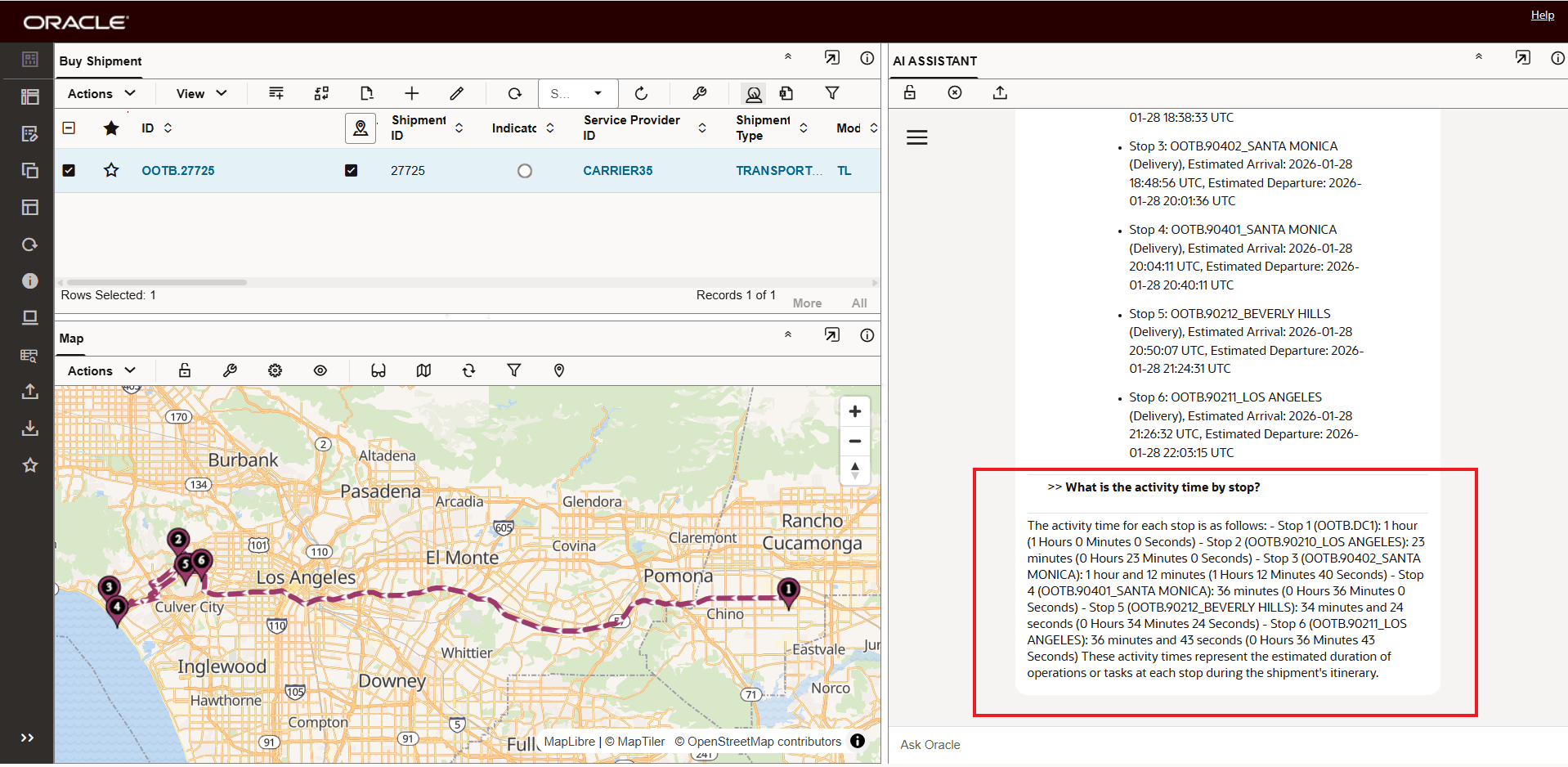
Chat Response to Stop Level Activity Time
The Chat can continue for the shipment under review - in the example below the request was to identify the stop with the highest amount of activitiy time.
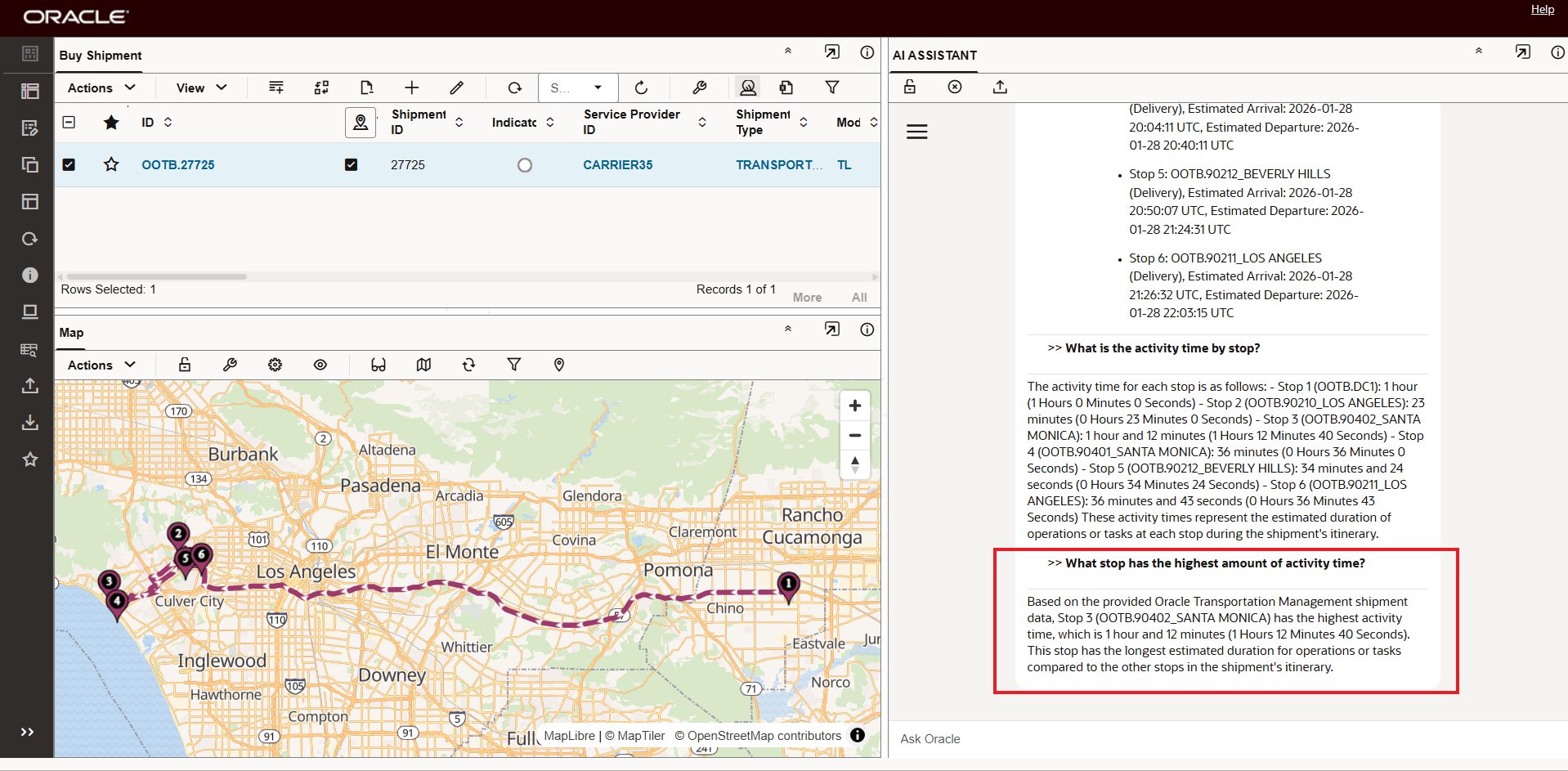
Continued Chat Request and Response
Continuing with the example Chat, in the example below the AI Assistant evaluates all the sequential stop distances for the stops on the shipment and identifies the pair of stops that are the furthest apart.
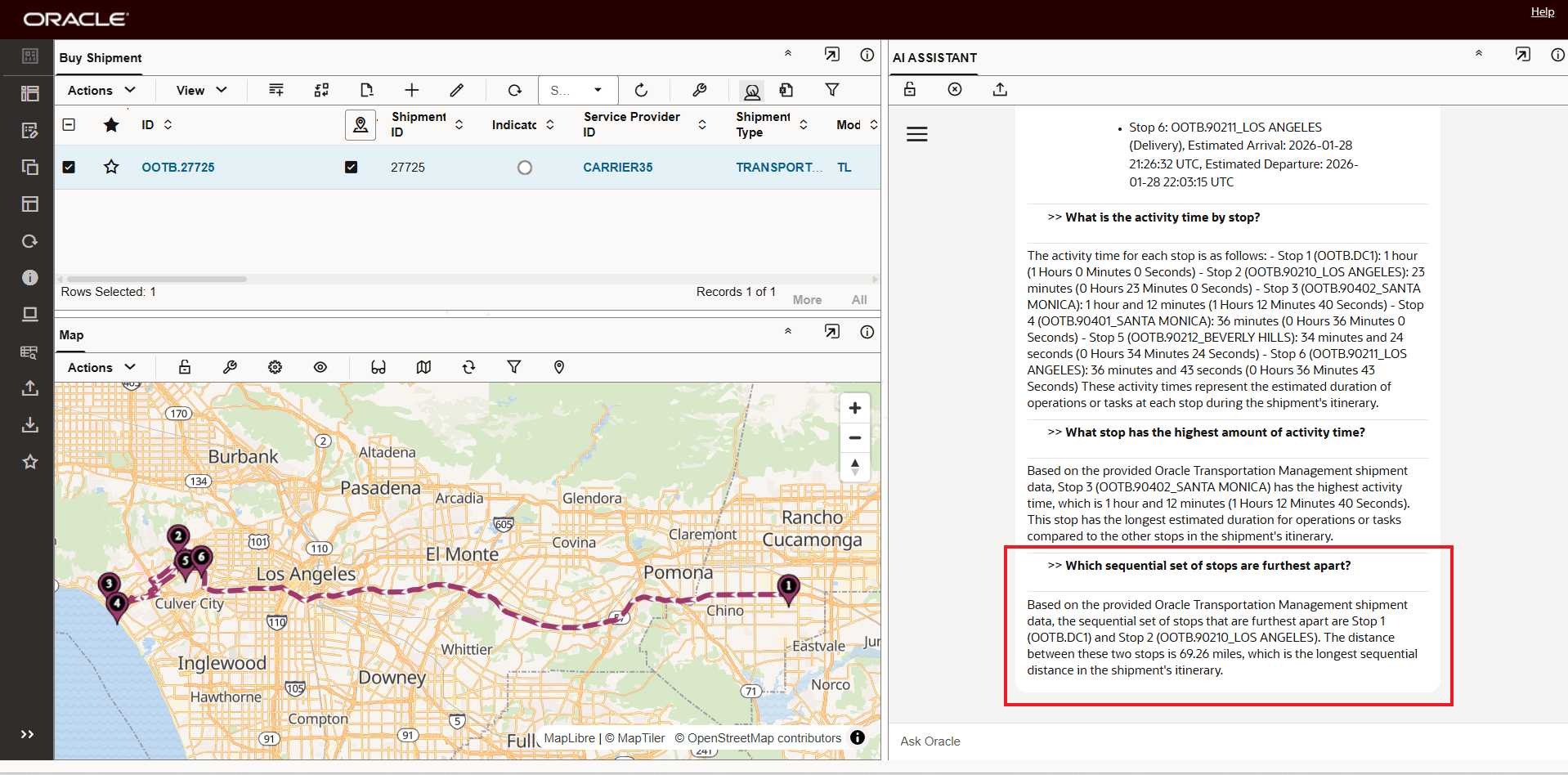
Furthest Apart Sequential Stops
In the last example for this Chat - the AI Assistant is ask to provide an average cost per stop for the stops on the shipment.
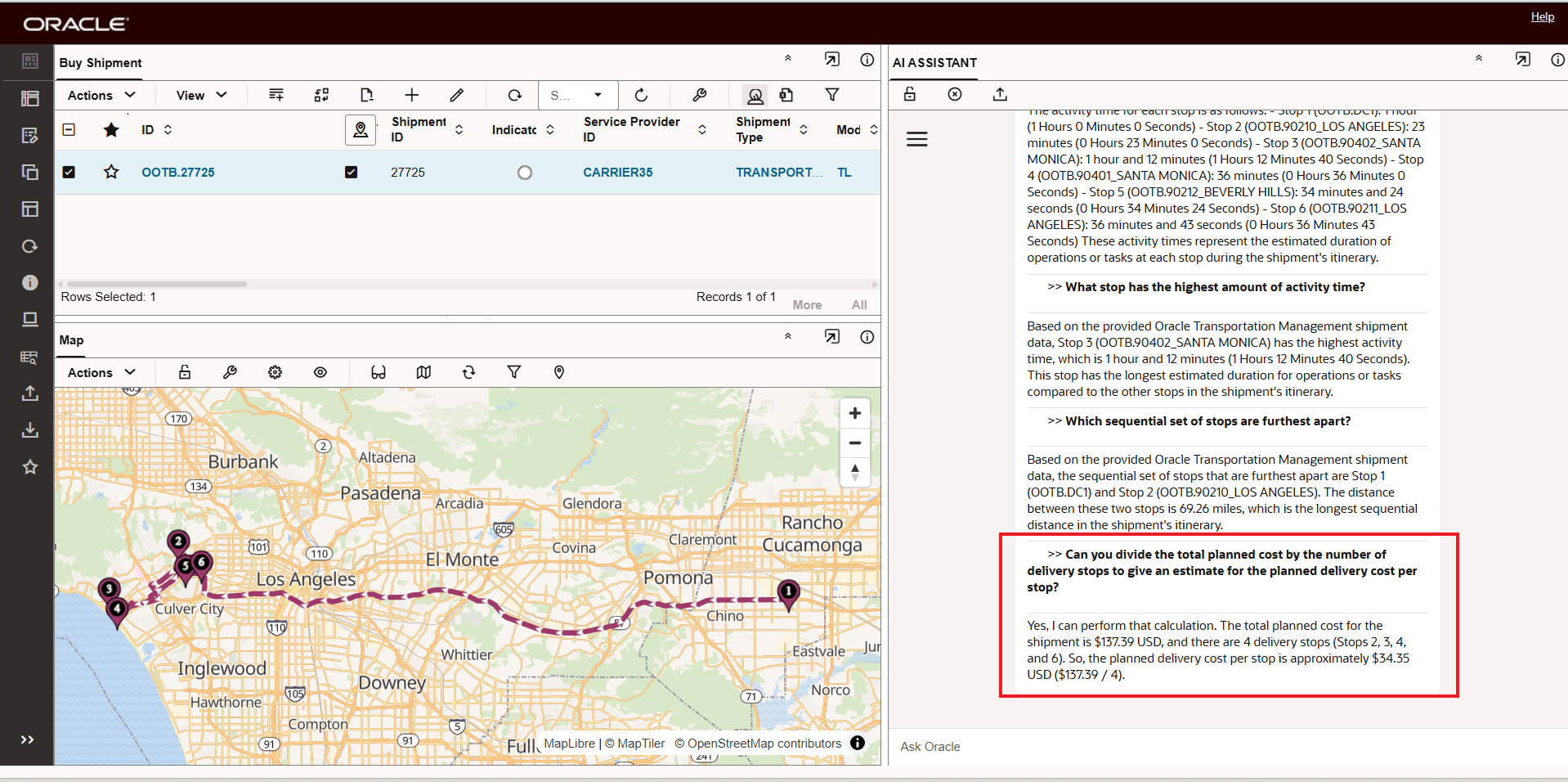
Average Cost Per Stop Based On Total Planned Cost
You can select and initiate the AI Assistant Shipment Summary for multiple shipments at once. Each shipment will be summarized individually. In the example below, five shipments have been selected and then summarized.
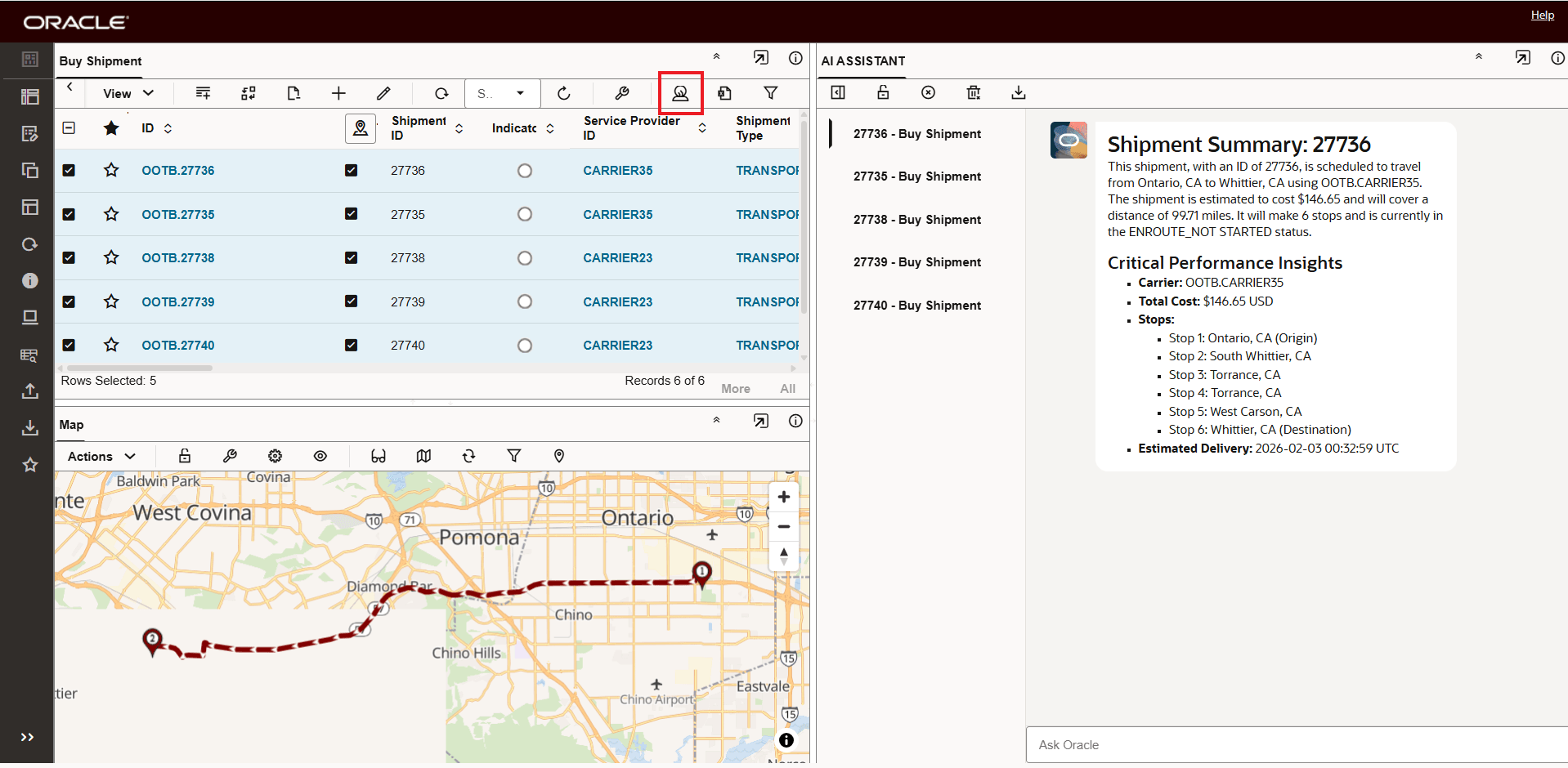
Summarize Multiple Shipments at Once
For each of the shipments summarized you can initiate a Chat ? for up to five (5) of the shipments summarized.
Format Response
You can also request that the format provided be in a more report/structured format. In the example below the prompt explicitly requests that the results be provided n a nicer table format."Can you provide the shipment stop detail in a nice HTML table format?"
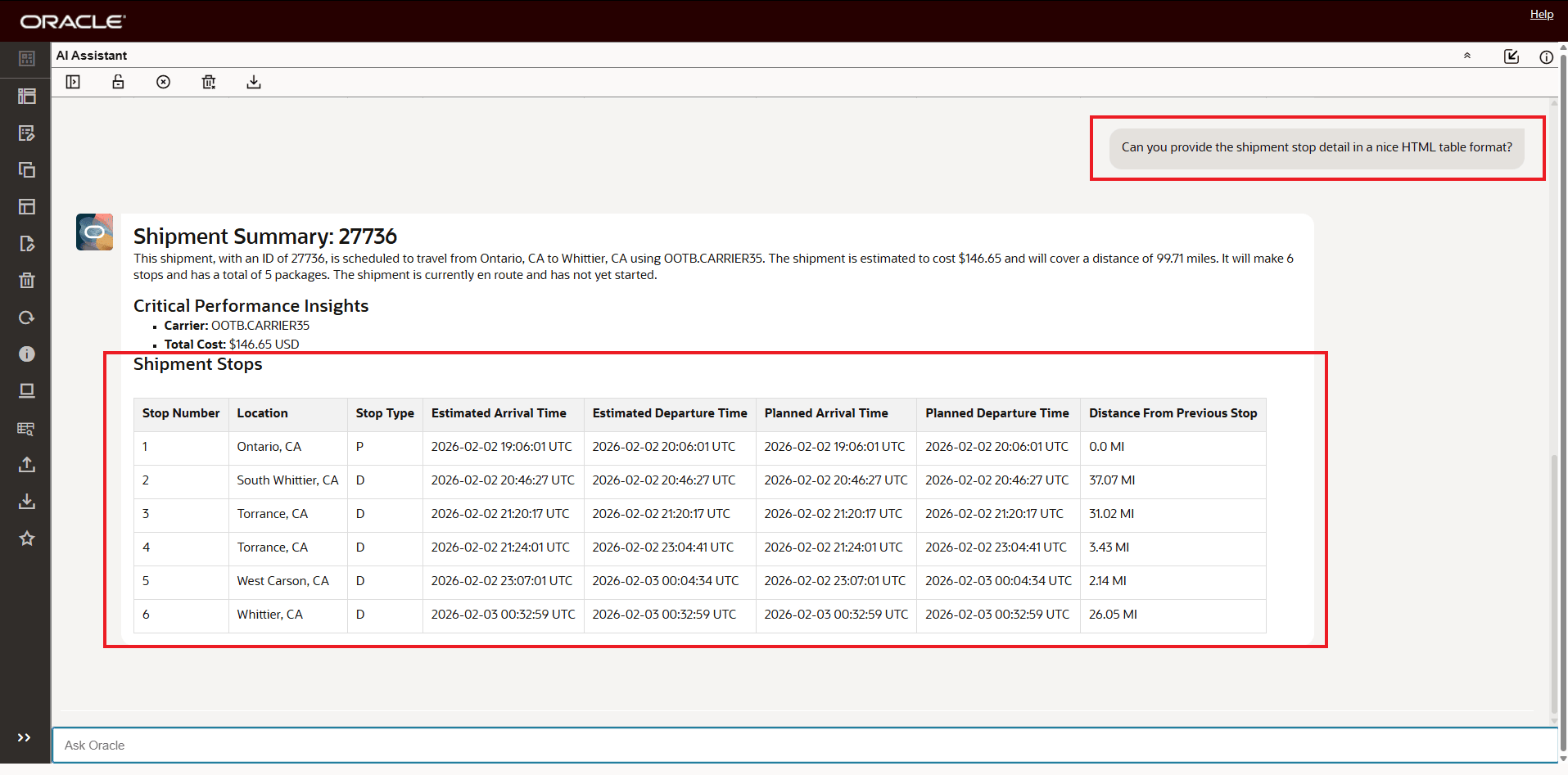
Chat Response With Improved Table Format
Additional Features Available
You have the option to copy the chat to your clipboard - using the option shown below.
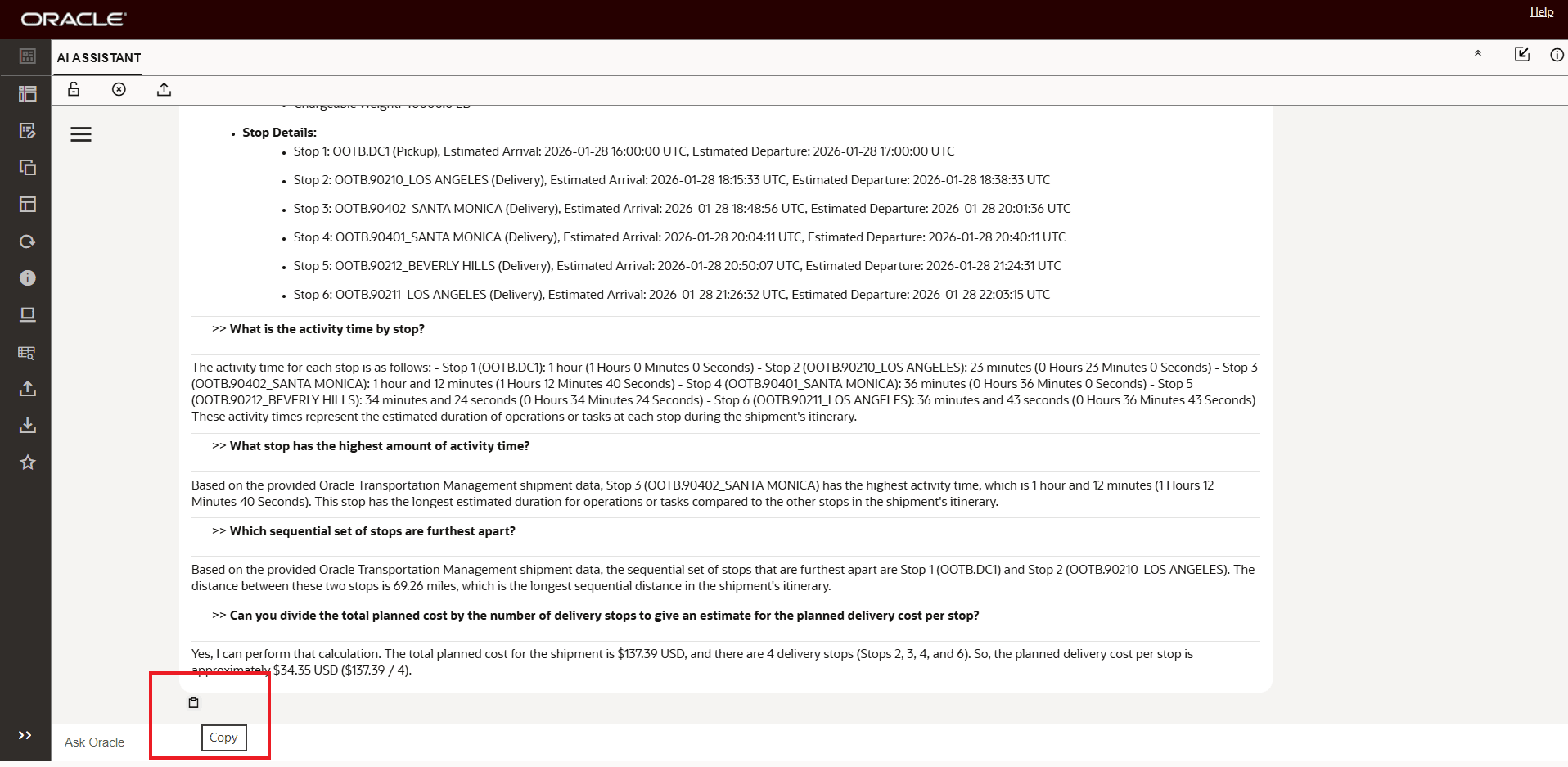
Copy Chat To Clipboard
You have the option to download the selected shipment summary chat using the Download Chat feature.
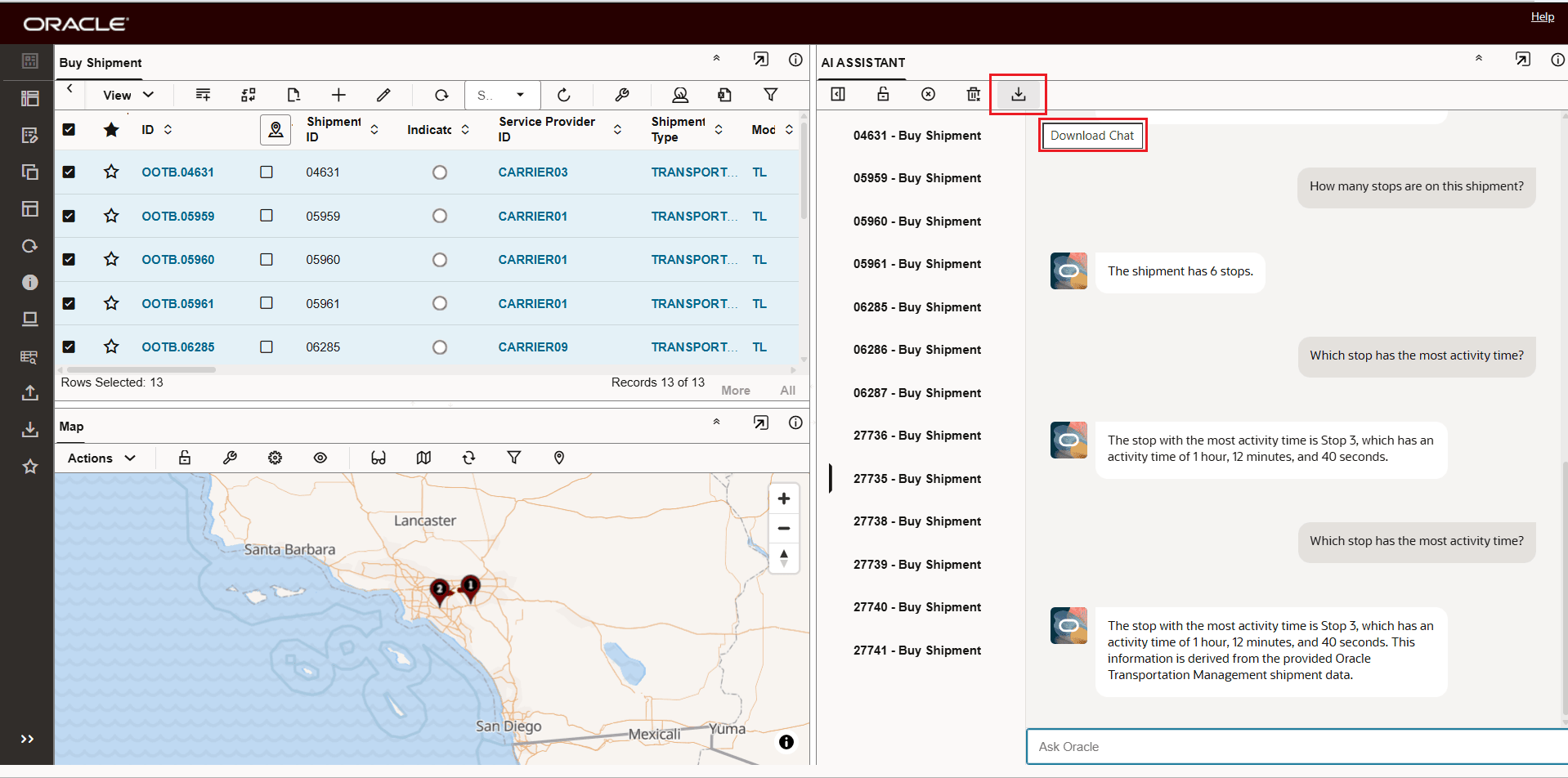
Download Chat - Download Selected Summary Chat
In the example below the Chat for shipment 27735 - the selected Buy Shipment will be downloaded.
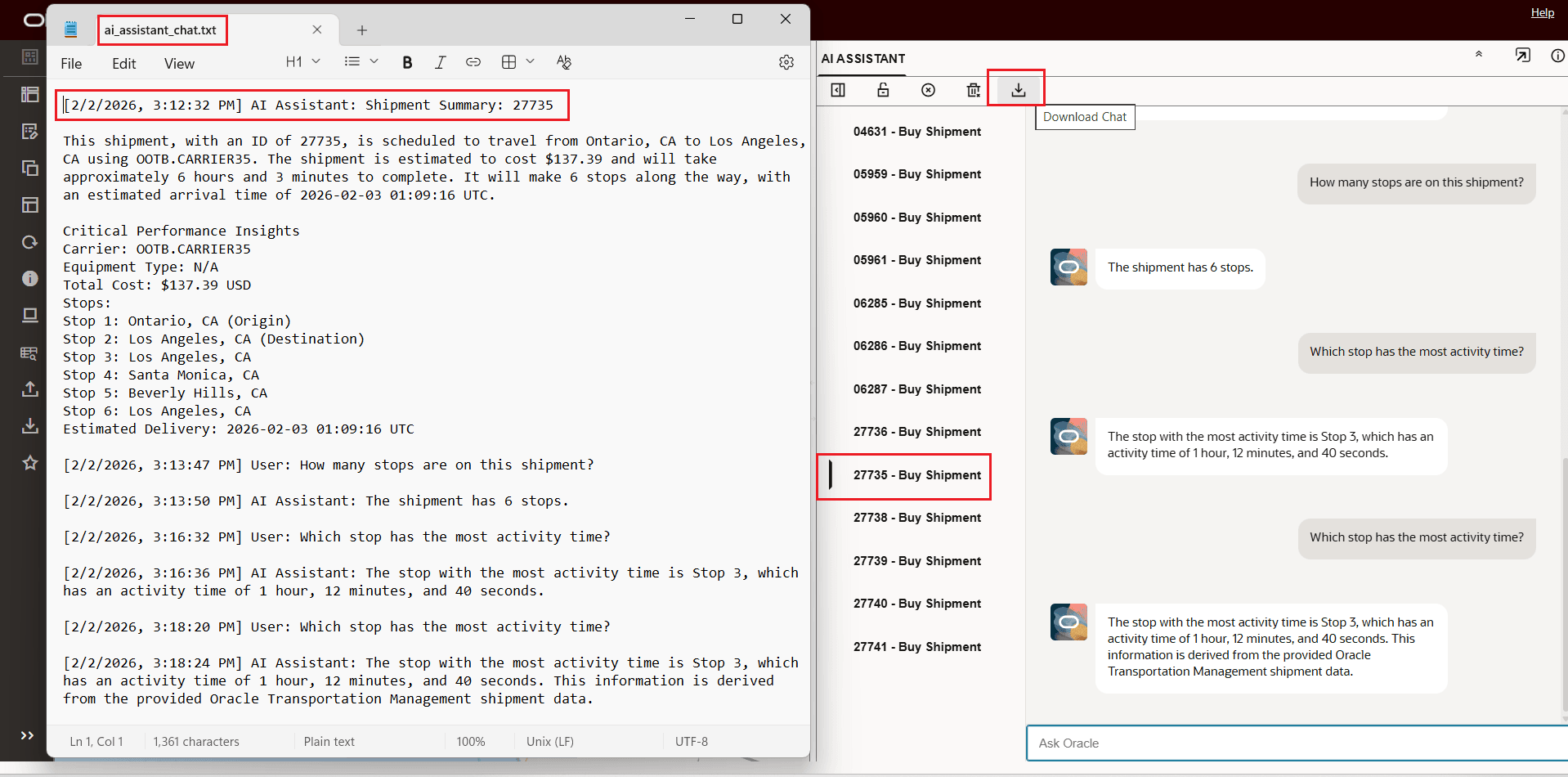
Download Chat - Download Selected Summary Chat
Lock View provides you with the option to lock the chat using the Lock View feature.
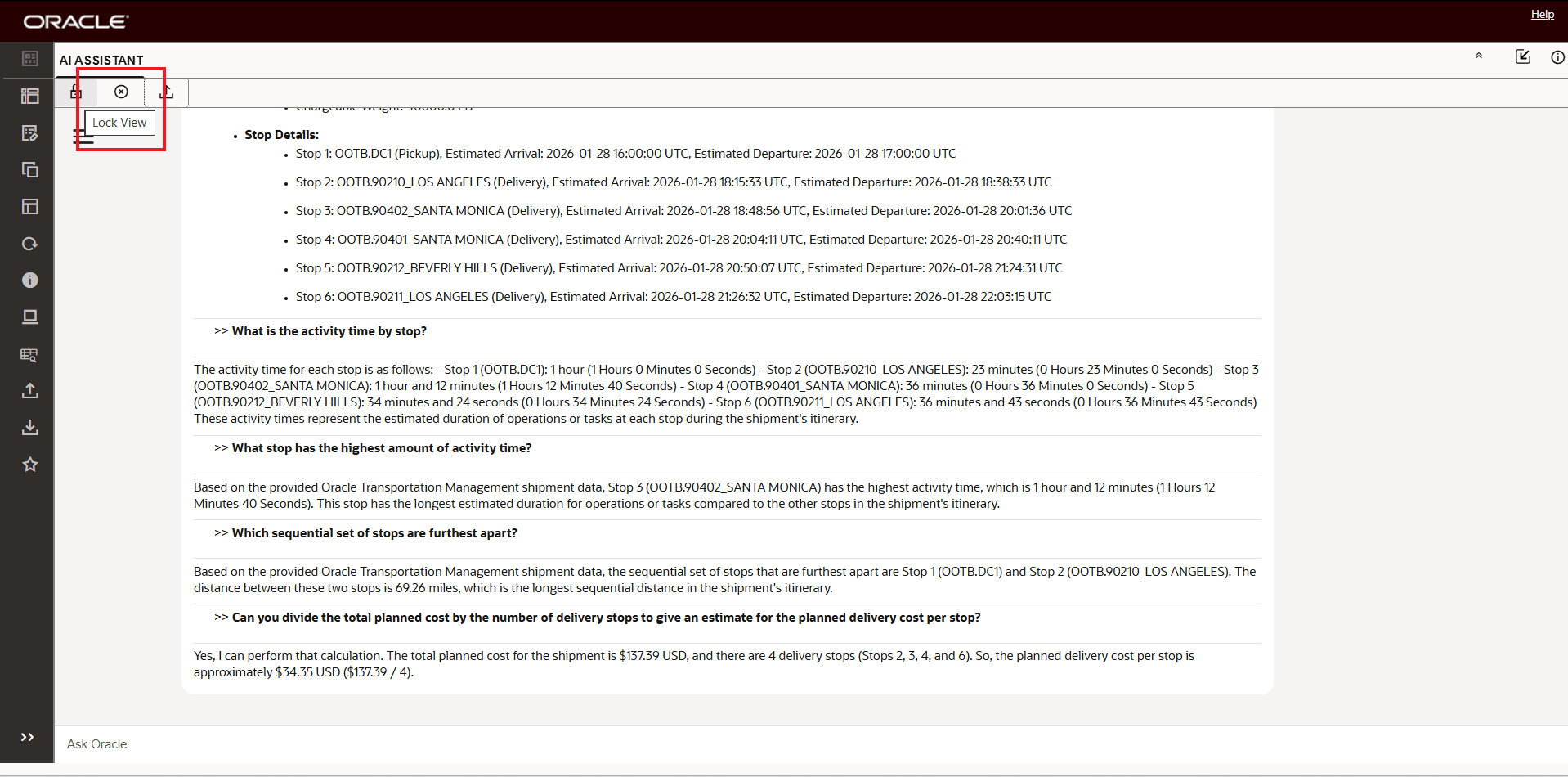
Lock View
Given multiple summaries, you have of selecting and removing a specific summary in the list using Remove Selected Summary, or you can use Remove All Summaries to remove all the summaries in the list.
In the example below Remove Selected will be use to remove the selected summary for shipment 27735.
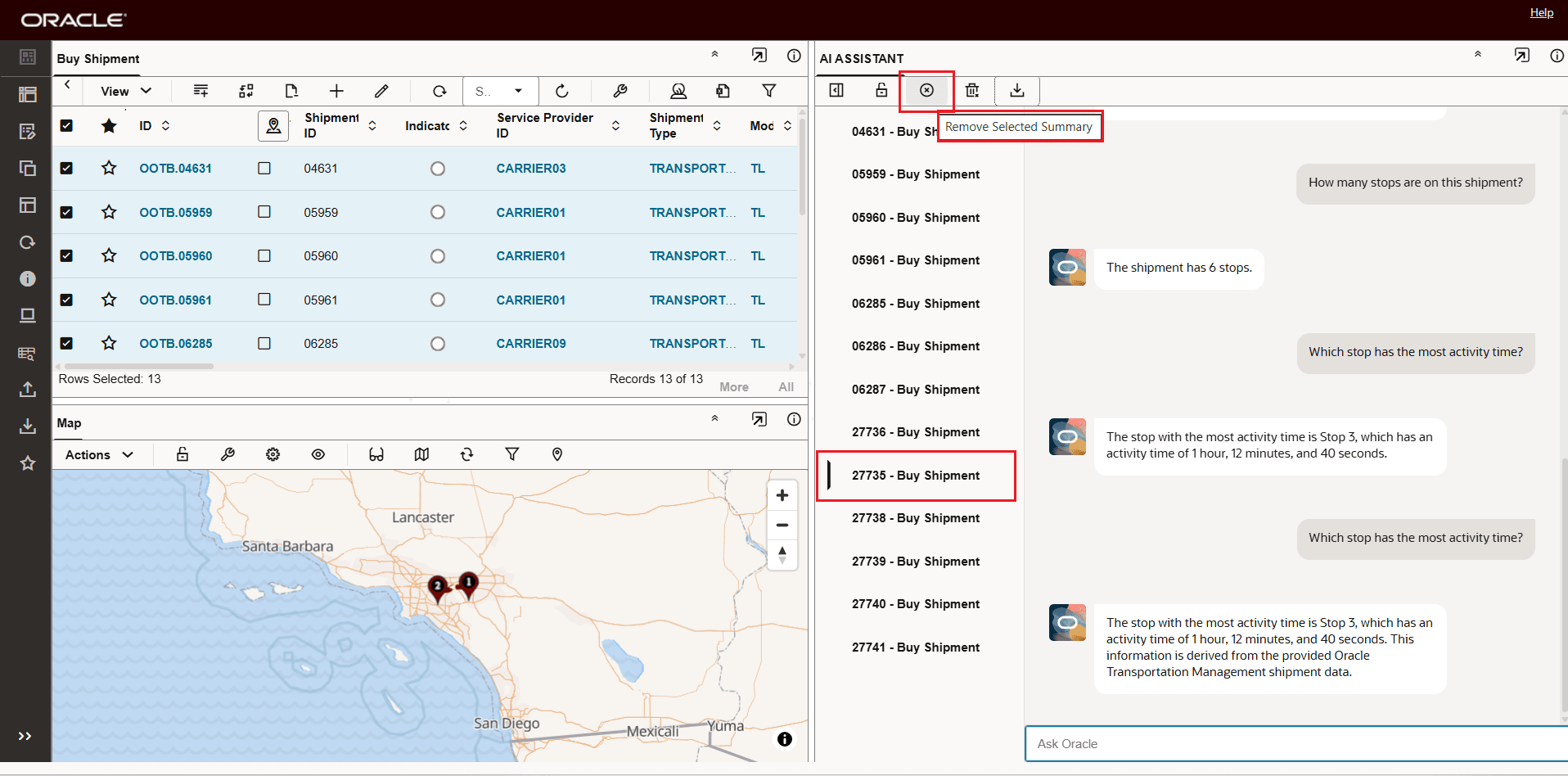
Remove Selected Shipment 27735
Below is the result of the Remove Selected for shipment 27735.
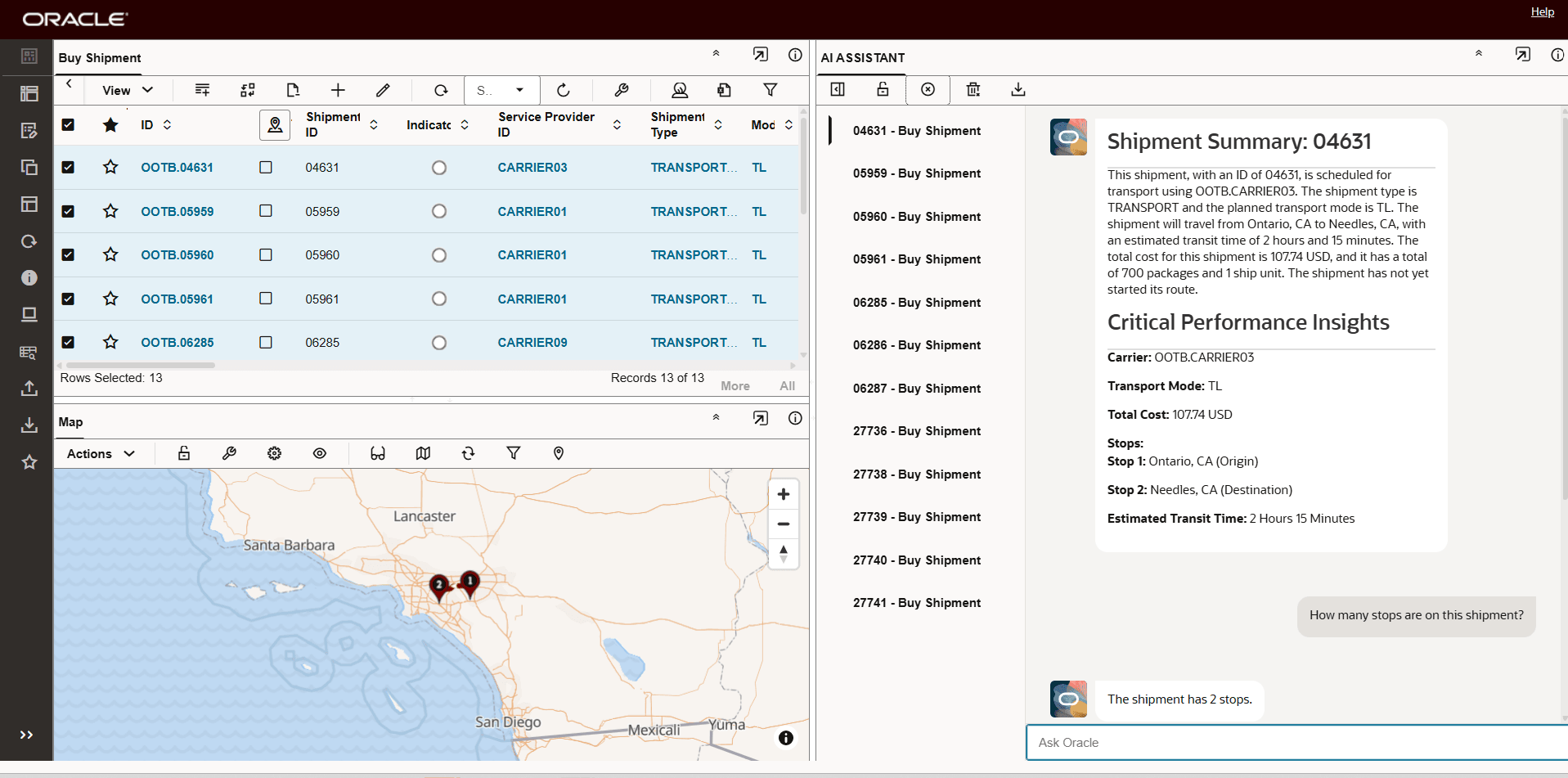
Remove Selected Shipment 27735 - Removed
To remove all of the summary chat history you can use Remove All Summaries option. In the example below, all of the remaining summaries from above will be removed using the Remove All Summaries option.
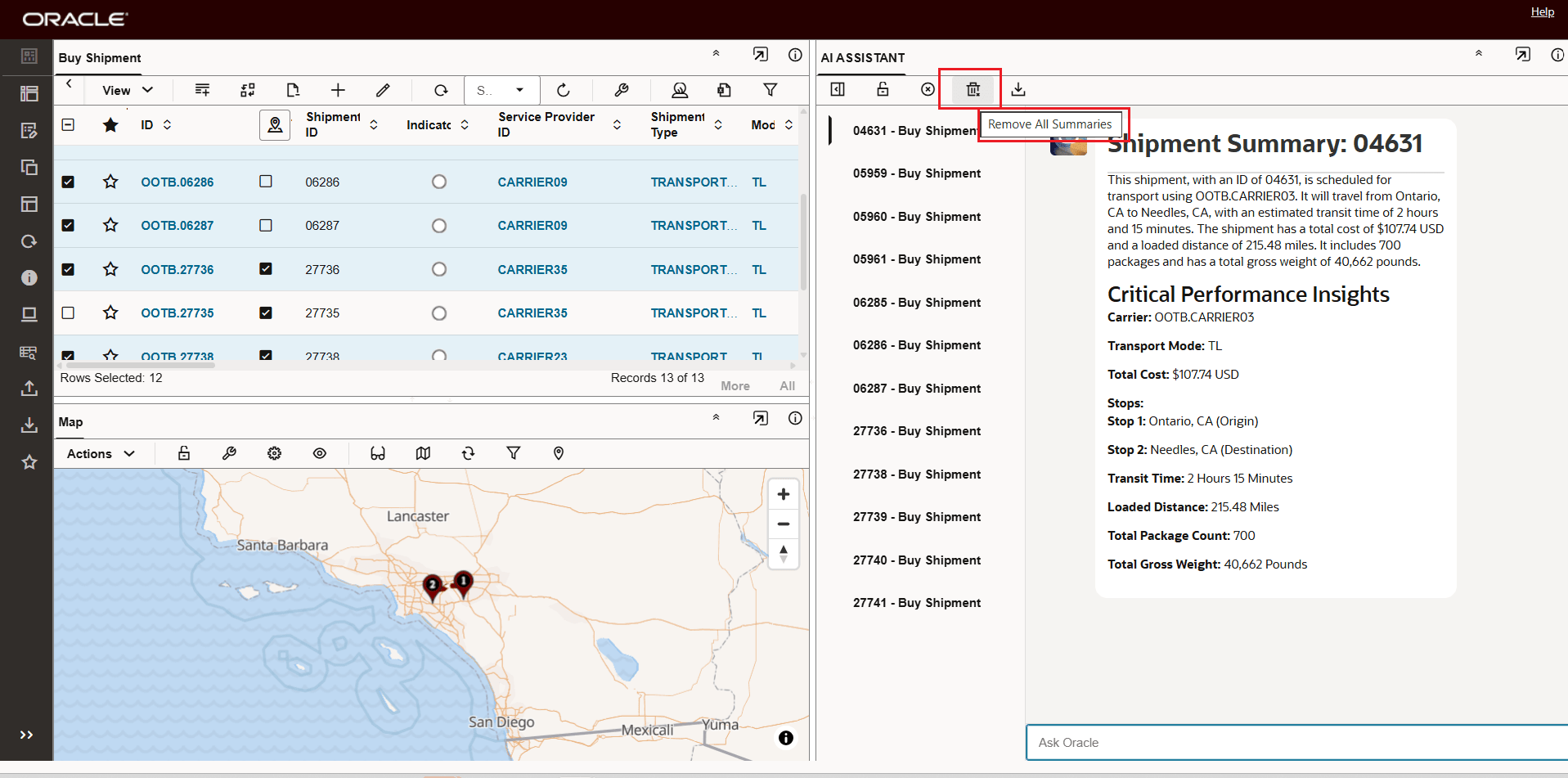
Remove All Summaries
Below is the result of the Remove All Summaries, all the Summaries and Chats have been removed.
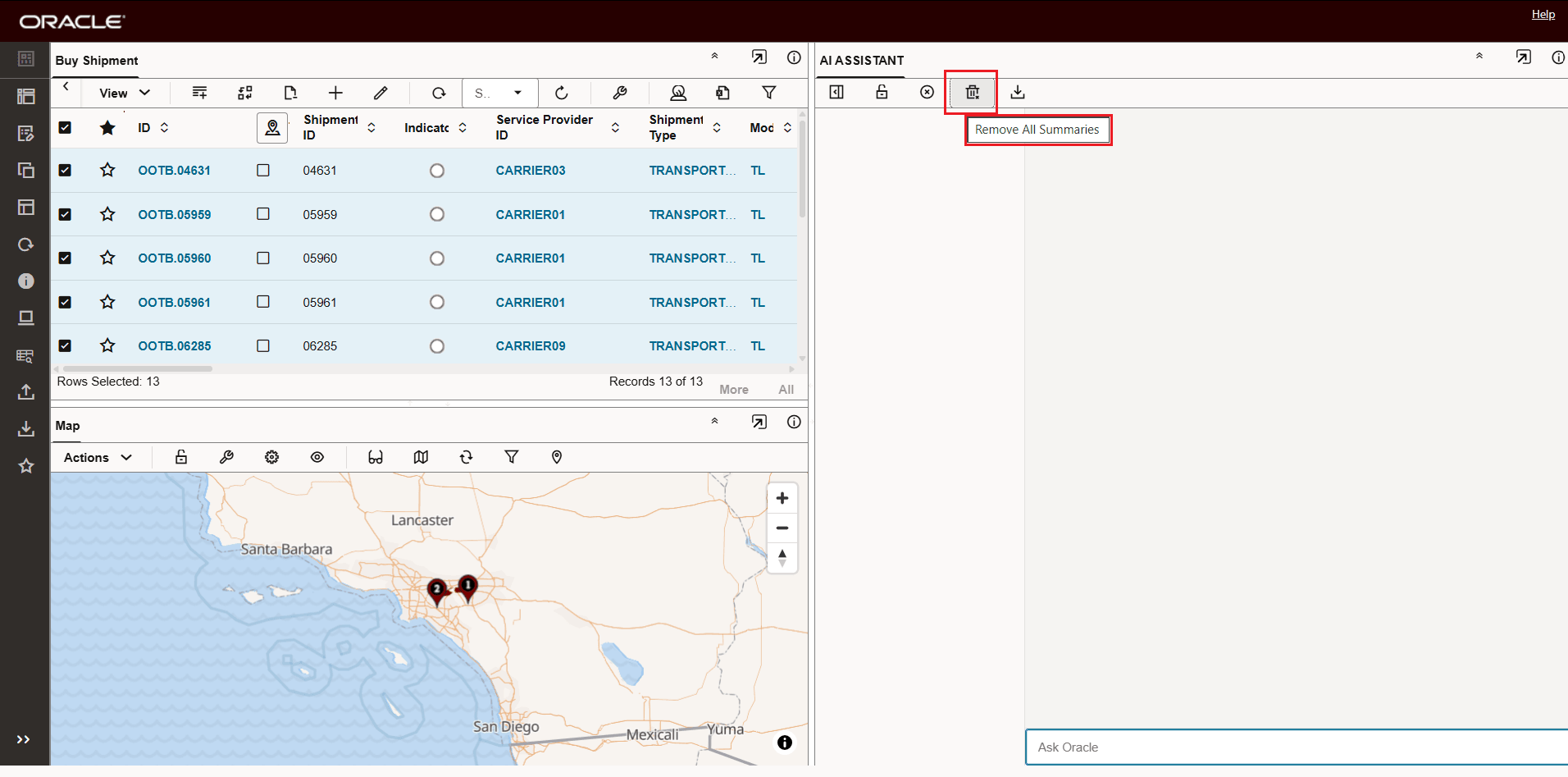
Remove All Summaries - Result
Business Benefit: The AI Assistant - Shipment Summary capability streamlines your review process by summarizing the compex, multi-tab shipment data into insightful and easy to understand summaries that significantly reduce the time required for shipment review and analysis.
Steps to enable and configure
To take advantage of the Generative AI features, you will need to set the property glog.genAI.enabled to true, the default is false. This property only needs to be set once to gain access to all the Generative AI features.
- Navigate to Configuration and Administration > Property Management > Property Sets.
NOTE: Only the DBA.ADMIN user can access and use the Property Sets page.
- Set the property glog.genAI.enabled to true
Note: If you are hosted from the Asia Pacific or Middle East regions, you will need to open an SR requesting to have GenAI feature enabled. Once this has been completed then the glog.genAI.enabled property noted above should be set to true.
The steps below will provide the necessary steps to configure your own Enhanced Workbench to be displayed when the Buy Shipment action Shipment Summary is run.
- Step one, create, copy or edit an existing Enhanced Workbench. In the example below a new Workbench Layout is being created.
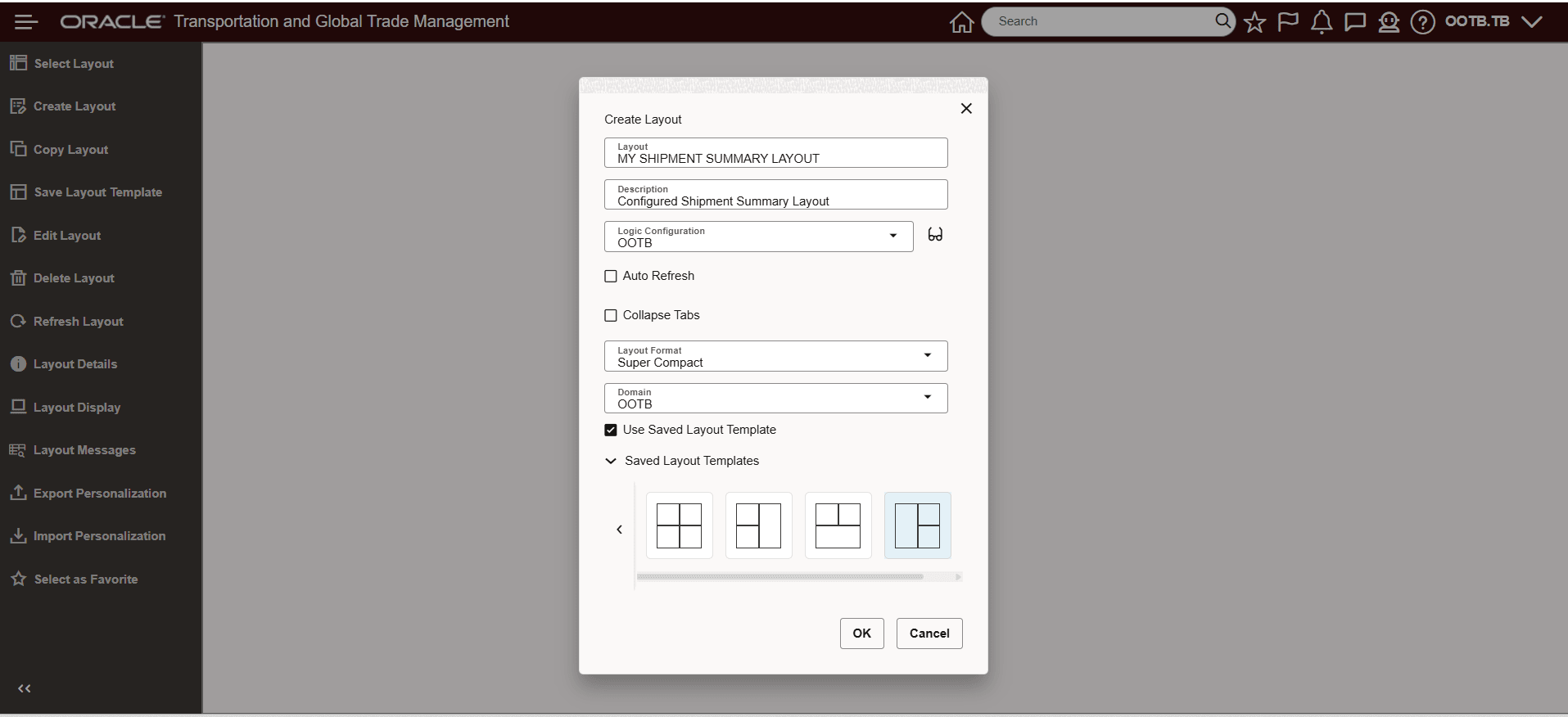
Create a New Enhanced Workbench
- Add the Buy Shipment Table to the Enhanced Workbench. Since this is an Action based Enhanced Workbench - you will need to select the Population Method of Action and the Action Data Mapping of Shipment.
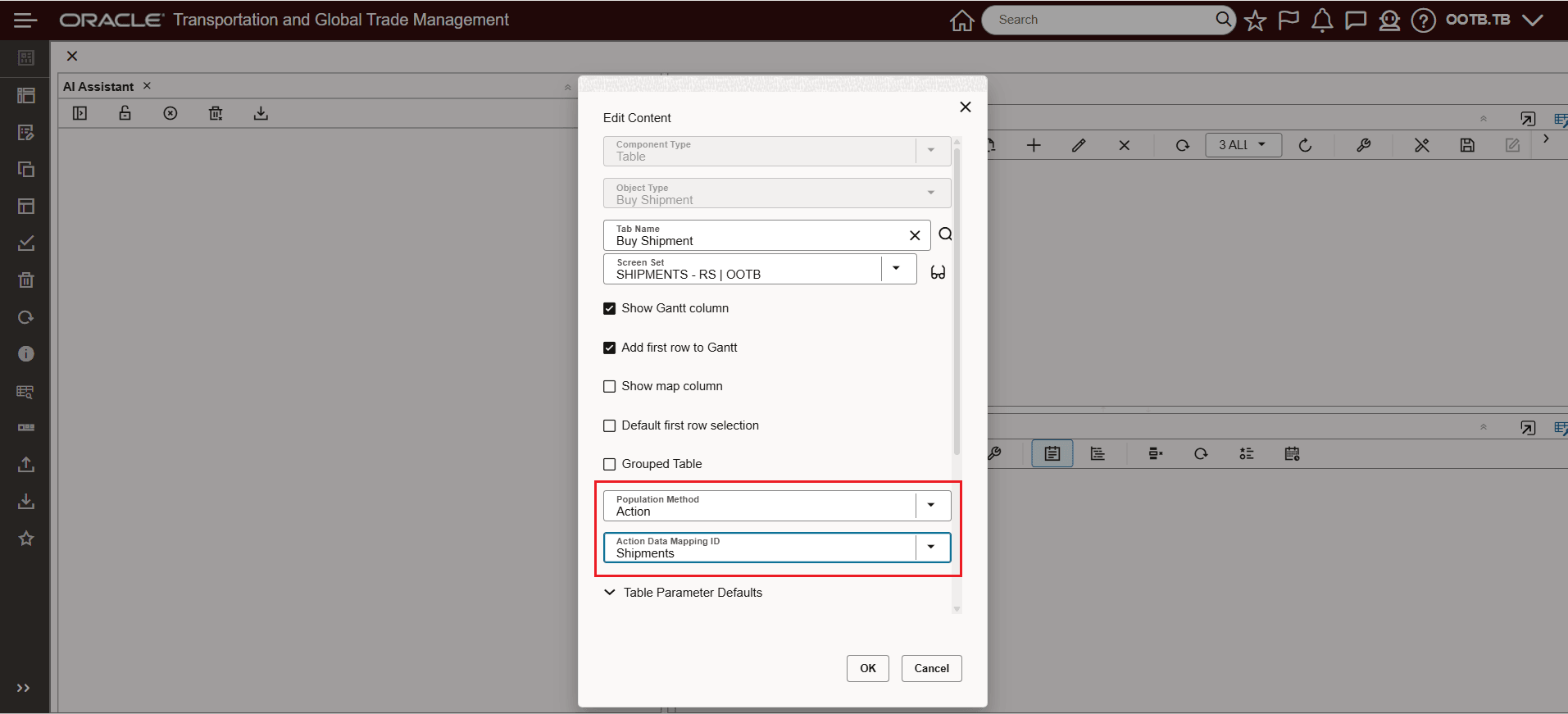
Add and Configure the Buy Shipment Table
- You will also want to set the Table Parameter Defaults to include ...
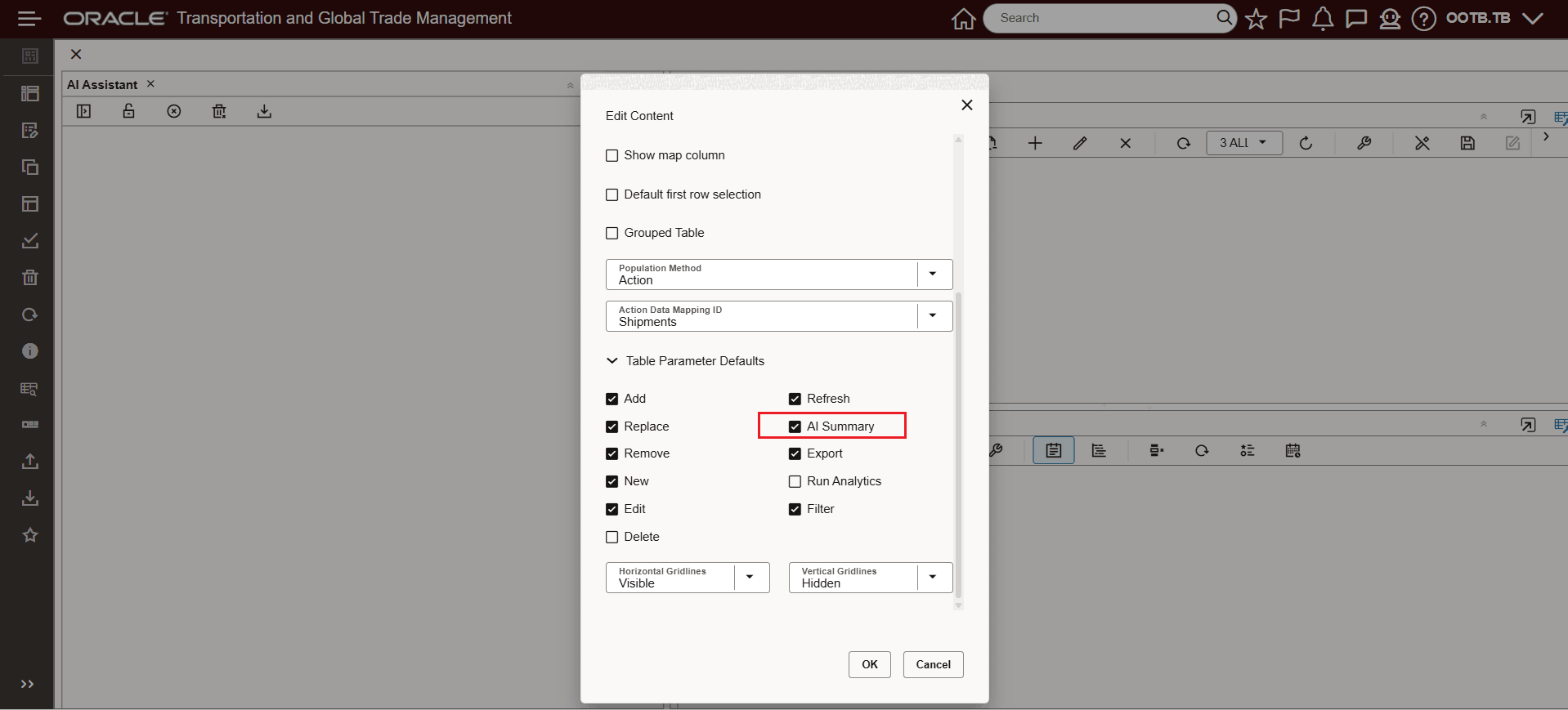
Table Parameter Defaults - Check the AI Summary Option
- For your Domain Default Parameter Set - set the Parameter Shipment Summary Layout ID to use the newly created Enhanced Workbench - My Shipment Summary Layout in this example.
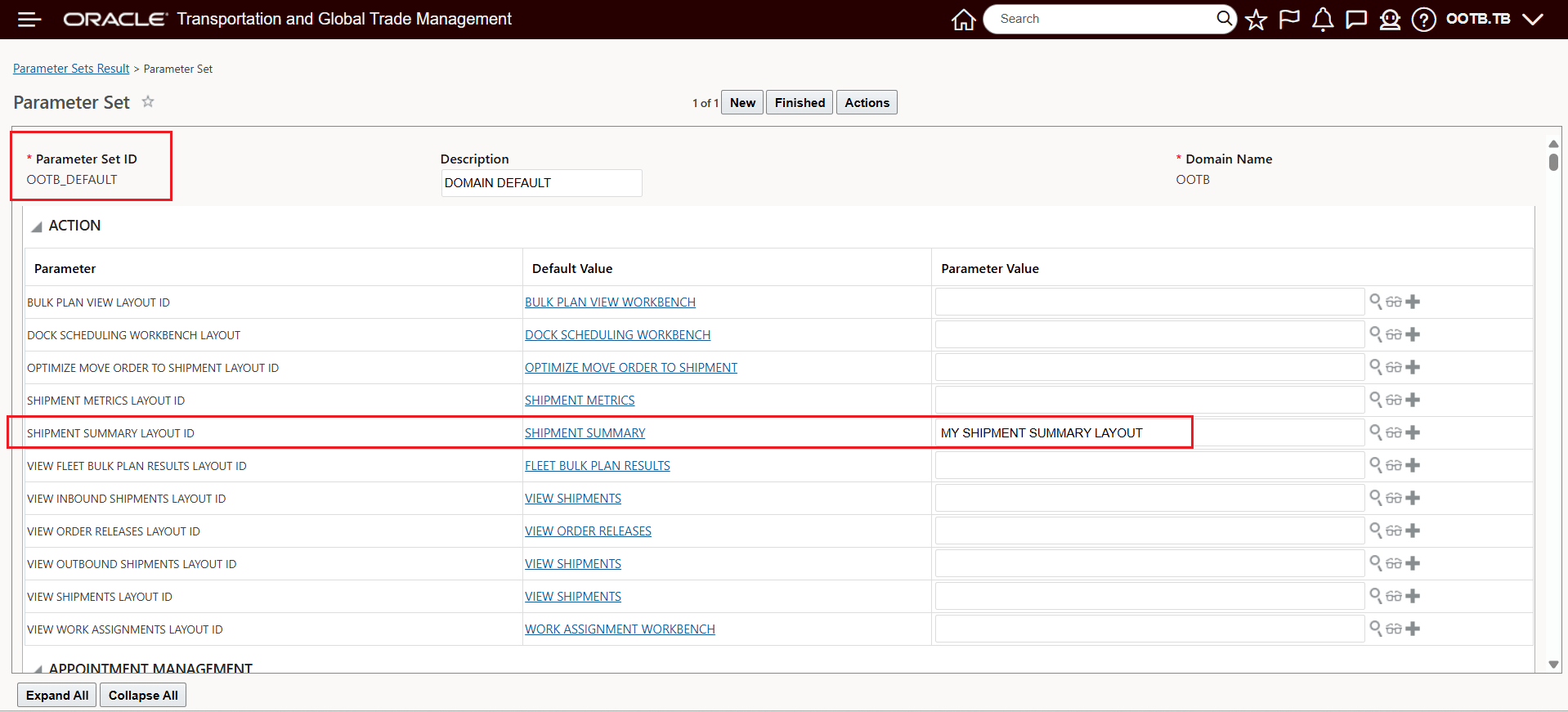
In Your Domain Default Parameter Set - Set the Shipment Summary Layout ID
- Now when you run the Shipment Summary Action for your Buy Shipments - using the configured Domain Default Parameter Set - your configured Enhanced Layout will be used.
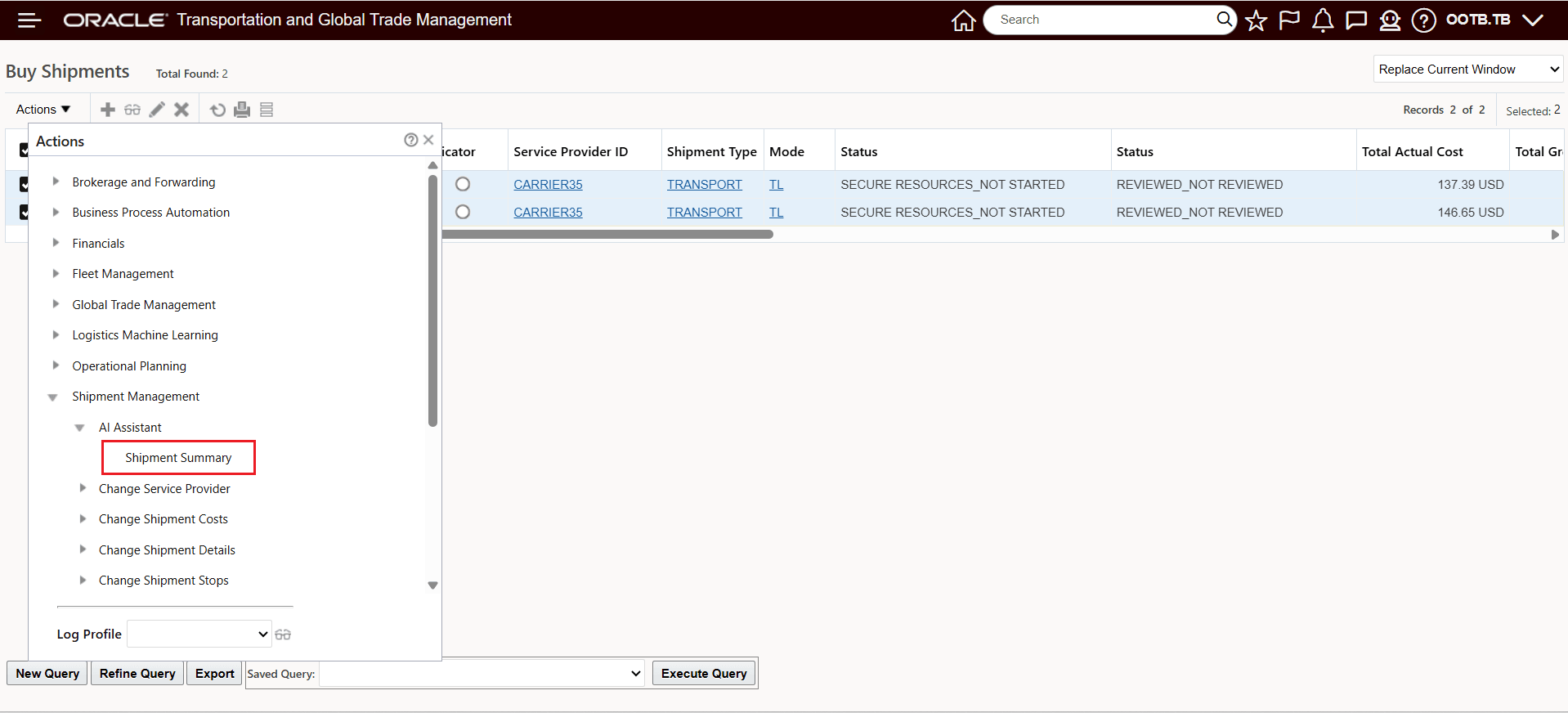
Run the Shipment Summary Action
The newly configured Enhanced Workbench will be used, as shown below.
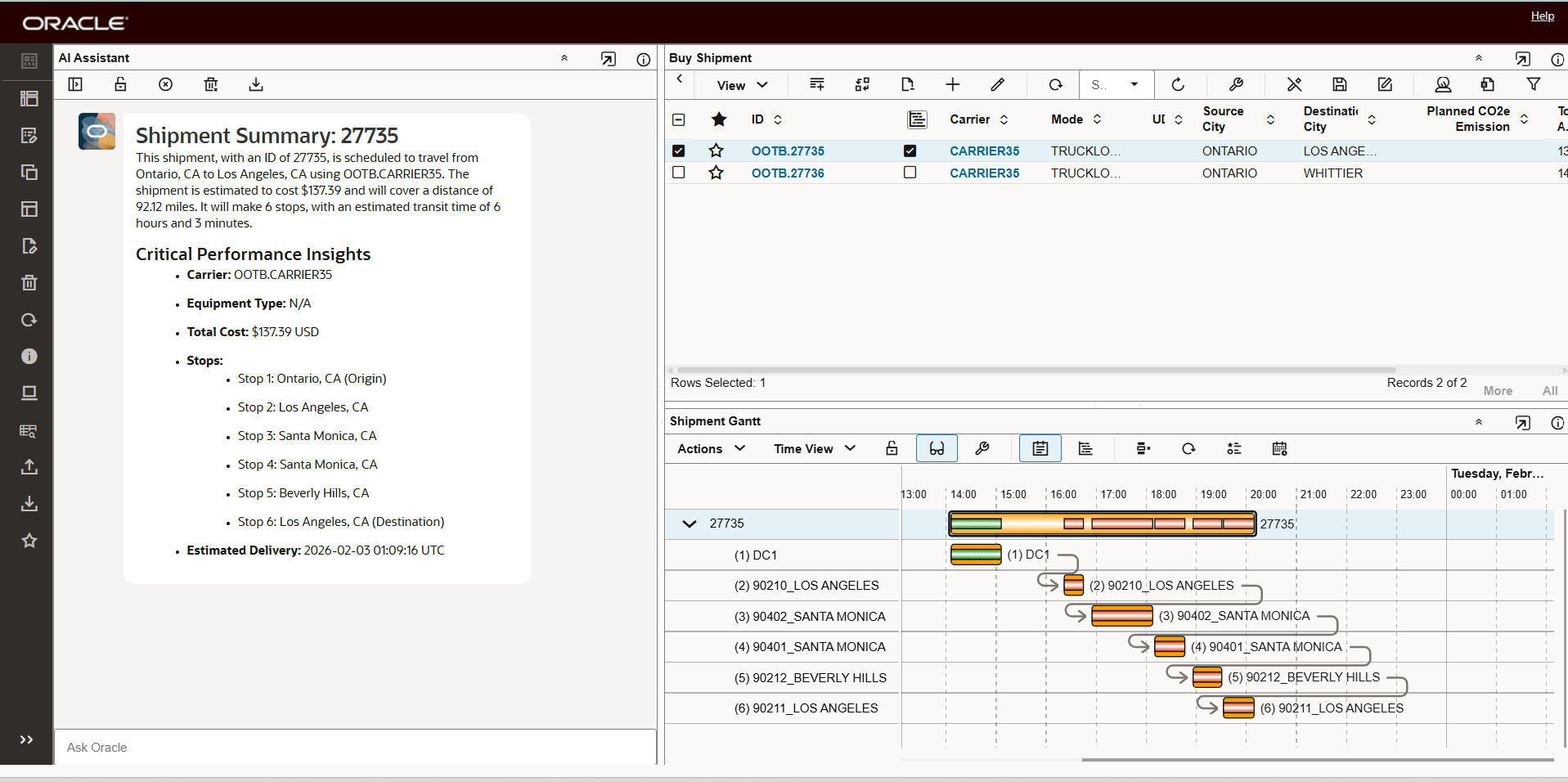
Configured Enhanced Layout Used in Shipment Summary Action
Tips and considerations
Connection to the large language model for your Shipment Summary usage is handled automatically as part of your upgrade or provisioning.
The large language model (LLM) used for the Shipment Summary use case is Cohere. Cohere's large language model (LLM) is an enterprise-focused, secure, and private AI, distinguishing itself from consumer-focused competitors by prioritizing data privacy, customizability, and specialized retrieval-augmented generation (RAG). Cohere focuses on integrating its models directly into existing business workflows, enterprise applications and highly regulated industries like finance, healthcare, and government.
The AI Assistant Shipment Summary can provide Summary information for the following data elements of a shipment:
- Shipment ID: A unique identifier for the shipment.
- Service Provider ID: The identifier for the carrier or service provider.
- Service Provider Fixed: A boolean value indicating whether the service provider is fixed or not.
- Preferred Carrier: A boolean value indicating whether the carrier is preferred or not.
- Transport Mode: The mode of transport.
- Shipment Type ID: The type of shipment.
- Planned Transport Mode: The planned mode of transport.
- Planned Service Provider: The planned service provider.
- Start Time: The scheduled start time of the shipment.
- End Time: The scheduled end time of the shipment.
- Transit Time: The estimated time the shipment will be in transit.
- Source Location ID: The identifier for the origin location.
- Destination Location ID: The identifier for the destination location.
- Source Location Address: The detailed address of the origin location.
- Destination Location Address: The detailed address of the destination location, with similar details as the source location.
- Itinerary ID: A unique identifier for the shipment's itinerary.
- Total Actual Cost: The total actual cost of the shipment.
- Total Weighted Cost: The total weighted cost of the shipment
- Total Gross Volume: The total gross volume of the shipment.
- Total Net Volume: The total net volume.
- Total Gross Weight: The total gross weight of the shipment.
- Total Net Weight: The total net weight.
- Enroute Status: The current status of the shipment.
- Number of Stops: The number of stops the shipment will make.
- Total Ship Unit Count: The total number of shipping units, which is 1. - Total Package Count: The total number of packages.
- Loaded Distance: The distance the shipment will travel.
- Chargeable Volume: The volume that will be charged for.
- Chargeable Weight: The weight that will be charged for.
- Primary: A boolean value indicating whether this is the primary shipment or not.
- Planned Cost: The planned cost of the shipment.
- Rate Offering ID: The identifier for the rate offering.
- Planned Rate Offering ID: The identifier for the planned rate offering.
- Shipment Stops: A detailed list of stops, including stop number, stop type, location, estimated and planned arrival and departure times, and various time and distance metrics.