Introducing Role Permissions Management UI
Cloud WMS uses roles, groups, and permissions to help you control access to application functions. You can assign permissions (such as Edit Order or Run Wave) to a user-defined group, and then add users to one or more groups so they inherit those permissions. Roles sit above groups and determine what users receive by default:
- ADMINISTRATOR: Users with this role automatically inherit ALL permissions without requiring group assignment. You can assign this role only to specific users because it allows full access to all WMS operations.
- MANAGEMENT: We’ve improved how permissions are assigned to the Management role for greater clarity and consistency. Users with this role now automatically receive key facility-level permissions (such as “Run Wave”) without needing to be added to a custom user group.
- SUPERVISOR, GUARD, EMPLOYEE: Users with these roles don’t inherit permissions by default. They have view access to the screens included in the menus assigned to them, and you grant additional permissions through user groups.
Today, WMS already provides clear visibility into the permissions assigned to user-defined groups, and many customers also want the same level of transparency for standard roles (such as Management, Supervisor, Guard, and Employee) to support security and compliance.
In 26B, we introduced the Role Permission Management screen in Redwood, which lets administrators view and manage the permissions assigned to standard roles (especially the Management role). Through this screen, you can:
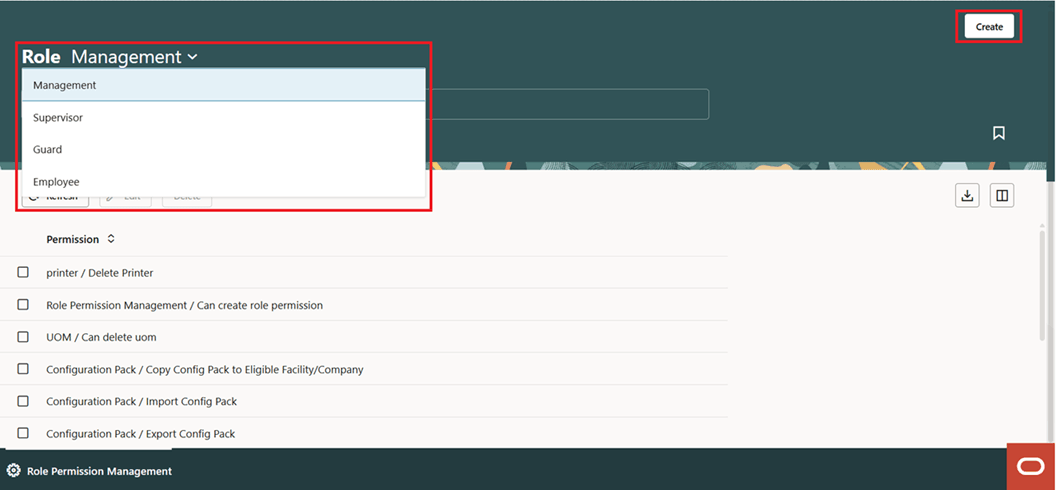
Management Role
- Easily manage role permissions for Management, Supervisor, Guard, and Employee using a role switcher and search.
- Add or remove permissions quickly using an intuitive interface.
- Restrict permission changes to authorized users only.
You can perform CRUD operations with the following new permissions enabled for user roles:
- Role Permission Management / Can create role permission
- Role Permission Management / Can edit role permission
- Role Permission Management / Can delete role permission
NOTE: The system blocks unauthorized users from saving changes and returns an error, ensuring permissions remain secure and controlled.
Steps to enable and configure
You don't need to do anything to enable this feature.