Introduce Configuration Migration Pack
The Configuration action button supports exporting, importing, or copying only one screen configuration at a time. Migrating multiple related screens in the correct sequence is time-consuming and prone to errors. So, we are introducing an option to migrate root entity and its dependent screen configurations in a single operation.
For example, when you migrate Wave Templates, the screen configuration requires its dependent screens migration (such as Wave Search, Cubing Rule, and Task Creation Template.) Each screen may have its own dependencies. In this case, if you do not migrate these configurations in the correct order, the migration can fail.
The Configuration Pack feature groups a root entity with its child and sub-child dependencies. You can export, import, or copy the entire set in one operation. You can migrate multiple screen configurations in one pack.
This Configuration Pack UI helps you with the following:
- Reduce setup time by migrating multiple related entities in one operation.
- Minimize dependency errors by automatically including required child and sub-child configuration entities.
- Improve consistency across facilities/companies in multi-site deployments.
- Eliminate intermediate file handling when you use direct copy action in the same session.
CONFIGURATION PACK UI
We have added a new UI module Configuration Pack View to create and manage configuration packs that bundle one or more root entities with all related dependent screens.
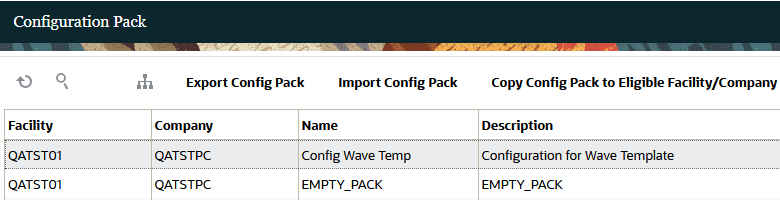
Configuration Pack UI
NOTE: On the Configuration Pack View UI, you can add a configuration pack name and you can add the entities on the Configuration Pack Detail screen.
Actions on the Configuration Pack View and Configuration Pack Detail are permission controlled.
NOTE: By default, admin users are enabled with these group permissions.
The following are the group permissions to create, edit, and delete configuration packs:
| Group Permission | Behavior |
|---|---|
| Configuration Pack / Can create config pack | Controls Create action on the Configuration Pack View and Configuration Pack Detail screens. |
| Configuration Pack / Can edit config pack | Controls Edit action on the Configuration Pack View and Configuration Pack Detail screens. |
| Configuration Pack / Can delete config pack | Controls Delete action on the Configuration Pack View and Configuration Pack Detail screens. |
After enabling these permissions, you can create a configuration pack on the Configuration Pack View. To the created configuration pack, on the Configuration Pack Detail, you can add root entity or individual entities. When you add a root entity, the system auto loads all related child/sub-child entities that support configuration, groups them under the root, and tracks relationships in “Root Node” and “Included By”.
Delete validations:
- Child/sub-child records cannot be deleted - delete action will be disabled
- When deleting a Root Node entity record, the system will also delete all its related child/sub-child records.
To migrate configuration packs, we have introduced the following action buttons:
- Export Config Pack: Exports the selected configuration pack (root entities and included dependencies) to a Zip file.
- Import Config Pack: Imports the selected configuration pack Zip file to the logged in facility/company.
- Copy Config Pack to Eligible Facility/Company: Copies the selected configuration pack to the chosen destination facility/company in one step.
These action buttons are permission controlled. The following table lists the required group permissions to enable these action buttons:
| Group Permission | Controlled Action Button |
|---|---|
|
Configuration Pack / Export Config Pack |
Export Config Pack |
| Configuration Pack / Import Config Pack | Import Config Pack |
| Configuration Pack / Copy Config Pack to Eligible Facility/Company | Copy Config Pack to Eligible Facility/Company |
NOTE: You can add multiple root entities and screens to a configuration pack. And you can migrate only one configuration pack record at a time.
Once migration completes, the imported configurations appear in their corresponding configuration screens. The migration process creates records that do not exist in the target facility/company and updates existing identical records to avoid duplicates.
Steps to enable and configure
- Add the “ConfigPackView” module to your group menu.
- Enable the following group permissions:
- For create, edit, and delete on the Configuration Pack View and Configuration Pack Detail screens enable:
- Configuration Pack / Can create config pack
- Configuration Pack / Can edit config pack
- Configuration Pack / Can delete config pack
- For Configuration Pack actions on the Configuration Pack View:
- Configuration Pack / Export Config Pack
- Configuration Pack / Import Config Pack
- Configuration Pack / Copy Config Pack to Eligible Facility/Company
NOTE: By default, admin users are enabled with these group permissions.
- Create a Configuration Pack:
- On the Configuration Pack View UI, create a configuration pack. Enter Name and Description (unique per facility/company).
- Select the created configuration pack and navigate to the Configuration Pack Detail screen.
- Add one or more root entities to details. The system auto loads supported child/subchild entities and groups them under their root entity.
- Migrate the configuration pack: On the Configuration Pack View UI, use “Export Config Pack”, “Import Config Pack”, or “Copy Config Pack to Eligible Facility/Company” action buttons.