AI Agentic App: Warehouse Execution Command Center
Warehouse execution requires teams to coordinate receiving, putaway, replenishment, and picking activities. Supervisors need to monitor performance, prioritize work, identify dependencies, and resolve issues to keep operations moving. As operations become more complex, the Warehouse Execution Command Center focuses on outbound transactions, particularly to Wave, Order analysis, Picking and Replenishment.
Warehouse Execution Command Center
Warehouse Execution Command Center is an AI-powered operational workspace that helps warehouse supervisors and managers, achieve fulfillment activity from a workspace. This command center provides a unified and determined view of warehouse execution for the user default company and facility.
The command center is designed to provide insights across outbound transactions such as orders, waves, picking, and replenishment operations to identify work that may affect fulfilment commitments. The command center is not only limited to featuring at-risk orders, impacted waves, delayed tasks, short picks, picking bottlenecks, and replenishment dependencies; but also defines the operational conditions of each issue and recommend the next appropriate action. Users can drill into details, simulate inventory availability before waving orders, prioritize or release eligible tasks, resume failed waves, and communicate follow-up actions without moving between multiple work areas.
By combining visibility, analysis, and action, Warehouse Execution Command Center helps teams respond earlier to exceptions, improve fulfillment flow, and support consistent service levels.
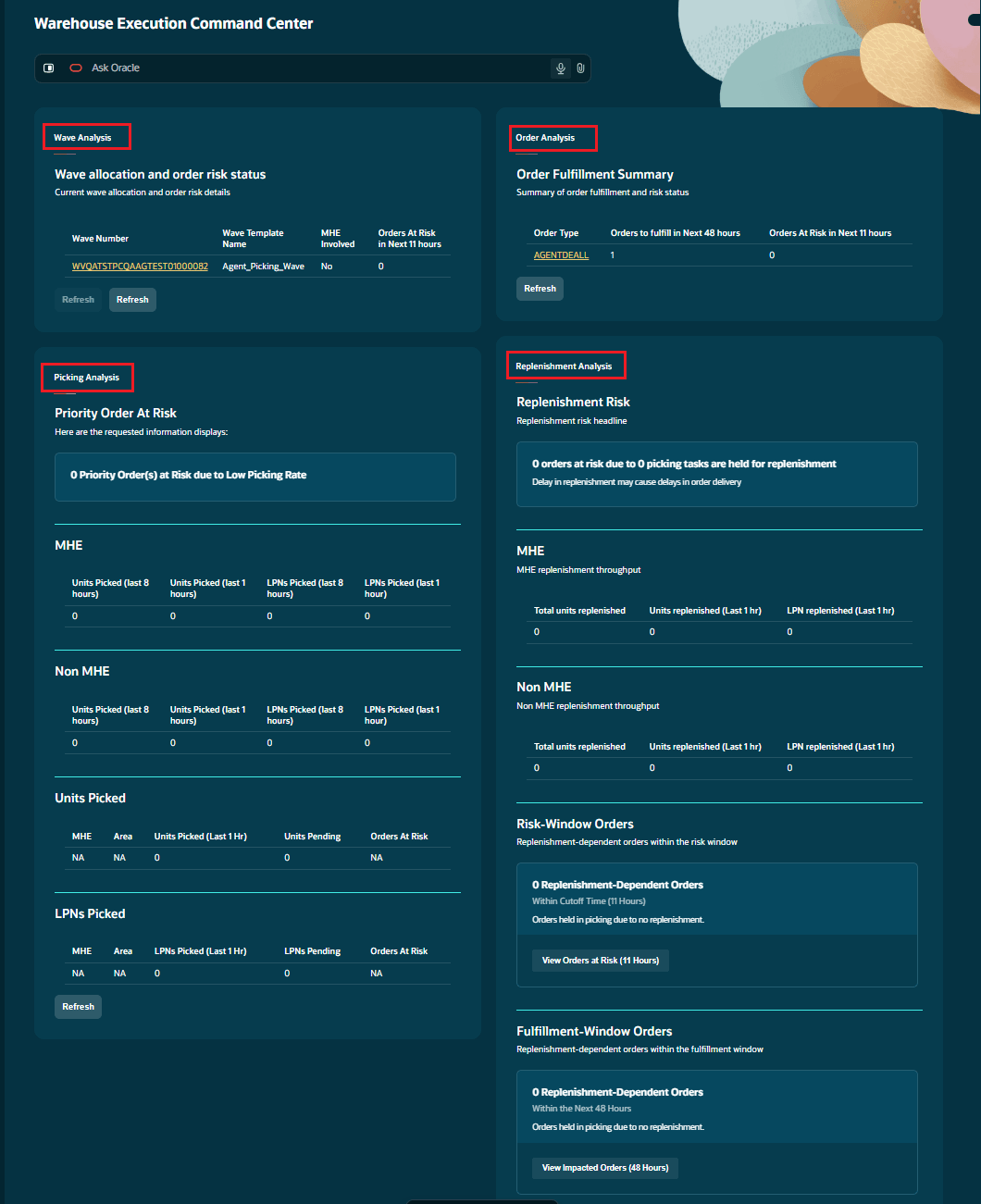
Warehouse Executive Command Center
What are the benefits:
- Improves visibility across order fulfillment, waves, picking, and replenishment.
- Helps teams identify and address outbound operational exceptions earlier.
- Cuts manual navigation through multiple screens in WMS and reduces efforts on extensive manual analysis or web reports by providing a great visually curated record.
- Supports more informed wave planning and inventory decisions.
- Helps understand picking and replenishment health of the facility for both MHE and non MHE driven operations
- Focused highlight on at-risk orders, picking & replenishment bottlenecks for such orders.
- Provides ability to communicate through the agentic app.
Command Center Agents
Warehouse Execution Command Center introduces AI-powered Agents that help warehouse teams monitor fulfillment activity, identify exceptions, and act from a single workspace. Each agent focuses on a key stage of warehouse execution and provides relevant insights, drill-down details, and recommended actions. Together, the agents help supervisors and managers understand what needs attention, why it matters, and what to do next.
Wave analysis agent
The Wave Analysis agent helps you monitor waves affected by partial allocation, unavailable inventory, replenishment dependencies, wave failures. It provides an exception-focused view of impacted waves and lets you drill into wave-level fulfilment progress, allocation yield, and remaining work. The agent can also recommend actions, such as resuming a failed wave or undoing a wave with low cubing utilization.
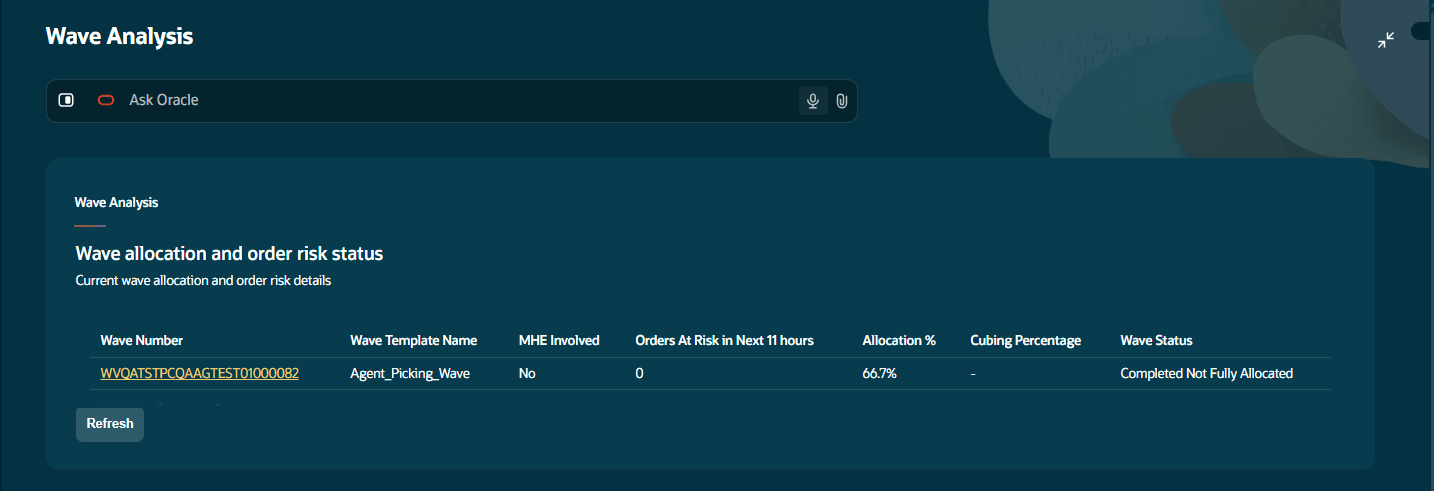
Wave Analysis
- The initial view covers waves run in the last 24 hours and displays the top six impacted waves:
- Wave Number - Identifies the impacted wave
- MHE Involved - Indicates whether allocations in the wave involve an MHE system
- Orders Impacted - Number of impacted orders based on selected-but-not-allocated and shorted orders
- Wave Template - Shows the wave template used
- Cubing % - Provides cubing utilization for the wave
- Wave Status - Shows the current wave status
- Wave drill-down execution: Selecting a Wave Number takes you into a detailed Wave Analysis view for that specific wave. The wave-level information consists of wave number, status, number of orders, total units allocated and packed, and OBLPNs created, packed, and shipped.
- Understand allocation yield: You can review the allocation-yield breakdown, i.e., you can review the following distribution to understand the allocation outcome of the wave:
- Allocated orders - Orders that were fully allocated.
- Partially allocated orders - Orders for which only part of the required quantity was allocated.
- Not allocated orders - Orders for which allocation was not completed.
- Orders awaiting replenishment - Orders whose allocation/picking depends on replenishment.
- Inventory considered: The availability simulation evaluates inventory using the selected wave template's allocation mode sequence configuration. The assessment considers applicable active and reserve locations, allocation sequence, area and allocation-zone restrictions, inventory status and locks, existing allocations, and item matching.
NOTE: Inventory with a non-allocatable lock code, IBLPN/container, and expired inventory is not considered available in this simulation.
Important limitation:
- The simulation supports a maximum of 1,000 eligible order-detail lines per request. The limit applies to eligible lines being evaluated by the wave template, not simply the total number of lines in the submitted orders.
- Allocation probability: Simulation results are translated into Low (0–50%), Medium (>50–75%), High (>75–100%).
- Wave Priority Actions: When is complete and the cubing rate is below 50%, the agent provides an Undo Wave priority action so the wave can be undone and replanned. This priority action appears only when the wave template is configured with appropriate cubing modes.
- Resume Wave for Failed records: Waves in Failed status display a Resume Wave priority action. Eligible failed waves can be restarted directly from the Command Center. Resume is not allowed for a wave that isn't Failed or when picking has already started.
- Resume Failed Wave via API: The new resume_wave API restarts eligible failed waves. Separate APIs support Generate Task, Assess Inventory Availability, Get Allocation Mode, and Get Allocation Mode Sequence, enabling the Command Center and external integrations to work with wave execution and allocation configuration.
Resume by Wave ID
POST/wms/lgfapi/v10/entity/wave/{id}/resume_wave
Resume using request data
POST/wms/lgfapi/v10/entity/wave/resume_wave
The request can identify the wave using the Wave ID or run_nbr, together with the appropriate company and facility context.
NOTE: These are the core product changes that allow users to use these APIs independently of the agentic app to resume Waves.
- Ask Oracle about a Wave: The Wave Analysis is also exposed through Ask Oracle. Users can ask questions such as tell me more about this wave 12321. Ask Oracle identifies the wave and retrieves the corresponding Wave Analysis information.
Key Notes on Time and Usage
The Wave Analysis initial view evaluates impacted waves based on the following timing and usage:
NOTE: The inventory availability assessment requires the applicable wave_orderhdr permission.
| Timing | Usage |
|---|---|
| 24 hours | Initial Wave Analysis view looks at impacted waves from the last 24 hours |
| 48 hours |
order_fulfillment_window_hrs defaults to 48 hours. Defines the broader fulfillment window used by the Command Center. This is configured via the facility parameter. |
| 8 hours by default |
order_risk_window_hrs defaults to 8 hours and defines the window for identifying critical at-risk work. This is configured via the facility parameter. |
Order analysis agent
The Order Analysis agent helps warehouse supervisors focus on orders that require attention before their shipping commitments. It combines upcoming fulfilment demand, allocation status, inventory availability, and recommended actions so users can move from identifying an at-risk order to determining the appropriate fulfilment action.
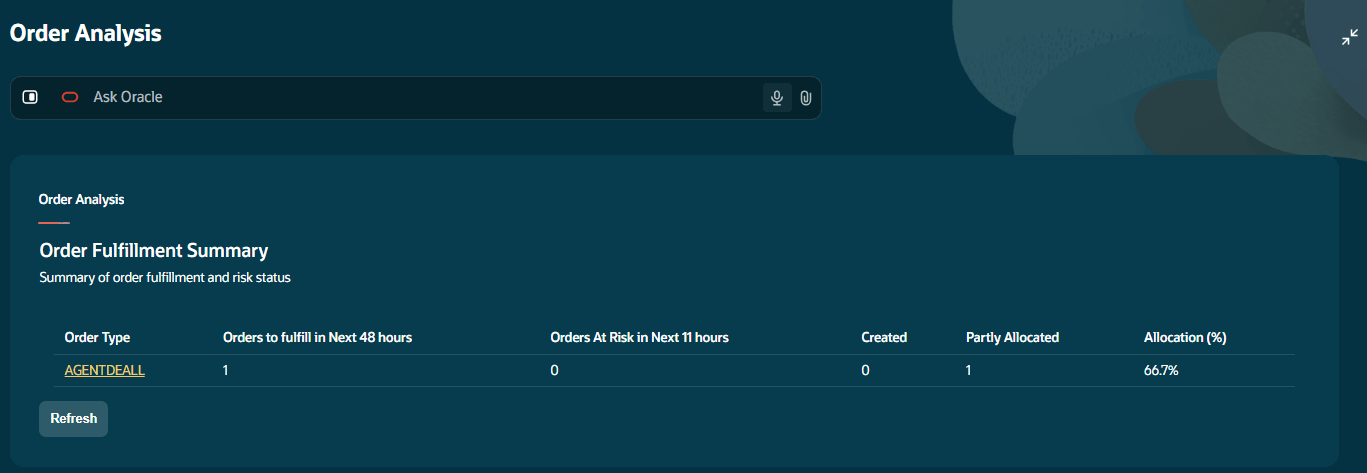
Order Analysis
Fulfilment window
The agent first narrows the order population to reduce operational noise and focuses on orders that are not fully allocated.
- Fulfilment window: Uses facility parameter order_fulfilment_window_hrs, with a default of 48 hours, to identify upcoming orders that require fulfilment.
- Orders in scope: Includes orders in Created or Partially Allocated status. Fully allocated, shipped, cancelled, and closed orders are not included.
- Order type grouping: The landing view groups results by Order Type and displays the top 7 order types.
- Landing view: Shows Order Type, Orders to Fulfil Next X Hrs, and Orders at Risk.
- Expanded view: Adds Allocation %, Partially Allocated, Created, and Orders at Risk.
- Allocation %: Calculated as Total Allocated Quantity / Total Required Order Quantity × 100.
Shipment and risk window
Within the broader fulfilment window, the agent identifies the subset of orders that are at immediate risk of missing shipment commitments.
- Risk window: Uses facility parameter order_risk_window_hrs, with a default of 8 hours, to identify orders approaching their shipment cutoff.
- Shipment timing/risk calculation: WMS uses remaining time based on the estimated_departure_date on the Outbound Load screen. When unavailable, WMS uses 23:59 on the Required Ship Date.
NOTE: The agent considers orders in Created or Partially Allocated status within the risk window. The risk window is expected to be shorter than the fulfillment window.
Order Drill-Down and Inventory Decisioning
When a user selects an Order Type, the Order Analysis drill-down shows the individual at-risk orders for that order type. The drill-down includes:
- Order Number, Status, Wave Template, Customer/Facility, Remaining Time to Ship, Allocation %, Allocation Probability, and Order Lock.
- Only Created and Partially Allocated orders within the configured risk window are shown.
- In the drill-down view, each order type displays up to 50 orders at a time. Once orders from the current set are allocated, the next set of up to 50 orders of the same type is displayed. Availability is checked only for the 50 currently visible orders. As orders are allocated, subsequent orders are shown and included in the next availability check.
Inventory and Wave Decisioning
The Order Analysis drill-down adds inventory decision support before the user runs a wave.
- Initially, Allocation Probability is blank until an inventory assessment is performed.
- Inventory Availability Check: The Command Center can simulate inventory availability using a selected wave template, instead of immediately running an actual wave just to determine whether inventory is available.
NOTE: This simulation does not create Allocations, Waves, Tasks, Picks, Replenishment transactions, Inventory transactions, or Inventory History records. This allows a wave planner to assess a wave strategy before running the actual wave.
- The assessment considers item quantity, available inventory, Active and Reserve locations, allocation mode and sequence, area/allocation-zone restrictions, inventory and location locks, existing allocations.
NOTE: Locked or otherwise ineligible inventory is not considered available. Also, the simulation availability check does not create waves, allocations, tasks, picks, replenishments, Inventory History, or inventory transactions.
Important limitation:
- The simulation supports a maximum of 1,000 eligible order-detail lines per request.
- Allocation probability: Simulation results are translated into Low (0–50%), Medium (>50–75%), High (>75–100%).
- After a successful inventory Availability check, WMS displays the selected Wave Template, updated Allocation %, and Allocation Probability.
- Orders with a high allocation probability will be auto selected for Runing a Wave with the wave template used for the availability check.
- After a successful wave execution, only the orders waved are removed from the Order Analysis context; other unfulfilled orders remain visible.
Ask Oracle and Non-Wave Orders
The Order Fulfillment agent also supports an Ask Oracle experience for a specific order number. Users can use Ask Oracle to search for a specific order and retrieve its current fulfillment and shipment context. The response displays:
- Order Number, Order Type, Status, Total Order Quantity, Allocation %, Picked Quantity, Loaded Quantity, Shipped Quantity, Shorted, Remaining Time to Ship, and Required Ship Date.
- Remaining time uses the estimated departure date & time; when unavailable, WMS uses Required Ship Date at 23:59. For shipped orders, Remaining Time to Ship is 00:00.
Key Configuration
| Parameter | Default | Purpose |
|---|---|---|
| order_fulfillment_window_hrs | 48 hours | Defines the upcoming fulfilment window |
| order_risk_window_hrs | 8 hours | Defines the urgent shipment-risk window |
Picking analysis agent
The Picking Analysis agent helps warehouse supervisors identify picking bottlenecks that could affect shipment commitments. It combines picking throughput, MHE and non-MHE performance, short-picked orders, pending work, replenishment dependencies, inventory availability, and task status so supervisors can identify the cause of a delay and take corrective action from the Command Center.
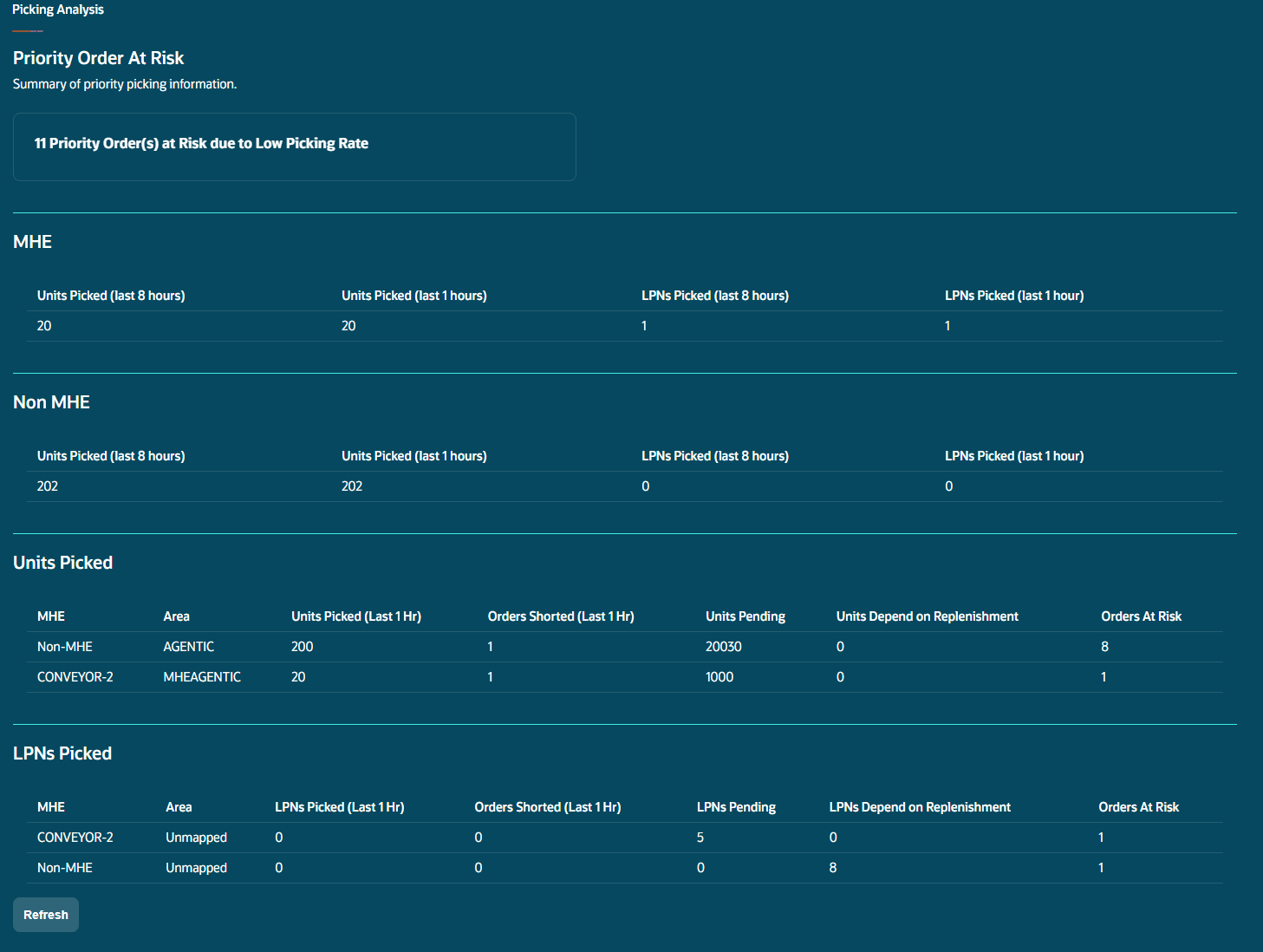
Picking Analysis
Picking Health and Throughput
Users must manually refresh the page to view the latest data; the system triggers the API when the page is refreshed, and the agent presents a summarized view of picking health for the facility/company and focuses on priority orders within the configured order_risk_window_hrs.
- It highlights the percentage of priority orders at risk due to low picking rates.
- Separates throughput between MHE and non-MHE operations.
- For each operation, the agent displays total units picked in the last 8 hours, units and LPNs picked in the last 1 hour.
- Groups short-picked orders by Order Type for orders scheduled to ship within the order_risk_window_hrs.
- The expanded view provides picking details by Area and MHE, including units/LPNs picked, pending work, number of shorted orders, replenishment-dependent quantities, and orders at risk.
- The agent highlights the top three congested areas based on the number of orders at risk. It estimates an area's clearing time as pending quantity divided by quantity picked in the last hour, then compares that time with the remaining time to the shipment cutoff to identify orders at risk.
Short-Pick Analysis and Recovery
Short-pick orders are identified using IHT-92 – Shorting Event within order_risk_window_hrs.
- The short pick count by Order Type is clickable. Selecting it opens the affected short-picked orders and provides: Order Number, Status, Customer/Facility, Remaining Time to Ship, Allocation %, Allocation Probability, Order Lock, and Wave Template.
- Remaining Time to Ship uses the scheduled departure date & time; when unavailable, WMS uses 23:59 on the Required Ship Date.
- Inventory Availability Check: The Command Center can simulate inventory availability using a selected wave template, instead of immediately running an actual wave just to determine whether inventory is available.
NOTE: This simulation does not create Allocations, Waves, Tasks, Picks, Replenishment transactions, Inventory transactions, or Inventory History records. This allows a wave planner to assess a wave strategy before running the actual wave.
- Allocation Probability is classified as Low (0–50%), Medium (>50–75%), High (>75–100%), or Not Allocatable (Applicable when an order is locked or cannot be partially allocated and does not have complete inventory coverage).
- Eligible orders can then be re-waved. After successful execution, only the orders included in that wave are removed from Picking Analysis; unresolved short-picked orders remain visible.
Picking Priority Actions
The agent also provides contextual actions when picking work is preventing an order from progressing:
- Prioritize Tasks: When an at-risk order has a picking task in Ready status that has not started for more than 2 hours, the task can be reprioritized to priority 0. Internal pick orders are excluded from this action.
- Release Tasks: When an at-risk order has a picking task in Held status for more than 2 hours, users can release it to Ready. The command center also filters the picking tasks that are in Held status due to pending replenishment.
- Unassigned Tasks: For urgent orders with unassigned Ready or Held tasks, the agent prepares a communication containing the affected orders and task numbers for operational follow-up.
- Low Picking Rate: When an area's estimated clearing time exceeds the remaining shipment cutoff, the agent identifies the impacted orders and supports communication for corrective action.
Inventory History Supporting Picking Analysis
26D also expands Inventory History across Mobile, MHE, and LGFAPI picking flows, providing the data required for more accurate Picking Analysis.
- Applicable picking and packing transactions now capture:
- PLO – actual source/pick location
- ATP – allocation type
- MHE – MHE system used for picking
- Pick location can represent an Active, Reserve, alternate, or source LPN/location. The existing Inventory History Location field remains unchanged.
- The enhancement applies across applicable flows such as Pack NC Active, Pick Cart, Pack OBLPN, Pick & Allocate/Direct Allocation, and supported LGFAPI picking and packing transactions.
NOTE: For MHE picking, WMS records the applicable MHE system code. For manual picking, the MHE reference value remains blank.
- IHT-10 and IHT-11 provide picking/packing throughput information, while the enhanced pick-location information enables throughput to be associated with the appropriate warehouse Area.
IHT-92 — Shorting Event
IHT-12 – Order Detail Shorted primarily represented cases where shorting reduced the order-detail quantity. When Only Deallocate on Short was enabled, a picking allocation could be shorted without reducing the order quantity, creating a visibility gap.
Now, the new IHT-92 provides a dedicated record of applicable picking-allocation shorting events regardless of the Only Deallocate on Short setting.
- IHT-92 captures the order, item, short quantity, pick location, reason, batch/expiry, inventory attributes, allocation type, and MHE context needed to analyse short picks.
NOTE: Existing IHT-12 – Order Detail Shorted continues to be generated when shorting reduces the order-detail quantity.
- This IHT is applicable to Mobile flows including Pack NC Active, Pick Cart, Pack OBLPN, Move LPN, Pick IBLPN, Pick IBLPN Consolidated Replenishment, and Pallet Move Auto Pack.
- It also applies to API-driven picking, including supported Pick Confirmation and Pack OBLPN flows.
NOTE: The Distribute OBLPN and Repack shorts are excluded from Picking Analysis IHT-92 scope, while Pallet Move Auto Pack continues to generate IHT-92 for valid picking-related shorts.
- Inventory History also introduces REF_CODE_23 and REF_VALUE_23, available through configurable columns, search, CSV export, GET APIs, and applicable output interfaces.
Key Configuration
The Picking Analysis agent uses order_risk_window_hrs to determine which orders are approaching their shipment commitment. The parameter defaults to 8 hours and is configurable by facility.
NOTE: The 8-hour throughput metric and order_risk_window_hrs are separate concepts. Picking Analysis always reports total units picked over the last 8 hours, while the configurable risk parameter determines which upcoming orders are considered at risk.
Replenishment analysis agent
The Replenishment Analysis agent helps warehouse supervisors identify when replenishment delays are preventing picking from progressing and putting orders at risk. It combines replenishment throughput, backlog, MHE activity, replenishment-dependent picking tasks, affected orders, and task status so users can identify bottlenecks and take corrective action before fulfillment commitments are missed.
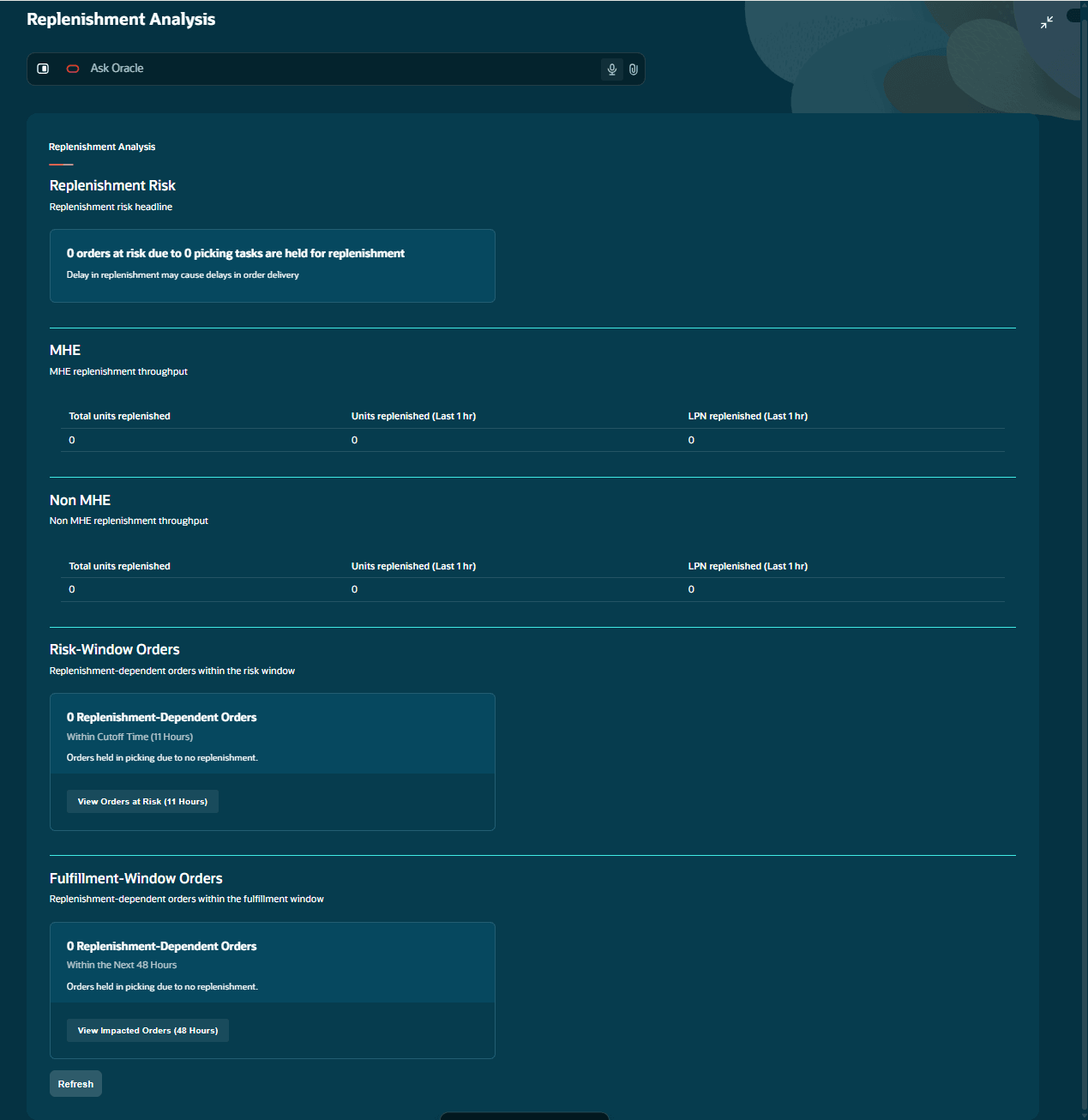
Replenishment Analysis
Replenishment Health and Throughput
- Identifies priority orders at risk because their picking tasks depend on replenishment.
- Shows replenishment-dependent orders within the configured risk window and the broader fulfillment window, which defaults to 48 hours.
- Separates throughput between MHE and Non-MHE operations.
- Provides total units replenished in the last 8 hours, plus units and LPNs replenished in the last 1 hour.
- The expanded view provides details by MHE System and Area, including:
- Replenishment backlog
- Replenishment rate in the last hour
- Orders impacted by pending replenishment
- Replenishment-dependent picking tasks
- Replenishment-dependent picking tasks are identified from allocations where Is Dependent on Replenishment = true.
Replenishment task drill-down and Corrective actions
Users can select the actionable replenishment-dependent order count to open a task-level drill-down that displays:
- Task Number, source Area, Orders at Risk, Orders Impacted within the Fulfillment Window, Task Status, and applicable Action.
NOTE: Only incomplete replenishment tasks in Ready or In Progress status are included.
- Task actions are presented based on the task condition:
- Release Tasks: Held replenishment tasks affecting at-risk orders for more than 2 hours can be released to Ready.
- Prioritize Tasks: Ready replenishment tasks that have not been picked for more than 2 hours can be reprioritized to priority 0.
- Assign Task: Available when a replenishment task is not assigned to a user.
- When both Held and unassigned conditions apply, the applicable task actions are made available.
- Unassigned Tasks: For urgent orders with unassigned replenishment tasks, the agent prepares a communication containing the affected orders and replenishment task numbers for follow-up.
- The same facility-level order_risk_window_hrs and order_fulfillment_window_hrs used by the Command Center determine the affected order populations.
Inventory history and mobile traceability
Replenishment Analysis uses Inventory History to measure recent replenishment throughput and identify the source Area and MHE involved in replenishment activity.
- Existing replenishment-related activities, including IHT-4, IHT-17, and IHT-51, are used to derive replenishment activity.
- For MHE-driven replenishment, WMS now captures the MHE system code in REF_VALUE_23 for applicable IHT-4, IHT-17, and IHT-51 records. For replenishment activity not performed by MHE, REF_VALUE_23 remains blank. This MHE information is captured for applicable Move LPN, Replenish Full LPN, Distribute Replenishment, Consolidate Replenishment, and Pick IBLPN Consolidation Replenishment Mobile/API flows.
- The agent uses this information to determine units and LPNs replenished, source Area, and MHE/Non-MHE activity.
Key Configuration
| Parameter | Default | Purpose |
|---|---|---|
| order_risk_window_hrs | 8 hours | Identifies orders at immediate risk because replenishment is delaying picking. |
| order_fulfillment_window_hrs | 48 hours | Identifies orders impacted within the upcoming fulfillment window. |
The 8-hour replenishment throughput metric is separate from order_risk_window_hrs: throughput always looks at the preceding 8 hours, while the configurable parameter determines which upcoming orders are considered at risk.
Core product API enhancement
Output interface file download through REST API
WMS now supports programmatic download of Output Interface files through the REST API, helping integrations and agentic workflows access generated output files without requiring users to download them manually from the UI.
- The existing GET Output Interface API now returns a file_url for each output-interface record.
- The URL points to the corresponding generated output file.
- Authorized users or integrations can send a GET request to the file_url to retrieve the file.
- Users can also open the URL in a browser to download the corresponding file.
- Authentication continues to be required to access the file.
Generate picking tasks for wave via API
WMS provides an API “generate_task” to generate picking tasks for eligible allocations that do not already have a task.
POST/wms/lgfapi/v10/entity/wave/generate_task
Retrieve Allocation Configuration via API: Wave simulation depends on allocation configuration. Support external systems and agentic workflows, WMS now exposes GET APIs for the allocation configuration used by waves.
Allocation Mode:
GET/wms/lgfapi/v10/entity/alloc_mode
Allocation Mode Sequence:
GET/wms/lgfapi/v10/entity/alloc_mode_sequence
Prioritize Tasks
When an at-risk order has a picking task in Ready status that has not started for more than 2 hours, the task can be reprioritized to priority 0. Internal pick orders are excluded from this action.
POST /wms/lgfapi/v10/entity/task/bulk_change_priority/
Release Tasks
When an at-risk order has a picking task in Held status for more than 2 hours, users can release it to Ready.
POST /wms/lgfapi/v10/entity/task/bulk_release/
Inventory and traceability supporting wave analysis
For wave-based picking and packing transactions, the inventory history captures the following information, providing additional context about where and how inventory was picked.
- Actual pick location (PLO),
- Allocation type (ATP), and
- MHE system used for picking (MHE).
NOTE: This applies across applicable wave-based picking APIs and transactions, including Pick Confirmation, Pack Full LPN, Pack Multiple IBLPNs into One OBLPN, and Direct Allocation.
Configure error lanes for MHE exception processing
Improve MHE exception handling by configuring eligible Drop locations as Error Lanes. In 26D, the Error Lane flag is available in the Redwood Location UI, enabling MHE processes to identify designated locations for exception or error-lane processing while preserving existing location behaviour.
- Configure Error Lanes: The Error Lane checkbox is available when creating or editing a Location and can be enabled only for locations of type Drop.
- Search and visibility: Error Lane is available in Location search/filter criteria, search results, configurable columns, list views, and exports.
- Location Interface: The Error Lane value is supported through applicable Location Interface formats, including One Line, XML, XLS, and XLSX.
- REST API: The Location PATCH API supports the Error Lane field for programmatic location updates.
- MHE processing: MHE flows can identify Drop locations configured as Error Lanes during applicable processing, including Induct LPN.
- Redwood experience: The Error Lane UI capability is available in the Redwood Location UI.
Steps to enable and configure
- Provide access to the Warehouse Execution Command Center and assign the required WMS/API permissions.
- Configure the facility-level time windows, as needed:
- order_fulfillment_window_hrs – defaults to 48 hours.
- order_risk_window_hrs – defaults to 8 hours.
- Review Wave Templates and allocation configuration used for inventory availability assessment and wave execution.
- For MHE exception processing, configure applicable Drop locations as Error Lanes.
- If required, add REF_CODE_23 and REF_VALUE_23 to the Inventory History view to display MHE-related reference information.
The supporting Inventory History, API, and integration enhancements do not require additional configuration and are available when the corresponding transactions or integrations are used.