Orchestrate Employee Onboarding Journeys Between Eloqua and Fusion HCM
This release adds a purpose-built Employee Onboarding Assistant in AI Agent Studio that connects Oracle Fusion HCM and Oracle Eloqua to enable automated, personalized onboarding communications and journeys. The agent serves as an orchestration layer that connects Fusion HCM as the system of record for employee events and data, and Eloqua as the engagement/orchestration layer. It enables onboarding journeys to be triggered from the agent, including the ability to add employees from Fusion HCM directly into an Eloqua orchestration canvas to continue downstream communications and sequencing.
By enabling a more structured, personalized onboarding experience, organizations can help new hires feel supported from day one—improving engagement and accelerating productivity.
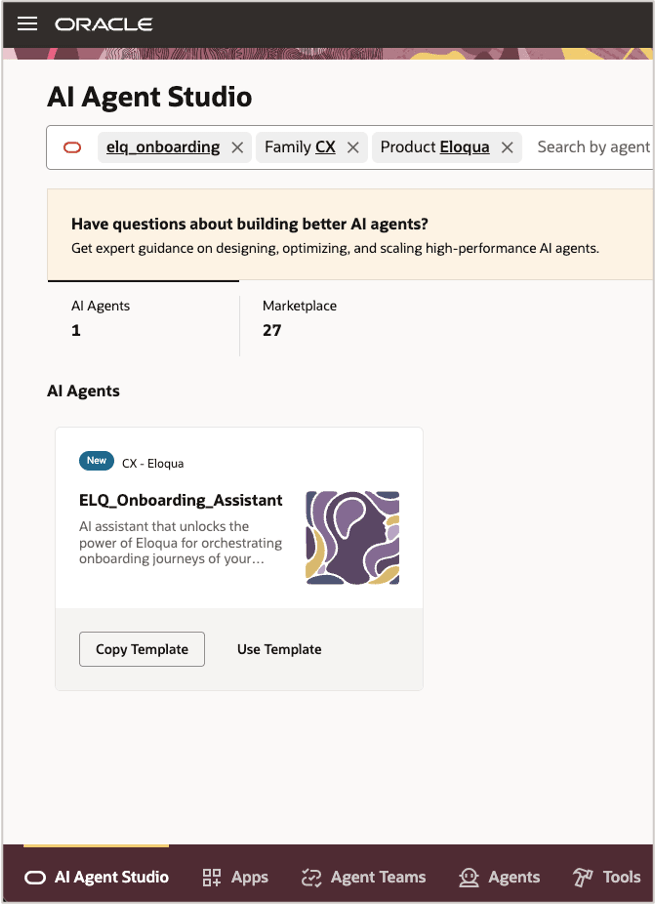
Agent Studio
Business value
- End-to-end onboarding automation: Links HR lifecycle events to communication orchestration, reducing manual steps between HR and communications teams.
- More personalized employee experiences: Enables timely, targeted onboarding communications aligned to employee status and onboarding milestones.
- Improved cross-team coordination: Creates a practical integration point for organizations where HR (Fusion HCM) and communications/operations (Eloqua) teams collaborate on onboarding.
Steps to enable and configure
Setting up specialized AI Agent within the Oracle AI Agent Studio
Prerequisites:
- Oracle Fusion HCM
- Access to Agent Studio – refer Access Requirements for AI Agent Studio
- Oracle Eloqua
- A campaign that orchestrates the onboarding journey
- A shared list that populates the segment used in the above campaign - new hires will get added to this shared list and flow into the campaign
Setting up the agent:
Agents arrive packaged in the studio as Agent Teams templates that you can instantiate, add authentication details and start to use. Following is a step-by-step guide to getting started.
1.1 Instantiate agent team
- Log in to a Fusion environment.
- Go to Navigator -> Tools section -> AI Agent Studio.
- On the AI Agent Studio bottom navigation tab that you land at, use the Ask Oracle search box to look up ELQ_Onboarding_Assistant
- Under search results, click on Copy Template within the tile
- Enter a suffix for the agent, and click on Continue. This creates a copy of the agent using the suffix, and opens the agent team canvas.
- Click on Save and Close to save the agent team.
1.2 Add authentication details
This agent team uses REST tools that interact with your Eloqua site via APIs. You must enter the credentials for each tool.
- On the Tools bottom navigation tab, use the Ask Oracle search box to look up each of the following tools. Open a tool by clicking on the View icon.
- ELQ_Get_Contact_Details – to retrieve Eloqua contact record details
- ELQ_Create_Contact – to create contact records in Eloqua
- ELQ_Add_Contact_To_SharedList – to add contact records to an Eloqua shared list
- Under Authorization tab, enter REST API authorization details as per your Eloqua login. You may choose to use Basic authentication or OAuth based authentication methods.
1.3 Add audience destination for Eloqua
This agent adds the audience from HCM to an Eloqua shared list. This shared list should be used on a segment, which in turn should be included on one or more ‘onboarding’ type campaigns. This ensures that the audience from HCM flows through the campaign upon segment evaluation.
To enter the details of the shared list, complete the following steps:
- Within the Tools bottom navigation tab from previous step, look up ELQ_Add_Contact_To_SharedList tool again and open it
- Under Functions tab, open the ADD_CONTACT_TO_SHAREDLIST function by clicking on the Edit icon.
- Under the Body Template section, update “id” parameter value to the asset ID of your Eloqua shared list and the “name” value to its name.
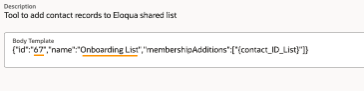
Adding ID Parameter and Name Values to Body Template Section
- Click on Update button to save the updates to the function.
- Click on Save button to save the updates to the tool.
Using the agent
- Navigate to the Agent Teams bottom navigation tab and search for the agent you saved as part of the setup. Open the agent by clicking on the Edit icon.
- Click on the Debug icon to open up the chat interface.
- Input the email addresses of the new hires and the agent will add them to Eloqua shared list, for orchestration on a campaign canvas.
Key resources
Access requirements
Prerequisites:
- Oracle Eloqua
- Oracle Fusion HCM
- Access to Agent Studio: Access Requirements for AI Agent Studio