AI-enabled application acceptance
The Application Acceptance workflow agent helps agency staff verify submitted permit and planning applications during application acceptance. It identifies missing, incomplete, or inconsistent information and prepares verification results and notes for staff review.
Staff remain responsible for the final decision in the standard human-in-the-loop configuration: request resubmittal or continue normal acceptance processing.
This example illustrates a permit application acceptance feedback that is awaiting resubmittal from the applicant. The agency staff can view the verification results in the permit application details.
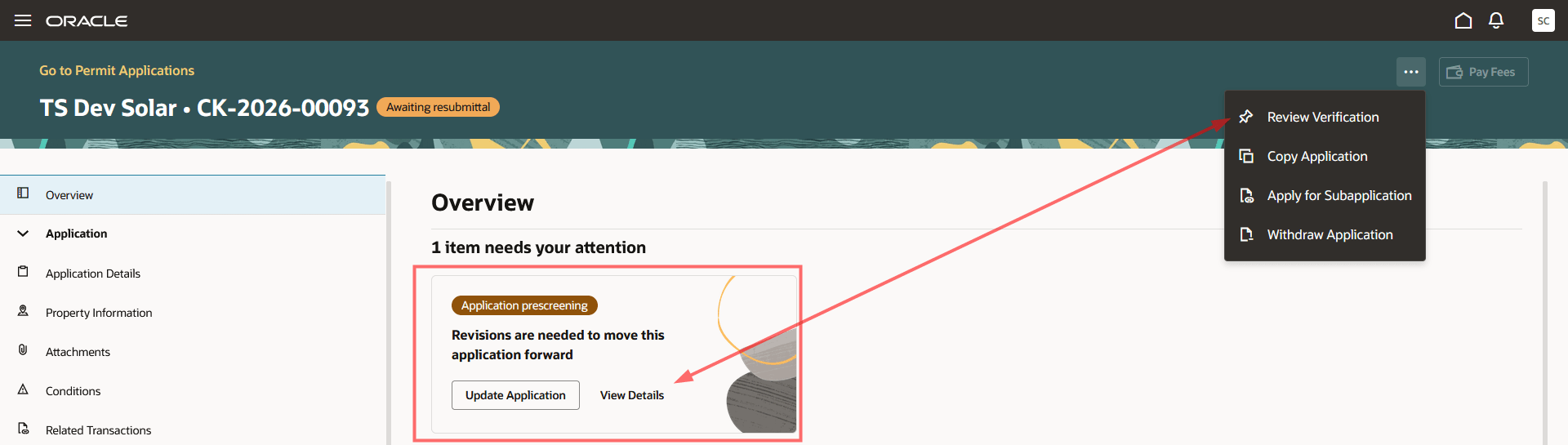
Permit application - Overview page with attention card
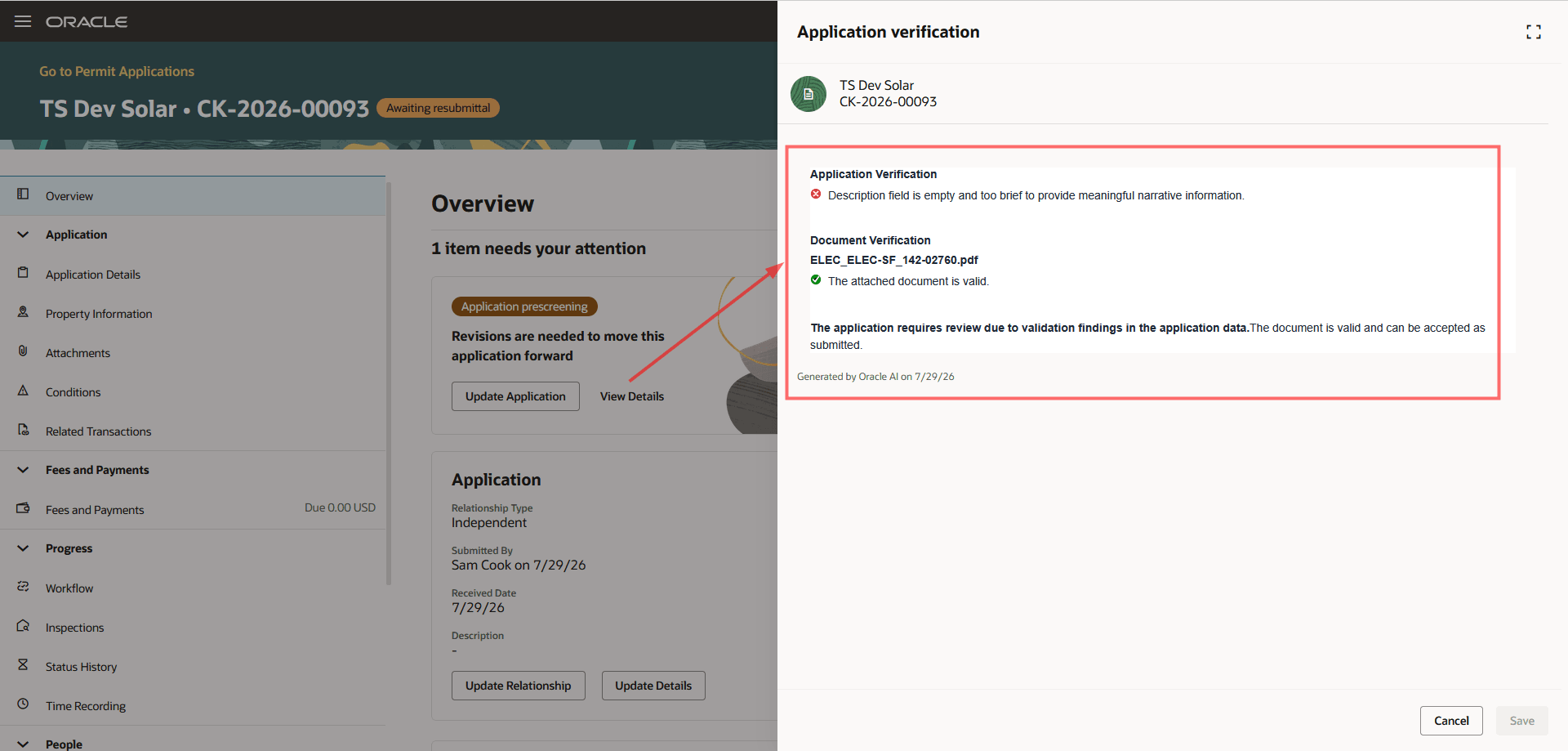
Application verification drawer with AI results
After an applicant submits or resubmits a configured application, a Business Rules Framework rule automatically invokes the agent.
The agent evaluates configured application content, which can include:
- Application custom fields
- Application descriptions
- Submitted attachments
- Agency-defined validation instructions and supporting content
Staff review the resulting verification notes from the agent on the application details page. If they request resubmittal, the application moves to Awaiting Resubmittal status and the applicant can view the notes, make corrections, and resubmit through application intake. The agent runs again after resubmission; previous results remain in verification history.
Where it works
The agent is configured for selected permit and planning application types.
Agency staff work with its results on the permit or planning application details page using the Review Verification action. Applicants view the latest resubmittal notes in the application details and intake flows after staff request resubmittal.
Agent type and requirements
The delivered asset is a template-based agentic workflow. Agencies clone and configure the template before using it; it is not a ready-to-run agent without configuration.
This feature uses application data and attachments supplied with each application. It is not inherently a RAG agent. Agencies may configure supporting content for the agent, but retrieval-augmented generation is not required for the standard workflow.
Business Benefit: This agent helps agencies identify application issues earlier during submission and gives staff a consistent, structured way to communicate required corrections with the applicant. Agencies can preserve staff oversight for screening complex applications while optionally automating straightforward outcomes where appropriate, reducing rework and making application submissions more efficient.
Steps to enable and configure
These are standard steps to add AI Agents for Permitting and Licensing:
- Enable AI for your offerings in Permitting and Licensing.
- If you have already enabled AI for your offerings, you can skip this step.
- Set up the appropriate security for AI Agents.
- Complete the setup as outlined in How do I use AI Agent Studio? , "Access Requirements for AI Agent Studio", Provide Access to Configure AI Agents in Oracle Permitting and Licensing on the Oracle Help Center.
- If this has been configured previously, you can skip this step. (Note: These instructions were updated for 26C. If you configured your security prior to 26C, you should verify that you have the correct setup.)
- Copy the AI agent template in Oracle AI Agent Studio.
- Configure the "After the Application is Submitted" Business Rules Framework Event.
1. Enable AI functionality for the offerings
You will need to first enable the AI functionality in Permitting and Licensing for your offering. This feature is available for Permits and Planning and Zoning in 26D.
- Navigate to Setup and Maintenance > Offering: Permits or Planning and Zoning > Change Feature Opt In.
- Select the pencil icon in the Features column of the Public Sector Permits or Planning and Zoning.
- Select the Enable checkbox for "Enable AI Functionality for Permits" (or Planning and Zoning).
- Select Done.
2. Set up security for AI agents
Complete the steps outlined in How do I use AI Agent Studio? , "Access Requirements for AI Agent Studio", Provide Access to Configure AI Agents in Oracle Permitting and Licensing on the Oracle Help Center.
3. Copy the Template
Once you've enabled the AI functionality, you will need to copy the template of the delivered AI Agent "Application Acceptance" in the AI Agent Studio.
Complete the instructions found in Oracle AI for Fusion Applications: How do I use AI Agent Studio?, "Create AI Agent", Create AI Agents using Preconfigured Templates on the Oracle Help Center.
4. Configure the Business Rules Framework Event
Complete the following steps to configure the Business Rules Framework event.
- Navigate to Business Rules Framework.
- Select Permits.
- Select the After Permit Application is Submitted event.
- Create a new rule (such as Run AI Agent) for the event. Define the rule criteria to identify the application types that should invoke the AI Agent.
- Add additional application types as needed. Only applications that meet the rule criteria will invoke the AI agent to run.
- In the Actions, select Call Workflow Agent. Click Configure and select your published copy of the Application Acceptance agent from the previous step.
- Save and activate the rule.
- Repeat these steps for Planning and Zoning applications.
Tips and considerations
The AI-generated content is intended as a starting point for agency staff. Staff must review and refine the description, form questions, and related questions before using them.
The feature requires:
- AI agent capability and access in the environment
- A configured agent template
- A Business Rules Framework rule to invoke the agent for selected application types
- Appropriate staff access to review verification results and manage verification notes
Key resources
-
See Using Community Development Permits, "Applying for a Permit," Completing an Application on the Oracle Help Center.
-
See Using Community Development Permits, "Applying for a Permit," Reviewing Applications and Requesting Resubmittal (New) on the Oracle Help Center.
-
See Implementing Your Cloud Integrations, "Implementing AI Agents and Agentic Apps," Setting Up Application Acceptance Agentic Workflow (New) on the Oracle Help Center.