Incentive Compensation Credits Investigation Advisor
Easily troubleshoot crediting issues for incentive compensation participants by using AI agents. Easily figure out why a participant did not receive credit for a specific deal by asking the agent the question in natural language and have the agent provide the reason, without having to navigate to multiple screens to check the credit rules applicable on the transaction date and then comparing the qualifying criteria of those rules with the attributes of the transaction. The agent does all this for you and provides the response in a clear format.
To use this agent, create an agent using the Incentive Compensation Credit Investigation Assistant Template from Agent Studio and then invoke this agent from any redwood page of your choice like Manage Incentives. Once the agent is invoked, easily troubleshoot crediting issues by just asking the agent questions in natural language like "Why didn't 'Allison Flores' get credit for transaction number 'ABC-123'? .

Invoke Credit Investigator Agent
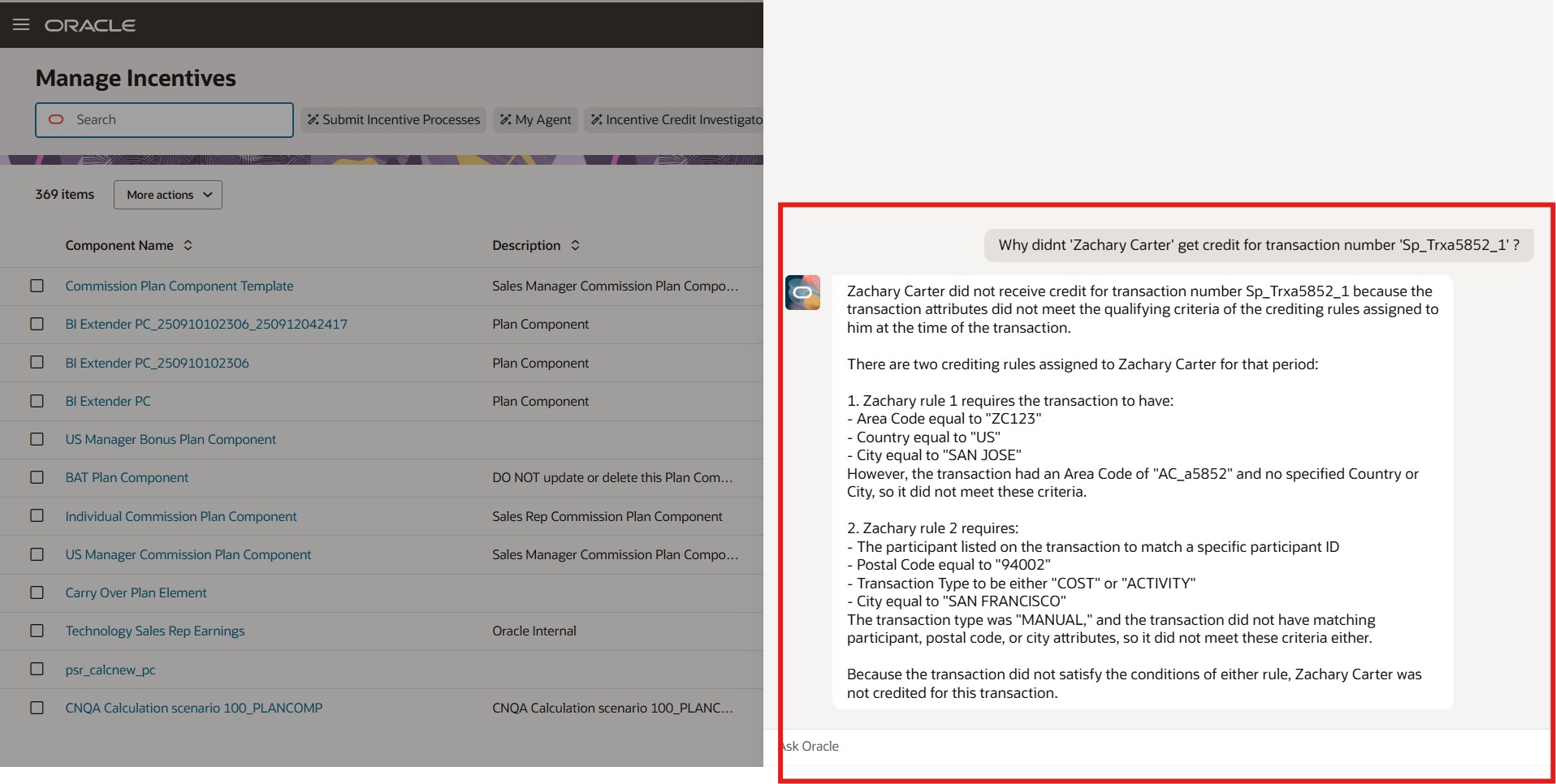
Interact with Credit Investigator Agent
Save time and increase efficiency by letting the agent do all the investigation for you.
Steps to enable and configure
Enabling and Publishing the Agent
- Navigate to AI Agent Studio & Search for agents within the product Incentive Compensation.
- Copy the Incentive Compensation Credit Investigation Assistant Template.
- Give the agent a Suffix
- Once the Agent Editor opens click "Publish"
Exposing the Agent in the UI
- Create a Sandbox by navigating to Configuration - Sandboxes and ensure it:
- it is publishable
- it includes Application Composer as a tool.
- Enter the newly created Sandbox
- Open the Application Composer Tool by navigating to Tools - Application Composer
- Access "Smart Actions" within application composer
- Click "Create" to create a new smart action.
- Select "Global Action".
- Provide a name for the smart action. Example: Investigate Incentive Credits.
- Select "Sales" as the application
- Under parent object select from "Plan Components" or "Compensation Dashboard" depending on where you would like to make the agent visible.
- Select Action Type as "Agent Team" and Agent Team Code as the Agent Team you published in the step above.
- Leave the Confirmation message After Action Execution blank and click Continue.
- Click "Submit"
- Publish the Sandbox
- The Agent will now be ready for use in the selected pages.
Tips and considerations
You can duplicate the agent in Agent Studio and customize the prompt tailored to your organization's needs if you choose to do so.
Access requirements
- Incentive Compensation Plan Administrator.
- Incentive Compensation Analyst.
- Incentive Compensation Manager.