Account Address Picker Support in CX Sales Mobile
CX Sales Mobile App now supports Account Address pickers, enabling sellers to add customer site addresses to Opportunities, Leads, or other supported standard or custom objects directly from Mobile.
Sellers can search for addresses using Account names or address keywords, refine results with Account saved searches, and apply available sort options to quickly identify the correct site. Selecting an address auto-populates the related Account and configured address attribute.
This is enabled via custom Address Dynamic Choice Lists (DCLs) referencing the Address object. Administrators can configure single or multiple DCL fields—such as Bill To and Ship To—and expose them on layouts using Application Composer.
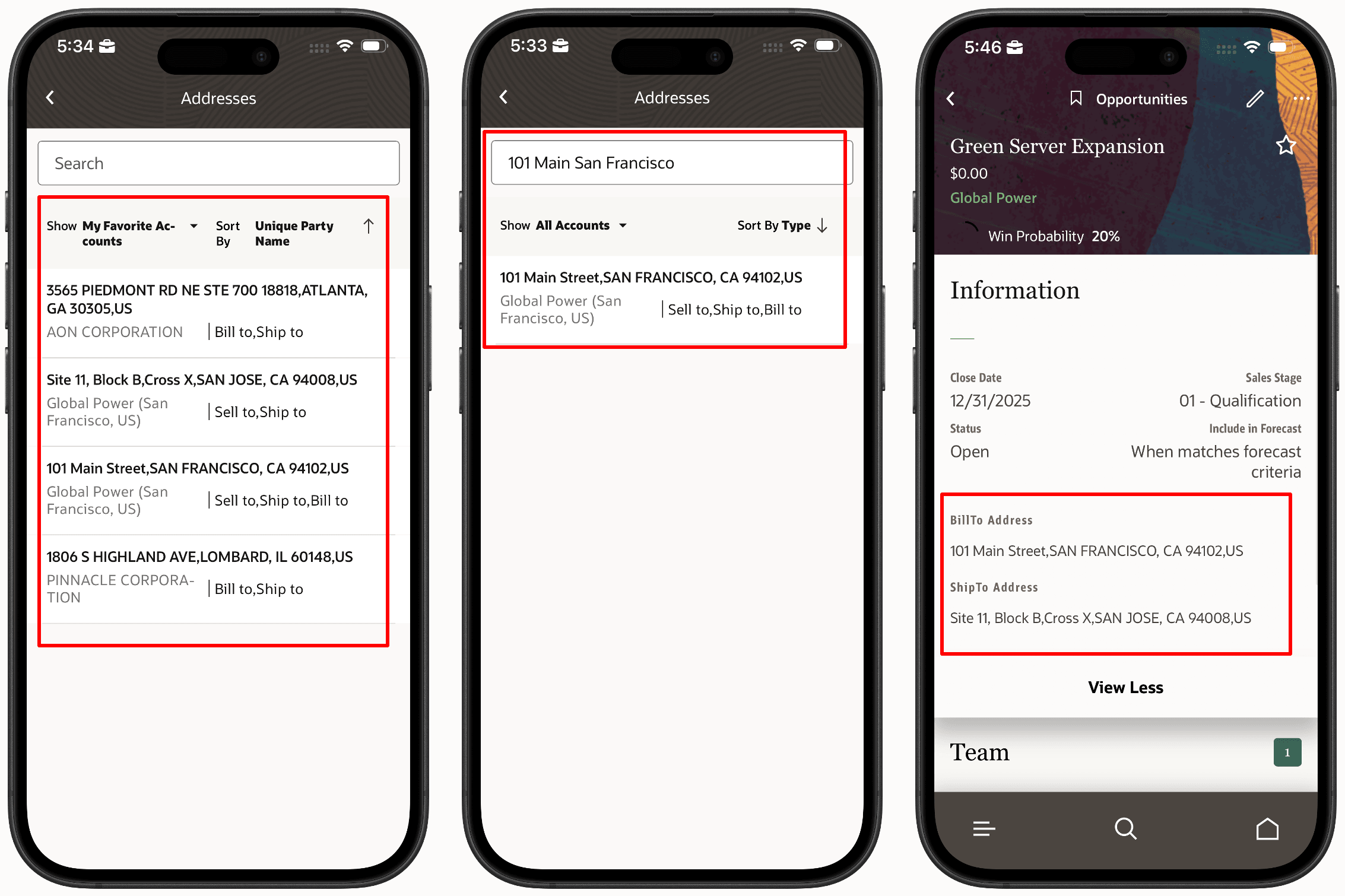
Account Address Picker in Oracle CX Sales Mobile
As a direct benefit, capturing addresses at the Opportunity stage enables precise scoping for multi-site customers and streamlines downstream processes from quoting through order fulfillment.
Steps to enable and configure
Leverage Application Composer to expose and adjust page layout and attributes. To learn more about extending your application using Application Composer, visit Oracle Help Center > your apps service area of interest > Books > Configuration and Extension.
To enable on Opportunity (same steps for other supported standard/custom objects on Mobile):
- Configure Dynamic Choice List (DCL) field(s)
- In a publishable sandbox, navigate to Application Composer > Standard Objects > Opportunity > Fields
- Create new field > Select DCL
- Set Related Object to Address
- Choose a List Selection Display Value. For example, Site Number or custom formatted address field
- Click Submit
- Add DCL field(s) to Mobile layouts
- In Application Composer, go to Mobile Application Setup > Opportunity
- Add the created DCL fields to Edit and Summary/Detail layouts
- Click Save
- Publish the sandbox
Tips and considerations
- If using a custom Address attribute as List Selection Display Value, make sure it is marked as Required and Searchable
- Make sure to index Address Type field so it appears in the Address picker